---
title: Post Upgrade Tasks for 12.3.1
description: "Tags: Documentation\n\n\n\n\n\n\n\n\n \n\n\n\n\n\n\n\n\n\n\nPerform Post Upgrade Tasks\nThis topic lists the tasks you must perform after upgrading NetWitness Platfor"
---
[Skip to content](https://mydev.netwitness.com/knowledge-base/postupgradetasksfor12-3-1#main-content)

- [Home](https://mydev.netwitness.com/home)
- Integrations
Show submenu for Integrations
- [Netwitness Platform Integrations](https://mydev.netwitness.com/netwitnessplatformintegrations)
- [Third Party Integrations](https://mydev.netwitness.com/thirdpartyintegrations)
- [Knowledge Center](https://mydev.netwitness.com/knowledge-base)
- Community
Show submenu for Community
- [Blogs](https://mydev.netwitness.com/netwitness-security-llc-blog)
- Discussions
- Customers
Show submenu for Customers
- [Manage Products and Licenses](https://mydev.netwitness.com/nwportal)
- Downloads
- Partners
Show submenu for Partners
- [Partner Program](https://mydev.netwitness.com/partner)
- [Partner Resources](https://mydev.netwitness.com/partnerresources)
- [Submit a New Deal Registration](https://mydev.netwitness.com/dealregistration)
- [Become a Partner](https://mydev.netwitness.com/becomeapartner)
- [Update Your Partner Locator Profile](https://www.netwitness.com/partner-locator/?utm_source=pardotnewsletter&utm_medium=email&utm_campaign=partner_march)
- [NetWitness LinkedIn Partner Hub](https://linkedin.com/showcase/netwitnesspartners/)
- Education
Show submenu for Education
- [Instructor Led Training Schedule](https://mydev.netwitness.com/instructorledtrainingschedule)
- [NetWitness Training Catalog](https://mydev.netwitness.com/netwitnesstrainingcatalog)
- [Security Awareness Training](https://mydev.netwitness.com/securityawarenesstraining)
- [New Product Readiness](https://mydev.netwitness.com/newproductreadiness)
- [On-Demand Virtual Labs](https://mydev.netwitness.com/ondemandvirtuallabs)
- [Additional Training Information](https://mydev.netwitness.com/additionaltraininginformation)
- [Frequently Asked Questions](https://mydev.netwitness.com/educationfaq)
- [Contact NetWitness Education Team](https://mydev.netwitness.com/contact-netwitness-education-team)
- Support
Show submenu for Support
- [Contact Support](https://mydev.netwitness.com/contact-support)
- [Create a New Case](https://mydev.netwitness.com/create-support-case)
- [View My Cases](https://mydev.netwitness.com/viewmycase)
- [Product Version Life Cycle](https://mydev.netwitness.com/product-version-life-cycle)
- [Warranty & Replacement Parts](https://mydev.netwitness.com/warranty-and-replacement-parts)
- [Community Support Forum](https://mydev.netwitness.com/community-support-forum)
- [Technical Support Guide](https://mydev.netwitness.com/technical-support-guide)
Open main navigation
Close main navigation
- [Home](https://mydev.netwitness.com/home)
- Integrations
Show submenu for Integrations
- [Netwitness Platform Integrations](https://mydev.netwitness.com/netwitnessplatformintegrations)
- [Third Party Integrations](https://mydev.netwitness.com/thirdpartyintegrations)
- [Knowledge Center](https://mydev.netwitness.com/knowledge-base)
- Community
Show submenu for Community
- [Blogs](https://mydev.netwitness.com/netwitness-security-llc-blog)
- Discussions
- Customers
Show submenu for Customers
- [Manage Products and Licenses](https://mydev.netwitness.com/nwportal)
- Downloads
- Partners
Show submenu for Partners
- [Partner Program](https://mydev.netwitness.com/partner)
- [Partner Resources](https://mydev.netwitness.com/partnerresources)
- [Submit a New Deal Registration](https://mydev.netwitness.com/dealregistration)
- [Become a Partner](https://mydev.netwitness.com/becomeapartner)
- [Update Your Partner Locator Profile](https://www.netwitness.com/partner-locator/?utm_source=pardotnewsletter&utm_medium=email&utm_campaign=partner_march)
- [NetWitness LinkedIn Partner Hub](https://linkedin.com/showcase/netwitnesspartners/)
- Education
Show submenu for Education
- [Instructor Led Training Schedule](https://mydev.netwitness.com/instructorledtrainingschedule)
- [NetWitness Training Catalog](https://mydev.netwitness.com/netwitnesstrainingcatalog)
- [Security Awareness Training](https://mydev.netwitness.com/securityawarenesstraining)
- [New Product Readiness](https://mydev.netwitness.com/newproductreadiness)
- [On-Demand Virtual Labs](https://mydev.netwitness.com/ondemandvirtuallabs)
- [Additional Training Information](https://mydev.netwitness.com/additionaltraininginformation)
- [Frequently Asked Questions](https://mydev.netwitness.com/educationfaq)
- [Contact NetWitness Education Team](https://mydev.netwitness.com/contact-netwitness-education-team)
- Support
Show submenu for Support
- [Contact Support](https://mydev.netwitness.com/contact-support)
- [Create a New Case](https://mydev.netwitness.com/create-support-case)
- [View My Cases](https://mydev.netwitness.com/viewmycase)
- [Product Version Life Cycle](https://mydev.netwitness.com/product-version-life-cycle)
- [Warranty & Replacement Parts](https://mydev.netwitness.com/warranty-and-replacement-parts)
- [Community Support Forum](https://mydev.netwitness.com/community-support-forum)
- [Technical Support Guide](https://mydev.netwitness.com/technical-support-guide)
How can we help you?
- There are no suggestions because the search field is empty.
1. [NetWitness Knowledge Base](https://mydev.netwitness.com/knowledge-base?hsLang=en)
2. [Documentation](https://mydev.netwitness.com/knowledge-base/documentation?hsLang=en)
April 26, 2026
# Post Upgrade Tasks for 12.3.1
**Tags:** Documentation
## Perform Post Upgrade Tasks
This topic lists the tasks you must perform after upgrading NetWitness Platform. Complete the tasks that apply to the hosts in your environment.
- [General](https://mydev.netwitness.com/knowledge-base/postupgradetasksfor12-3-1#General1)
- [Event Stream Analysis (ESA)](https://mydev.netwitness.com/knowledge-base/postupgradetasksfor12-3-1#ESA1)
- [Respond](https://mydev.netwitness.com/knowledge-base/postupgradetasksfor12-3-1#Respond1)
- [User Entity Behavior Analytics](https://mydev.netwitness.com/knowledge-base/postupgradetasksfor12-3-1#User_Entity_Behavior_Analytics1)
- [Legacy Windows Log Collector](https://mydev.netwitness.com/knowledge-base/postupgradetasksfor12-3-1#Legacy)
## General
You must configure Jetty, restore the core services contents, and also start Network capture, Log capture, and aggregation after upgrading NetWitness Platform.
### Configure Jetty
For Jetty Configuration and related information, see **Manage Custom Host Entries** topic in the *[System Maintenance Guide](https://50269063.hs-sites.com/knowledge-base/SystemMaintenanceGuidefor12-3?hsLang=en)*.
### Make Sure Services Have Restarted and Are Capturing and Aggregating Data
Make sure that services have restarted and are capturing data (this depends on whether or not you have auto-start enabled).
If required, restart data capture and aggregation for the following services:
- Decoder
- Log Decoder
- Broker
- Concentrator
- Archiver
To Start Network Capture:
1. In the NetWitness Platform menu, go to (Admin) \> **Services**.
The **Services** view is displayed.
2. Select each **Decoder** service.
3. Under (actions), select **View** \> **System**.
4. In the toolbar, click 
To Start Log Capture:
- 1. In the NetWitness Platform menu, go to (Admin) \> **Services**.
The **Services** view is displayed.
2. Select each **Log Decoder** service.
3. Under (actions), select **View** \> **System**.
4. In the toolbar, click 
To Start Aggregation:
1. In the NetWitness Platform menu, go to (Admin) \> **Services**.
The **Services** view is displayed.
2. For each **Concentrator**, **Broker**, and **Archiver** service:
1. Select the service.
2. Under (actions), select **View** \> **Config**.
3. In the toolbar, click 
3. For Event Stream Analysis (ESA):
**Note:** Mixed mode is not supported for ESA hosts in NetWitness Platform version 11.6 and later. The NetWitness server, ESA primary host, and ESA secondary host must all be on the same NetWitness Platform version.
There are no required post-upgrade tasks for ESA. For ESA troubleshooting, see [ESA Troubleshooting Information](https://community.netwitness.com/Trblshtg_12110.htm#ESAtroubleshooting).
If you want to add support for Endpoint, UEBA, and Live content rules, you must update the multi-valued and single-valued parameter meta keys on the ESA Correlation service to include all the required meta keys. It is not necessary to make these adjustments during the upgrade; you can make the adjustments later at a convenient time. For detailed information and instructions, see **Update Your ESA Rules for the Required Multi-Value and Single-Value Meta Keys** in the *[ESA Configuration Guide](https://50269063.hs-sites.com/knowledge-base/ESAConfigurationGuidefor12-3?hsLang=en)*.
### Restore the Core Services Contents
Once you upgrade to 12.3.1.0, the Core services Contents such as Configuration files (.cfg), Feeds, Parsers, and Log Devices are copied to the **.tar** location of the respective components such as Decoder, Log Hybrid, Network Hybrid, and Log Decoder.
The following table lists the Core Services Contents paths and the **.tar** location of the respective components where the Core Services Contents are copied.
By default, CCM option is disabled. After upgrading to 12.3.1.0, if you enable CCM and encounter the loss of the Core Services Contents, you can use the backup tar files to recover the lost data. For more information, see [https://community.netwitness.com/t5/netwitness-knowledge-base/automatic-backup-of-core-service-content-after-upgrading-core/ta-p/694527](https://community.netwitness.com/t5/netwitness-knowledge-base/automatic-backup-of-core-service-content-after-upgrading-core/ta-p/694527).
## Event Stream Analysis (ESA)
After upgrading to the 12.3.1.0 version, all the ESA deployments will be migrated to (**CONFIGURE**) \> **Policies** page. Each deployment will be converted into a policy and group and will be available to manage only after the upgrade of the Correlation servers to the 12.3.1.x version. Make sure that you plan the upgrade process so that Correlation servers are upgraded immediately after the Admin Server is done. The deployments will not be accessible until the corresponding Correlation servers are upgraded. However, the correlation servers will still continue to process the Alerts and Events. Verify if all the ESA deployments are in a healthy state. For more information, see **View a Deployment** topic in the *Live Services Management Guide*.
**Note:** Analysts must have appropriate permissions to view the ESA rules under (**CONFIGURE**) \> **ESA Rules** and (**CONFIGURE**) \> **Policies** pages. For more information, see the **Source-server** section in the **Role Permissions** topic in the *System Security and User Management Guide*.
The pre-upgrade and post-upgrade states of deployments are represented in the following table.
(Optional) Using the **Merge Policy** button, you can merge a policy having ESA content with a policy with no ESA content. For more information, see **Merge Policy with ESA Content** topic in the *Live Services Management Guide*.
### Manage ESA Deployments and Data Sources
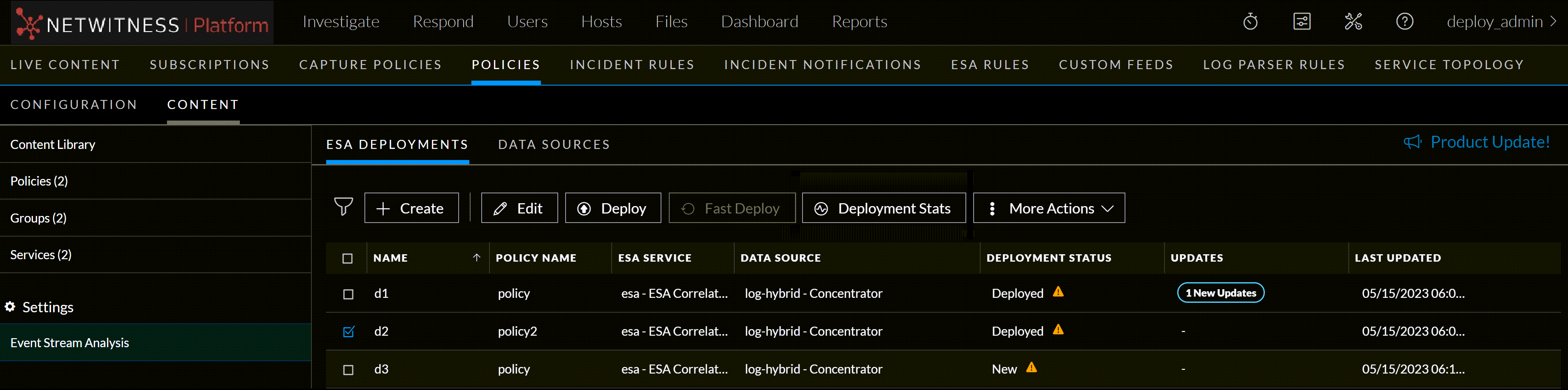
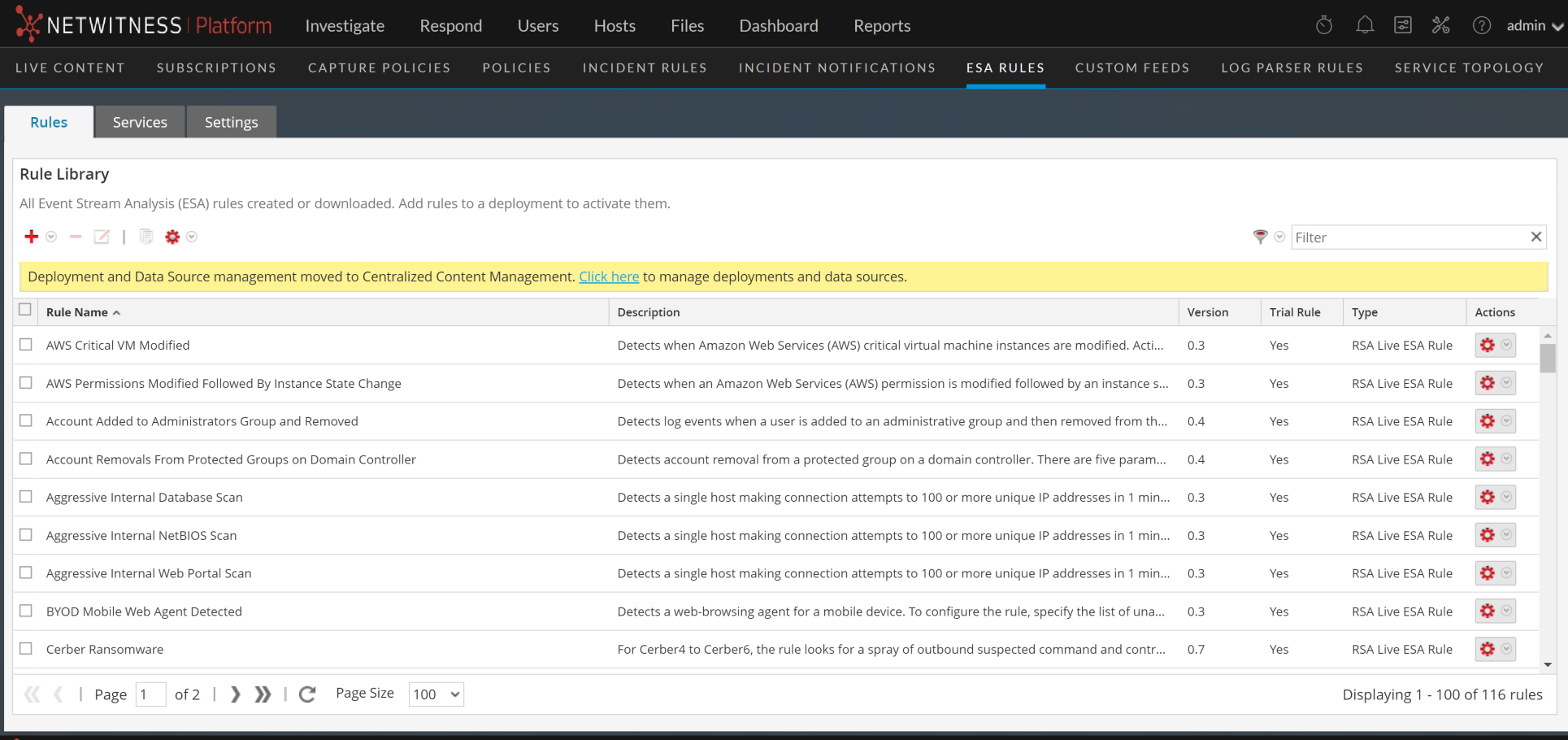
In 12.1 and later versions, you can only manage the ESA deployments and Data Sources through **Centralized Content Management**. Go to (**CONFIGURE**) \> **Policies** \> **Content** \> **Event Stream Analysis** page to manage the ESA deployments and Data Sources. You can only manage the ESA Rules in the **ESA Rules** page. Refer the following figures.
You must upgrade the ESA hosts immediately after upgrading the Admin Server.
For more information on **Centralized Content Management** and managing the deployments, see [Centralized Content Management Guide for NetWitness](https://50269063.hs-sites.com/knowledge-base/CentralizedContentManagementGuidefor12-3?hsLang=en).
## Respond
The Primary ESA server must be upgraded to 12.3.1.0 before you can complete the following task.
**Note:** After upgrading the primary NW Server (including the Respond Server service), the Respond Server service is not automatically re-enabled until after the Primary ESA host is also upgraded to 12.3.1.0. The Respond post-upgrade tasks only apply after the Respond Server service is upgraded and is in the enabled state.
### (Conditional) Restore Any Respond Service Custom Keys in the custom\_normalize\_alerts.js and support new datasource
**Note:** If you did not manually customize the custom\_normalize\_alerts.js, you can skip this task. We attempt to automatically migrate the custom keys. However in case of failures, use this step to verify the custom data's integrity.
If you added custom keys in the /var/netwitness/respond-server/scripts/custom\_normalize\_alerts.js file for use in custom normailization, modify the /var/netwitness/respond-server/scripts/custom\_normalize\_alerts.js file and add the custom normalized keys from the automatic backup file. The backup file is located in /var/netwitness/respond-server/scripts and it is in the following format:
custom\_normalize\_alerts.js.bak-
In case of automatic update of the script fails, add support for Netwitness Core and NetWitness Insight by updating the custom\_normalize\_alerts.js file manually to support these new sources in respond.
## User Entity Behavior Analytics
Complete the following tasks after upgrading UEBA to 12.3.1.0.
**IMPORTANT:** After you upgrade the UEBA host to version 12.3.1.0, you must first install the hotfix of 12.3.1.0 and then proceed with the post-upgrade tasks. For more information on installing the hotfix related to the UEBA host in 12.3.1.0, please contact the [NetWitness Customer Support](https://community.netwitness.com/t5/support-information/how-to-contact-netwitness-support/ta-p/563897) team..
**IMPORTANT:** Every UEBA deployment when upgraded requires additional steps to complete the upgrade process. When you upgrade from 11.6.x to 11.6.x.x, you must follow UEBA instructions in the Upgrade Guide for 11.6.x.x, before you upgrade to 11.7.x.
1. Update the UEBA configuration using the following command from the UEBA machine.
source /etc/sysconfig/airflow
source $AIRFLOW\_VENV/bin/activate
OWB\_ALLOW\_NON\_FIPS=on python /var/netwitness/presidio/airflow/venv/lib/python2.7/site-packages/presidio\_workflows-1.0-py2.7.egg/presidio/resources/rerun\_ueba\_server\_config.py
1. (Optional) Update the UEBA processing schema, if needed.
NetWitness recommends that the UEBA start date is set to 28 days earlier than the current date. For UEBA systems that intend to process TLS data, you must make sure that the start date is set to no later than 14 days earlier than the current date.
For more information, see the "reset-presidio script" section in the *UEBA Configuration Guide*.
2. Run the airflow upgrade DAG.
- Go to Airflow main page https:// /admin
- Enter the admin username and password.
- Click the **Play** in presidio\_upgrade\_dag\_from\_ to\_12.3.1.0.
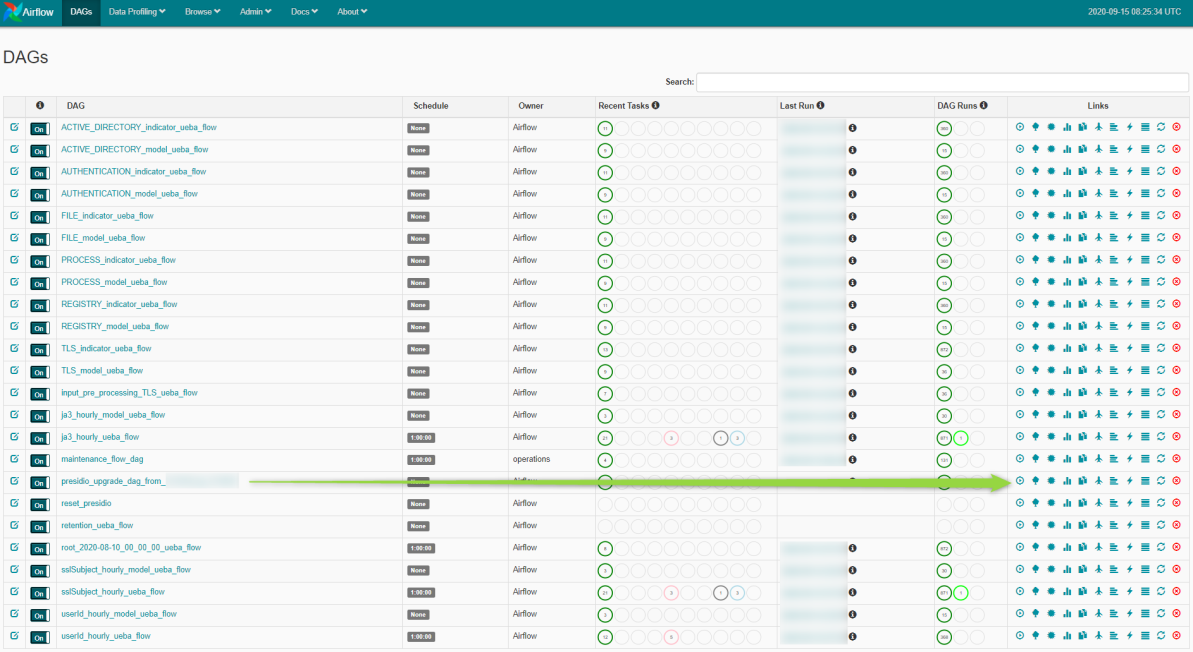
**Note:** A light green circle will appear next to the upgrade DAG row during the upgrade. If the upgrade process is completed successfully the light green circle changes to green. If the upgrade process fails, the light green circle changes to red.
3. Set the appropriate "Boot Jar Pools" slots:
- **Physical Appliance**: Update the spring\_boot\_jar\_pool slot value be 18.
- **Virtual Appliance**: Update the spring\_boot\_jar\_pool slot value to 22.
To update the **Spring Boot Jar Pools** slots, go to the Airflow main page, tap the **Admin** tab at the top bar and tap **Pools**.
1. To access the Airflow UI, go to https:// /admin and enter the credentials.
User: admin
Password: The environment deploy admin password.
1. Click on the pencil mark of the Pools to update the slot values.
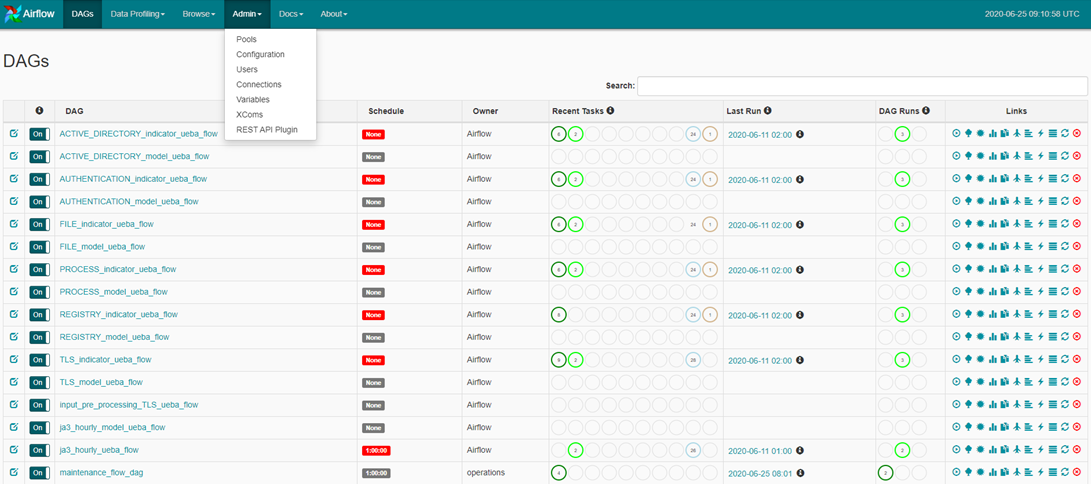
4. Edit the spring\_boot\_jar\_pool and update the slots amount to 22.

5. Import the Elasticsearch presidio data after upgrading the UEBA host from 12.0.0.0 or older versions to 12.3.1.0. Make sure the following prerequisites are met before you import the Elasticsearch presidio data:
- Elasticsearch version must be upgraded to 7.15.2 from 5.5.0.
- UEBA host must be upgraded to 12.3.1.0
- UEBA rpm version must be 12.3.1.0.
- Elasticsearch data in 12.0.0.0 or older versions must be exported and stored in the Elasticsearch data backup folder located in the /root/ directory.
To import the Elasticsearch data:
1. Go to cd ueba\_es\_migration\_tool. Run the following command.
sh elk-migration-script.sh
The Elasticsearch migration tool guide is displayed.
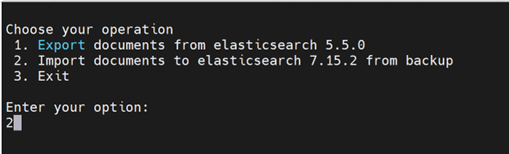
2. Select **Import documents to elasticsearch 7.15.2 from backup**.
3. In the next step, select **Fresh Import** to import the backup data.
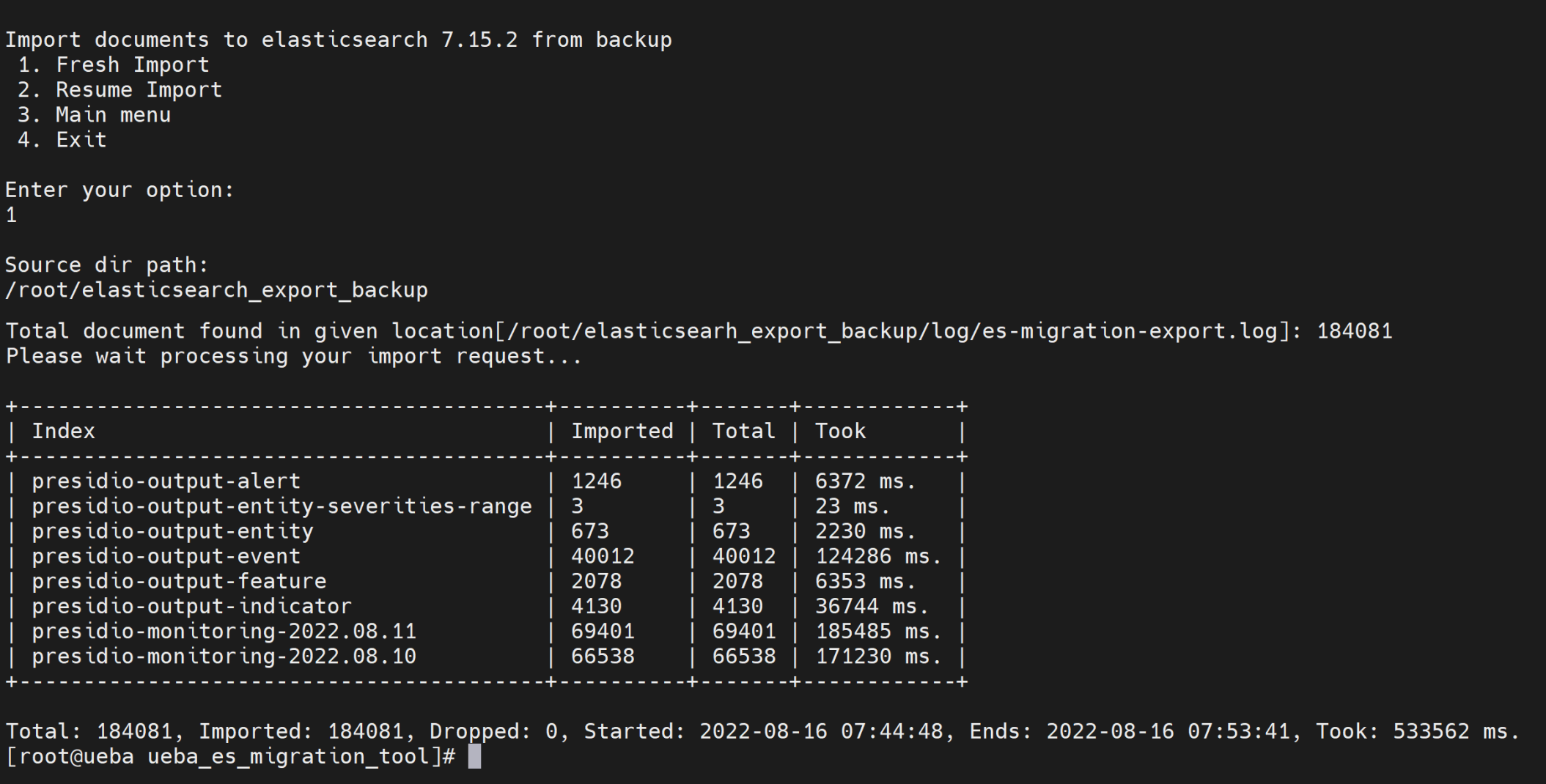
4. Restart the Presidio UI service once the Import operation is completed. Run the following command.
systemctl restart presidio-ui
5. Go to the NetWitness Platform **Users** tab and verify if all the Elasticsearch data is imported.
**Note:**
\- Go to /log/log/es-migration-import.log if you want to view the log for any exceptions.
\- If the Import operation fails due to some technical issue, select **Resume Import** once the issue is resolved, to resume the Import operation.
## Legacy Windows Log Collector
### Update the Legacy Windows Log Collector UUID
After upgrading to 12.3.1.0, for each Legacy Windows Log Collector configured in your environment, run the following command on the NW Server:
wlc-cli-client --update-to-uuid --host
#### Refresh Legacy Windows Log Collector Certificates with Updated SA Certificates
**Post Upgrade Steps:**
1. Execute the following command in SA:
1. wlc-cli-client --host-display-name **hostDisplayName** --service-display-name **serviceDisplayName** --host **WLChostIPAddress** --port 50101 --use-ssl false
Enter following information:
1. **Legacy Windows Log Collector REST Username and Legacy Windows Log Collector REST Password**: Enter the admin credentials for the Legacy Windows Log Collector.
2. **Security Server Username and Security Server Password**: Enter admin credentials for NetWitness.
2. Restart the system.
## Perform Sanity Checks After Upgrade
You must perform the following sanity checks after upgrading to NetWitness 12.3.1.0.
1. Go to (Admin) \> **Services** view to verify that all the services are active (appearing in green) after upgrade.
2. Verify that the services are upgraded to match the host version. The service version in (Admin) \> **Services** view must match the host version in (Admin) \> **Hosts** view after upgrade.
3. In the (Admin) \> **Services** view, do the following.
- Select a Log Collector service and go to (actions) \> **View** \> **System** view to verify if the required logs collection is started. You should click the drop-down option and go to the right collection protocol to check if the logs collection is started. If the required collection is not started, select next to the required collection protocol from the list to start the collection.
- Select a Log Decoder service and go to (actions) \> **View** \> **System** view to verify if the Log Decoder is capturing the logs properly.
- Select a Packet Decoder service and go to (actions) \> **View** \> **Config** view to check if the capture interface is configured under **Decoder Configuration** section. If the capture interface is not configured, you must select the required capture interface from the drop-down list to configure it. If the capture interface is already configured, go to the (actions) \> **View** \> **System** view of the Packet Decoder and check if the capture is started. If the capture is not started, click to start the packet capture.
[](https://mydev.netwitness.com/?hsLang=en)
Copyright © 2026, NetWitness LLC. All rights reserved.
[NetWitness Platform](https://www.netwitness.com/)
[Acceptable Use Policy](https://www.netwitness.com/wp-content/uploads/Acceptable-Use-Policy-092022.pdf) [Privacy Statement](https://www.netwitness.com/wp-content/uploads/NetWitness-Privacy-Statement-07292024.pdf)

[](https://www.linkedin.com/company/netwitness-platform/) [](https://www.youtube.com/@netwitness)
© 2026 NetWitness LLC. All rights reserved.