---
title: Migrate Data to Another Storage Type
description: "Migrate Data to Another Storage Type This section provides two options for moving data from DACs to PowerVaults: Migrate Data Using the Warm and Hot"
---
[Skip to content](https://mydev.netwitness.com/knowledge-base/migratedatatoanotherstoragetype#main-content)

- [Home](https://mydev.netwitness.com/home)
- Integrations
Show submenu for Integrations
- [Netwitness Platform Integrations](https://mydev.netwitness.com/netwitnessplatformintegrations)
- [Third Party Integrations](https://mydev.netwitness.com/thirdpartyintegrations)
- [Knowledge Center](https://mydev.netwitness.com/knowledge-base)
- Community
Show submenu for Community
- [Blogs](https://mydev.netwitness.com/netwitness-security-llc-blog)
- Discussions
- Customers
Show submenu for Customers
- [Manage Products and Licenses](https://mydev.netwitness.com/nwportal)
- Downloads
- Partners
Show submenu for Partners
- [Partner Program](https://mydev.netwitness.com/partner)
- [Partner Resources](https://mydev.netwitness.com/partnerresources)
- [Submit a New Deal Registration](https://mydev.netwitness.com/dealregistration)
- [Become a Partner](https://mydev.netwitness.com/becomeapartner)
- [Update Your Partner Locator Profile](https://www.netwitness.com/partner-locator/?utm_source=pardotnewsletter&utm_medium=email&utm_campaign=partner_march)
- [NetWitness LinkedIn Partner Hub](https://linkedin.com/showcase/netwitnesspartners/)
- Education
Show submenu for Education
- [Instructor Led Training Schedule](https://mydev.netwitness.com/instructorledtrainingschedule)
- [NetWitness Training Catalog](https://mydev.netwitness.com/netwitnesstrainingcatalog)
- [Security Awareness Training](https://mydev.netwitness.com/securityawarenesstraining)
- [New Product Readiness](https://mydev.netwitness.com/newproductreadiness)
- [On-Demand Virtual Labs](https://mydev.netwitness.com/ondemandvirtuallabs)
- [Additional Training Information](https://mydev.netwitness.com/additionaltraininginformation)
- [Frequently Asked Questions](https://mydev.netwitness.com/educationfaq)
- [Contact NetWitness Education Team](https://mydev.netwitness.com/contact-netwitness-education-team)
- Support
Show submenu for Support
- [Contact Support](https://mydev.netwitness.com/contact-support)
- [Create a New Case](https://mydev.netwitness.com/create-support-case)
- [View My Cases](https://mydev.netwitness.com/viewmycase)
- [Product Version Life Cycle](https://mydev.netwitness.com/product-version-life-cycle)
- [Warranty & Replacement Parts](https://mydev.netwitness.com/warranty-and-replacement-parts)
- [Community Support Forum](https://mydev.netwitness.com/community-support-forum)
- [Technical Support Guide](https://mydev.netwitness.com/technical-support-guide)
Open main navigation
Close main navigation
- [Home](https://mydev.netwitness.com/home)
- Integrations
Show submenu for Integrations
- [Netwitness Platform Integrations](https://mydev.netwitness.com/netwitnessplatformintegrations)
- [Third Party Integrations](https://mydev.netwitness.com/thirdpartyintegrations)
- [Knowledge Center](https://mydev.netwitness.com/knowledge-base)
- Community
Show submenu for Community
- [Blogs](https://mydev.netwitness.com/netwitness-security-llc-blog)
- Discussions
- Customers
Show submenu for Customers
- [Manage Products and Licenses](https://mydev.netwitness.com/nwportal)
- Downloads
- Partners
Show submenu for Partners
- [Partner Program](https://mydev.netwitness.com/partner)
- [Partner Resources](https://mydev.netwitness.com/partnerresources)
- [Submit a New Deal Registration](https://mydev.netwitness.com/dealregistration)
- [Become a Partner](https://mydev.netwitness.com/becomeapartner)
- [Update Your Partner Locator Profile](https://www.netwitness.com/partner-locator/?utm_source=pardotnewsletter&utm_medium=email&utm_campaign=partner_march)
- [NetWitness LinkedIn Partner Hub](https://linkedin.com/showcase/netwitnesspartners/)
- Education
Show submenu for Education
- [Instructor Led Training Schedule](https://mydev.netwitness.com/instructorledtrainingschedule)
- [NetWitness Training Catalog](https://mydev.netwitness.com/netwitnesstrainingcatalog)
- [Security Awareness Training](https://mydev.netwitness.com/securityawarenesstraining)
- [New Product Readiness](https://mydev.netwitness.com/newproductreadiness)
- [On-Demand Virtual Labs](https://mydev.netwitness.com/ondemandvirtuallabs)
- [Additional Training Information](https://mydev.netwitness.com/additionaltraininginformation)
- [Frequently Asked Questions](https://mydev.netwitness.com/educationfaq)
- [Contact NetWitness Education Team](https://mydev.netwitness.com/contact-netwitness-education-team)
- Support
Show submenu for Support
- [Contact Support](https://mydev.netwitness.com/contact-support)
- [Create a New Case](https://mydev.netwitness.com/create-support-case)
- [View My Cases](https://mydev.netwitness.com/viewmycase)
- [Product Version Life Cycle](https://mydev.netwitness.com/product-version-life-cycle)
- [Warranty & Replacement Parts](https://mydev.netwitness.com/warranty-and-replacement-parts)
- [Community Support Forum](https://mydev.netwitness.com/community-support-forum)
- [Technical Support Guide](https://mydev.netwitness.com/technical-support-guide)
How can we help you?
- There are no suggestions because the search field is empty.
1. [NetWitness Knowledge Base](https://mydev.netwitness.com/knowledge-base?hsLang=en)
2. [Documentation](https://mydev.netwitness.com/knowledge-base/documentation?hsLang=en)
April 7, 2026
# Migrate Data to Another Storage Type
## Migrate Data to Another Storage Type
This section provides two options for moving data from DACs to PowerVaults:
[Migrate Data Using the Warm and Hot Tier Option](https://mydev.netwitness.com/knowledge-base/migratedatatoanotherstoragetype#Migrate)
[Move Data From DAC to PowerVault](https://mydev.netwitness.com/knowledge-base/migratedatatoanotherstoragetype#Move)
Refer to the Hardware Setup Guides on [NetWitness Community](https://community.netwitness.com/t5/netwitness-platform-hardware/tkb-p/netwitness-hardware-documentation) for detailed instructions for setting up NetWitness Platform host and storage hardware.
## Migrate Data Using the Warm and Hot Tier OptionMigrate Data Using the Warm and Hot Tier Option
In this procedure, you configure a warm tier for the DAC's, so that they do not write any new data. The warm tier continues to be available for analyst operations. You configure the PowerVaults as a hot tier, where new data can be written and available for analysts. When the required data retention is available on the hot tier, the warm tier can be decommissioned.
To set up the warm and hot tiers, perform the following tasks:
- [Stop the Service](https://mydev.netwitness.com/knowledge-base/migratedatatoanotherstoragetype#Stop)
- [Set Up PowerVault](https://mydev.netwitness.com/knowledge-base/migratedatatoanotherstoragetype#Set)
- [Configure The Mount Points](https://mydev.netwitness.com/knowledge-base/migratedatatoanotherstoragetype#Configur)
- [Set up Warm and Hot Tiers](https://mydev.netwitness.com/knowledge-base/migratedatatoanotherstoragetype#Set2)
- [Decommission the DAC](https://mydev.netwitness.com/knowledge-base/migratedatatoanotherstoragetype#Decommis)
### Stop the ServiceStop the Service
1. Log in to the NetWitness Platform user interface.
2. Go to  (Admin) \> **SERVICES** and select the service (for example, Log Decoder).
3. Click  \> **View** \> **Config**, and under Log Decoder Configuration, clear the **Capture Autostart** checkbox, and then click **Apply**.
4. In the menu bar, click the down arrow next to **Config**, select **System**, and at the top of the panel, click **Stop Capture**.
5. From the command line interface in NwConsole, stop the service by running the following command:
systemctl stop nwlogdecoder
### Set Up PowerVaultSet Up PowerVault
1. Go to the REST API for the service by entering the IP address of the service, in this example, the Log Decoder. For example, 172.16.0.1:50106.
2. Click the asterisk (\*) next to the service. for example, **decoder (\*)**.
3. Under **Properties for /decoder**, click the down arrow, select **RaidNew** and enter the following parameters, entering the name of the service for scheme. In this example, we use logdecoder.
controller=1 enclosure=75 scheme=logdecoder commit=1
4. Click **Send**.
5. To configure the partitions, click the down arrow again, select **PartNew**, and enter the following parameters,
name=sde service=logdecoder volume=logdecodersmall commit=1
6. Click **Send**.
7. With **PartNew** still selected, enter the following parameters:
name=sdf service=logdecoder volume=logdecoder commit=1
**Note:** To validate the partition definitions before committing them, you can enter these parameters without commit=1, and click **Send**. After you validate the parameters, add #commit=1 and then click **Send** to commit the parameter settings.
### Configure The Mount Points Configure The Mount Points
1. On the NwConsole at the root level of the service (for example, the Log Decoder), run df -h.
A list of mounted partitions is displayed.
2. Unmount all of the old storage points of the DAC and copy all the data to the Log Decoder. At the root level, run the umount command and the path name of each partition. You can concatenate the path names, for example:
umount /var/netwitness/logdecoder/index /var/netwitness/logdecoder/sessiondb /var/netwitness/logdecoder/metadb /var/netwitness/logdecoder/packetdb /var/netwitness/logdecoder/index0 /var/netwitness/logdecoder/sessiondb0 /var/netwitness/logdecoder/metadb0 /var/netwitness/logdecoder/packetdb0
3. Temporarily mount the partitions in the decoroot folder in the /mnt directory in order to access the files. For example:
mount /dev/mapper/logdecodersmall-decoroot /mnt/decoroot/
4. Copy the contents of decoroot from /mnt to /var/netwitness/logdecoder, answering Y (yes) to the prompts:
cp -R statdb /var/netwitness/logdecoder/
5. Unmount /mnt/decoroot.
umount /mnt/decoroot
6. Comment out decoroot from /etc/fstab, as this was on the DAC and the DAC will be decommissioned.
#/dev/logdecodersmall/decoroot /var/netwitness/logdecoder/xfs/noatime,nosuid 1 2
7. Mount all the remaining file systems.
mount -a
8. Start the nwlogdecoder service (with capture still disabled).
systemctl start nwlogdecoder
### Set up Warm and Hot TiersSet up Warm and Hot Tiers
**Caution:** Before you set up warm and hot tiers, be sure that you know the right warm and hot tier entries for each collection so that you can set them up accurately.
1. Go to  (Admin) \> **SERVICES** and select the service (for example, Log Decoder).
2. For the Log Decoder service, click  \> **View** \> **Explore**, and go to **database** \> **config**.
1. Copy the contents of meta.dir and paste them to meta.dir.warm as shown in the following example:
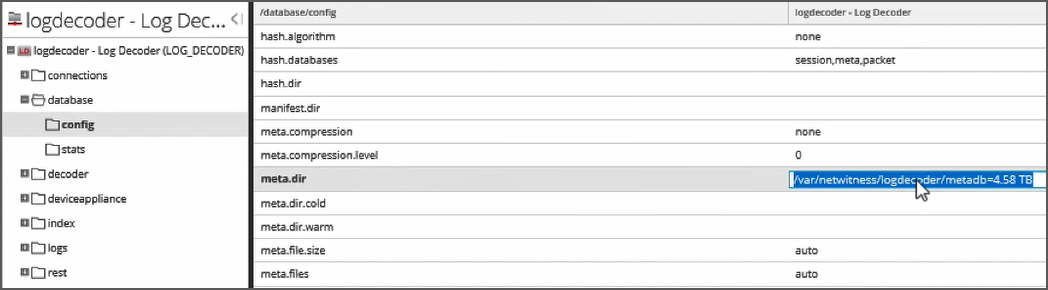
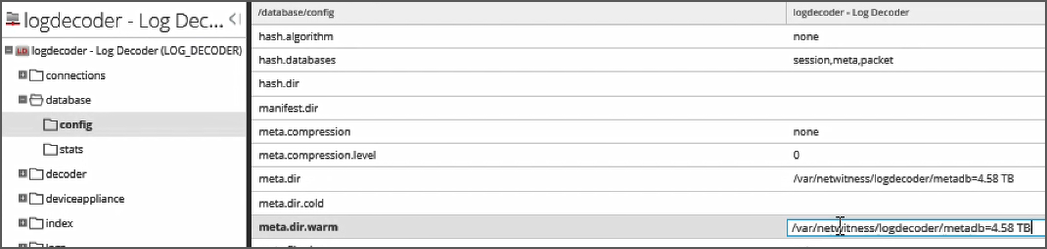
2. In the same way, copy the packet database in packet.dir to packet.dir.warm.
3. Copy the session database in session.dir to session.dir.warm.
3. Go to **index** \> **config** and copy index.dir to index.dir.warm.
Note that the new volumes end in 0, so PowerVault will write to the directories ending in 0, for example:
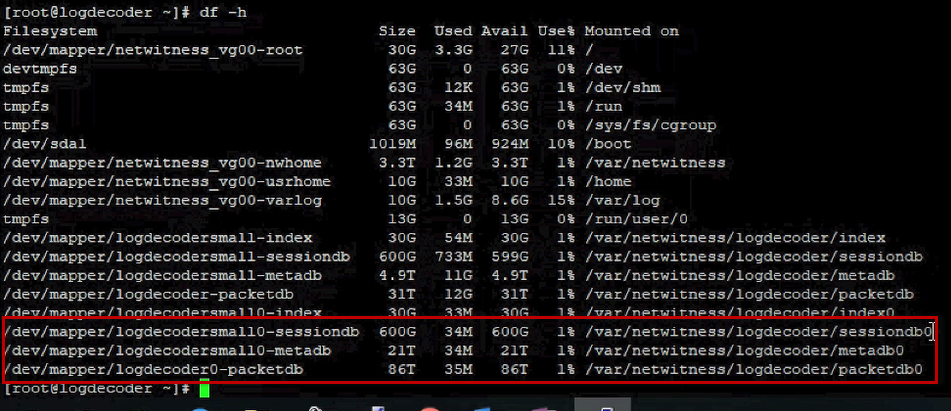
Update the Decoder configuration with the path to the PowerVault mount by adding a 0 to the path.
1. In the /database/config column, right-click **meta.dir** and click **Properties**.
2. In **Properties for logdecoder**, select **set**, and in **Parameters**, enter value="var/netwitness/logdecoder/metadb0=4.58 TB' and add force=true, as shown in this example, and then click **Send**.
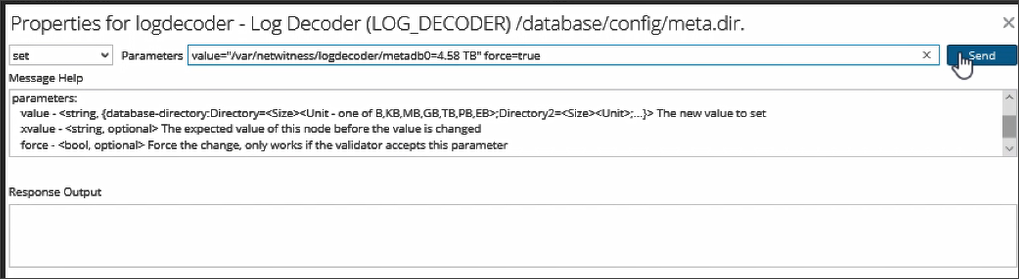
3. Repeat step 2 for **session.dir**, **packet.dir**, and **index.dir**. Do not be concerned if the size is the same as the DAC in "=xx GB". This will be updated in the next step.
**Note:** We are only putting the PowerVault paths into the \*.dir values.
1. Update the sizes for the live PowerVault volumes.
1. In the Log Decoder Explore view, in the left panel, right-click **database** and click **Properties**.
2. Select **reconfig** and in **Parameters**, enter update=1 and click **Send**.
3. Repeat steps a and b for **index**.
2. Restart the service.
systemctl restart nwlogdecoder
3. Go to  (Admin) \> **SERVICES**, select the Log Decoder service, and click  \> **View** \> **System**.
4. Click **Start Capture**.
5. Go to the **Config** view, select **Capture Autostart**, and click **Apply**.
6. Reboot the host.
### Decommision the DACDecommission the DAC
When the DAC data has aged, you should go back into the Explore view and remove all of the \*.dir.warm configurations for session, meta, packet and index. You can determine when the DAC data has aged by going to the Log Decoder  \> **View** Explore view. Since we have a hot and warm tier, there are two sets of configuration stats that you need to be aware of. For example, for a packet Decoder, when you look at the packet oldest time in packet.oldest.file.time, look at the packet.oldest.file.time.hot value and if you see that your DAC had storage up until 30 days ago you can take your DAC offline and decommission it.
These are the basic steps for decommissioning a DAC. NetWitness recommends that you work with your Customer Support representative when you decommission your DACs.
1. Go to  (Admin) \> **SERVICES** and select the service (for example, Log Decoder).
2. Click  \> **View** \> **Config**, and under Log Decoder Configuration, clear the **Capture Autostart** checkbox, and then click **Apply**.
3. In the menu bar, click the down arrow next to **Config**, select **System**, and at the top of the panel, click **Stop Capture**.
4. From the commandline interface in NwConsole, stop the service by running the following command:
systemctl stop nwlogdecoder
5. Unmount the warm tier. At the root level, run the umount command and the path name of each partition. You can concatenate the path names, for example:
umount /var/netwitness/logdecoder/index /var/netwitness/logdecoder/sessiondb /var/netwitness/logdecoder/metadb /var/netwitness/logdecoder/packetdb /var/netwitness/logdecoder/index0 /var/netwitness/logdecoder/sessiondb0 /var/netwitness/logdecoder/metadb0 /var/netwitness/logdecoder/packetdb0
6. Comment out all the old DAC dbs from /etc/fstab, so that only the PowerVault dbs remain.
7. Start the service.
systemctl start nwlogdecoder
8. In the user interface, go to  (Admin) \> **SERVICES** and select the Log Decoder service.
9. Click  \> **View** \> **Explore** and remove the warm tier configurations:
1. In **database** \> **config**, delete the content for meta.dir.warm, packet.dir.warm, session.dir.warm.
2. In **index** \> **config**, delete the content for index.dir.warm.
3. Go to the **Config** view, select **Capture Autostart**, and click **Apply**
4. Go to the **System** view and click **Start Capture**.
10. Restart the service.
systemctl restart nwlogdecoder
The DAC is now unmounted, and is no longer configured in the Decoder for warm storage and is ready to be wiped clean.
1. Remove the logical volume. Run lvscan to get a list of the logical volumes.
2. Run lvremove on the old logical volumes, for example:
/dev/logdecodersmall/decoroot /devlvremove /dev/logdecodersmall/index /dev/logdecodersmall/sessiondb /dev/logdecodersmall/metadb /dev/logdecodersmall/packetdb
3. Remove the volume groups. Run vgscan to get a list of volume groups.
4. Run vgremove on the old volume groups (be careful not to remove any volume groups that end in 0, as they are PowerVault).
5. Run pvscan to view block devices that are freed up.
6. When the DAC has been successfully removed, reboot the host.
## Move Data From DAC to PowerVault Move Data From DAC to PowerVault
The following procedure describes how to move data from DAC to PowerVault. Before you move data from 2 DACs to 2 PowerVaults, a table, similar to the following table, is displayed if you run the pvs (Physical Volume Size) command from the Decoder Linux console (or SSH to the Decoder) with 2 DACs attached and configured to the Decoder. The column headings are Physical Volume (PV), Volume Group(VG), Linux Format (Fmt), Linux Attribute (Attr), Physical Volume Size (PSize), and Physical Volume Free Space(PFree).
- **PV:** /dev/sda2
- **VG:** netwitness\_vg00
- **Fmt:** lvm2
- **Attr:** a--
- **PSize:** \<930.00g
- **PFree:**
0
- **PV:** /dev/sdb1
- **VG:** netwitness\_vg00
- **Fmt:** lvm2
- **Attr:** a--
- **PSize:** \<1.82t
- **PFree:** 0
- **PV:** /dev/sdc
- **VG:** decodersmall
- **Fmt:** lvm2
- **Attr:** a--
- **PSize:** \<5.46t
- **PFree:**
0
- **PV:** /dev/sdd
- **VG:** decoder
- **Fmt:** lvm2
- **Attr:** a--
- **PSize:** \<27.29t
- **PFree:** 0
- **PV:** /dev/sde
- **VG:** decodersmall0
- **Fmt:** lvm2
- **Attr:** a--
- **PSize:** \<5.46t
- **PFree:**
0
- **PV:** /dev/sdf
- **VG:** decoder0
- **Fmt:** lvm2
- **Attr:** a--
- **PSize:** \<27.29t
- **PFree:** 0
Complete the following steps to move data from a DAC to a PowerVault.
1. Attach two PowerVaults to a separate PERC controller on the Decoder.
2. Create the devices.
1. Open a Browser and specify the ip-address of the Network Decoder and port **50106** to access the REST tool.
2. Log in with the admin account credentials.
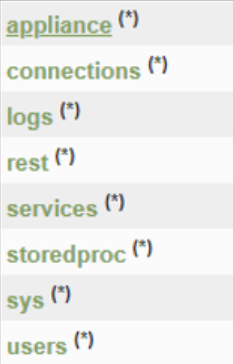
3. Click on the (\*) next to **appliance** to access the REST command set.
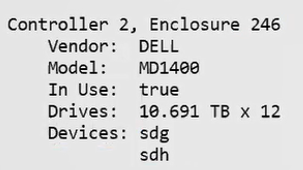
4. Run raidList to display the Controller/Enclosure combination with the new PowerVault enclosures.
In the following example, the output shows **dev/sdg** and **/dev/sdh** on **Controller 2, Enclosure 246**.
5. Under **Properties for /appliance**, select raidNew, specify controller= enclosure= scheme=decoder preferSecure=false, and click **Send**.
**Note:** You specify **preferSecure=false** if the PowerVault drives are not SED drives. If PowerVault drives are SED drives and you do not want to encrypt them you specify **preferSecure=false**. You must specify **preferSecure=true** if PowerVault drives are SED drives and you want to encrypt them.
3. Go to the Decoder Linux console or SSH to the Decoder and run the following commands.
parted -s /dev/sdg mklabel gpt
parted -s -a optimal /dev/sdg mkpart LVM 0% 100%
pvcreate -f /dev/sdg
parted -s /dev/sdh mklabel gpt
parted -s -a optimal /dev/sdh mkpart LVM 0% 100%
pvcreate -f /dev/sdh
If the volume is created successfully, the following message is displayed.
Physical volume "/dev/sdg" successfully created
**Note:** Repeat this step for every block device. The block device names may be different depending on how many enclosures per perc card slot.
4. Run the following command strings to extend the DAC volume group (**decoder**, **decodersmall**) to the Powervault Physical volume.
vgextend decoder /dev/sdg
vgextend decodersmall /dev/sdh
5. Run the following command strings to move the data from the DAC to the PowerVault. In this following command string, the DAC is **/dev/sdc** and the PowerVault is **/dev/sdg**.
pvmove /dev/sdc /dev/sdg
pvmove /dev/sdd /dev/sdh
**Note:** 1.) The pvmove command synchronizes data across volumes so that NetWitness can continue ingesting or aggregating data while the migration is executing. You can run the pvmove command multiple times if it fails. 2.) Depending on the amount of data on the drives, the move can take a long time complete depending on the amount of data. For example, in a test, it took four hours to move one TB of data.
6. After the move is complete, run the following commands to reduce and remove the DAC drive.
vgreduce decoder /dev/sdc
pvremove /dev/sdc
vgreduce decodersmall /dev/sdd
pvremove /dev/sdd
7. Detach the physical connections from the DACs to the host.
8. Verify that the Physical volumes are moved from the DACs to the PowerVaults.
1. Reboot the host.
reboot
2. Verify that the **/etc/fstab** file is correct.
3. Run the pvs command and make sure that the **PSize** and **PFree** values are correct on the PowerVault.

### Data on PowerVault After Move from DAC
After you move data from 2 DACs to 2 PowerVaults, a table, similar to the following table, is displayed if you run the pvs (Physical Volume Size) command from the Decoder Linux console (or SSH to the Decoder) with 2 PowerVaults attached and configured to the Decoder. The column headings are Physical Volume (PV), Volume Group(VG), Linux Format (Fmt), Linux Attribute (Attr), Physical Volume Size (PSize), and Physical Volume Free Space(PFree).
- **PV:** /dev/sda2
- **VG:** netwitness\_vg00
- **Fmt:** lvm2
- **Attr:** a--
- **PSize:** \<930.00g
- **PFree:** 0
- **PV:** /dev/sdb1
- **VG:** netwitness\_vg00
- **Fmt:** lvm2
- **Attr:** a--
- **PSize:** \<1.82t
- **PFree:** 0
- **PV:** /dev/sdc1
- **VG:** decodersmall
- **Fmt:** lvm2
- **Attr:** a--
- **PSize:** 21.38t
- **PFree:** \<15.93t
- **PV:** /dev/sdd1
- **VG:** decoder
- **Fmt:** lvm2
- **Attr:** a--
- **PSize:** \<85.54t
- **PFree:** 58.25t
- **Column 1:**
- **Column 2:**
[](https://mydev.netwitness.com/?hsLang=en)
Copyright © 2026, NetWitness LLC. All rights reserved.
[NetWitness Platform](https://www.netwitness.com/)
[Acceptable Use Policy](https://www.netwitness.com/wp-content/uploads/Acceptable-Use-Policy-092022.pdf) [Privacy Statement](https://www.netwitness.com/wp-content/uploads/NetWitness-Privacy-Statement-07292024.pdf)

[](https://www.linkedin.com/company/netwitness-platform/) [](https://www.youtube.com/@netwitness)
© 2026 NetWitness LLC. All rights reserved.