---
title: Manage a Stream
description: "Manage a Stream\nYou can manage a stream using the following procedures:\nEdit a StreamReload the StreamSpecify meta filters for a StreamDefine multi-v"
---
[Skip to content](https://mydev.netwitness.com/knowledge-base/manageastream#main-content)

- [Home](https://mydev.netwitness.com/home)
- Integrations
Show submenu for Integrations
- [Netwitness Platform Integrations](https://mydev.netwitness.com/netwitnessplatformintegrations)
- [Third Party Integrations](https://mydev.netwitness.com/thirdpartyintegrations)
- [Knowledge Center](https://mydev.netwitness.com/knowledge-base)
- Community
Show submenu for Community
- [Blogs](https://mydev.netwitness.com/netwitness-security-llc-blog)
- Discussions
- Customers
Show submenu for Customers
- [Manage Products and Licenses](https://mydev.netwitness.com/nwportal)
- Downloads
- Partners
Show submenu for Partners
- [Partner Program](https://mydev.netwitness.com/partner)
- [Partner Resources](https://mydev.netwitness.com/partnerresources)
- [Submit a New Deal Registration](https://mydev.netwitness.com/dealregistration)
- [Become a Partner](https://mydev.netwitness.com/becomeapartner)
- [Update Your Partner Locator Profile](https://www.netwitness.com/partner-locator/?utm_source=pardotnewsletter&utm_medium=email&utm_campaign=partner_march)
- [NetWitness LinkedIn Partner Hub](https://linkedin.com/showcase/netwitnesspartners/)
- Education
Show submenu for Education
- [Instructor Led Training Schedule](https://mydev.netwitness.com/instructorledtrainingschedule)
- [NetWitness Training Catalog](https://mydev.netwitness.com/netwitnesstrainingcatalog)
- [Security Awareness Training](https://mydev.netwitness.com/securityawarenesstraining)
- [New Product Readiness](https://mydev.netwitness.com/newproductreadiness)
- [On-Demand Virtual Labs](https://mydev.netwitness.com/ondemandvirtuallabs)
- [Additional Training Information](https://mydev.netwitness.com/additionaltraininginformation)
- [Frequently Asked Questions](https://mydev.netwitness.com/educationfaq)
- [Contact NetWitness Education Team](https://mydev.netwitness.com/contact-netwitness-education-team)
- Support
Show submenu for Support
- [Contact Support](https://mydev.netwitness.com/contact-support)
- [Create a New Case](https://mydev.netwitness.com/create-support-case)
- [View My Cases](https://mydev.netwitness.com/viewmycase)
- [Product Version Life Cycle](https://mydev.netwitness.com/product-version-life-cycle)
- [Warranty & Replacement Parts](https://mydev.netwitness.com/warranty-and-replacement-parts)
- [Community Support Forum](https://mydev.netwitness.com/community-support-forum)
- [Technical Support Guide](https://mydev.netwitness.com/technical-support-guide)
Open main navigation
Close main navigation
- [Home](https://mydev.netwitness.com/home)
- Integrations
Show submenu for Integrations
- [Netwitness Platform Integrations](https://mydev.netwitness.com/netwitnessplatformintegrations)
- [Third Party Integrations](https://mydev.netwitness.com/thirdpartyintegrations)
- [Knowledge Center](https://mydev.netwitness.com/knowledge-base)
- Community
Show submenu for Community
- [Blogs](https://mydev.netwitness.com/netwitness-security-llc-blog)
- Discussions
- Customers
Show submenu for Customers
- [Manage Products and Licenses](https://mydev.netwitness.com/nwportal)
- Downloads
- Partners
Show submenu for Partners
- [Partner Program](https://mydev.netwitness.com/partner)
- [Partner Resources](https://mydev.netwitness.com/partnerresources)
- [Submit a New Deal Registration](https://mydev.netwitness.com/dealregistration)
- [Become a Partner](https://mydev.netwitness.com/becomeapartner)
- [Update Your Partner Locator Profile](https://www.netwitness.com/partner-locator/?utm_source=pardotnewsletter&utm_medium=email&utm_campaign=partner_march)
- [NetWitness LinkedIn Partner Hub](https://linkedin.com/showcase/netwitnesspartners/)
- Education
Show submenu for Education
- [Instructor Led Training Schedule](https://mydev.netwitness.com/instructorledtrainingschedule)
- [NetWitness Training Catalog](https://mydev.netwitness.com/netwitnesstrainingcatalog)
- [Security Awareness Training](https://mydev.netwitness.com/securityawarenesstraining)
- [New Product Readiness](https://mydev.netwitness.com/newproductreadiness)
- [On-Demand Virtual Labs](https://mydev.netwitness.com/ondemandvirtuallabs)
- [Additional Training Information](https://mydev.netwitness.com/additionaltraininginformation)
- [Frequently Asked Questions](https://mydev.netwitness.com/educationfaq)
- [Contact NetWitness Education Team](https://mydev.netwitness.com/contact-netwitness-education-team)
- Support
Show submenu for Support
- [Contact Support](https://mydev.netwitness.com/contact-support)
- [Create a New Case](https://mydev.netwitness.com/create-support-case)
- [View My Cases](https://mydev.netwitness.com/viewmycase)
- [Product Version Life Cycle](https://mydev.netwitness.com/product-version-life-cycle)
- [Warranty & Replacement Parts](https://mydev.netwitness.com/warranty-and-replacement-parts)
- [Community Support Forum](https://mydev.netwitness.com/community-support-forum)
- [Technical Support Guide](https://mydev.netwitness.com/technical-support-guide)
How can we help you?
- There are no suggestions because the search field is empty.
1. [NetWitness Knowledge Base](https://mydev.netwitness.com/knowledge-base?hsLang=en)
2. [Documentation](https://mydev.netwitness.com/knowledge-base/documentation?hsLang=en)
April 28, 2026
# Manage a Stream
## Manage a Stream
You can manage a stream using the following procedures:
- Edit a Stream
- Reload the Stream
- Specify meta filters for a Stream
- Define multi-valued metas
### Edit a Stream
You can edit a stream to perform the following:
- Add data sources to the stream.
- Delete existing data sources from the stream.
To edit a stream:
1. Go to ** (Admin) \> Services**.
2. In the Services view, select the added Warehouse Connector service and select  **\> View \> Config**.
The Services Config view of Warehouse Connector is displayed.
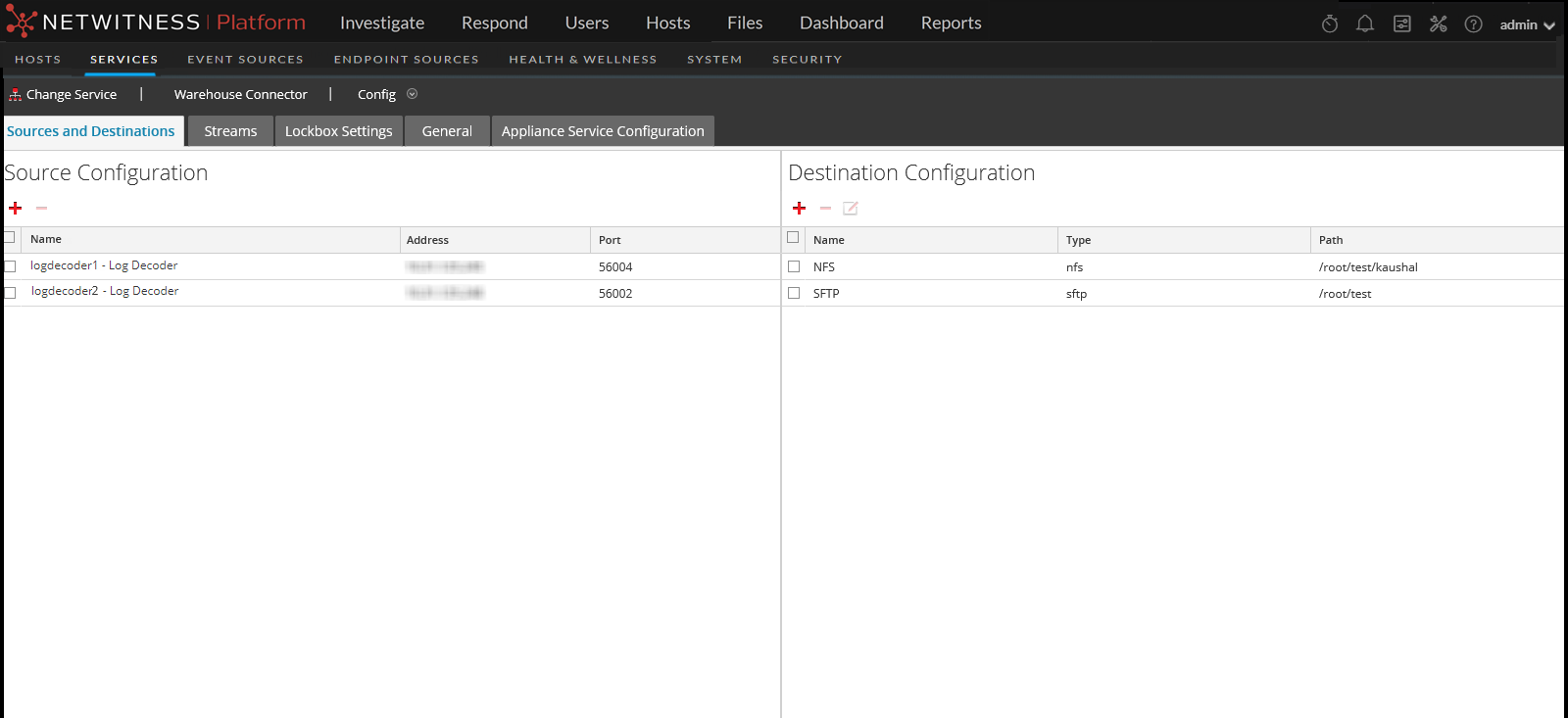
3. On the **Streams** tab, click .
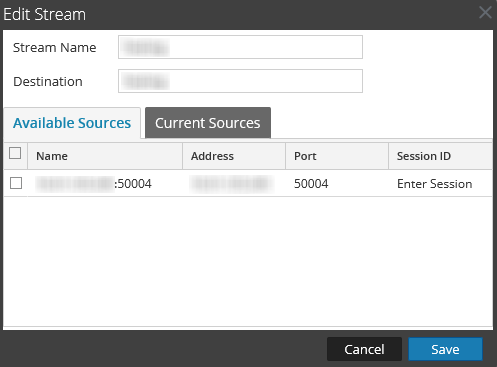
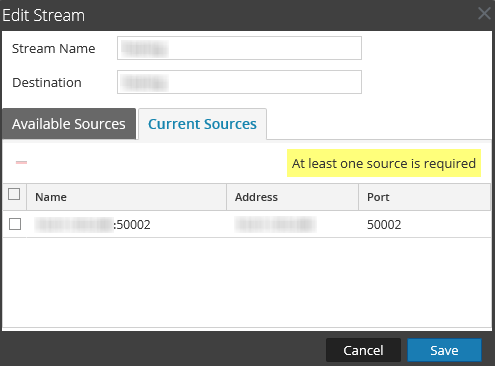
4. In the **Edit Stream** dialog, you can perform the following:
- On the **Available Sources** tab, you can select the available data sources to add to the stream and click **Save**.
- On the **Current Sources** tab, you can delete an existing data source from the stream. Select the data source and click .
## Reload the Stream
When you reload the stream, the Warehouse Connector updates the schema file for the stream. You must reload the stream when you add a new custom meta to the Log Decoder or Decoder.
To reload the stream:
1. Go to ** (Admin) \> Services**.
2. In the Services view, select the added Warehouse Connector service and select  **\> View \> Config**.
The Services Config view of Warehouse Connector is displayed.
3. On the **Streams** tab, select the stream that you want to reload.
4. Click **Reload**.
## Specify Meta Filters for a Stream
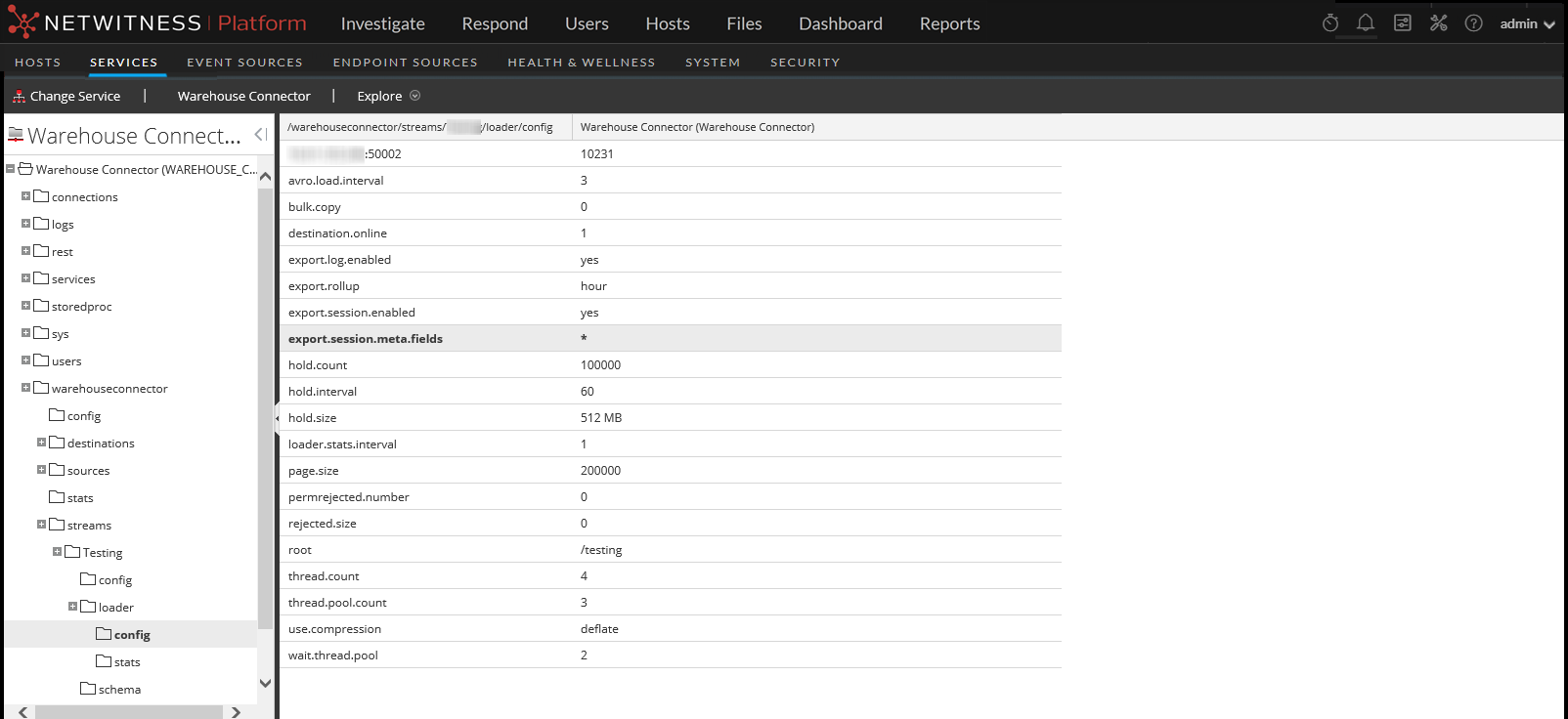
You need to specify the filter for each stream in the export.session.meta.fields parameter in the Explore view of the Warehouse Connector.
The following table lists the values that you can provide as a filter:
**Note:** By default, the following metas are written to Warehouse even if you specify them in the filter:
\- ng\_source
- unique\_id
\- time
To specify meta filters for a Stream:
1. Go to ** (Admin) \> Services**.
2. In the Services view, select a Warehouse Connector services and select  **\> View \> Config**.
The Explore view of the Warehouse Connector service is displayed.
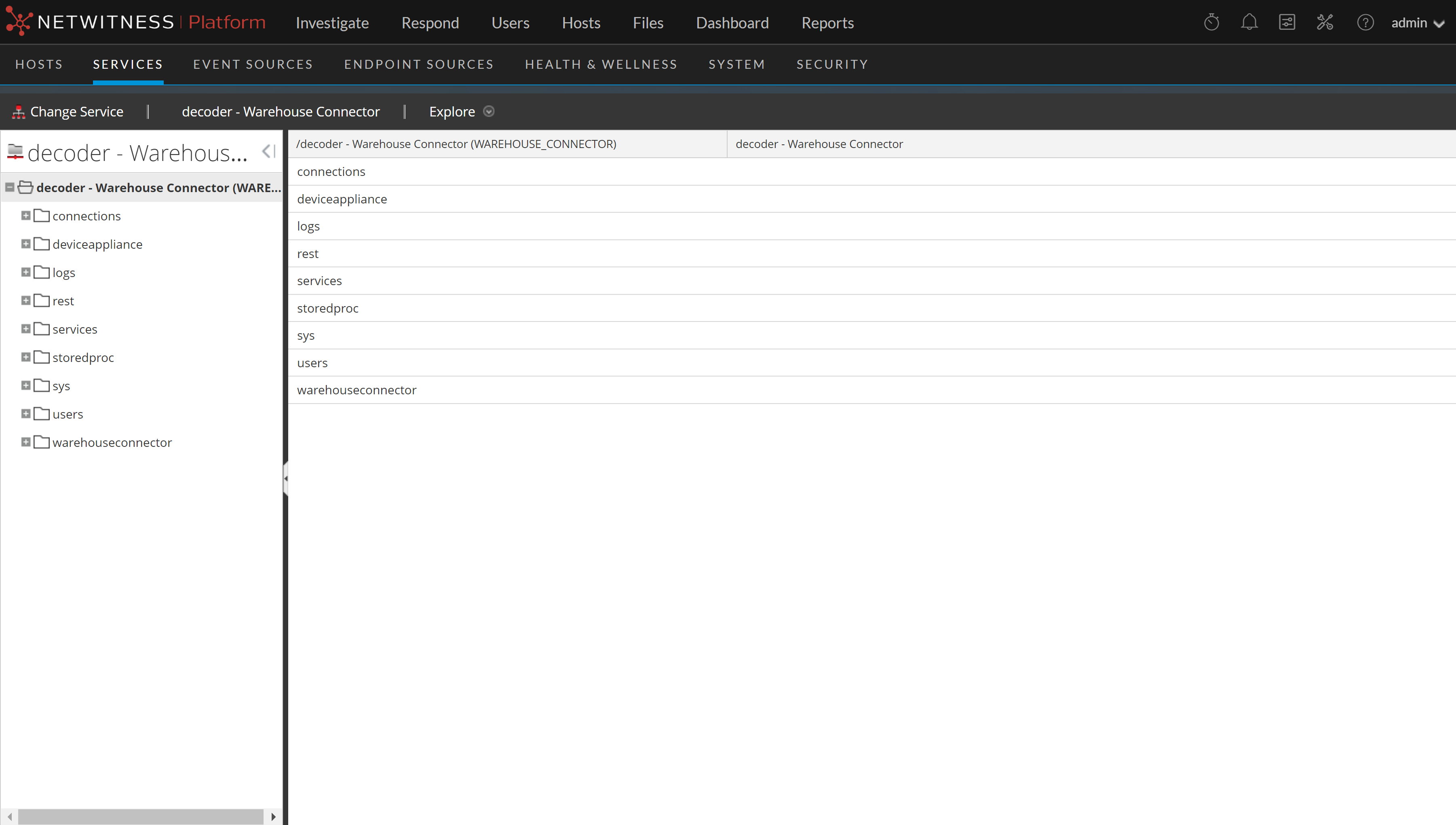
3. In the options panel, select **warehouseconnector \> streams \> \> loader \> config** .
4. In the export.session.meta.fields parameter, enter the filter.
5. Restart the stream.
## Define Multi-valued Metas
You can also define an existing meta or a custom meta to be treated as multi-valued meta.
To define multi-valued metas:
**Caution:** Defining an existing meta to be treated as multi-valued may change the data type of the meta and cause the associated reports to fail.
1. Create a new file with the filename **multivalue-users.xml** in the **/etc/netwitness/ng** directory.
2. Add the following entries:
NEWMETANAME
Where *NEWMETANAME* is the existing meta or a custom meta to be treated as multi-valued meta.
**Caution:** Make sure that you do not add metas that are by default treated as non multi-value.
3. Restart the stream.
## View the current schema
You can view the current schema that is used by warehouse connector for writing in AVRO files.
To view the current schema:
1. Go to ** (Admin) \> Services**.
2. In the Services view, select a Warehouse Connector services and select  **\> View \> Explore**.
The Explore view of the Warehouse Connector service is displayed.
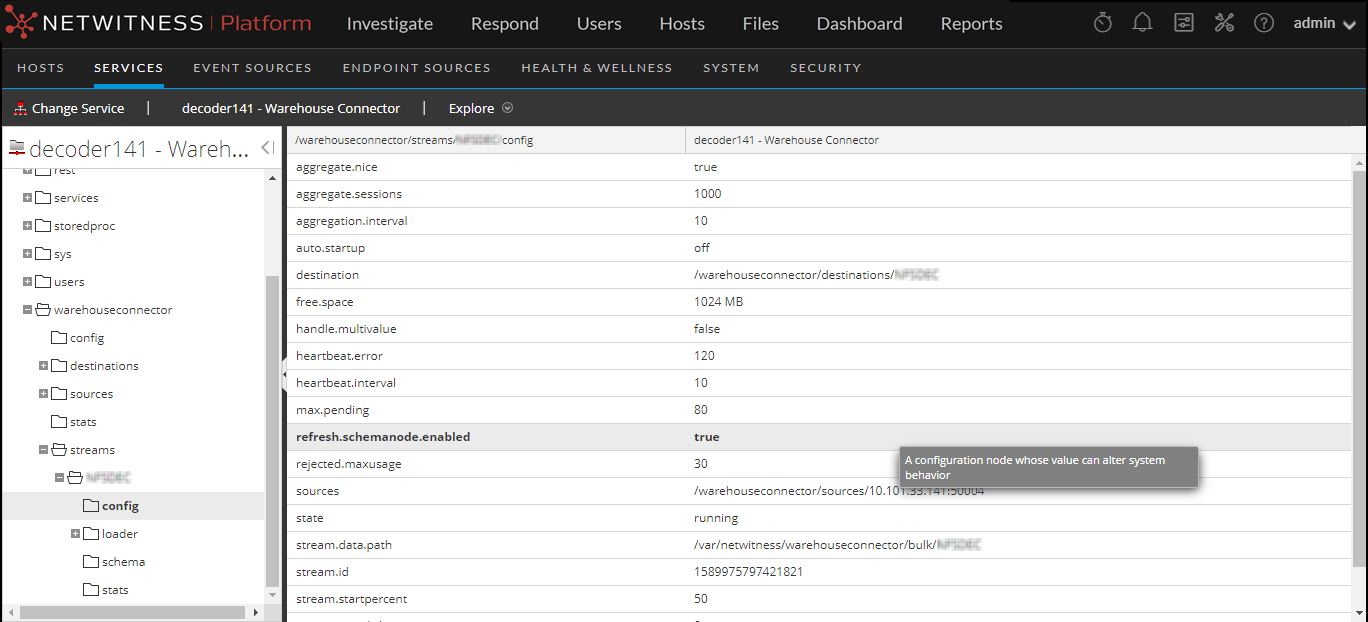
3. In the options panel, select **warehouseconnector \> streams \> \> config** .
4. Set the value for refresh.schemanode.enabled parameter to **true**. By default, this value is set to false.
5. Reload the stream. For more information see, [Reload the Stream](https://mydev.netwitness.com/knowledge-base/manageastream#Reload).
6. Restart the Warehouse Connector service.
7. Go to ** (Admin) \> Services**.
8. In the Services view, select a Warehouse Connector services and select  **\> View \> Explore**.
The Explore view of the Warehouse Connector service is displayed.
9. In the options panel, select **warehouseconnector \> streams \> \> schema** , to view the current schema.
**Note:** You must to reload the stream every time, before you want to view the current schema or you can add a scheduler to reload the stream automatically at regular intervals as mentioned in step 10.
1. (Optional) To reload the stream automatically at regular intervals, follow the below steps.
1. Go to ** (Admin) \> Services**.
2. In the Services view, select a Warehouse Connector services and select  **\> View \> Explore**.
The Explore view of the Warehouse Connector service is displayed.
3. In options panel, select **warehouseconnector \> sys \> config \> scheduler**. Right click and select **properties**.
4. In the property drop down select addInter and in the **Parameters** text box, add "hours=24 pathname=/warehouseconnector/streams/ msg=reload".
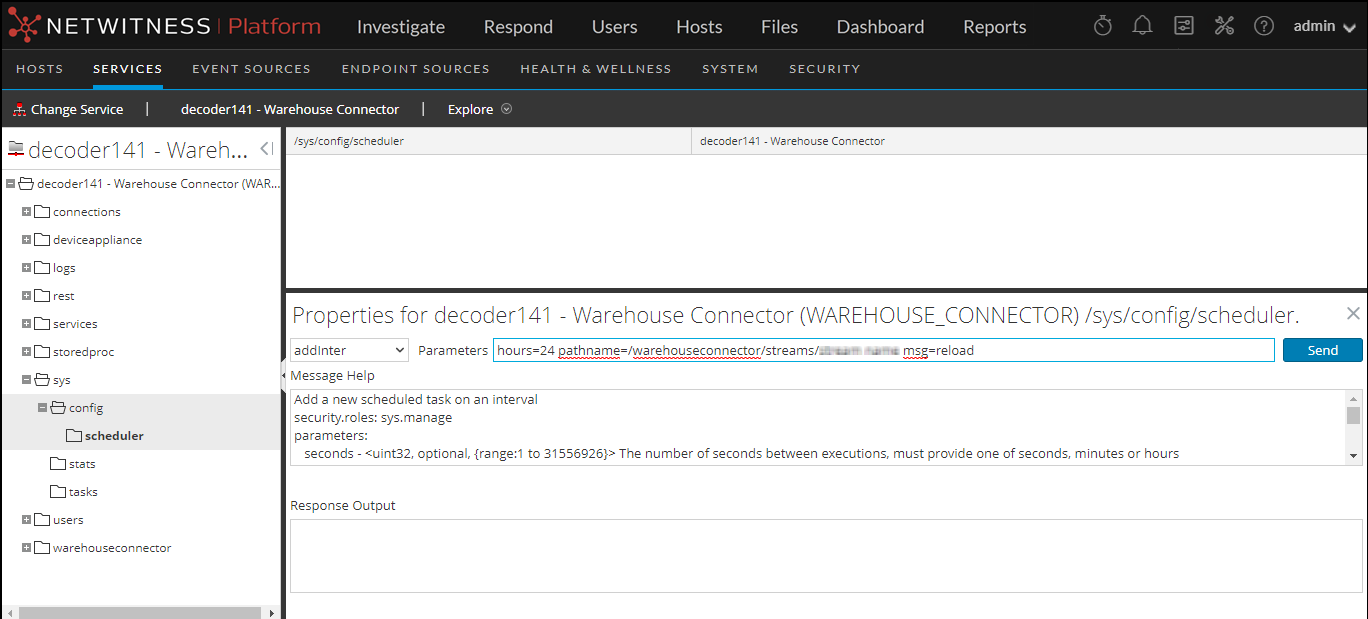
**Note:** Standard time format used is hours. You can use seconds or minutes format in lieu of hours.
1. Then click **Send**.
[](https://mydev.netwitness.com/?hsLang=en)
Copyright © 2026, NetWitness LLC. All rights reserved.
[NetWitness Platform](https://www.netwitness.com/)
[Acceptable Use Policy](https://www.netwitness.com/wp-content/uploads/Acceptable-Use-Policy-092022.pdf) [Privacy Statement](https://www.netwitness.com/wp-content/uploads/NetWitness-Privacy-Statement-07292024.pdf)

[](https://www.linkedin.com/company/netwitness-platform/) [](https://www.youtube.com/@netwitness)
© 2026 NetWitness LLC. All rights reserved.