---
title: How to capture web sessions using browser Developer Tools for troubleshooting purposes in NetWitness portals and solutions
description: "Issue\nIn order to troubleshoot an issue when using NetWitness portals in a web browser session, NetWitness Support may ask you to capture a trace of t"
---
[Skip to content](https://mydev.netwitness.com/knowledge-base/how-to-capture-web-sessions-using-browser-developer-tools-for-troubleshooting-purposes-in-netwitness-solutions#main-content)

- [Home](https://mydev.netwitness.com/home)
- Integrations
Show submenu for Integrations
- [Netwitness Platform Integrations](https://mydev.netwitness.com/netwitnessplatformintegrations)
- [Third Party Integrations](https://mydev.netwitness.com/thirdpartyintegrations)
- [Knowledge Center](https://mydev.netwitness.com/knowledge-base)
- Community
Show submenu for Community
- [Blogs](https://mydev.netwitness.com/netwitness-security-llc-blog)
- Discussions
- Customers
Show submenu for Customers
- [Manage Products and Licenses](https://mydev.netwitness.com/nwportal)
- Downloads
- Partners
Show submenu for Partners
- [Partner Program](https://mydev.netwitness.com/partner)
- [Partner Resources](https://mydev.netwitness.com/partnerresources)
- [Submit a New Deal Registration](https://mydev.netwitness.com/dealregistration)
- [Become a Partner](https://mydev.netwitness.com/becomeapartner)
- [Update Your Partner Locator Profile](https://www.netwitness.com/partner-locator/?utm_source=pardotnewsletter&utm_medium=email&utm_campaign=partner_march)
- [NetWitness LinkedIn Partner Hub](https://linkedin.com/showcase/netwitnesspartners/)
- Education
Show submenu for Education
- [Instructor Led Training Schedule](https://mydev.netwitness.com/instructorledtrainingschedule)
- [NetWitness Training Catalog](https://mydev.netwitness.com/netwitnesstrainingcatalog)
- [Security Awareness Training](https://mydev.netwitness.com/securityawarenesstraining)
- [New Product Readiness](https://mydev.netwitness.com/newproductreadiness)
- [On-Demand Virtual Labs](https://mydev.netwitness.com/ondemandvirtuallabs)
- [Additional Training Information](https://mydev.netwitness.com/additionaltraininginformation)
- [Frequently Asked Questions](https://mydev.netwitness.com/educationfaq)
- [Contact NetWitness Education Team](https://mydev.netwitness.com/contact-netwitness-education-team)
- Support
Show submenu for Support
- [Contact Support](https://mydev.netwitness.com/contact-support)
- [Create a New Case](https://mydev.netwitness.com/create-support-case)
- [View My Cases](https://mydev.netwitness.com/viewmycase)
- [Product Version Life Cycle](https://mydev.netwitness.com/product-version-life-cycle)
- [Warranty & Replacement Parts](https://mydev.netwitness.com/warranty-and-replacement-parts)
- [Community Support Forum](https://mydev.netwitness.com/community-support-forum)
- [Technical Support Guide](https://mydev.netwitness.com/technical-support-guide)
Open main navigation
Close main navigation
- [Home](https://mydev.netwitness.com/home)
- Integrations
Show submenu for Integrations
- [Netwitness Platform Integrations](https://mydev.netwitness.com/netwitnessplatformintegrations)
- [Third Party Integrations](https://mydev.netwitness.com/thirdpartyintegrations)
- [Knowledge Center](https://mydev.netwitness.com/knowledge-base)
- Community
Show submenu for Community
- [Blogs](https://mydev.netwitness.com/netwitness-security-llc-blog)
- Discussions
- Customers
Show submenu for Customers
- [Manage Products and Licenses](https://mydev.netwitness.com/nwportal)
- Downloads
- Partners
Show submenu for Partners
- [Partner Program](https://mydev.netwitness.com/partner)
- [Partner Resources](https://mydev.netwitness.com/partnerresources)
- [Submit a New Deal Registration](https://mydev.netwitness.com/dealregistration)
- [Become a Partner](https://mydev.netwitness.com/becomeapartner)
- [Update Your Partner Locator Profile](https://www.netwitness.com/partner-locator/?utm_source=pardotnewsletter&utm_medium=email&utm_campaign=partner_march)
- [NetWitness LinkedIn Partner Hub](https://linkedin.com/showcase/netwitnesspartners/)
- Education
Show submenu for Education
- [Instructor Led Training Schedule](https://mydev.netwitness.com/instructorledtrainingschedule)
- [NetWitness Training Catalog](https://mydev.netwitness.com/netwitnesstrainingcatalog)
- [Security Awareness Training](https://mydev.netwitness.com/securityawarenesstraining)
- [New Product Readiness](https://mydev.netwitness.com/newproductreadiness)
- [On-Demand Virtual Labs](https://mydev.netwitness.com/ondemandvirtuallabs)
- [Additional Training Information](https://mydev.netwitness.com/additionaltraininginformation)
- [Frequently Asked Questions](https://mydev.netwitness.com/educationfaq)
- [Contact NetWitness Education Team](https://mydev.netwitness.com/contact-netwitness-education-team)
- Support
Show submenu for Support
- [Contact Support](https://mydev.netwitness.com/contact-support)
- [Create a New Case](https://mydev.netwitness.com/create-support-case)
- [View My Cases](https://mydev.netwitness.com/viewmycase)
- [Product Version Life Cycle](https://mydev.netwitness.com/product-version-life-cycle)
- [Warranty & Replacement Parts](https://mydev.netwitness.com/warranty-and-replacement-parts)
- [Community Support Forum](https://mydev.netwitness.com/community-support-forum)
- [Technical Support Guide](https://mydev.netwitness.com/technical-support-guide)
How can we help you?
- There are no suggestions because the search field is empty.
1. [NetWitness Knowledge Base](https://mydev.netwitness.com/knowledge-base?hsLang=en)
2. [Break Fix](https://mydev.netwitness.com/knowledge-base/break-fix?hsLang=en)
April 30, 2026
# How to capture web sessions using browser Developer Tools for troubleshooting purposes in NetWitness portals and solutions
#### Issue
In order to troubleshoot an issue when using NetWitness portals in a web browser session, NetWitness Support may ask you to capture a trace of the HTTP or HTTPS web session.
One means of doing that, normally recommended by NetWitness Customer Support, is to [capture web sessions using Fiddler](https://community.netwitness.com/t5/community-support-knowledge-base/how-to-capture-web-sessions-using-fiddler-for-troubleshooting/ta-p/6899). That method has the advantage that it will capture HTTP and HTTPS traffic in all tabs of the browser. In order to be able to do that, however, Fiddler inserts itself as a proxy to the session, with its own digital certificate. In some circumstances having Fiddler as a proxy can change session behavior or prevent you from accessing the web server.
Occasionally, this means that Fiddler is not a suitable choice to capture web sessions for troubleshooting.
Another method to capture web sessions is to use the built-in HTTP/HTTPS tracing tool in the web browser itself. That will capture all HTTP and HTTPS traffic as Fiddler does, however, it does have the limitation that it will only trace traffic in the current browser tab, so it is not suitable for situations where there is a need to capture the browser opening a web session in another tab.
#### Resolution
## Preliminary Step - All Browsers
Unless you have been informed by NetWitness Customer Support to do otherwise, always clear cookies in your web browser before testing.
The remaining steps to capture web sessions are given below for the most common web browsers. Versions are the latest at the time of writing. If you need help with a different web browser, [contact NetWitness Customer Support](https://community.netwitness.com/t5/support-information/how-to-contact-netwitness-support/ta-p/563897).
## Mozilla Firefox
## Version 61
1. Open the Firefox browser and go to the tab where you intend to reproduce the issue you need to capture.
2. Press the **F12** key on your keyboard. A Developer Tools window will open within the browser tab.
3. Click on the **Network** tab in the Developer Tools window.
- Make sure the checkbox for **Persist Logs** is selected.
- Make sure the checkbox for **Disable cache** is selected.
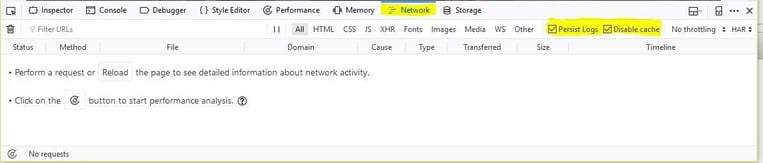
4. Reproduce the issue in the main window of the browser tab you have open. You will see records and graphs scrolling in the Developer Tools window.
5. When you have reproduced the issue, right click any of the records in the Developer Tools window and select **Save All As HAR**.
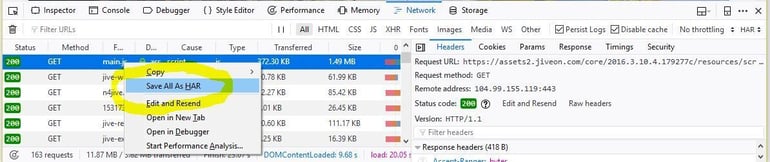
6. Follow the prompts to **Save File**. The saved HAR file will have a name like **Archive .har** and will be saved to your **Firefox Downloads** folder.
## Google Chrome
## Version 125
1. Open the Chrome browser and go to the tab where you intend to reproduce the issue you need to capture.
2. Press the **F12** key on your keyboard. A Developer Tools window will open within the browser tab.
3. Click on the **Network** tab in the Developer Tools window.
- Make sure the checkbox for **Persist Logs** is selected.
- Make sure the checkbox for **Disable cache** is selected.
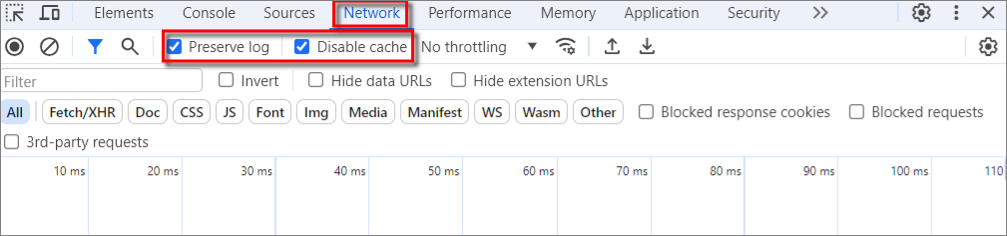
4. Reproduce the issue in the main window of the browser tab you have open. You will see records and graphs scrolling in the Developer Tools window.
5. When you have reproduced the issue, click on the **download** button . Or right-click any of the records in the Developer Tools window and select **Save as HAR with content.**
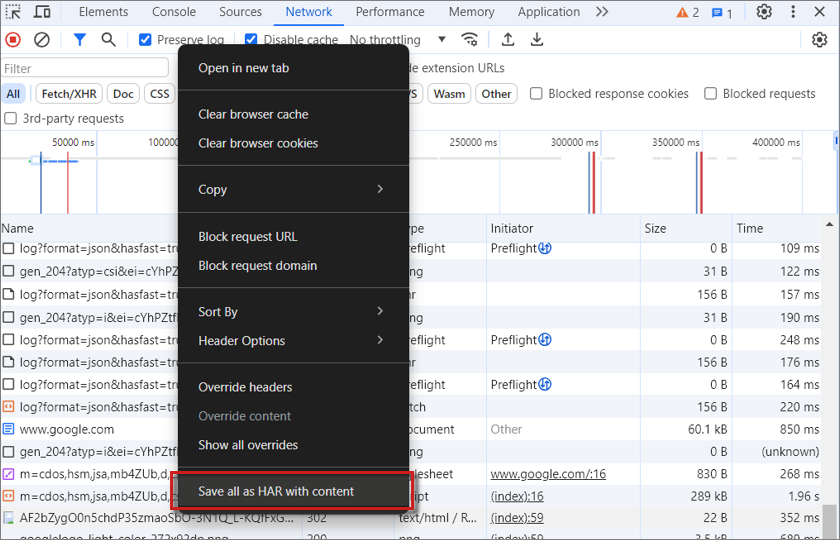
6. Follow the **Save As** prompt to save the HAR file to a suitable location. The saved file will have a name like **.har** and will be saved to the folder location you specify in the Save As dialogue.
## Microsoft Internet Explorer
## Version 11
1. Open the Internet Explorer browser and go to the tab where you intend to reproduce the issue you need to capture.
2. Press the **F12** key on your keyboard. A Developer Tools window will open within the browser tab.
3. Click on the **Network** tab in the Developer Tools window.
- Make sure the icon for **Always refresh from server** is selected**.**
- Make sure the icon for **Clear entries on navigate** is **NOT** selected (it is selected by default).
- Make sure the **Content Type** drop-down box has **All** selected.

4. Reproduce the issue in the main window of the browser tab you have open. You will see records and graphs scrolling in the Developer Tools window.
5. When you have reproduced the issue, click the disk icon for **Export as HAR (Ctrl-S)** in the Developer Tools window.
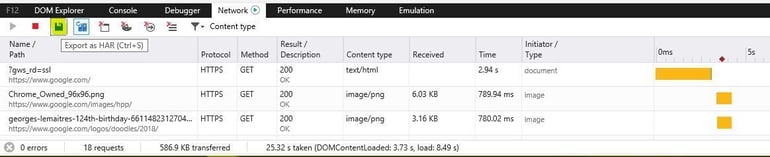
6. Follow the **Save As** prompt to save the HAR file to a suitable location. Choose a file name that ends in **.har.** The file will be saved to the folder location you specify in the Save As dialogue.
When you have finished testing, you should [upload the saved HAR files to RSA Customer Support for analysis](https://community.rsa.com/docs/DOC-76119).
#### Notes
- All data displayed and entered while the network capture is active will be saved to the HAR file, including sensitive data such as names and passwords. Even data that was encrypted over an HTTPS session will be saved in the clear in the HAR file. Any passwords used during the capture should be changed after the test. Discuss any security or privacy concerns with your company's IT security team and [RSA Customer Support](https://community.rsa.com/docs/DOC-76119).
- HAR is an acronym for **HTTP Archive**.
- HAR file data can be viewed in any 3rd party online HTTP Archive viewer or using a compatible 3rd party tool such as [Telerik Fiddler](https://community.rsa.com/docs/DOC-87100).
If you need to capture a web session specifically for an RSA Link issue you are experiencing, please refer to one of the articles listed below.
- [How to collect a network trace for RSA Link issues in Google Chrome](https://mydev.netwitness.com/articles/en_US/How_To/How-to-collect-a-network-trace-for-RSA-Link-issues-in-Google-Chrome?popup=false&navBack=H4sIAAAAAAAAAIuuVipWslLyzssvz0lNSU_1yM9NVdJRygaKFSSmp4ZkluSA-KVAvn58aaZ-NkyhPpCDosu-ODWxKDnDtjw1STs5JzM1r0Q7Jz89PTMvXak2FgDwXuKbZwAAAA&caseId=5000g00001zANMB&sfdcIFrameOrigin=https%3A%2F%2Frsasecurity.my.salesforce.com&nonce=4d437dbdcd0bb20e5e58ef0f7a5bcd5f40aa6a82ccfe9d99b1db56a7de38d3b6&srKp=ka1&srPos=1&hsLang=en)
- [How to create a network trace for RSA Link issues in Mozilla Firefox](https://mydev.netwitness.com/articles/en_US/How_To/How-to-create-a-network-trace-for-RSA-Link-issues-in-Mozilla-Firefox?popup=false&navBack=H4sIAAAAAAAAAIuuVipWslLyzssvz0lNSU_1yM9NVdJRygaKFSSmp4ZkluSA-KVAvn58aaZ-NkyhPpCDosu-ODWxKDnDtjw1STs5JzM1r0Q7Jz89PTMvXak2FgDwXuKbZwAAAA&caseId=5000g00001zANMB&sfdcIFrameOrigin=https%3A%2F%2Frsasecurity.my.salesforce.com&nonce=4d437dbdcd0bb20e5e58ef0f7a5bcd5f40aa6a82ccfe9d99b1db56a7de38d3b6&srKp=ka1&srPos=1&hsLang=en)
- [How to collect a network trace for RSA Link issues in Microsoft Internet Explorer](https://mydev.netwitness.com/articles/en_US/How_To/How-to-collect-a-network-trace-for-RSA-Link-issues-in-Microsoft-Internet-Explorer?popup=false&navBack=H4sIAAAAAAAAAIuuVipWslLyzssvz0lNSU_1yM9NVdJRygaKFSSmp4ZkluSA-KVAvn58aaZ-NkyhPpCDosu-ODWxKDnDtjw1STs5JzM1r0Q7Jz89PTMvXak2FgDwXuKbZwAAAA&caseId=5000g00001zANMB&sfdcIFrameOrigin=https%3A%2F%2Frsasecurity.my.salesforce.com&nonce=4d437dbdcd0bb20e5e58ef0f7a5bcd5f40aa6a82ccfe9d99b1db56a7de38d3b6&srKp=ka1&srPos=1&hsLang=en)
#### Product Details
**RSA Product Set:** All NetWitness Customers
**Platform:** Mozilla Firefox, Microsoft Internet Explorer 11, Google Chrome
#### Summary
Explains how to capture a trace of the HTTP or HTTPS sessions in the current tab of a web browser
#### Approval Reviewer Queue
Non-Product Approval Queue
[](https://mydev.netwitness.com/?hsLang=en)
Copyright © 2026, NetWitness LLC. All rights reserved.
[NetWitness Platform](https://www.netwitness.com/)
[Acceptable Use Policy](https://www.netwitness.com/wp-content/uploads/Acceptable-Use-Policy-092022.pdf) [Privacy Statement](https://www.netwitness.com/wp-content/uploads/NetWitness-Privacy-Statement-07292024.pdf)

[](https://www.linkedin.com/company/netwitness-platform/) [](https://www.youtube.com/@netwitness)
© 2026 NetWitness LLC. All rights reserved.