---
title: Extend a Log Parser Example
description: "Extend an Existing Log Parser Example\nNote: The information in this topic applies to NetWitness Version 11.2 and later.\nParse Rules can be used to pa"
---
[Skip to content](https://mydev.netwitness.com/knowledge-base/extendalogparserexample#main-content)

- [Home](https://mydev.netwitness.com/home)
- Integrations
Show submenu for Integrations
- [Netwitness Platform Integrations](https://mydev.netwitness.com/netwitnessplatformintegrations)
- [Third Party Integrations](https://mydev.netwitness.com/thirdpartyintegrations)
- [Knowledge Center](https://mydev.netwitness.com/knowledge-base)
- Community
Show submenu for Community
- [Blogs](https://mydev.netwitness.com/netwitness-security-llc-blog)
- Discussions
- Customers
Show submenu for Customers
- [Manage Products and Licenses](https://mydev.netwitness.com/nwportal)
- Downloads
- Partners
Show submenu for Partners
- [Partner Program](https://mydev.netwitness.com/partner)
- [Partner Resources](https://mydev.netwitness.com/partnerresources)
- [Submit a New Deal Registration](https://mydev.netwitness.com/dealregistration)
- [Become a Partner](https://mydev.netwitness.com/becomeapartner)
- [Update Your Partner Locator Profile](https://www.netwitness.com/partner-locator/?utm_source=pardotnewsletter&utm_medium=email&utm_campaign=partner_march)
- [NetWitness LinkedIn Partner Hub](https://linkedin.com/showcase/netwitnesspartners/)
- Education
Show submenu for Education
- [Instructor Led Training Schedule](https://mydev.netwitness.com/instructorledtrainingschedule)
- [NetWitness Training Catalog](https://mydev.netwitness.com/netwitnesstrainingcatalog)
- [Security Awareness Training](https://mydev.netwitness.com/securityawarenesstraining)
- [New Product Readiness](https://mydev.netwitness.com/newproductreadiness)
- [On-Demand Virtual Labs](https://mydev.netwitness.com/ondemandvirtuallabs)
- [Additional Training Information](https://mydev.netwitness.com/additionaltraininginformation)
- [Frequently Asked Questions](https://mydev.netwitness.com/educationfaq)
- [Contact NetWitness Education Team](https://mydev.netwitness.com/contact-netwitness-education-team)
- Support
Show submenu for Support
- [Contact Support](https://mydev.netwitness.com/contact-support)
- [Create a New Case](https://mydev.netwitness.com/create-support-case)
- [View My Cases](https://mydev.netwitness.com/viewmycase)
- [Product Version Life Cycle](https://mydev.netwitness.com/product-version-life-cycle)
- [Warranty & Replacement Parts](https://mydev.netwitness.com/warranty-and-replacement-parts)
- [Community Support Forum](https://mydev.netwitness.com/community-support-forum)
- [Technical Support Guide](https://mydev.netwitness.com/technical-support-guide)
Open main navigation
Close main navigation
- [Home](https://mydev.netwitness.com/home)
- Integrations
Show submenu for Integrations
- [Netwitness Platform Integrations](https://mydev.netwitness.com/netwitnessplatformintegrations)
- [Third Party Integrations](https://mydev.netwitness.com/thirdpartyintegrations)
- [Knowledge Center](https://mydev.netwitness.com/knowledge-base)
- Community
Show submenu for Community
- [Blogs](https://mydev.netwitness.com/netwitness-security-llc-blog)
- Discussions
- Customers
Show submenu for Customers
- [Manage Products and Licenses](https://mydev.netwitness.com/nwportal)
- Downloads
- Partners
Show submenu for Partners
- [Partner Program](https://mydev.netwitness.com/partner)
- [Partner Resources](https://mydev.netwitness.com/partnerresources)
- [Submit a New Deal Registration](https://mydev.netwitness.com/dealregistration)
- [Become a Partner](https://mydev.netwitness.com/becomeapartner)
- [Update Your Partner Locator Profile](https://www.netwitness.com/partner-locator/?utm_source=pardotnewsletter&utm_medium=email&utm_campaign=partner_march)
- [NetWitness LinkedIn Partner Hub](https://linkedin.com/showcase/netwitnesspartners/)
- Education
Show submenu for Education
- [Instructor Led Training Schedule](https://mydev.netwitness.com/instructorledtrainingschedule)
- [NetWitness Training Catalog](https://mydev.netwitness.com/netwitnesstrainingcatalog)
- [Security Awareness Training](https://mydev.netwitness.com/securityawarenesstraining)
- [New Product Readiness](https://mydev.netwitness.com/newproductreadiness)
- [On-Demand Virtual Labs](https://mydev.netwitness.com/ondemandvirtuallabs)
- [Additional Training Information](https://mydev.netwitness.com/additionaltraininginformation)
- [Frequently Asked Questions](https://mydev.netwitness.com/educationfaq)
- [Contact NetWitness Education Team](https://mydev.netwitness.com/contact-netwitness-education-team)
- Support
Show submenu for Support
- [Contact Support](https://mydev.netwitness.com/contact-support)
- [Create a New Case](https://mydev.netwitness.com/create-support-case)
- [View My Cases](https://mydev.netwitness.com/viewmycase)
- [Product Version Life Cycle](https://mydev.netwitness.com/product-version-life-cycle)
- [Warranty & Replacement Parts](https://mydev.netwitness.com/warranty-and-replacement-parts)
- [Community Support Forum](https://mydev.netwitness.com/community-support-forum)
- [Technical Support Guide](https://mydev.netwitness.com/technical-support-guide)
How can we help you?
- There are no suggestions because the search field is empty.
1. [NetWitness Knowledge Base](https://mydev.netwitness.com/knowledge-base?hsLang=en)
2. [Documentation](https://mydev.netwitness.com/knowledge-base/documentation?hsLang=en)
April 28, 2026
# Extend a Log Parser Example
## Extend an Existing Log Parser Example
**Note:** The information in this topic applies to NetWitness Version 11.2 and later.
Parse Rules can be used to parse unknown logs from existing devices. If a log is identified as a particular type (**device.type** is populated), and is not already being parsed (**msg.id** is not populated), then Parse Rules can be added to pull out relevant data from these logs.
If the neither **device.type** nor **msg.id** are populated for the logs from an existing device, then you need to map the device before Parse Rules can be processed against these logs.
**Note:** If a log message is already being parsed (**msg.id** is populated) then Parse Rules will not be processed against that log.
## Task Overview
In this example, a customer wants to parse some items from the logs that are not currently being parsed by the existing log parser. Perform the following tasks:
1. For your event source, get examples of the logs.
2. In the CONFIGURE \> Log Parser Rules view, [Add the Log Parser](https://mydev.netwitness.com/knowledge-base/extendalogparserexample#Add)
3. From your sample logs, paste applicable sections into the Sample Log Messages section of the **Log Parser Rules** screen.
4. Use the sample area to understand which items are being parsed by the current parser, and note the items that are not being parsed.
5. For anything that is not currently being parsed, add rules as described in [Add Rules and Deploy](https://mydev.netwitness.com/knowledge-base/extendalogparserexample#Add2).
6. Save the new rules, and deploy them to all Log Decoders.
## Notes
**Note:** All the procedures in the topic use the CONFIGURE \> Log Parser Rules view.
In the Log Parser Rules tab, you may see the Refresh icon () next to an item. This indicates that the item has undeployed changes.
## Add the Log ParserAdd the Log Parser
The first step in the process is to add a log parser, based on an existing log parser that you want to customize.
To add a log parser
1. In the NetWitness menu, navigate to ** (Configure) \> Log Parser Rules**.
2. In the Log Parsers panel, click **Add Parser**.
The Add Dynamic Log Parser dialog box is displayed.
3. In the **SELECT LOG PARSER** field, select the existing parser to extend. In this example, we use Blue coat ELFF.
**Note:** Values for Device Type, Device Display Name, and Device Class are filled in automatically, based on the log parser you selected.
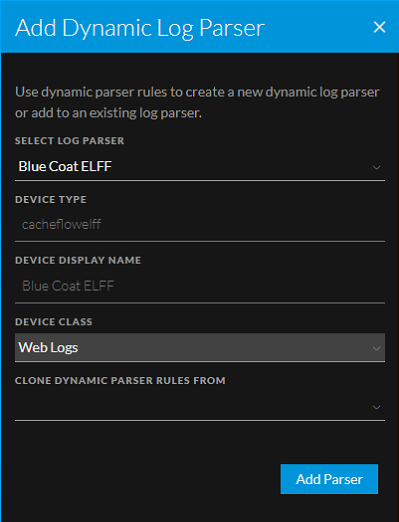
You can clone the rules from any of your existing parsers, including the **default** parser. For simplicity, in this example we leave this field blank: thus, only the rules we create are added to the new parser.
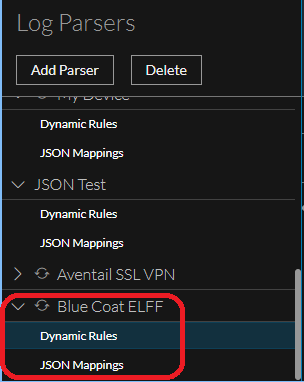
4. Click **Add Parser** to create the new parser.
The new parser is listed in the Log Parsers panel. Note the symbol next to the new parser—this indicates that your changes have not yet been saved.
## About Custom Rules
When you create a new log parser rule, it is saved to an XML definition file for the parser. These files are known as token files. This is important, because the built-in rules are overwritten if you update the parser through Live, but any custom log parser rules are not overwritten, since Live does not update the token files for log parsers.
## Add Rules and DeployAdd Rules and Deploy
After you have added the parser, the next step is to add one or more rules.
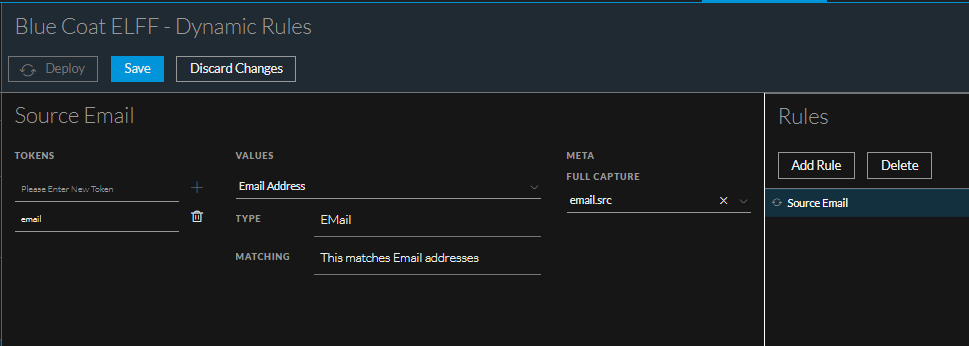
For example, you know that your log messages have some email addresses that follow a "source\_mail" string. You could add the following rule to parse these strings:
**IMPORTANT:** If you click on another parser in the **Log Parsers** panel, before you save your rule, your changes are lost.
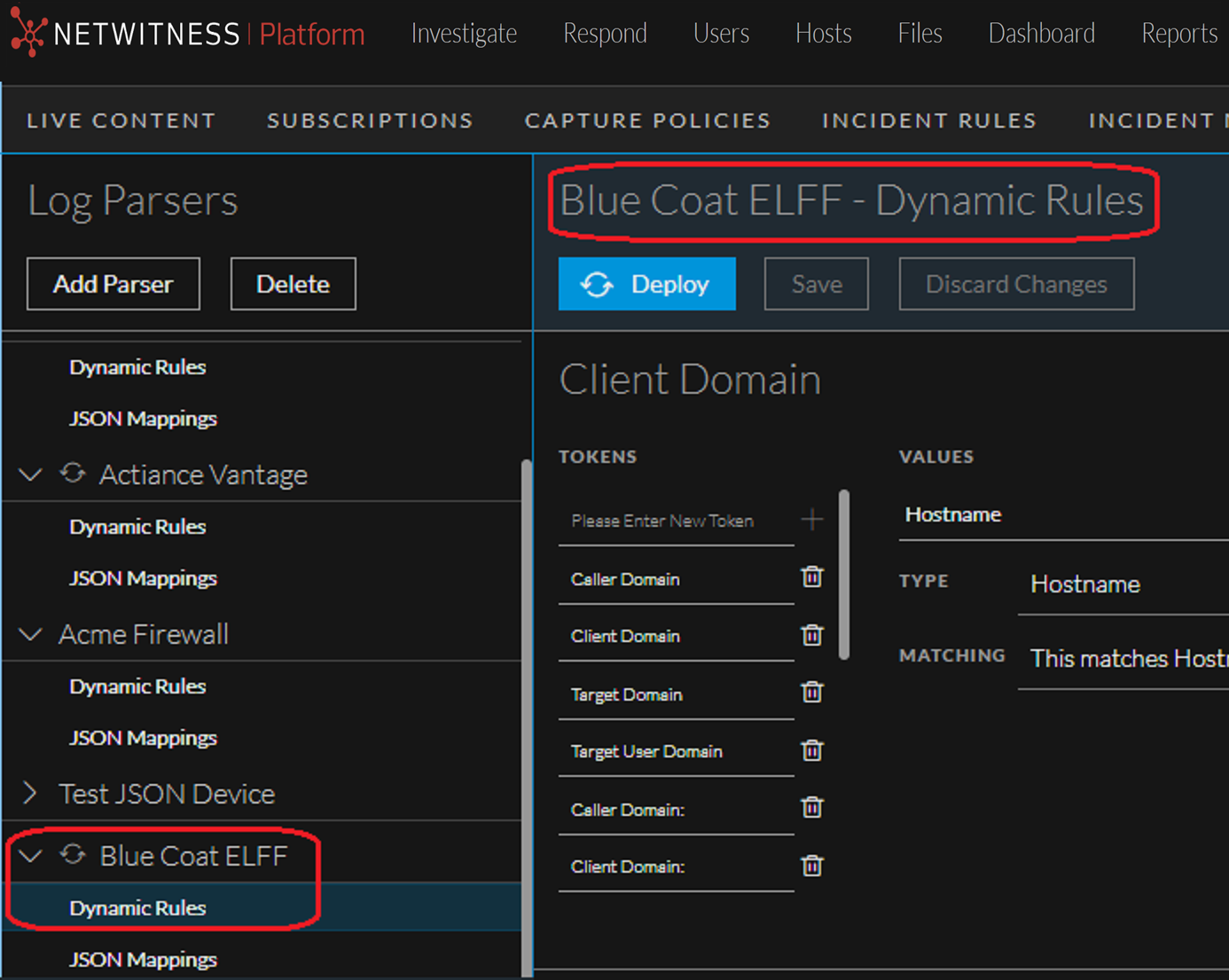
1. Make sure the Dynamic Rules entry for the Blue Coat ELFF parser is selected.
2. In the Rules panel, click **Add Rule**.
The Add New Rule dialog box is displayed.
3. Enter a name for the rule, and click **Add New Rule**.
The center panel is updated to reflect that you are working on a new rule.
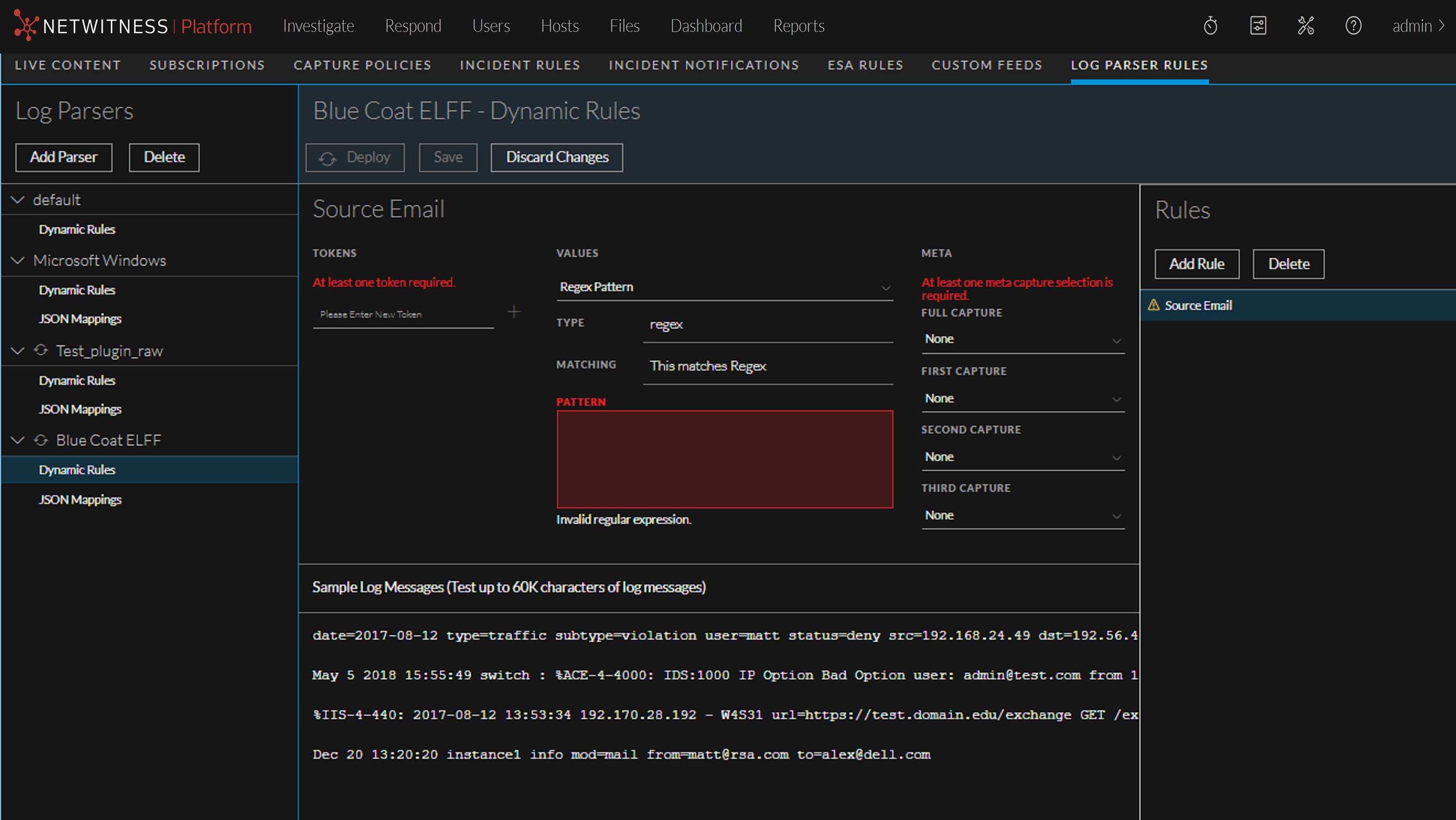
4. In the TOKENS section, enter a string for the token that you want to match, then click **+**.
In this example, we entered **email** .
**Note:** Make sure to include a delimiter for your token. For example, in this case, the token consists of 6 characters: the string "email," and then a space. Some tokens might use a colon, semicolon, or some other character as the delimiter, but it can be easy to forget to add the space character when that is the delimiter.
You can enter more tokens, or continue to add values.
5. In the VALUES section, choose the value for the rule. If you choose to match a Regex Pattern, you need to enter the pattern in the PATTERN field. Other values do not require any options.
In this example, we selected **Email Address**.
6. In the META section, click  to select a meta key to which the rule stores its information. Some notes:
- Enter characters to filter the list of available meta keys.
- For Regex values, you can select "pieces" of the value, and store each piece to its own meta key.
**Note:** If any new meta keys are added to the Log Decoder, they do not appear in the list of Meta immediately. They appear automatically after 24 hours, or you can restart the **content server** service to view them.
In this example, we selected the **email.src** meta key.
The following image shows an example rule:
7. Click **Save** to save the rule. Repeat this procedure to continue adding rules.
8. After you have added all of your rules, click **Deploy** to deploy the new parser to your Log Decoders. Some notes about deploying rules:
- You deploy an entire set of rules for a parser. That is, you can continue adding rules for a specific parser until you have all of your rules, and then you can deploy them all at once.
- After you deploy a custom parser, you can no longer delete it. You can only delete parsers that you have not yet deployed.
**Note:** In this example, we extended an existing log parser. However, if you are creating a new log parser for a new event source, make sure to map the new log parser to the IP address of the event source, as described in "Acknowledging and Mapping Event Sources" in the *Event Source Management User Guide*.
## Regex ValuesRegex Values
Custom Log Parser Rules can match regular expression patterns. If you select a Regex pattern for your Value, you can capture the entire matched token, or sections of it:
- Full capture: the entire matched string is stored to your selected meta key.
- First capture: the first portion of the string, up to the period character, is stored to the meta key.
- Second capture: the second portion of the string, starting after the first period character, is stored to the meta key.
- Third capture: the third portion of the string, starting after the second period character, is stored to the meta key.
You can choose any or all four of these captures, depending on the token you are matching.
For example, we examine the **Source IP or IP:Port** rule:
- Regex Pattern: \\s\*(\\b(?:\[0-9\]{1,3}\\.){3}\[0-9\]{1,3}\\b):?(\\d\*)
- Full capture: none
- First capture: **ip.src**
- Second capture: **port.src**
- Third capture: none
- Assume example string of "src=192.168.24.4:8080", where **src** is one of the tokens defined for this rule:
- **192.168.24.4** is saved to the **ip.src** meta key.
- **8080** is saved to the **port.src** meta key.
For more details, see any online reference that describes PERL regular expressions. There are many tutorials available online.
**IMPORTANT:** Be careful when constructing regular expressions in your custom rules. Badly constructed regular expressions could impact your performance.
[](https://mydev.netwitness.com/?hsLang=en)
Copyright © 2026, NetWitness LLC. All rights reserved.
[NetWitness Platform](https://www.netwitness.com/)
[Acceptable Use Policy](https://www.netwitness.com/wp-content/uploads/Acceptable-Use-Policy-092022.pdf) [Privacy Statement](https://www.netwitness.com/wp-content/uploads/NetWitness-Privacy-Statement-07292024.pdf)

[](https://www.linkedin.com/company/netwitness-platform/) [](https://www.youtube.com/@netwitness)
© 2026 NetWitness LLC. All rights reserved.