---
title: Deploy Palo Alto Prisma Integration using NwConsole
description: "Tags: Documentation\n\n\n\n\n \n\n\n\nThis topic describes how to deploy the Palo Alto Prisma Integration using the NwConsole for users who are not utiliz"
---
[Skip to content](https://mydev.netwitness.com/knowledge-base/deploypaloaltoprismaintegrationusingnwconsole#main-content)

- [Home](https://mydev.netwitness.com/home)
- Integrations
Show submenu for Integrations
- [Netwitness Platform Integrations](https://mydev.netwitness.com/netwitnessplatformintegrations)
- [Third Party Integrations](https://mydev.netwitness.com/thirdpartyintegrations)
- [Knowledge Center](https://mydev.netwitness.com/knowledge-base)
- Community
Show submenu for Community
- [Blogs](https://mydev.netwitness.com/netwitness-security-llc-blog)
- Discussions
- Customers
Show submenu for Customers
- [Manage Products and Licenses](https://mydev.netwitness.com/nwportal)
- Downloads
- Partners
Show submenu for Partners
- [Partner Program](https://mydev.netwitness.com/partner)
- [Partner Resources](https://mydev.netwitness.com/partnerresources)
- [Submit a New Deal Registration](https://mydev.netwitness.com/dealregistration)
- [Become a Partner](https://mydev.netwitness.com/becomeapartner)
- [Update Your Partner Locator Profile](https://www.netwitness.com/partner-locator/?utm_source=pardotnewsletter&utm_medium=email&utm_campaign=partner_march)
- [NetWitness LinkedIn Partner Hub](https://linkedin.com/showcase/netwitnesspartners/)
- Education
Show submenu for Education
- [Instructor Led Training Schedule](https://mydev.netwitness.com/instructorledtrainingschedule)
- [NetWitness Training Catalog](https://mydev.netwitness.com/netwitnesstrainingcatalog)
- [Security Awareness Training](https://mydev.netwitness.com/securityawarenesstraining)
- [New Product Readiness](https://mydev.netwitness.com/newproductreadiness)
- [On-Demand Virtual Labs](https://mydev.netwitness.com/ondemandvirtuallabs)
- [Additional Training Information](https://mydev.netwitness.com/additionaltraininginformation)
- [Frequently Asked Questions](https://mydev.netwitness.com/educationfaq)
- [Contact NetWitness Education Team](https://mydev.netwitness.com/contact-netwitness-education-team)
- Support
Show submenu for Support
- [Contact Support](https://mydev.netwitness.com/contact-support)
- [Create a New Case](https://mydev.netwitness.com/create-support-case)
- [View My Cases](https://mydev.netwitness.com/viewmycase)
- [Product Version Life Cycle](https://mydev.netwitness.com/product-version-life-cycle)
- [Warranty & Replacement Parts](https://mydev.netwitness.com/warranty-and-replacement-parts)
- [Community Support Forum](https://mydev.netwitness.com/community-support-forum)
- [Technical Support Guide](https://mydev.netwitness.com/technical-support-guide)
Open main navigation
Close main navigation
- [Home](https://mydev.netwitness.com/home)
- Integrations
Show submenu for Integrations
- [Netwitness Platform Integrations](https://mydev.netwitness.com/netwitnessplatformintegrations)
- [Third Party Integrations](https://mydev.netwitness.com/thirdpartyintegrations)
- [Knowledge Center](https://mydev.netwitness.com/knowledge-base)
- Community
Show submenu for Community
- [Blogs](https://mydev.netwitness.com/netwitness-security-llc-blog)
- Discussions
- Customers
Show submenu for Customers
- [Manage Products and Licenses](https://mydev.netwitness.com/nwportal)
- Downloads
- Partners
Show submenu for Partners
- [Partner Program](https://mydev.netwitness.com/partner)
- [Partner Resources](https://mydev.netwitness.com/partnerresources)
- [Submit a New Deal Registration](https://mydev.netwitness.com/dealregistration)
- [Become a Partner](https://mydev.netwitness.com/becomeapartner)
- [Update Your Partner Locator Profile](https://www.netwitness.com/partner-locator/?utm_source=pardotnewsletter&utm_medium=email&utm_campaign=partner_march)
- [NetWitness LinkedIn Partner Hub](https://linkedin.com/showcase/netwitnesspartners/)
- Education
Show submenu for Education
- [Instructor Led Training Schedule](https://mydev.netwitness.com/instructorledtrainingschedule)
- [NetWitness Training Catalog](https://mydev.netwitness.com/netwitnesstrainingcatalog)
- [Security Awareness Training](https://mydev.netwitness.com/securityawarenesstraining)
- [New Product Readiness](https://mydev.netwitness.com/newproductreadiness)
- [On-Demand Virtual Labs](https://mydev.netwitness.com/ondemandvirtuallabs)
- [Additional Training Information](https://mydev.netwitness.com/additionaltraininginformation)
- [Frequently Asked Questions](https://mydev.netwitness.com/educationfaq)
- [Contact NetWitness Education Team](https://mydev.netwitness.com/contact-netwitness-education-team)
- Support
Show submenu for Support
- [Contact Support](https://mydev.netwitness.com/contact-support)
- [Create a New Case](https://mydev.netwitness.com/create-support-case)
- [View My Cases](https://mydev.netwitness.com/viewmycase)
- [Product Version Life Cycle](https://mydev.netwitness.com/product-version-life-cycle)
- [Warranty & Replacement Parts](https://mydev.netwitness.com/warranty-and-replacement-parts)
- [Community Support Forum](https://mydev.netwitness.com/community-support-forum)
- [Technical Support Guide](https://mydev.netwitness.com/technical-support-guide)
How can we help you?
- There are no suggestions because the search field is empty.
1. [NetWitness Knowledge Base](https://mydev.netwitness.com/knowledge-base?hsLang=en)
2. [Documentation](https://mydev.netwitness.com/knowledge-base/documentation?hsLang=en)
April 27, 2026
# Deploy Palo Alto Prisma Integration using NwConsole
**Tags:** Documentation
This topic describes how to deploy the Palo Alto Prisma Integration using the NwConsole for users who are not utilizing the Centralized Configuration Management.
## **Prerequisites**
Before you begin configuring the Palo Alto Prisma Integration, ensure that you have the following details:
- The NetWitness Platform (Admin Server and Packet Decoder Host) is on version 12.4 or later.
- The Decoder services are **not** managed by CCM. If CCM manages it, you can disable CCM for the particular decoder service. For more information, see topic [Enable or Disable CCM for Individual Decoder Services](https://50269063.hs-sites.com/knowledge-base/EnableorDisableCCMforIndividualDecoderServices?hsLang=en).
- You must have the Private Key (.pem file), optional Bucket Authentication (.JSON file), GCP bucketnames, local GCP project ID, and Pub/Sub Subscription ID available for configuration:
- The Private Key (.pem file) is used to decrypt the AES key, which is used to decrypt the PCAPs. For more general information on managing and using the Private Key, please refer to Palo Alto's **Traffic Replication in Prisma Access** documentation [https://docs.paloaltonetworks.com/prisma-access/administration/prisma-access-advanced-deployments/mobile-user-globalprotect-advanced-deployments/traffic-mirroring#traffic-mirroring-and-pcap-support-in-prisma-access.](https://docs.paloaltonetworks.com/prisma-access/administration/prisma-access-advanced-deployments/mobile-user-globalprotect-advanced-deployments/traffic-mirroring#traffic-mirroring-and-pcap-support-in-prisma-access)
- The Bucket Authentication Key (.JSON file) is used to authenticate access to a bucket in GCP. Creating a Bucket Authentication Key (.JSON file) is a two-step process:
- Create a service account in GCP with **Storage Object Viewer (roles/storage.objectViewer)**. For more information, see topic [Create service accounts.](https://cloud.google.com/iam/docs/service-accounts-create)
- Create a service account key in GCP. For more information, see [Create and delete service account keys](https://cloud.google.com/iam/docs/keys-create-delete).
### Create Google Cloud Pub/Sub Subscription
The Subscription ID is unique to each Pub/Sub subscription within a project. Each subscription enables users to receive messages from a designated Pub/Sub topic, creating a direct link between the subscription and its corresponding topic. This setup allows for efficient message delivery, ensuring users can manage and retrieve relevant information in real-time.
To create a subscription, use the gcloud tool available on the SASE head nodes.
> gcloud pubsub subscriptions create --topic-project= --topic= --message-filter='attributes.bucketId=" "' --enable-message-ordering
>
> Created subscription \[projects/ /subscriptions/ \]
--topic-project is the home project of the topic, where all subscriptions will be received.
--topic is the topic ID.
--message-filter is the subscription filtering criteria based on the message payload. In this case, it retrieves messages containing an attribute that specifies a particular bucket ID, which is required for the integration plugin.
--enable-message-ordering ensures that subscription messages from the topic, which share the same ordering key (in this case, the GCS bucket of interest), are **ordered/delivered** in the same order they were published. If message ordering is not enabled, it may result in disruptions or breaks in the continuity of the incoming session data.
Any policies specific to custom messages, such as retention, must be determined by the customer according to their needs.
**Note:** Files in the PAN GCS bucket will have a retention period of three days.
### Configure Permissions for Google Cloud Platform
By setting these permissions, the service account will have the necessary access to perform its functions effectively within the Google Cloud Platform (GCP) infrastructure.
To properly configure permissions for the service account used by the plugin, you need to grant the following access and permissions:
1. **GCS Bucket and Pub/Sub Topic Read Access**
- Managed by **PAN** (Palo Alto Networks).
- **GCS Bucket Read Access**: Required to retrieve new packets from the GCS bucket.
- **Pub/Sub Topic Read Access**: It is necessary to subscribe to the Pub/Sub topic for real-time message processing.
2. **Pub/Sub Admin Role**
- The service account must be assigned the "**Pub/Sub Admin Role**", which grants full permissions (pubsub.\*) for managing topics and subscriptions.
- This role is essential to onboard subscriptions locally within the GCP environment that hosts the NetWitness instance.
3. **Cloud API Access for Attached Service Accounts**
- If the service account is directly attached to Decoder **VM**, it must be granted **full access to Cloud APIs** to ensure seamless communication with other GCP resources.
### Deploy Palo Alto Prisma Integration
You must perform the following tasks to deploy the Palo Alto Prisma Integration on NetWitness Platform.
- [Task 1. Map Network Adapter in Decoder for Palo Alto Prisma Integration](https://mydev.netwitness.com/knowledge-base/deploypaloaltoprismaintegrationusingnwconsole#Task3)
- [Task 2. Deploy the Palo Alto Prisma Integration Plugin on Decoder](https://mydev.netwitness.com/knowledge-base/deploypaloaltoprismaintegrationusingnwconsole#Task)
- [Task 3. Verify Palo Alto Prisma Events Received at Decoder](https://mydev.netwitness.com/knowledge-base/deploypaloaltoprismaintegrationusingnwconsole#Task2)
- [Task 4. Verify Events Meta from Palo Alto Prisma in Investigate View](https://mydev.netwitness.com/knowledge-base/deploypaloaltoprismaintegrationusingnwconsole#Task4)
## **Task 1. Map Network Adapter in Decoder for Palo Alto Prisma Integration**
You must select a network adapter **(pcap\_stream,Pcap File Streamer)** and enable **Capture Autostart** option through which the Decoder captures packets and processes the data.
To Map the Network Adapter in Decoder for Palo Alto Prisma Integration
1. Log in to the NetWitness Platform.
2. Go to  **(Admin)** \> **Services**.
3. Select the **Packet Decoder** service and click  \> **View** \> **Config**.
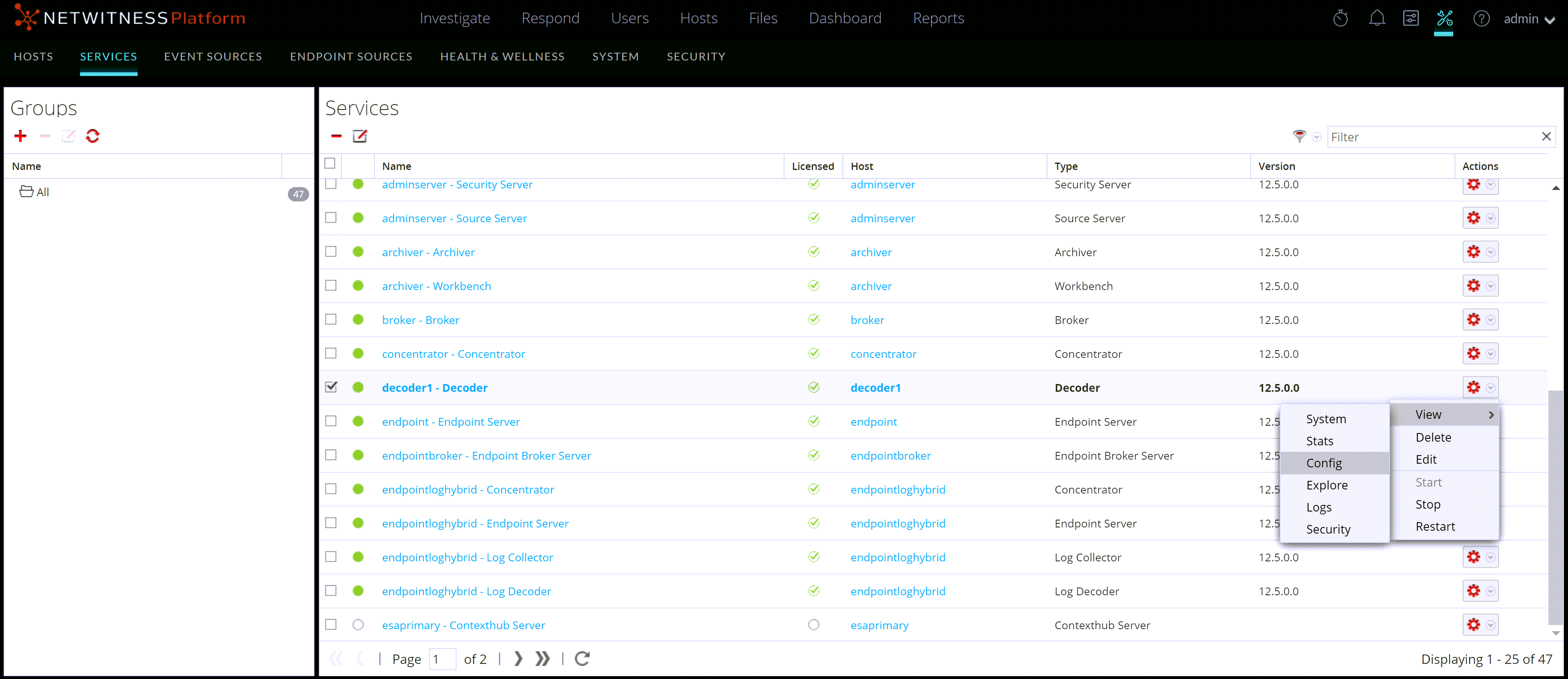
The Configure view for the Decoder service is displayed with the **General** tab open.
4. Under the **Decoder Configuration** section, do the following:
1. Set the **Capture Interface Selected** to **pcap\_stream,Pcap File Streamer** network adapter. (Applicable for 12.4 and 12.4.1)
Set the **Capture Interface Selected** to **packet\_stream,Packet Streamer** network adapter. (Applicable for 12.4.2 and above versions)
2. Enable the **Capture Autostart** option.
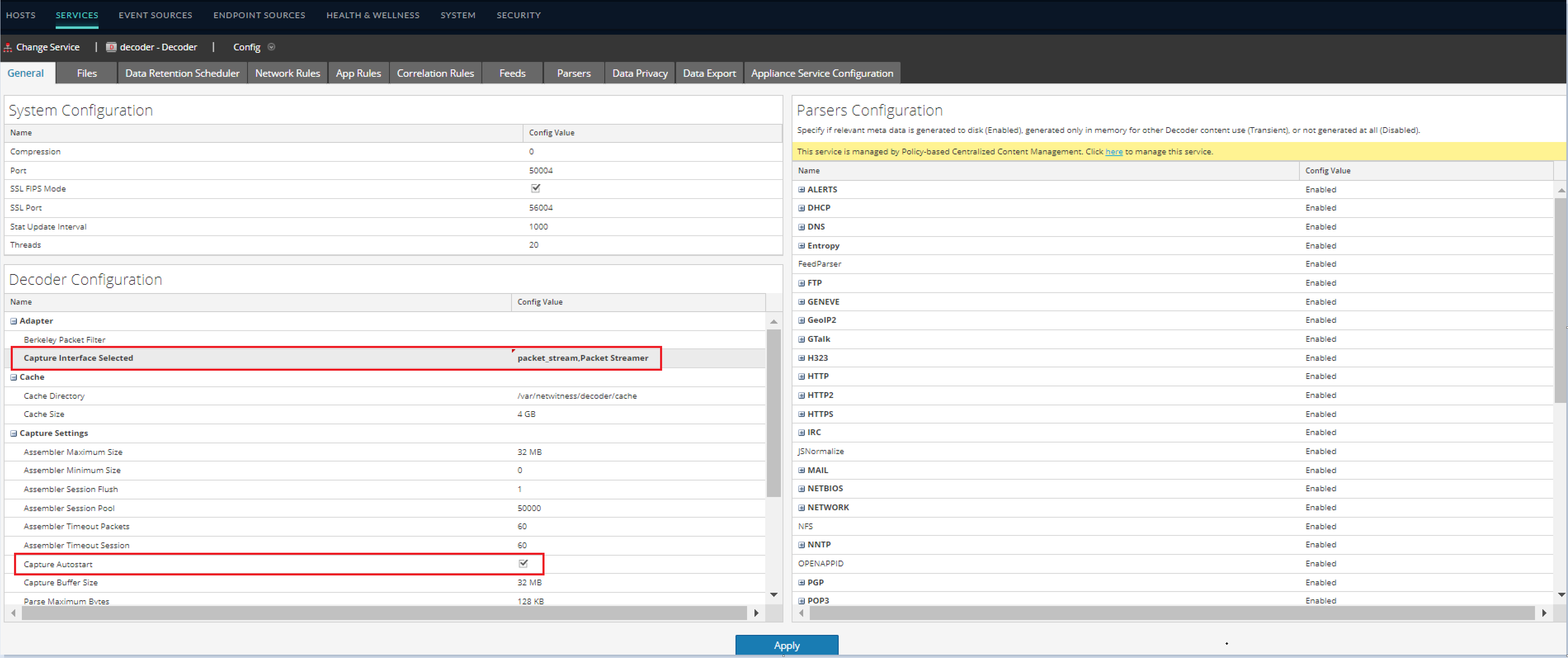
5. Click **Apply** to save the changes.
## **Task 2. Deploy the Palo Alto Prisma Integration Plugin on Decoder**
You can search for the SASE integration Plugin from the Live Content view and deploy it on the decoder services using NWconsole.
Prerequisites
- Ensure that the **Palo Alto Prisma Integration** content type is available in the Live Content view.
- You must have the Private Key (.pem file), optional Bucket Authentication (.JSON file), GCP bucket names, local GCP project ID, and Pub/Sub Subscription ID available for configuration.
Supported Hosts
- Packet Decoder
- Packet Hybrid
To deploy the Palo Alto Prisma Integration Plugin on Decoder
1. Log in to the NetWitness Platform.
2. Go to  **(Configure)** \> **Live Content**.
3. Select the **SASE Integration Plugin** from the **Resource Types** drop-down list in the Search Criteria panel.
**Note:** To narrow the results further, you can use the different options available in the Search Criteria panel.
4. Click **Search**.
The available SASE Integration plugins are displayed.
5. In the **Matching Resources** panel, select **Show Results** \> **Grid**.
6. Select the **Palo Alto Prisma Integration** plugin checkbox and click **Package** \> **Create**.
The resource bundle gets downloaded to your local system.
7. Extract the resource bundle to view the **nw-pa-monitor.zip** package.
8. SSH to the Packet Decoder host.
9. Create a directory by running the following command:
mkdir /opt/paloalto
10. Copy the **nw-pa-monitor.zip** package, **Bucket Authentication Key** (.Json) file, and **Bucket Private Key** (.pem) file to the newly created /opt/paloalto directory.
11. Connect to the NwConsole utility with the following command: NwConsole
12. Log in to the Decoder service using the following command, entering the password when prompted.
\> login localhost:56004:ssl admin netwitness
Successfully logged in to localhost:56004 as session 1561
13. Navigate to the following directory: cd /decoder/hosted
14. Run the following command to install the plugin:
upload /opt/paloalto/nw-pa-monitor.zip

**Note:** When the installation is completed, ensure that a success message appears.
15. Navigate to the Paloalto directory: cd /etc/netwitness/ng/hosted/paloalto
16. Run the following command to create an instance:
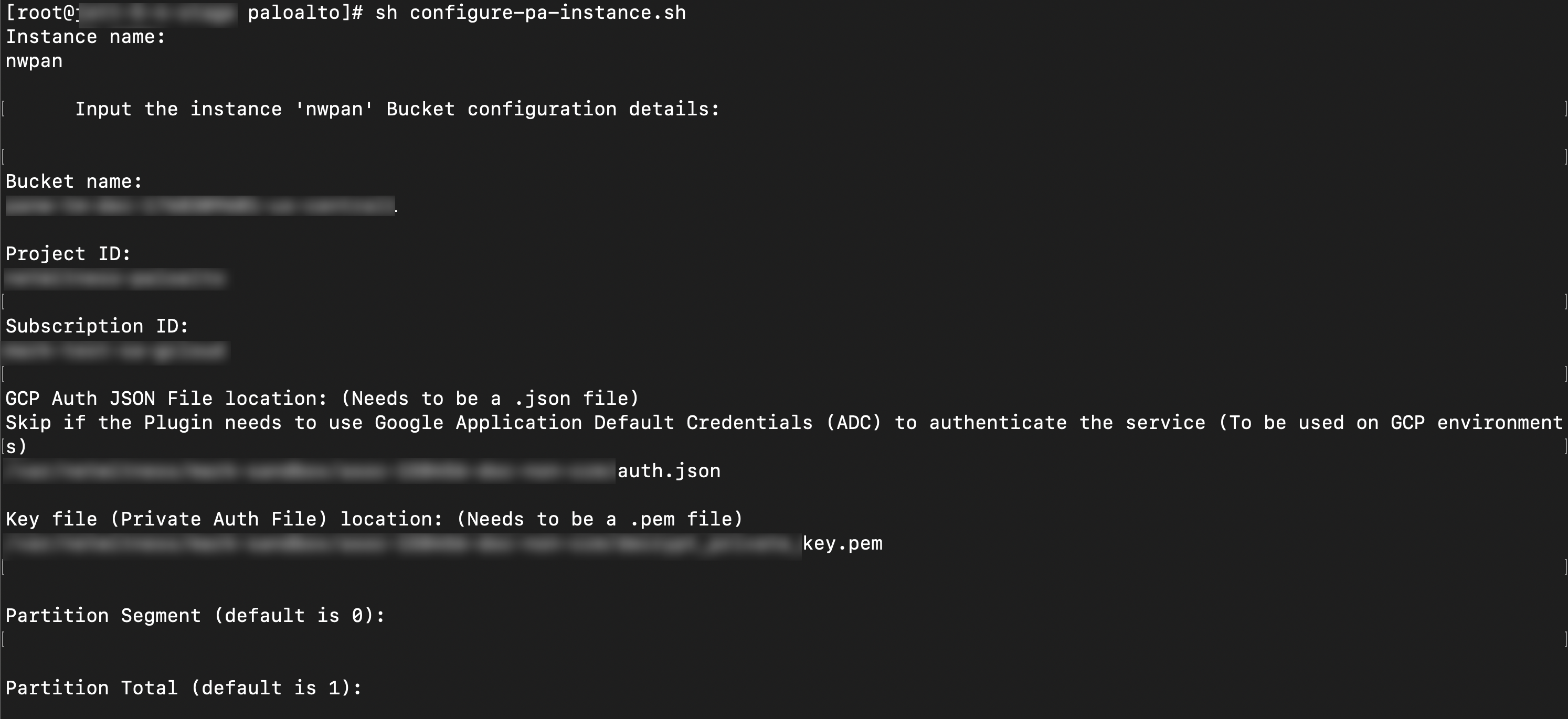
sh configure-pa-instance.sh
17. Enter the values in the following fields:
- **Instance name**: Enter the instance name. Only alpha-numeric characters are allowed, and spaces are not allowed. For example, paloalto.
- **Bucket name**: Enter a valid GCP bucket name. For example, panw-tm-dec-632773000-us-east4
**Note:** Bucket names can only contain lowercase letters, numeric characters, dashes ( - ), underscores ( \_ ), and dots ( . ). Spaces are not allowed.
- **Project ID**: Enter the local GCP project ID that houses the NetWitness instance and Pub/Sub subscription.
- **Subscription ID**: Enter Pub/Sub Subscription ID created for the PAN topic.
**Important:** Bucket Authentication is optional if you have already configured GCP default credentials.
- **Bucket Auth File Location**: Specify the path where the Bucket Authentication Key (.json) file is kept. For example, /opt/paloalto/bucket\_auth\_key.json. The Bucket Authentication Key (.JSON file) is used to authenticate access to a bucket in GCP.
**Note:** Bucket Authentication file is optional, if the customer chooses to not include this file, just press Enter when the Bucket auth file location is prompted by the script. The Bucket Authentication must have a valid bucket authentication key format extension (.JSON). The size of the Bucket Authentication (.JSON file) must not exceed 8 MB.
- **Key file (Private Auth File) Location**: Specify the path where the Bucket Private Key (.pem) file is kept. For example, /opt/paloalto/bucket\_priv\_key.pem. The Private Key (.pem file) is used to decrypt the AES key, which is used to decrypt the PCAPs.
- **Partition Segment**: Enter '0' or leave it blank, as the integration currently supports only one segment.
- **Partition Total**: Enter '1' or leave it blank, as the integration currently supports only one segment.
18. Type **yes** to use the Trusted authentication mechanism to log in to NwConsole; if you type no, you need to specify decoder credentials (username and password).
**Note:** NetWitness recommends that you use a trusted authentication mechanism for communication with the decoder service, where the option is enabled by default.
19. Type **yes** to enable the instance.
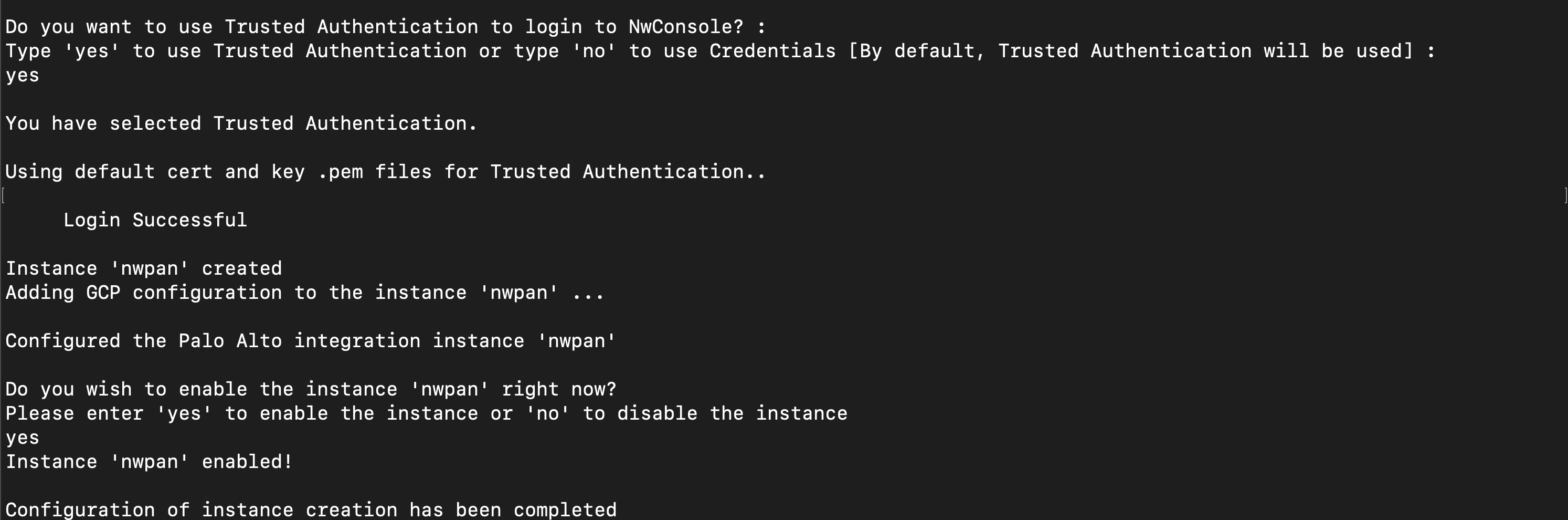
The instance is now configured successfully.
20. Restart the Decoder service. Go to the **Services** view, select the Decoder service, and click  \> **Restart.**
21. A Confirmation dialog request is displayed. To restart the service, click **Yes.**
22. (Optional) Navigate to the System view of the Decoder service and check if the Decoder is capturing the data. This option ensures the decoder has already started capturing the packets. To view the packets in the Decoder, perform [Task 3. Verify Palo Alto Prisma Events Received at Decoder.](https://mydev.netwitness.com/knowledge-base/deploypaloaltoprismaintegrationusingnwconsole#Task2)
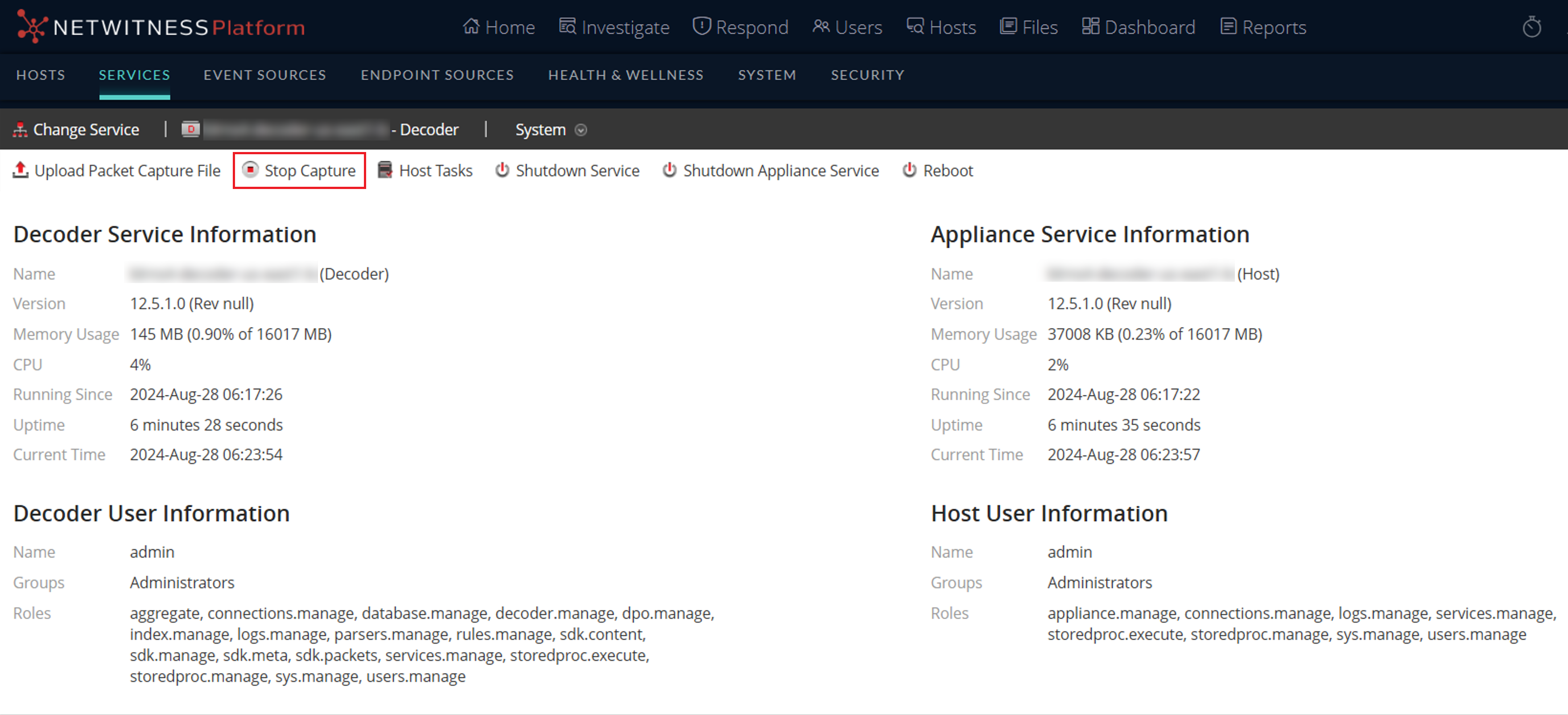
## **Task 3. Verify Palo Alto Prisma Events Received at Decoder**
You can analyze the Palo Alto Prisma events that have been received by the Decoder and verify their accuracy.
To verify the Palo Alto Prisma Events Received at Decoder
1. Log in to the NetWitness Platform.
2. Go to  **(Admin)** \> **Services**.
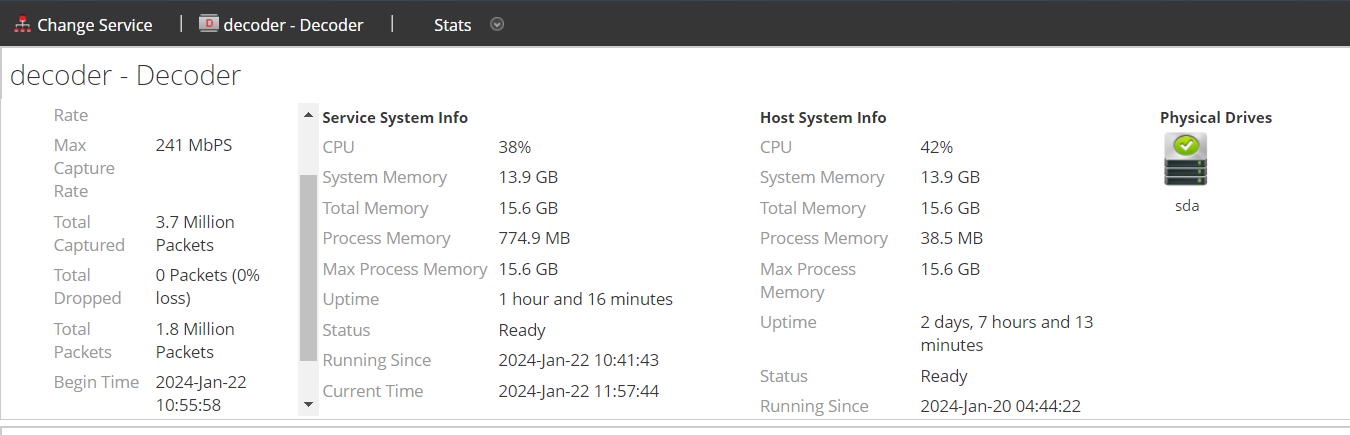
3. Select the **Packet Decoder** service and click  \> **View** \> **Stats**.
4. Under the **Key Stats** section, check the values for **Capture Rate**, **Max Capture Rate**, **Total Dropped, and Total Captured packets** for the decoder service.
## **Task 4. Verify Events Meta from Palo Alto Prisma in Investigate View**
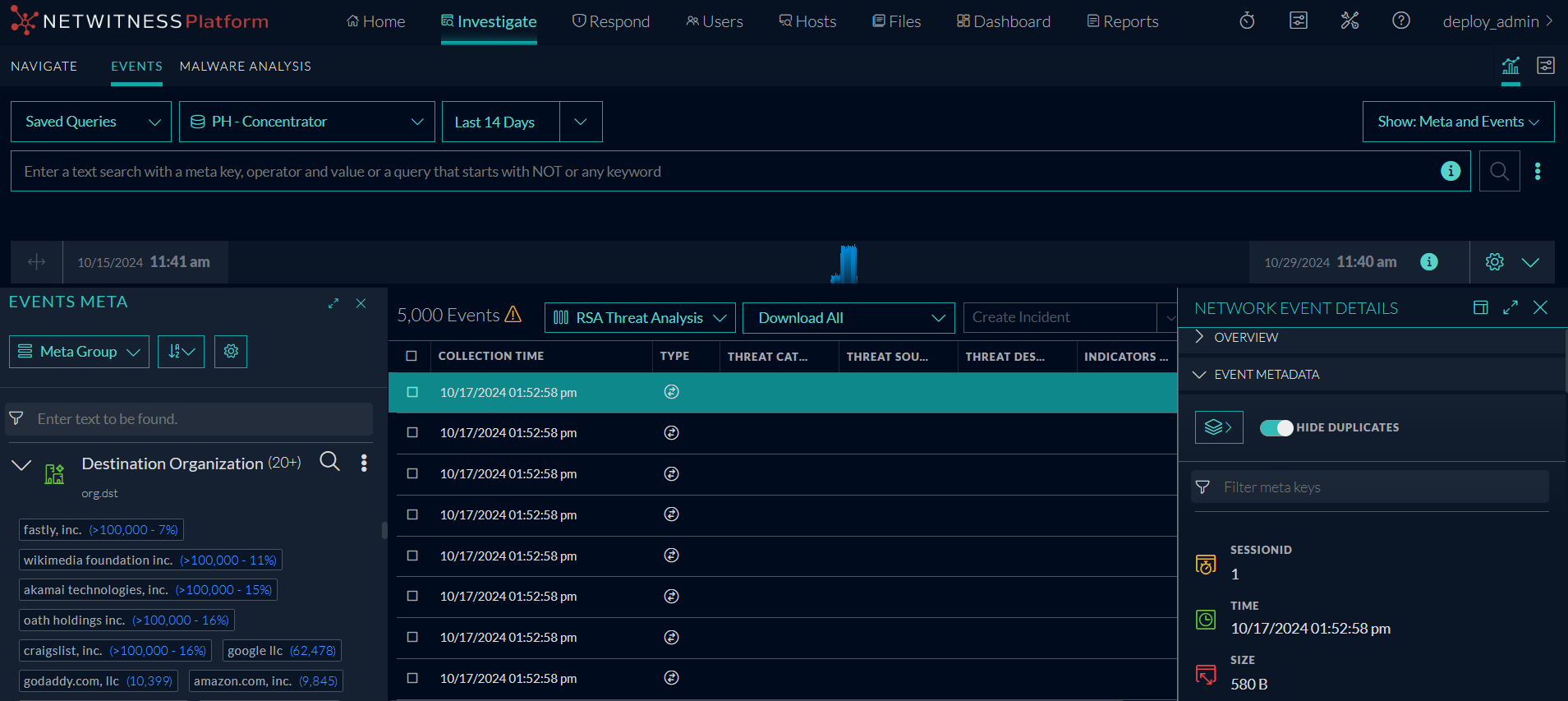
To verify Palo Alto Prsima events, you must first aggregate the Decoder service into the Concentrator and then go to the **Investigate** \> **Events** page to view the Palo Alto Prisma events.
- [Add the Decoder Service in the Concentrator](https://mydev.netwitness.com/knowledge-base/deploypaloaltoprismaintegrationusingnwconsole#Add)
- [Verify from the Investigate \> Events View](https://mydev.netwitness.com/knowledge-base/deploypaloaltoprismaintegrationusingnwconsole#Verify)
**Add the Decoder Service in the Concentrator**
1. Log in to the NetWitness Platform.
2. Go to  **(Admin)** \> **Services**.
3. In the **Services** list, select the **Concentrator** service.
4. Click  \> **View** \> **Config**.
The Services Config View of the Concentrator is displayed.
5. Select the **Sources** tab.
6. Click  and select Available Services.
The Available Services dialog is displayed.
7. Select the **Decoder** service and click **OK**.
The service authentication dialog box is displayed.
**Note:** The services with the Trust Model enabled must be added individually. You are prompted to provide a username and password for the selected service.
8. Enter the Username and Password for the service.
9. Click **OK**.
10. Click **Apply**.
Verify from the **Investigate** \> **Events** View
1. Go to **Investigate** \> **Events**.
2. Select the **Concentrator** Service from the **Services** selection drop-down list.
3. Click  to load the Palo Alto Prisma events metadata.
[](https://mydev.netwitness.com/?hsLang=en)
Copyright © 2026, NetWitness LLC. All rights reserved.
[NetWitness Platform](https://www.netwitness.com/)
[Acceptable Use Policy](https://www.netwitness.com/wp-content/uploads/Acceptable-Use-Policy-092022.pdf) [Privacy Statement](https://www.netwitness.com/wp-content/uploads/NetWitness-Privacy-Statement-07292024.pdf)

[](https://www.linkedin.com/company/netwitness-platform/) [](https://www.youtube.com/@netwitness)
© 2026 NetWitness LLC. All rights reserved.