---
title: Deploy NW Server Host in Azure
description: "Deploy NW Server Host\nThe following tasks must be performed to deploy a NetWitness Server (NW Server) on a virtual machine (VM) in the Azure Cloud en"
---
[Skip to content](https://mydev.netwitness.com/knowledge-base/deploynwserverhostinazure#main-content)

- [Home](https://mydev.netwitness.com/home)
- Integrations
Show submenu for Integrations
- [Netwitness Platform Integrations](https://mydev.netwitness.com/netwitnessplatformintegrations)
- [Third Party Integrations](https://mydev.netwitness.com/thirdpartyintegrations)
- [Knowledge Center](https://mydev.netwitness.com/knowledge-base)
- Community
Show submenu for Community
- [Blogs](https://mydev.netwitness.com/netwitness-security-llc-blog)
- Discussions
- Customers
Show submenu for Customers
- [Manage Products and Licenses](https://mydev.netwitness.com/nwportal)
- Downloads
- Partners
Show submenu for Partners
- [Partner Program](https://mydev.netwitness.com/partner)
- [Partner Resources](https://mydev.netwitness.com/partnerresources)
- [Submit a New Deal Registration](https://mydev.netwitness.com/dealregistration)
- [Become a Partner](https://mydev.netwitness.com/becomeapartner)
- [Update Your Partner Locator Profile](https://www.netwitness.com/partner-locator/?utm_source=pardotnewsletter&utm_medium=email&utm_campaign=partner_march)
- [NetWitness LinkedIn Partner Hub](https://linkedin.com/showcase/netwitnesspartners/)
- Education
Show submenu for Education
- [Instructor Led Training Schedule](https://mydev.netwitness.com/instructorledtrainingschedule)
- [NetWitness Training Catalog](https://mydev.netwitness.com/netwitnesstrainingcatalog)
- [Security Awareness Training](https://mydev.netwitness.com/securityawarenesstraining)
- [New Product Readiness](https://mydev.netwitness.com/newproductreadiness)
- [On-Demand Virtual Labs](https://mydev.netwitness.com/ondemandvirtuallabs)
- [Additional Training Information](https://mydev.netwitness.com/additionaltraininginformation)
- [Frequently Asked Questions](https://mydev.netwitness.com/educationfaq)
- [Contact NetWitness Education Team](https://mydev.netwitness.com/contact-netwitness-education-team)
- Support
Show submenu for Support
- [Contact Support](https://mydev.netwitness.com/contact-support)
- [Create a New Case](https://mydev.netwitness.com/create-support-case)
- [View My Cases](https://mydev.netwitness.com/viewmycase)
- [Product Version Life Cycle](https://mydev.netwitness.com/product-version-life-cycle)
- [Warranty & Replacement Parts](https://mydev.netwitness.com/warranty-and-replacement-parts)
- [Community Support Forum](https://mydev.netwitness.com/community-support-forum)
- [Technical Support Guide](https://mydev.netwitness.com/technical-support-guide)
Open main navigation
Close main navigation
- [Home](https://mydev.netwitness.com/home)
- Integrations
Show submenu for Integrations
- [Netwitness Platform Integrations](https://mydev.netwitness.com/netwitnessplatformintegrations)
- [Third Party Integrations](https://mydev.netwitness.com/thirdpartyintegrations)
- [Knowledge Center](https://mydev.netwitness.com/knowledge-base)
- Community
Show submenu for Community
- [Blogs](https://mydev.netwitness.com/netwitness-security-llc-blog)
- Discussions
- Customers
Show submenu for Customers
- [Manage Products and Licenses](https://mydev.netwitness.com/nwportal)
- Downloads
- Partners
Show submenu for Partners
- [Partner Program](https://mydev.netwitness.com/partner)
- [Partner Resources](https://mydev.netwitness.com/partnerresources)
- [Submit a New Deal Registration](https://mydev.netwitness.com/dealregistration)
- [Become a Partner](https://mydev.netwitness.com/becomeapartner)
- [Update Your Partner Locator Profile](https://www.netwitness.com/partner-locator/?utm_source=pardotnewsletter&utm_medium=email&utm_campaign=partner_march)
- [NetWitness LinkedIn Partner Hub](https://linkedin.com/showcase/netwitnesspartners/)
- Education
Show submenu for Education
- [Instructor Led Training Schedule](https://mydev.netwitness.com/instructorledtrainingschedule)
- [NetWitness Training Catalog](https://mydev.netwitness.com/netwitnesstrainingcatalog)
- [Security Awareness Training](https://mydev.netwitness.com/securityawarenesstraining)
- [New Product Readiness](https://mydev.netwitness.com/newproductreadiness)
- [On-Demand Virtual Labs](https://mydev.netwitness.com/ondemandvirtuallabs)
- [Additional Training Information](https://mydev.netwitness.com/additionaltraininginformation)
- [Frequently Asked Questions](https://mydev.netwitness.com/educationfaq)
- [Contact NetWitness Education Team](https://mydev.netwitness.com/contact-netwitness-education-team)
- Support
Show submenu for Support
- [Contact Support](https://mydev.netwitness.com/contact-support)
- [Create a New Case](https://mydev.netwitness.com/create-support-case)
- [View My Cases](https://mydev.netwitness.com/viewmycase)
- [Product Version Life Cycle](https://mydev.netwitness.com/product-version-life-cycle)
- [Warranty & Replacement Parts](https://mydev.netwitness.com/warranty-and-replacement-parts)
- [Community Support Forum](https://mydev.netwitness.com/community-support-forum)
- [Technical Support Guide](https://mydev.netwitness.com/technical-support-guide)
How can we help you?
- There are no suggestions because the search field is empty.
1. [NetWitness Knowledge Base](https://mydev.netwitness.com/knowledge-base?hsLang=en)
2. [Documentation](https://mydev.netwitness.com/knowledge-base/documentation?hsLang=en)
April 26, 2026
# Deploy NW Server Host in Azure
## Deploy NW Server Host
The following tasks must be performed to deploy a NetWitness Server (NW Server) on a virtual machine (VM) in the Azure Cloud environment.
**Note:** It is not mandatory to deploy the NW Server in the Azure Cloud environment. For more information on how to deploy other components, see [Azure Deployment Scenarios](https://community.netwitness.com/AzureDep.htm#Azure).
## Task 1. - Upload NW Server VHDs (Optimized Size is 30GB, same as LITE VHDs)Task 1. Upload NW Server Full VHDs (Optimized Size is 30GB, same as LITE VHDs)
**To upload NW Server Full VHDs (Optimized Size is 30GB, same as LITE VHDs) to Azure**
1. Contact Customer Support ([https://community.netwitness.com/t5/support/ct-p/support](https://community.netwitness.com/t5/support/ct-p/support)) to open a support case requesting the NW Server Full VHDs. A valid throughput license is required.
2. Customer Support will update the case with Full VHD URI's.
3. In the Azure Portal, open the Powershell CLI.
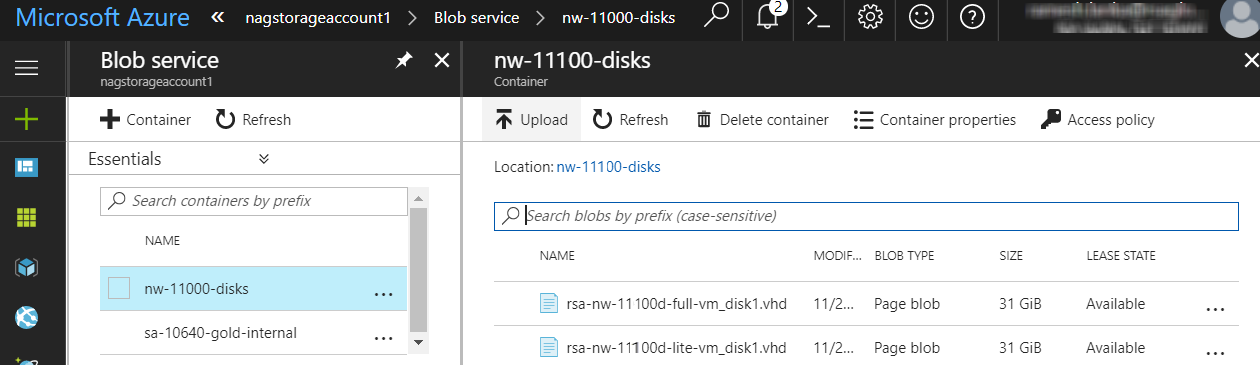
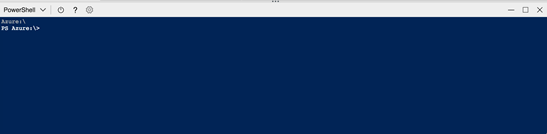
You will need a storage account, blob service and container setup. This is where the Full VHD’s are copied. After these are in place, you can execute the following command within the Azure Portal Powershell CLI. Alternatively, you can also run these commands from the Powershell on your workstation:
1. Run this command from Powershell to install AzureRM: Install-Module -Name AzureRM –AllowClobber
2. Execute this command to verify the installation process has been successfully done: Import-Module -Name AzureRM
3. If you find any error regarding execution policy, execute this command: - Set-ExecutionPolicy -ExecutionPolicy RemoteSigned (then repeat step b)
4. (Optional) If you are running the commands from the Powershell on your workstation, log in to your Azure account using this command: Login-AzureRmAccount
5. Select the Subscription: Select-AzureRmSubscription -SubscriptionId
6. Create a target context: $targetStorageContext = (Get-AzureRmStorageAccount -ResourceGroupName –Name ).Context
7. Start the copy: Start-AzureStorageBlobCopy -AbsoluteUri “ ” -DestContainer -DestBlob -DestContext $targetStorageContext
8. Obtain the Blob copy status by using the command: Get-AzureStorageBlobCopyState -Blob "\< destination-blob-name\>" -Container " " –Context $targetStorageContext
4. Once the Full VHD’s are successfully copied. You’ll must create an image and a VM.
5. Verify if all the NW Server Full VHDs are uploaded into the Azure Cloud.
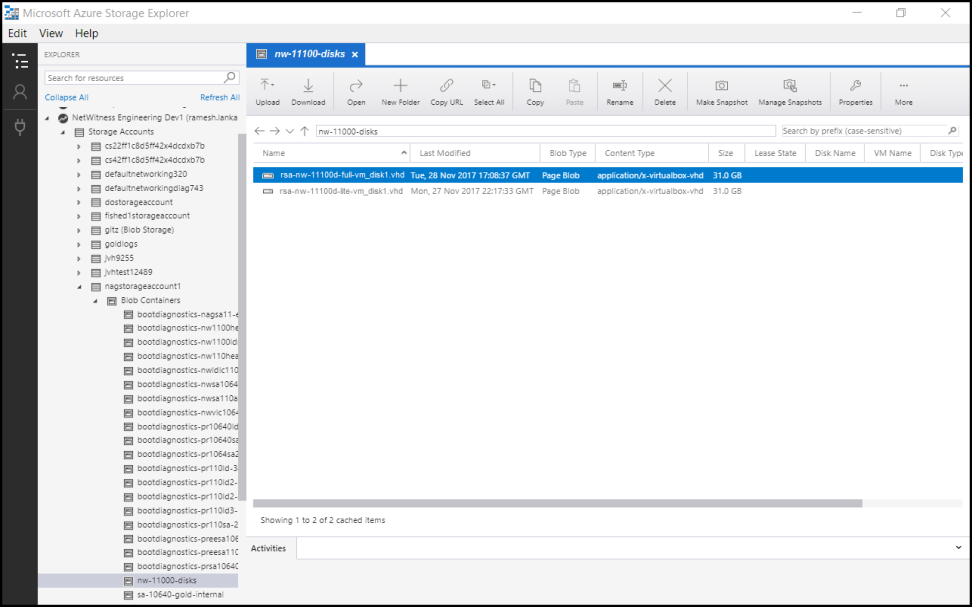
**Note:** Alternatively, you can use the Microsoft Azure Storage Explorer windows utility ([http://storageexplorer.com/](http://storageexplorer.com/)) to verify that all the Full VHDs from the following location subscription exist. This utility helps you manage the contents of your storage.
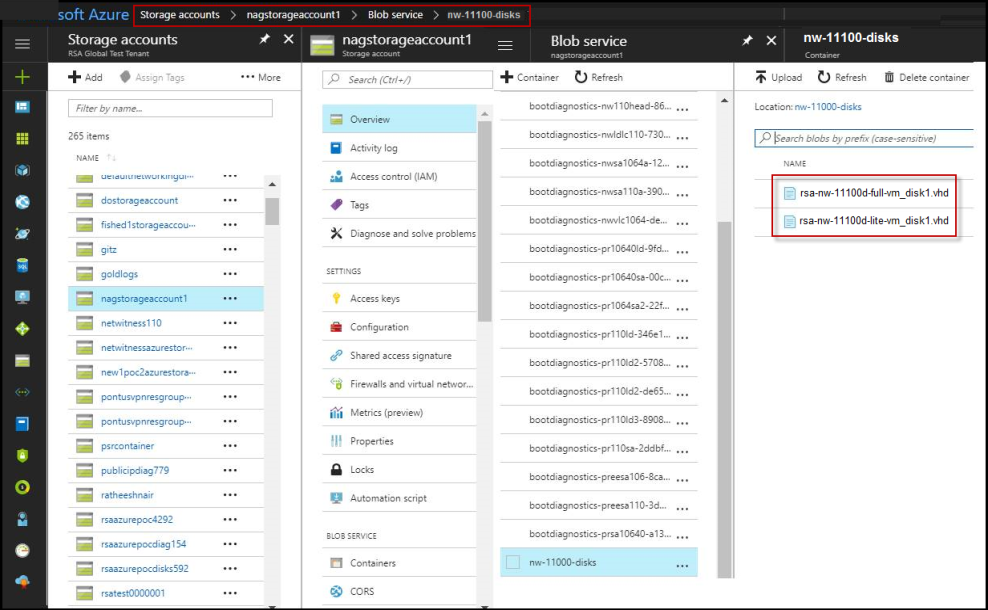
1. Log in to the Azure portal ([https://portal.azure.com](https://portal.azure.com/)).
2. From the right panel, click **Storage accounts** \> **netwitnessazurestorage1** \> **Blob service** \> **nwazurevhdstore**.
6\. (Optional) In the Azure Explorer, go to the **NetWitness** group \> **Storage Accounts** \> **netwitnessazurestorage1**) \> **Blob Containers** \> **nwazurevhdstore**).
## Task 2. - Create NW Server Image
To create a NW Server image in Azure from upload Full VHDs (Optimized Size is 30GB, same as LITE VHDs), perform the following steps:
1. Log in to [https://portal.azure.com](https://portal.azure.com/).
2. From the left panel, click **All Services** and filter by Images.
3. Click **Images**.
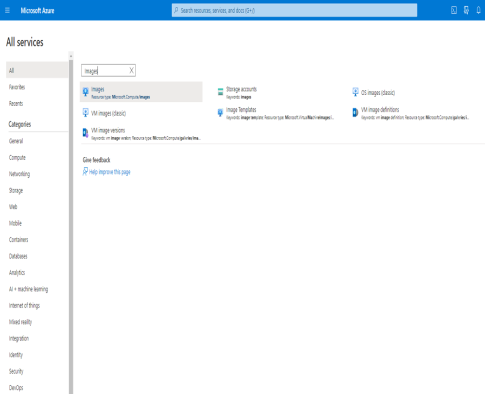
4. To create and configure the Image.
1. Click **Create**.
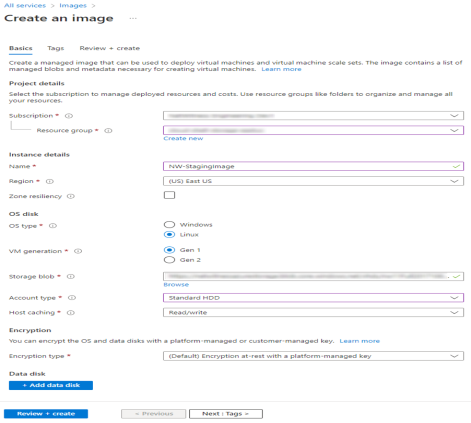
2. Enter an image **Name**, select the correct **Resource Group**, select a valid **Region**, and set the **OS Disk** to Linux.
In the **Storage blob**, browse to the uploaded location of the VHDs .
3. Make sure that **Standard (HDD)** is selected for **Account Type**.
The following screen shot illustrates a completed **Create Image** view.
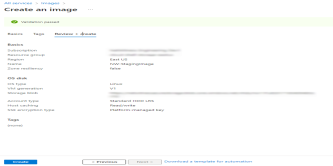
4. Click **Next : Tags \>** to add the tags for the Image (optional) and then Click **Review + create**.
Azure does a validation check.
5. Click **Create** to create the image.
Check notifications on top right for the confirmation.
## Task 3. Create Virtual Machine (VM)
**Note**: To deploy NW Server Host and Component Hosts, follow the steps described below.
To create a VM in Azure using the NW Server image:
1. Go to **Images** and click **Create VM**.
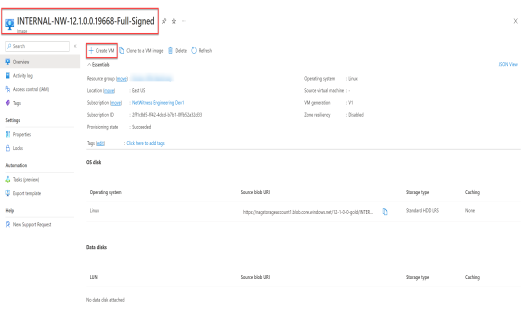
The **Basics** tab is displayed.
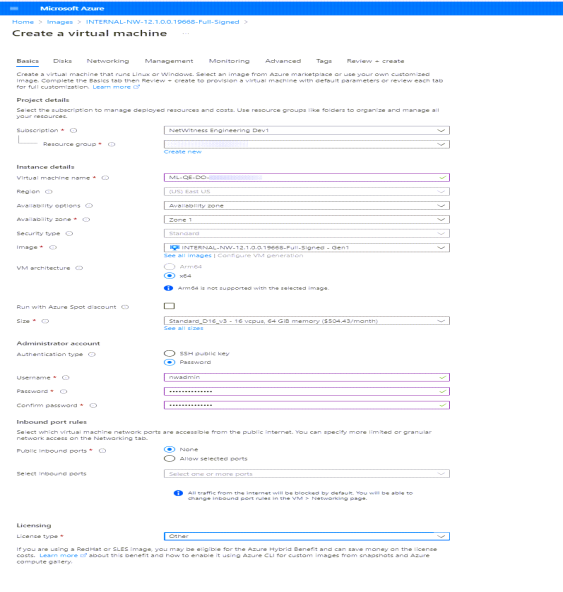
2. Enter the values in following fields.
1. In the **Name** field, enter a user-defined name (for example, **ML-QE-DO**.
**Caution:** The username and password that you define is used to login to the system as a non-administrator user. Do not use the root user (the login does not have superuser permissions). You must change the root password the first time that you log in to the VM by executing the su passwd root command. This is a critical step and should not be missed. You cannot use root for a username (Azure-specific).
**Note:** Make sure the values selected in the **Subscription**, **Resource group**, and **Region** fields are correct.
2. Click **See all sizes** and select appropriate Size and Instance. The recommended instance for Concentrator is **Standard F8**.
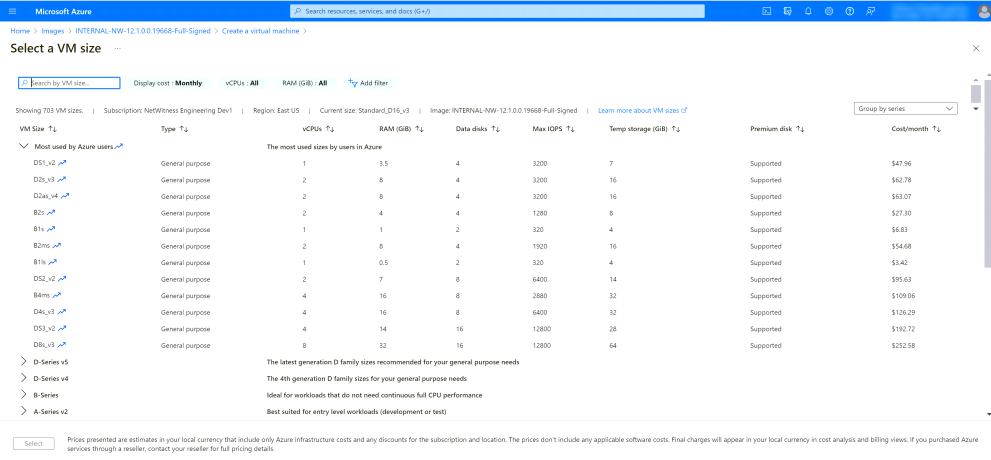
**Note:** The sizing is based upon the capacity requirements of your enterprise. For more information on NetWitness VM size recommendations based on log capture rates, see [Azure Configuration Recommendations](https://50269063.hs-sites.com/knowledge-base/AzureConfigurationRecommendations?hsLang=en). The minimum size NetWitness recommends for the NW Server is **F8 Standard**.
3. In the **User name** field, enter a valid username.
4. In the **Authentication type** field, click **Password** and enter a strong password that is a combination of lowercase, uppercase, numeral and a symbol (for example, **Password@123**).
1. Click **Next** : **Disks \>**.
The **Disks** tab is displayed.
3. In the OS Disk type, perform the following steps:
1. Select **Standard HDD** from the drop-down list.
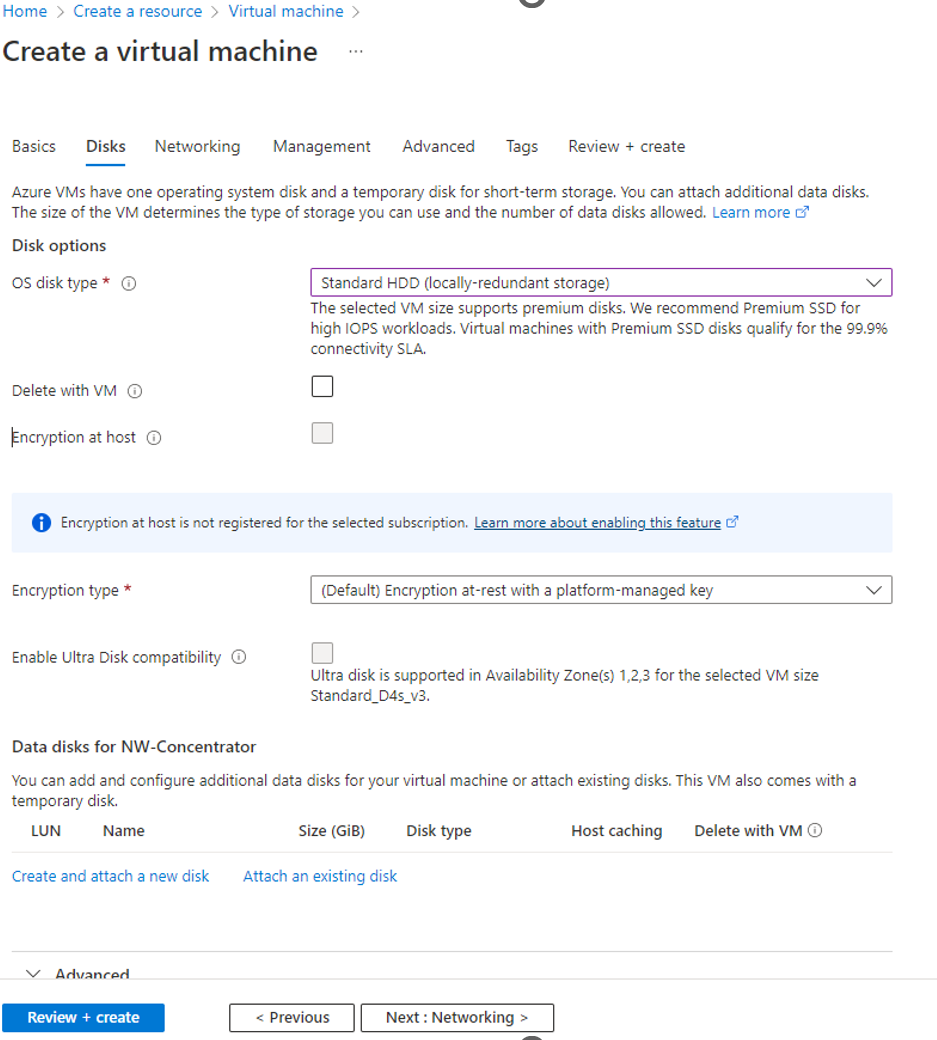
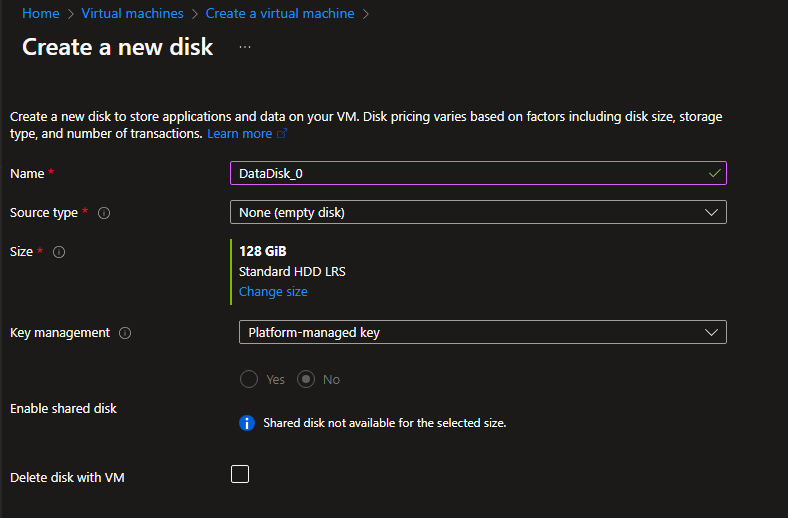
2. Click **Create and attach a new disk** and select size as **128GiB** of type Standard HDD LRS.
3. Click **Next : Networking \>**.
The **Networking** tab is displayed.
4. Click and define the fields.
1. In the **Networking** tab, select:
- A valid **Virtual network** and **Subnet**.
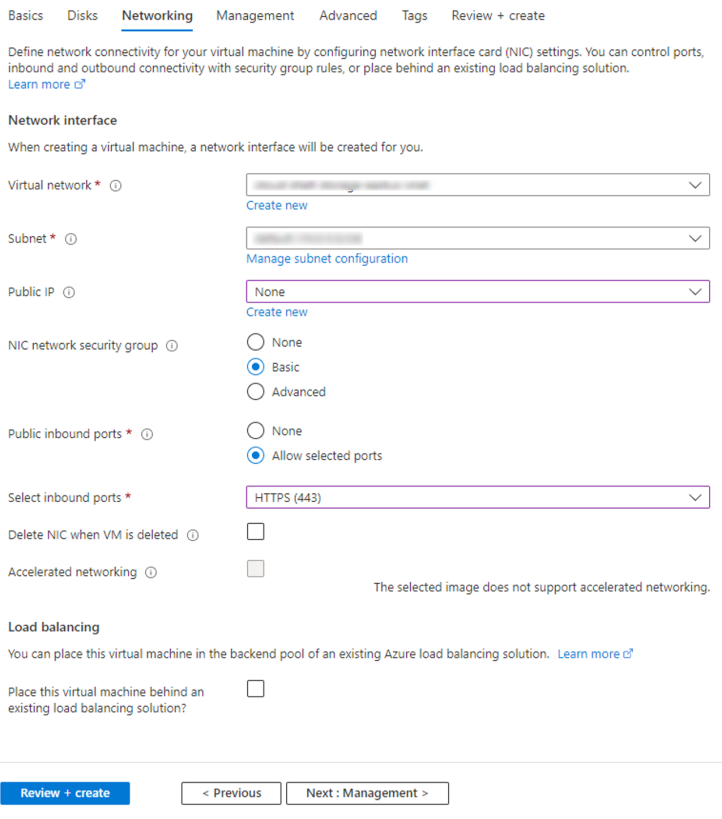
- **None** for the **Public IP address**.
NetWitness recommends **None** for the **Public IP address** (this is not mandatory). You can assign a public IP address, but it countermands Best Practices to assign a public IP to something that is based in the Azure Cloud.
- A valid **Network security group**.
For information on Network security groups, see the Microsoft Azure documentation ([https://docs.microsoft.com/en-us/azure/virtual-network/virtual-networks-nsg](https://docs.microsoft.com/en-us/azure/virtual-network/virtual-networks-nsg)).
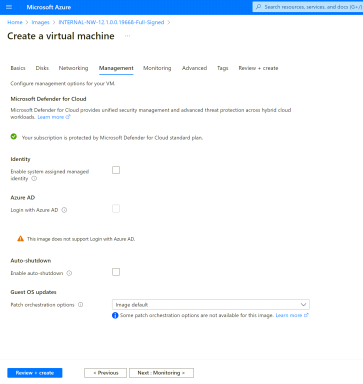
2. (Optional) In the **Management** tab, configure the details if required and click **Review + create**.
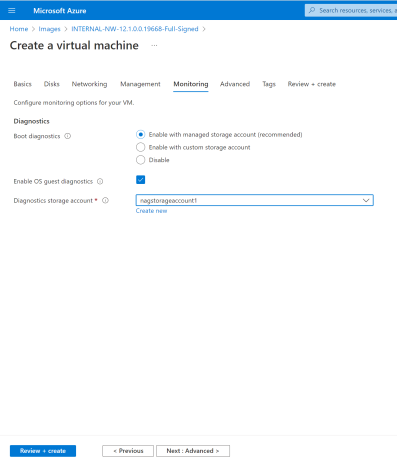
3. In the **Monitoring** tab, under Diagnostics, select:
- **On** for **Boot Diagnostics**
- **On** for **OS guest diagnostics**
- a valid **Diagnostics storage account**
The following figure illustrates a completed Settings panel.
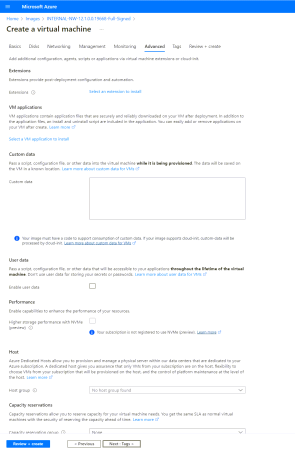
**Note:** By default, the settings remain unchanged in the **Advanced** and **Tags** tab. Add any name and value pairs for tags based on requirement.
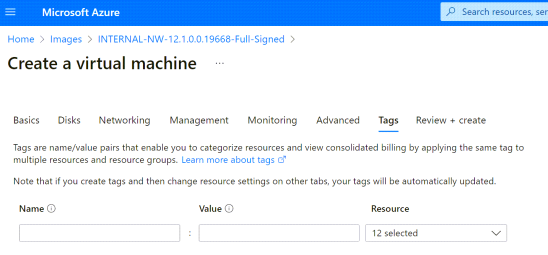
5. Under **Review + create** tab, review the specified details and click **Create**.
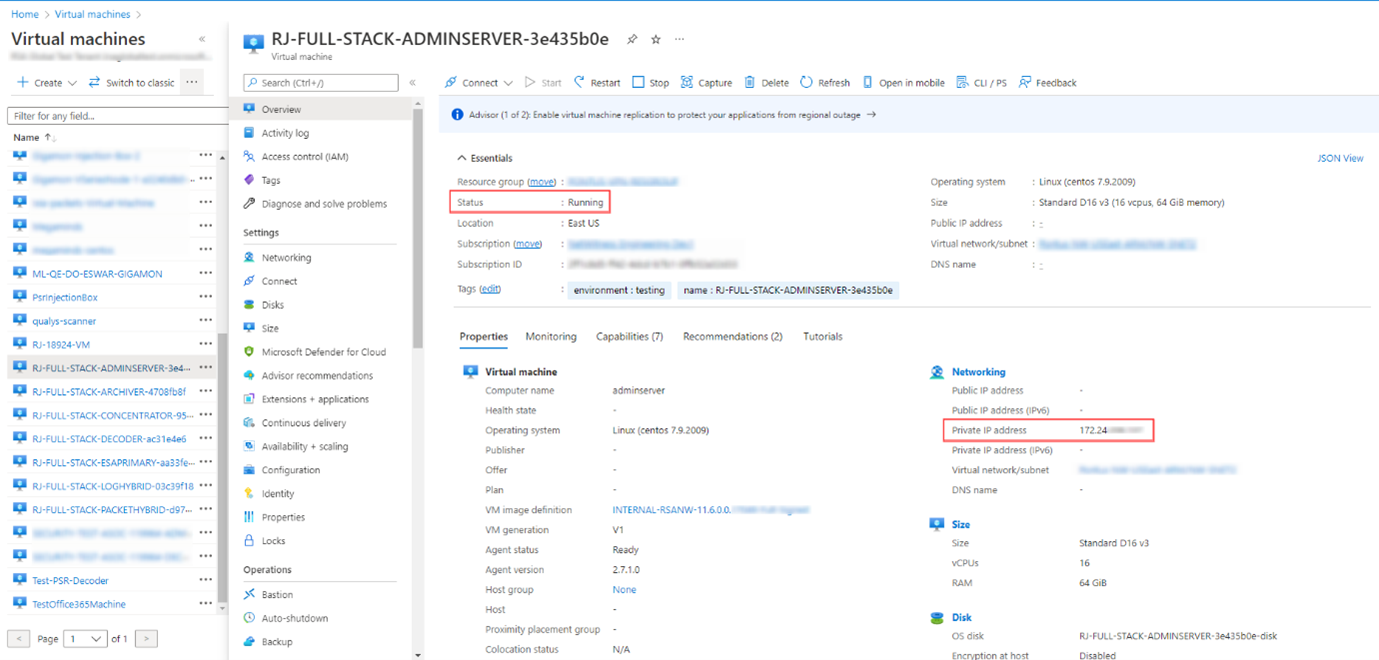
The NW Server VM Deployment is successful when you see the VM status as **Running**.
6. Click **Overview** on the Virtual Machine to view all the required details such as VM status and IP Address.
7. SSH to the VM using the username that you specified in Step 2d of [Task 3](https://mydev.netwitness.com/knowledge-base/deploynwserverhostinazure#Task3CreateVM) and reset the **root** password. Use the su passwd root command string to reset the root password.
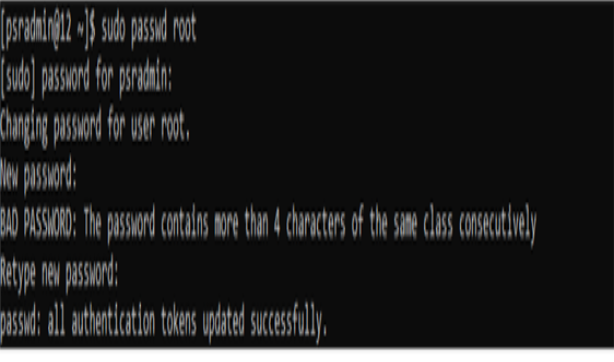
8. Close the current SSH session and open a new SSH session with **root** using the username and the password created in the previous step.
**Note:** Step 8 is a critical, one-time step for a new deployment. If you do not complete this step, the NetWitness User Interface will not load.
9. Run the following commands to configure the filesystems.
- lsblk: Capture the name of disk, assuming the disk name is /dev/sdc
- parted -s /dev/sdc mklabel gpt mkpart primary 0% 100%
- pvcreate /dev/sdc1
- vgextend netwitness\_vg00 /dev/sdc1
- lvextend -L +30G /dev/netwitness\_vg00/root
- xfs\_growfs /dev/netwitness\_vg00/root
- lvextend -l +100%FREE /dev/netwitness\_vg00/nwhome
- xfs\_growfs /dev/netwitness\_vg00/nwhome
10. To configure the Component hosts, for example, Packet Decoder Host, you must repeat the steps 1-9 to launch a new VM instance and configure the VM Component hosts.
## (Optional) Add New Component Hosts to Existing NW Server
If you have a Full image that was created using [Task 2. Create NW Sever Image](https://mydev.netwitness.com/knowledge-base/deploynwserverhostinazure#Task2CreateNWServe), you can now proceed to create a New Component Host (For example, a Decoder) using the steps described in [Task 3. Create Virtual Machine (VM)](https://mydev.netwitness.com/knowledge-base/deploynwserverhostinazure#Task3CreateVirtualMa).
If you do not have the Full image, then you need to perform all the three tasks in the same sequence as described below:
- [Task 1. Upload Full VHDs (Optimized Size is 30GB, same as LITE VHDs)](https://mydev.netwitness.com/knowledge-base/deploynwserverhostinazure#Task1UpdSASrvVHDs)
- [Task 2. Create NW Sever Image](https://mydev.netwitness.com/knowledge-base/deploynwserverhostinazure#Task2CreateNWServe)
- [Task 3. Create Virtual Machine (VM)](https://mydev.netwitness.com/knowledge-base/deploynwserverhostinazure#Task3CreateVirtualMa)
[](https://mydev.netwitness.com/?hsLang=en)
Copyright © 2026, NetWitness LLC. All rights reserved.
[NetWitness Platform](https://www.netwitness.com/)
[Acceptable Use Policy](https://www.netwitness.com/wp-content/uploads/Acceptable-Use-Policy-092022.pdf) [Privacy Statement](https://www.netwitness.com/wp-content/uploads/NetWitness-Privacy-Statement-07292024.pdf)

[](https://www.linkedin.com/company/netwitness-platform/) [](https://www.youtube.com/@netwitness)
© 2026 NetWitness LLC. All rights reserved.