---
title: Create Custom Meta Keys Using Custom Feed
description: "Create Custom Meta Keys Using a Custom FeedCreate Custom Meta Keys Using a Custom Feed\nThis topic provides information on how to add custom meta keys"
---
[Skip to content](https://mydev.netwitness.com/knowledge-base/createcustommetakeysusingcustomfeed#main-content)

- [Home](https://mydev.netwitness.com/home)
- Integrations
Show submenu for Integrations
- [Netwitness Platform Integrations](https://mydev.netwitness.com/netwitnessplatformintegrations)
- [Third Party Integrations](https://mydev.netwitness.com/thirdpartyintegrations)
- [Knowledge Center](https://mydev.netwitness.com/knowledge-base)
- Community
Show submenu for Community
- [Blogs](https://mydev.netwitness.com/netwitness-security-llc-blog)
- Discussions
- Customers
Show submenu for Customers
- [Manage Products and Licenses](https://mydev.netwitness.com/nwportal)
- Downloads
- Partners
Show submenu for Partners
- [Partner Program](https://mydev.netwitness.com/partner)
- [Partner Resources](https://mydev.netwitness.com/partnerresources)
- [Submit a New Deal Registration](https://mydev.netwitness.com/dealregistration)
- [Become a Partner](https://mydev.netwitness.com/becomeapartner)
- [Update Your Partner Locator Profile](https://www.netwitness.com/partner-locator/?utm_source=pardotnewsletter&utm_medium=email&utm_campaign=partner_march)
- [NetWitness LinkedIn Partner Hub](https://linkedin.com/showcase/netwitnesspartners/)
- Education
Show submenu for Education
- [Instructor Led Training Schedule](https://mydev.netwitness.com/instructorledtrainingschedule)
- [NetWitness Training Catalog](https://mydev.netwitness.com/netwitnesstrainingcatalog)
- [Security Awareness Training](https://mydev.netwitness.com/securityawarenesstraining)
- [New Product Readiness](https://mydev.netwitness.com/newproductreadiness)
- [On-Demand Virtual Labs](https://mydev.netwitness.com/ondemandvirtuallabs)
- [Additional Training Information](https://mydev.netwitness.com/additionaltraininginformation)
- [Frequently Asked Questions](https://mydev.netwitness.com/educationfaq)
- [Contact NetWitness Education Team](https://mydev.netwitness.com/contact-netwitness-education-team)
- Support
Show submenu for Support
- [Contact Support](https://mydev.netwitness.com/contact-support)
- [Create a New Case](https://mydev.netwitness.com/create-support-case)
- [View My Cases](https://mydev.netwitness.com/viewmycase)
- [Product Version Life Cycle](https://mydev.netwitness.com/product-version-life-cycle)
- [Warranty & Replacement Parts](https://mydev.netwitness.com/warranty-and-replacement-parts)
- [Community Support Forum](https://mydev.netwitness.com/community-support-forum)
- [Technical Support Guide](https://mydev.netwitness.com/technical-support-guide)
Open main navigation
Close main navigation
- [Home](https://mydev.netwitness.com/home)
- Integrations
Show submenu for Integrations
- [Netwitness Platform Integrations](https://mydev.netwitness.com/netwitnessplatformintegrations)
- [Third Party Integrations](https://mydev.netwitness.com/thirdpartyintegrations)
- [Knowledge Center](https://mydev.netwitness.com/knowledge-base)
- Community
Show submenu for Community
- [Blogs](https://mydev.netwitness.com/netwitness-security-llc-blog)
- Discussions
- Customers
Show submenu for Customers
- [Manage Products and Licenses](https://mydev.netwitness.com/nwportal)
- Downloads
- Partners
Show submenu for Partners
- [Partner Program](https://mydev.netwitness.com/partner)
- [Partner Resources](https://mydev.netwitness.com/partnerresources)
- [Submit a New Deal Registration](https://mydev.netwitness.com/dealregistration)
- [Become a Partner](https://mydev.netwitness.com/becomeapartner)
- [Update Your Partner Locator Profile](https://www.netwitness.com/partner-locator/?utm_source=pardotnewsletter&utm_medium=email&utm_campaign=partner_march)
- [NetWitness LinkedIn Partner Hub](https://linkedin.com/showcase/netwitnesspartners/)
- Education
Show submenu for Education
- [Instructor Led Training Schedule](https://mydev.netwitness.com/instructorledtrainingschedule)
- [NetWitness Training Catalog](https://mydev.netwitness.com/netwitnesstrainingcatalog)
- [Security Awareness Training](https://mydev.netwitness.com/securityawarenesstraining)
- [New Product Readiness](https://mydev.netwitness.com/newproductreadiness)
- [On-Demand Virtual Labs](https://mydev.netwitness.com/ondemandvirtuallabs)
- [Additional Training Information](https://mydev.netwitness.com/additionaltraininginformation)
- [Frequently Asked Questions](https://mydev.netwitness.com/educationfaq)
- [Contact NetWitness Education Team](https://mydev.netwitness.com/contact-netwitness-education-team)
- Support
Show submenu for Support
- [Contact Support](https://mydev.netwitness.com/contact-support)
- [Create a New Case](https://mydev.netwitness.com/create-support-case)
- [View My Cases](https://mydev.netwitness.com/viewmycase)
- [Product Version Life Cycle](https://mydev.netwitness.com/product-version-life-cycle)
- [Warranty & Replacement Parts](https://mydev.netwitness.com/warranty-and-replacement-parts)
- [Community Support Forum](https://mydev.netwitness.com/community-support-forum)
- [Technical Support Guide](https://mydev.netwitness.com/technical-support-guide)
How can we help you?
- There are no suggestions because the search field is empty.
1. [NetWitness Knowledge Base](https://mydev.netwitness.com/knowledge-base?hsLang=en)
2. [Documentation](https://mydev.netwitness.com/knowledge-base/documentation?hsLang=en)
April 28, 2026
# Create Custom Meta Keys Using Custom Feed
## Create Custom Meta Keys Using a Custom FeedCreate Custom Meta Keys Using a Custom Feed
This topic provides information on how to add custom meta keys using a custom feed in the Log Decoder, and highlights the configuration changes to reflect the custom meta keys in the Concentrator, ESA, Archiver, Warehouse Connector, and Reporting Engine schema. You can create custom meta keys to retrieve data, to investigate and analyze the logs and packets. Custom meta keys enable you to add an enrichment context for the log and packet data.
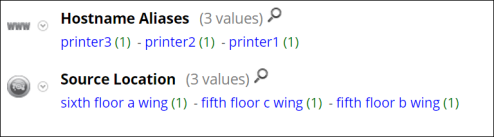
Here is an example of creating a custom meta key in the Log Decoder. In this scenario, an organization wants to track the location of an asset such as a printer. So, a custom meta key **source location** is introduced, which indicates the location of the asset, for example Printer1, which is located in the 'Fifth Floor A wing'.
**Note:** Custom meta keys can be created in the Decoder as well. Select the index-decoder-custom.xml file when you create a custom meta key in the Decoder.
## Add a Custom Meta Key in the Log DecoderAdd a Custom Meta Key in the Log Decoder
To add custom meta keys using custom feed:
1. Go to  (Admin) \> **Services** .
2. Select a Log Decoder service and click \> **View** \> **Config** \> **Files** tab \> **index-logdecoder-custom.xml.**
name = Name of the key (max is 16 chars)
1. Restart the Log Decoder service. In the Services view, click  \> **Restart**.
**Note:** Following are the NetWitness reserved keywords. Do not use these keywords as custom meta keys as it can cause display error in the NetWitness user interface due to CSS conflicts referencing to the same keywords.
risky
safe
unsafe
ecat
black
ecat-text
bold
machine-name
critical
item
row
list
ioc-info
status-info
details
score
cards
intro-subject
context-intro
im-risk-score-type
im-priority-type
im-score-type
incident-details
cs-name
im-score-critical
im-score-high
im-score-medium
im-score-low
im-score-lowest
im-score-neutral
alert-score-high
ecat-score
loading-msg
content-loading
live-title
live-text
## Deploy a Log Decoder Feed in LiveDeploy a Log Decoder Feed in Live
To deploy the feed in the live environment:
1. Go to  (Configure) \> Live Content
2. Select a group of resources, or a previously created resource package. To select a resource or group of resources:
1. In the **Live Search View,** browse Live resources (for example, search for the **Log Collector** resource Type).
2. In the **Matching Resources** panel, select **Show Results \> Grid**.
3. Select the checkbox to the left of the resources that you want to deploy.
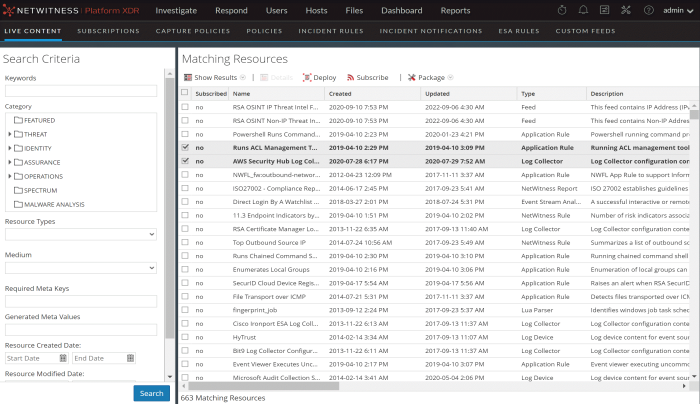
4. In the Matching Resources toolbar, click .
1. To select a resource package to deploy:
1. In the **Live Search** view **- Matching Resources** toolbar, select **Package** \> **Deploy** :
The Package page of the Resource Package Deployment wizard is displayed.
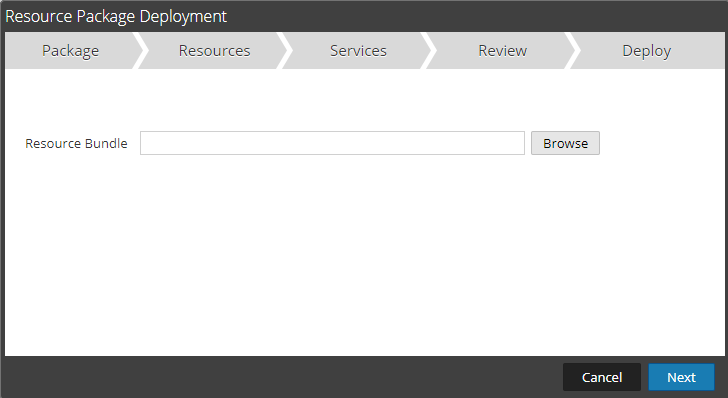
2. Click **Browse** and select a package from your network.
3. Click **Open.**
At this point, whether you are deploying a package or a group of resources, the Deployment Wizard opens, and the Resources page is displayed.
3. Click **Next**.
The **Services** page is displayed. It has two tabs, **Services** and **Groups**, which provide a list of services and service groups that are configured in the  (Admin) \> Services view. The columns are a subset of the columns available in the Services view.
**Note:** The Live server is "smart" about deploying resources to Services. For example, it does not deploy resources that have a Medium of packets to any Log Decoders. This means that only applicable content resources are deployed to each Service.
4. Select the services to which you want to deploy the content. You can select any combination of services and service groups.
Use the **Services** tab to select individual services, list of services and service groups that are configured in the Admin Services view.
Use the **Groups** tab to select groups of services.
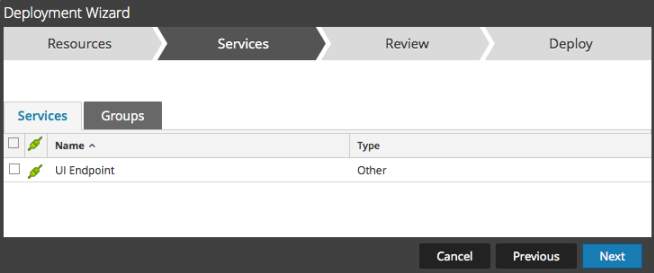
5. Click **Next**.
The **Review** page is displayed.
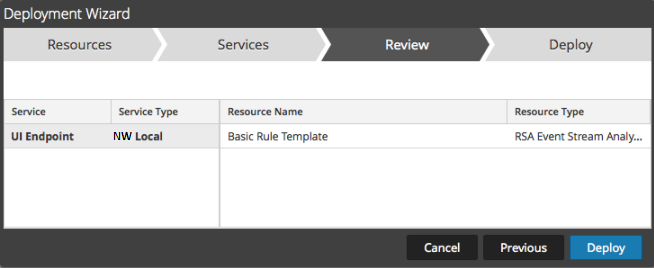
Make sure that you have selected correct resources and the services to which you want to deploy them.
6. Click **Deploy**.
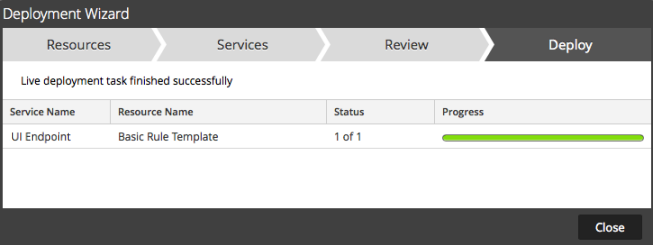
The **Deploy** page is displayed. The Progress bar turns green when you have successfully deployed the resources to the selected services.
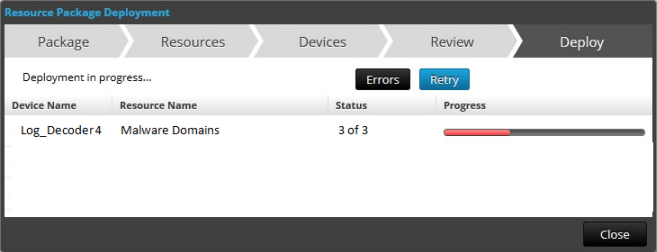
If you try to deploy resources and services that are not compatible, NetWitness displays the Errors and Retry buttons, which you click to review the errors and retry the deployment.
7. Click **Close**.
> **Note:** The Source IP should be indexed by selecting the type as 'IP' as the ip.src. and ip.dst are in IPv4 format.
In this scenario, a custom meta key location.src (location source) is added by indexing the hostname (alias.host). In this example, the printer hostname are populated in meta key 'alias.host'. Select **alias.host** as callback key, and index type as 'Non IP' in the Feed Wizard as shown below. In the Define Values section, select the custom meta key from the drop down menu.
## Add the Custom Meta Key Entry in the Concentrator Custom Index fileAdd the Custom Meta Key Entry in the Concentrator Custom Index file
To add the custom meta key entry in the Concentrator custom index file:
1. Go to  (Admin) \> **Services** \> **Concentrator**.
2. Click  \> **View** \> **Config** \> **Files** tab \> **index-concentrator-custom.xml.**
3. Add the custom meta key entry in the Concentrator index file.
1. To restart the Concentrator service, in the Services view, click  \> **Restart**.
**Note:** In case of the Broker, the Broker derives its index from the Concentrator from which it aggregates. So you do not need to create custom meta in the Broker. If you have not indexed the meta key in the Concentrator, the Broker does not display the meta key in Investigate.
## Investigate a Custom Meta KeyInvestigate a Custom Meta Key
**Note:** You have to log out and log back in to the NetWitness User Interface in order to view the custom meta key in Investigate.
To investigate a custom meta key:
1. Go to **Investigate**.
The Investigate dialog, which provides services, is displayed.
2. Select a Concentrator service, and click **Navigate**.
## Additional ProceduresAdditional Procedures
The following procedures must be executed if you have Warehouse Connector, Archiver, Reporting Engine, and ESA configured.
### Verify the Custom Meta Keys on ESA Verify the Custom Meta Keys on ESA
After you add custom meta keys on the Concentrator, you can verify that your meta keys are updated on ESA.
1. Go to  (Configure) \> **ESA RULES** \> **Settings** tab.
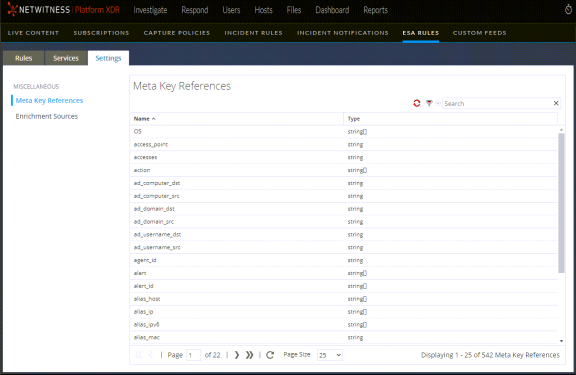
2. In the Meta Key References, click the Meta Re-Sync (Refresh) icon ().
3. Verify that the custom meta keys appear on ESA. If you do not see the meta keys, you may need to restart the Concentrator.
### Update the Schema in ArchiverUpdate the Schema in Archiver
If you want to configure the Archiver, using the new custom meta keys, you need to update the Archiver schema in the Reporting Engine. To update the Archiver schema in Reporting Engine:
1. Go to ** (Admin)** \> **Services** \> **Archiver**.
2. Select \> **View** \> **Config** \> **Files** \> **index-archiver-custom.xml**.
3. Add the custom meta key entry in the Archiver index file.
valueMax="10000" defaultAction="Open"/\>
1. To restart the Archiver service, click  \> **Restart.**
The Archiver schema is updated with the custom meta key.
### Update the Schema in Warehouse ConnectorUpdate the Schema in Warehouse Connector
If you want to configure the Warehouse Connector with custom metadata and use it in a Warehouse Connector report then you need to update the Warehouse Connector schema in the Reporting Engine.
If the Log Decoder or Decoder, where the custom meta key is added, is one of the sources in the Warehouse Connector stream, you need to update the schema in the Warehouse Connector.
To update the Warehouse Connector schema in the Reporting Engine:
1. Go to  (Admin) \> **Services** \> **Warehouse Connector**.
2. Click  \> **View** \> **Config**.
The Services Config view of Warehouse Connector is displayed.
3. Click the **Streams** tab.
4. Select the stream and then click **Reload**.
The Warehouse Connector pulls the schema from the downstream devices (Log Decoder/Decoder).

For more information on streams, see "Configure Streams" in the *Warehouse Connector Configuration Guide*.
### Update the Schema in Reporting EngineUpdate the Schema in Reporting Engine
To update the schema in Reporting Engine:
1. Go to ** (Admin)** \> **Services** \> **Reporting Engine.**
2. Click**** \> **Restart.**
**Note:** Restart the Reporting Engine or wait for thirty minutes for the schema to be updated.
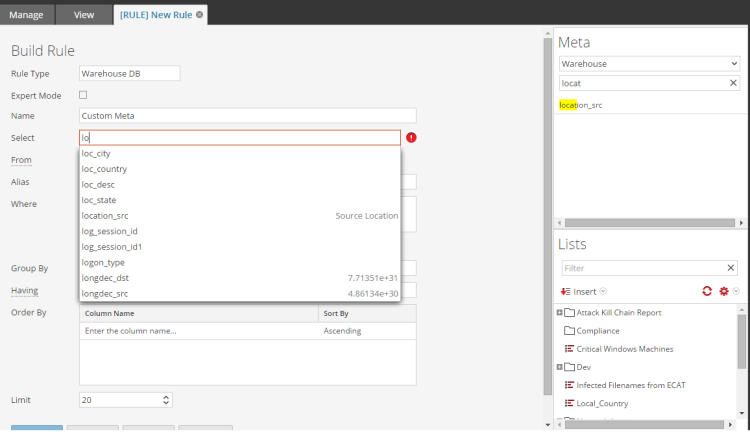
To view the custom meta key:
1. Navigate to **Monitor** \> **Reports** \> **Rules**.
2. In the toolbar, click .
3. Select **Warehouse DB**.
4. In the **Build Rule** tab, search for the custom meta from the right panel.
The custom meta key is displayed.
[](https://mydev.netwitness.com/?hsLang=en)
Copyright © 2026, NetWitness LLC. All rights reserved.
[NetWitness Platform](https://www.netwitness.com/)
[Acceptable Use Policy](https://www.netwitness.com/wp-content/uploads/Acceptable-Use-Policy-092022.pdf) [Privacy Statement](https://www.netwitness.com/wp-content/uploads/NetWitness-Privacy-Statement-07292024.pdf)

[](https://www.linkedin.com/company/netwitness-platform/) [](https://www.youtube.com/@netwitness)
© 2026 NetWitness LLC. All rights reserved.