---
title: Create and Manage Response Actions
description: "Tags: Documentation\n\n\n\n\n\n\nThe Response Actions view allows you to create the new Response Actions and manage the existing Response Actions. You can pe"
---
[Skip to content](https://mydev.netwitness.com/knowledge-base/createandmanageresponseactions#main-content)

- [Home](https://mydev.netwitness.com/home)
- Integrations
Show submenu for Integrations
- [Netwitness Platform Integrations](https://mydev.netwitness.com/netwitnessplatformintegrations)
- [Third Party Integrations](https://mydev.netwitness.com/thirdpartyintegrations)
- [Knowledge Center](https://mydev.netwitness.com/knowledge-base)
- Community
Show submenu for Community
- [Blogs](https://mydev.netwitness.com/netwitness-security-llc-blog)
- Discussions
- Customers
Show submenu for Customers
- [Manage Products and Licenses](https://mydev.netwitness.com/nwportal)
- Downloads
- Partners
Show submenu for Partners
- [Partner Program](https://mydev.netwitness.com/partner)
- [Partner Resources](https://mydev.netwitness.com/partnerresources)
- [Submit a New Deal Registration](https://mydev.netwitness.com/dealregistration)
- [Become a Partner](https://mydev.netwitness.com/becomeapartner)
- [Update Your Partner Locator Profile](https://www.netwitness.com/partner-locator/?utm_source=pardotnewsletter&utm_medium=email&utm_campaign=partner_march)
- [NetWitness LinkedIn Partner Hub](https://linkedin.com/showcase/netwitnesspartners/)
- Education
Show submenu for Education
- [Instructor Led Training Schedule](https://mydev.netwitness.com/instructorledtrainingschedule)
- [NetWitness Training Catalog](https://mydev.netwitness.com/netwitnesstrainingcatalog)
- [Security Awareness Training](https://mydev.netwitness.com/securityawarenesstraining)
- [New Product Readiness](https://mydev.netwitness.com/newproductreadiness)
- [On-Demand Virtual Labs](https://mydev.netwitness.com/ondemandvirtuallabs)
- [Additional Training Information](https://mydev.netwitness.com/additionaltraininginformation)
- [Frequently Asked Questions](https://mydev.netwitness.com/educationfaq)
- [Contact NetWitness Education Team](https://mydev.netwitness.com/contact-netwitness-education-team)
- Support
Show submenu for Support
- [Contact Support](https://mydev.netwitness.com/contact-support)
- [Create a New Case](https://mydev.netwitness.com/create-support-case)
- [View My Cases](https://mydev.netwitness.com/viewmycase)
- [Product Version Life Cycle](https://mydev.netwitness.com/product-version-life-cycle)
- [Warranty & Replacement Parts](https://mydev.netwitness.com/warranty-and-replacement-parts)
- [Community Support Forum](https://mydev.netwitness.com/community-support-forum)
- [Technical Support Guide](https://mydev.netwitness.com/technical-support-guide)
Open main navigation
Close main navigation
- [Home](https://mydev.netwitness.com/home)
- Integrations
Show submenu for Integrations
- [Netwitness Platform Integrations](https://mydev.netwitness.com/netwitnessplatformintegrations)
- [Third Party Integrations](https://mydev.netwitness.com/thirdpartyintegrations)
- [Knowledge Center](https://mydev.netwitness.com/knowledge-base)
- Community
Show submenu for Community
- [Blogs](https://mydev.netwitness.com/netwitness-security-llc-blog)
- Discussions
- Customers
Show submenu for Customers
- [Manage Products and Licenses](https://mydev.netwitness.com/nwportal)
- Downloads
- Partners
Show submenu for Partners
- [Partner Program](https://mydev.netwitness.com/partner)
- [Partner Resources](https://mydev.netwitness.com/partnerresources)
- [Submit a New Deal Registration](https://mydev.netwitness.com/dealregistration)
- [Become a Partner](https://mydev.netwitness.com/becomeapartner)
- [Update Your Partner Locator Profile](https://www.netwitness.com/partner-locator/?utm_source=pardotnewsletter&utm_medium=email&utm_campaign=partner_march)
- [NetWitness LinkedIn Partner Hub](https://linkedin.com/showcase/netwitnesspartners/)
- Education
Show submenu for Education
- [Instructor Led Training Schedule](https://mydev.netwitness.com/instructorledtrainingschedule)
- [NetWitness Training Catalog](https://mydev.netwitness.com/netwitnesstrainingcatalog)
- [Security Awareness Training](https://mydev.netwitness.com/securityawarenesstraining)
- [New Product Readiness](https://mydev.netwitness.com/newproductreadiness)
- [On-Demand Virtual Labs](https://mydev.netwitness.com/ondemandvirtuallabs)
- [Additional Training Information](https://mydev.netwitness.com/additionaltraininginformation)
- [Frequently Asked Questions](https://mydev.netwitness.com/educationfaq)
- [Contact NetWitness Education Team](https://mydev.netwitness.com/contact-netwitness-education-team)
- Support
Show submenu for Support
- [Contact Support](https://mydev.netwitness.com/contact-support)
- [Create a New Case](https://mydev.netwitness.com/create-support-case)
- [View My Cases](https://mydev.netwitness.com/viewmycase)
- [Product Version Life Cycle](https://mydev.netwitness.com/product-version-life-cycle)
- [Warranty & Replacement Parts](https://mydev.netwitness.com/warranty-and-replacement-parts)
- [Community Support Forum](https://mydev.netwitness.com/community-support-forum)
- [Technical Support Guide](https://mydev.netwitness.com/technical-support-guide)
How can we help you?
- There are no suggestions because the search field is empty.
1. [NetWitness Knowledge Base](https://mydev.netwitness.com/knowledge-base?hsLang=en)
2. [Documentation](https://mydev.netwitness.com/knowledge-base/documentation?hsLang=en)
April 27, 2026
# Create and Manage Response Actions
**Tags:** Documentation
The **Response Actions** view allows you to create the new Response Actions and manage the existing Response Actions. You can perform the following actions using the **Response Actions** view.
- [Create Response Actions](https://mydev.netwitness.com/knowledge-base/createandmanageresponseactions#Create)
- [Edit Response Actions](https://mydev.netwitness.com/knowledge-base/createandmanageresponseactions#Edit)
- [Clone Response Actions](https://mydev.netwitness.com/knowledge-base/createandmanageresponseactions#Clone)
- [Enable Response Actions](https://mydev.netwitness.com/knowledge-base/createandmanageresponseactions#Enable)
- [Disable Response Actions](https://mydev.netwitness.com/knowledge-base/createandmanageresponseactions#Disable)
- [Delete Response Actions](https://mydev.netwitness.com/knowledge-base/createandmanageresponseactions#Delete)
### Create Response Actions
You can create the Response Action for any meta in the **Create Response Action** view ((**CONFIGURE**) \> **More** \> **Response Actions** \>  \> **Create Response Action**).
To create custom Response Actions
1. Go to (**CONFIGURE**) \> **More** \> **Response Actions**.
The **Response Actions** view is displayed
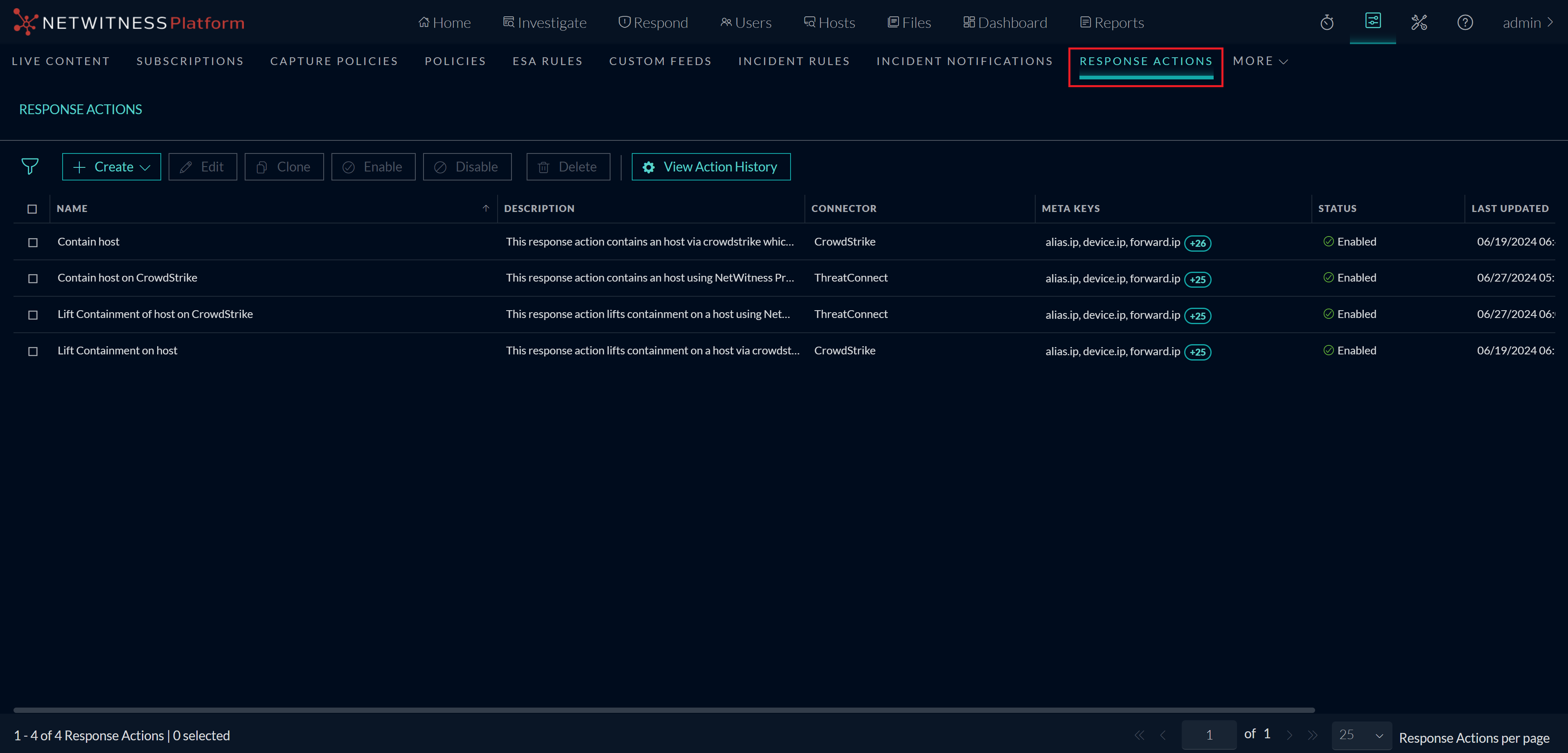
2. Click  and select the connector from the drop-down list.
The **Create Response Action** view is displayed.
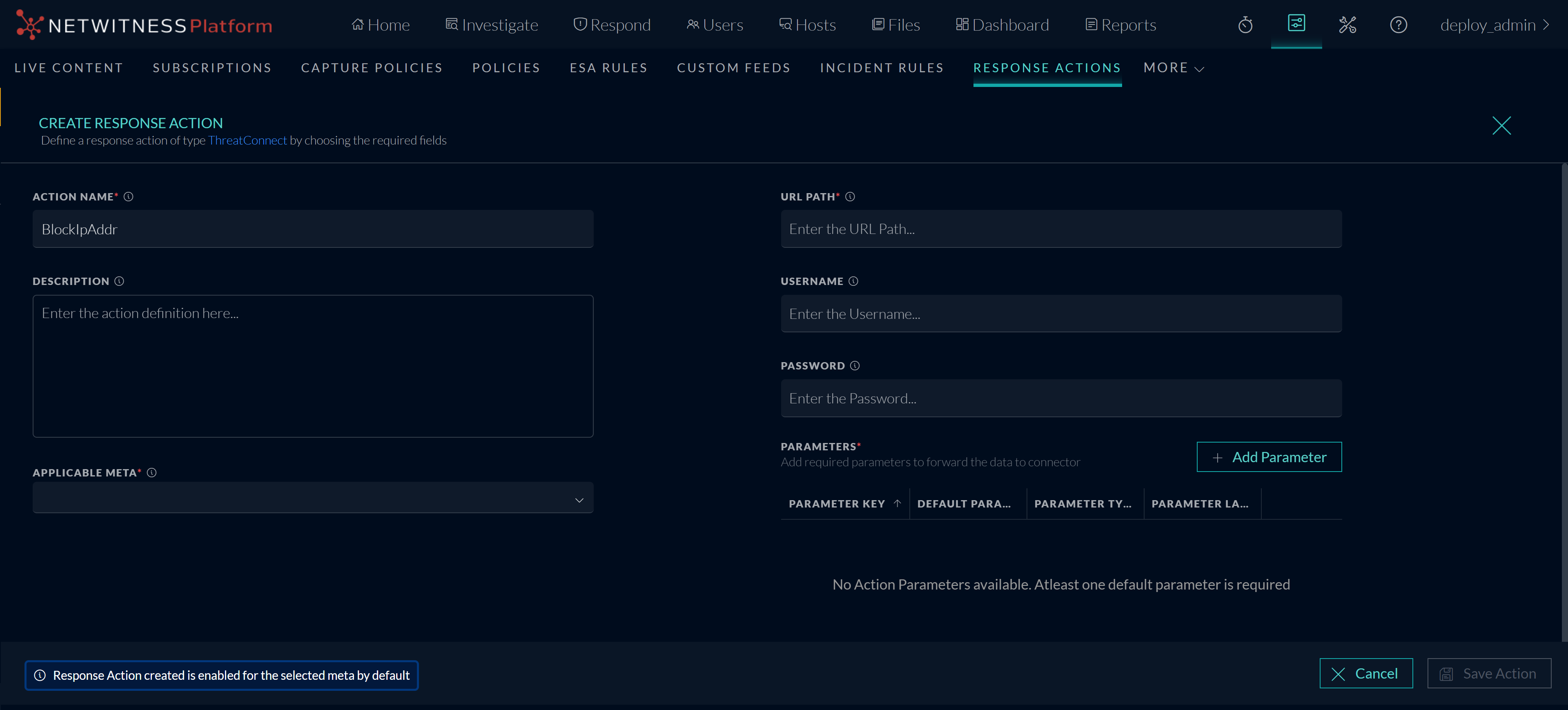
3. Enter the Action name for the Response Action.
For example: If the Response Action is to block an IP address associated with the context meta, you can enter Block IP or Block IP Address as the Action name in the **Action Name** field.
4. Enter the description of the Response Action being created.
For example: You can enter Creating this **Response Action to block the IP address** in the **Description** field.
5. Enter the meta keys of the applicable metas on which you want to perform the Response Action.
For example: If the meta keys are **ip\_address**, **ip.src**, and **mac\_address**, you must enter **ip\_address**, **ip.src**, **ip\_src**, and **mac\_address** in the **Applicable Meta** field.
**Note:** Enter the comma-separated values in the **Applicable Meta** field. If any meta key is available in multiple formats, you must enter the multiple formats of the meta key in the **Applicable Meta** field.
For example: If a meta key **user.src** is also available in the form of **user\_src**, you must enter both **user.src** and **user\_src** formats in the **Applicable Meta** field.
6. Enter the **URL Path** you used while creating the webhook trigger in the ThreatConnect playbook for NetWitness Platform, in the **URL Path** field.
For more information, see **[Integrate the Connector with NetWitness Platform](https://50269063.hs-sites.com/knowledge-base/IntegratetheConnectorwithNetWitnessPlatform?hsLang=en)**.
7. Username (Applicable only to **ThreatConnect):** Enter the ThreatConnect Playbook’s Webhook Trigger username, if authentication is enabled.
8. Password (Applicable only to **ThreatConnect):** Enter the ThreatConnect Playbook’s Webhook Trigger password, if authentication is enabled.
9. Click **+ Add Parameter** option next to the Parameters field.
The **Add Parameter** window is displayed.
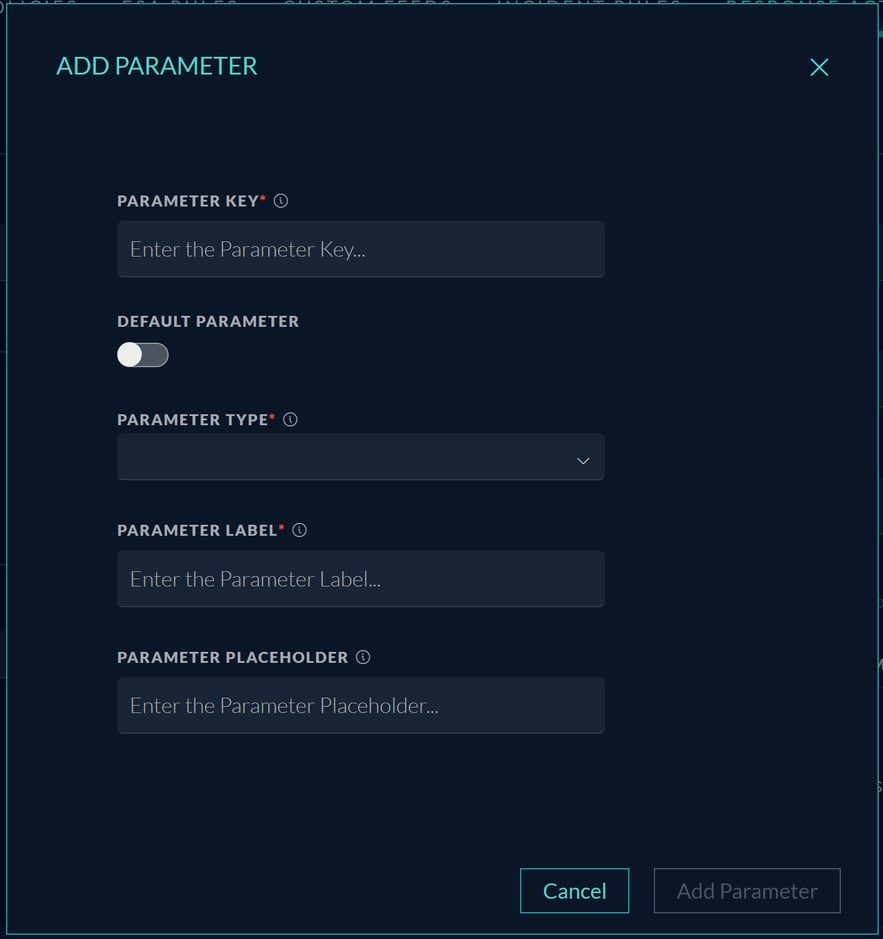
10. Provide the following information.
- **Parameter Key**: Enter the key name of the key-value pair that you want to forward to the connector. This key name is also displayed in the **Response Actions Overview panel**.
**Note:** If you turn on the toggle for **Default Parameter**, the selected NetWitness meta value will be associated with this key. It is mandatory to have at least one key marked as a Default Parameter.
**IMPORTANT:** You must not enter the following reserved parameter keys in the **Parameter Key** field.
\- nw-user
\- nw-comment
\- nw-actionId
\- nw-actionName
- **Parameter Type**: Select any of the following format types. You must select any of these types on the basis of the parameter value that you want to forward to the connector. Basic input validations are made based on the chosen type.
\- **Number**: Select this option if you want to forward a numerical parameter type to the connector.
\- **String**: Select this option if you want to forward a string parameter type to the connector.
\- **Email**: Select this option if you want to forward an email parameter type to the connector.
\- **IP**: Select this option if you want to forward IPv4 type to the connector.
- **Parameter Label**: Enter the label or field name of the parameter as it appears in the **Quick Actions** window form, that you want to forward to the connector.
For example: If you want to forward the IP 10.124.85.29 to the connector for blocking it, you can enter **Block IP Address** as the label in the **Parameter Label** field.
**Note:** While performing the **Quick Actions** on the applicable meta, this label will be displayed as a field in the **Quick Actions** window. In this field, you must enter the required data to be forwarded to the connector for further processing. For more information, see **[Quick Actions](https://50269063.hs-sites.com/knowledge-base/QuickActions?hsLang=en)**. Parameter Key will be used only in the backend to send the key-value pair information.
- **Parameter Placeholder**: Enter the placeholder text that can be used as a hint in the form field while filling up the Quick Action form on the applicable meta.
For example: If you enter **Block IP Address** as the value in the **Parameter Label** field and **Additional IP** as the text in the **ParameterPlaceholder** field, the text **Additional IP** will be displayed as the placeholder text in the Quick Actions window under the **Block IP Address** field.
**Note:** By default, the toggle for **Default Parameter** is turned off. When you turn on the toggle for **Default Parameter**, the fields **Parameter Type**, **Parameter Label**, and **Parameter Placeholder** will be grayed out**.** You must enter the required information in the fields that are marked with \*. For more information on how to add parameters and send the parameters to the connector, see **[Response Actions and Quick Actions Use Case Examples](https://50269063.hs-sites.com/knowledge-base/ResponseActionsandQuickActionsUseCaseExamples?hsLang=en)**.
11. Click **Add**.
12. Click **Save Action**.
### Edit Response Actions
You can edit an existing Response Action displayed in the **Response Actions** view and modify the Action Name, Action Description, supported metas, and URL Path associated with the connector.
To edit the Response Action
1. Go to (**CONFIGURE**) \> **More** \> **Response Actions**.
The **Response Actions** view is displayed.
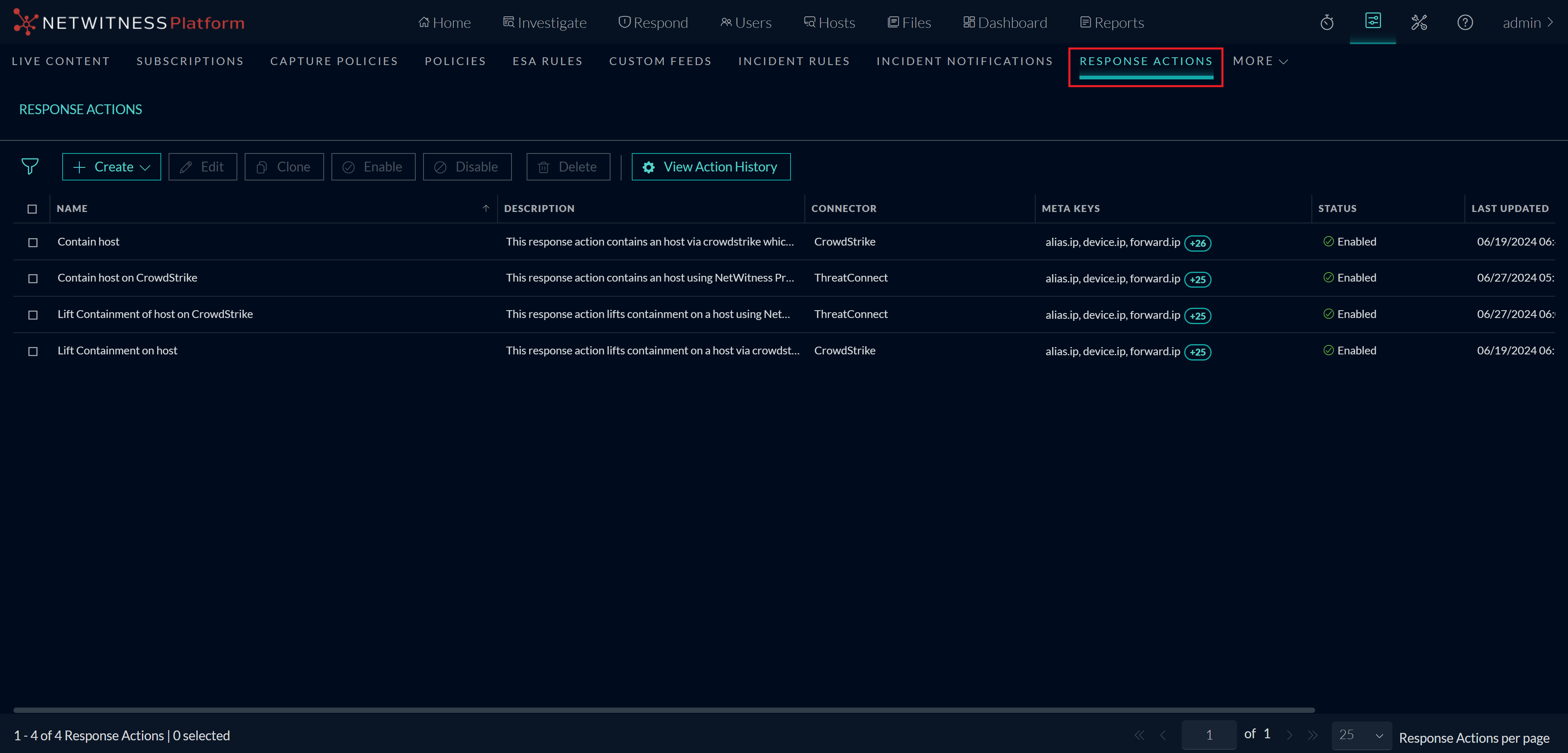
2. Select the Response Action and click **Edit**.
The **Edit Response Action** view is displayed.
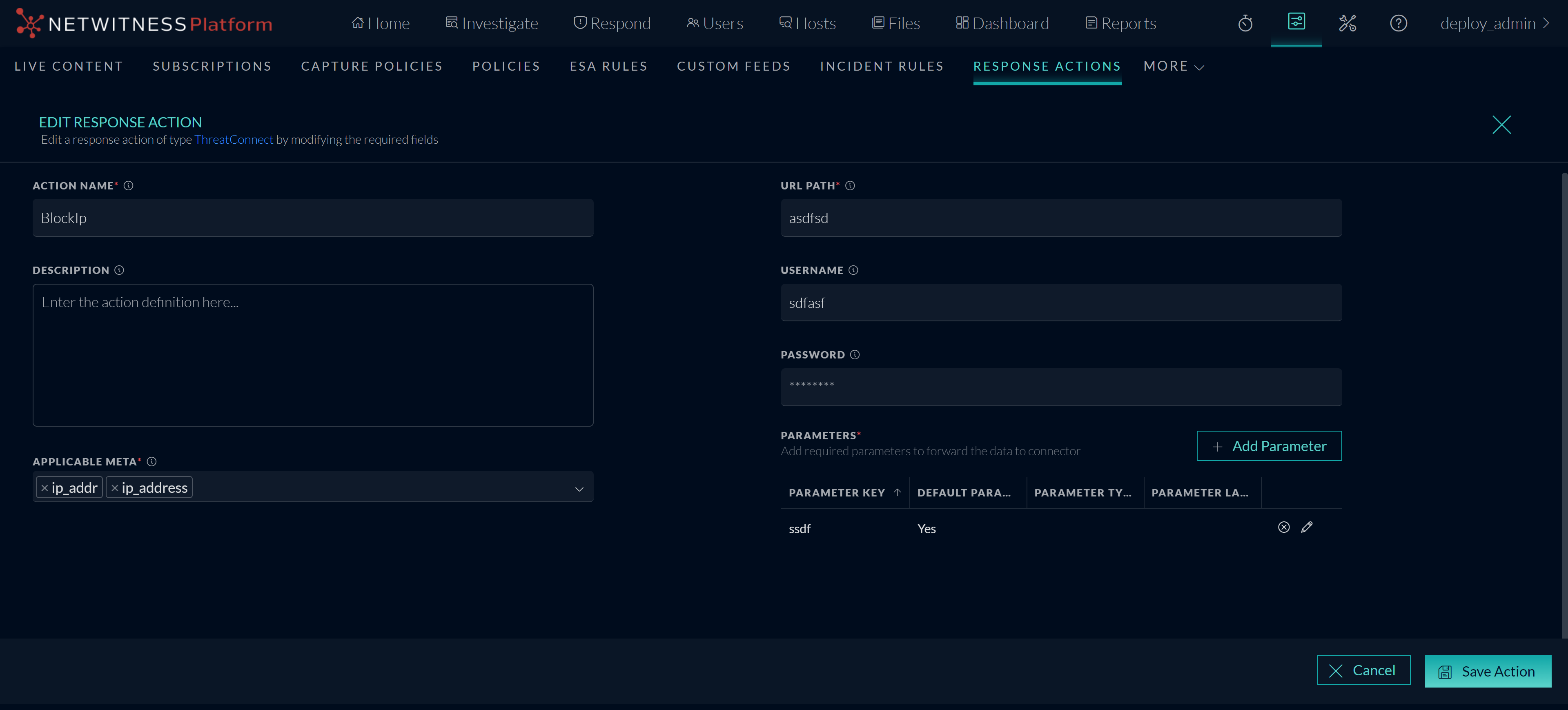
**Note:** For Crowdstrike, you can only modify the **Description** and **Applicable Meta** fields while editing the Response Actions.
**Note:** For CrowdStrike integrating through ThreatConnect, the fields do not require changes. You can only modify the Description, Applicable Meta and Service API fields while editing the Response Actions. Copy the Service API path from the ThreatConnect Service and replace it here, if necessary.
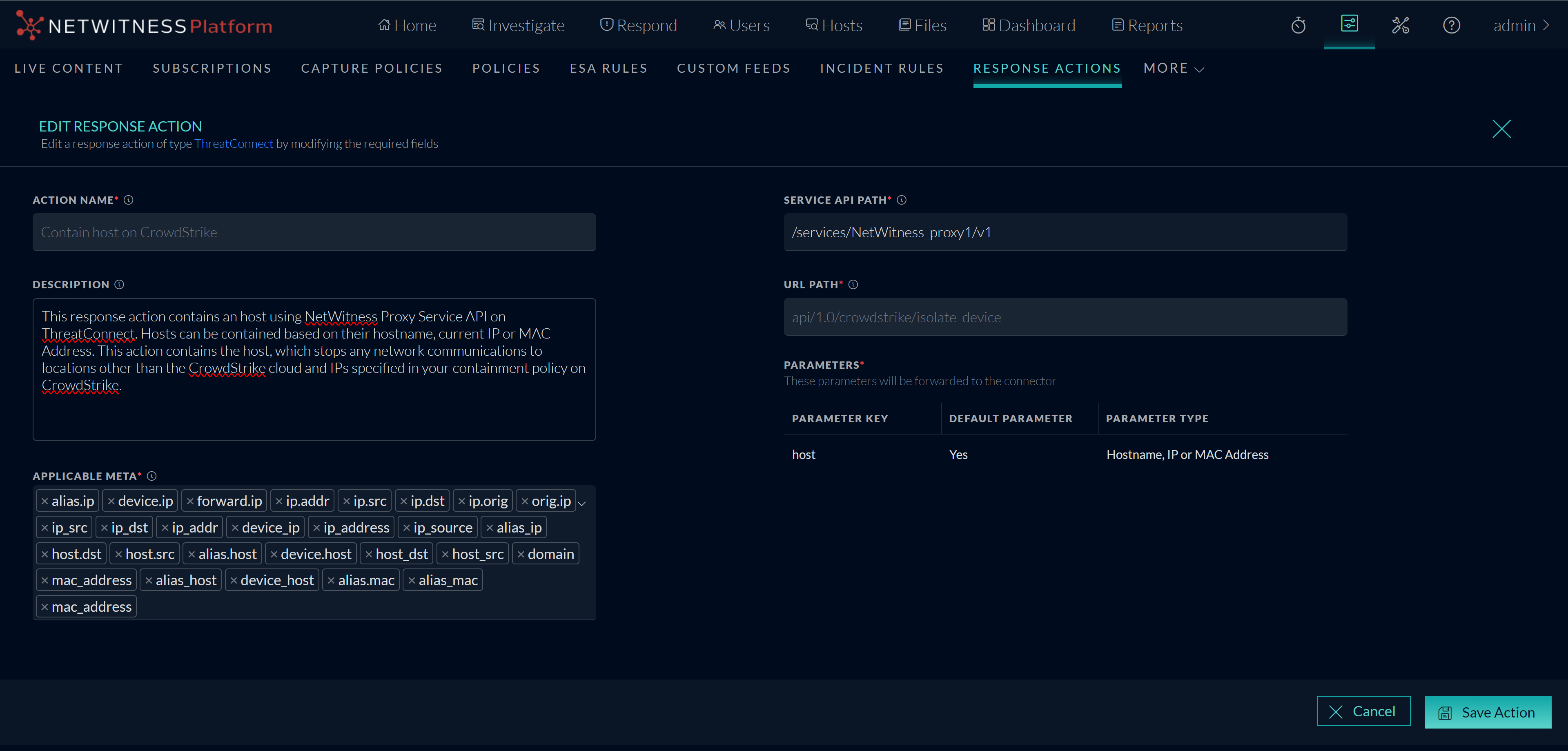
3. Modify the required fields.
4. Click **Save Action**.
### Clone Response Actions
You can clone an existing Response Action to re-use certain data and modify certain fields in the cloned Response Action.
To clone the Response Action
1. Go to (**CONFIGURE**) \> **More** \> **Response Actions**.
The **Response Actions** view is displayed.
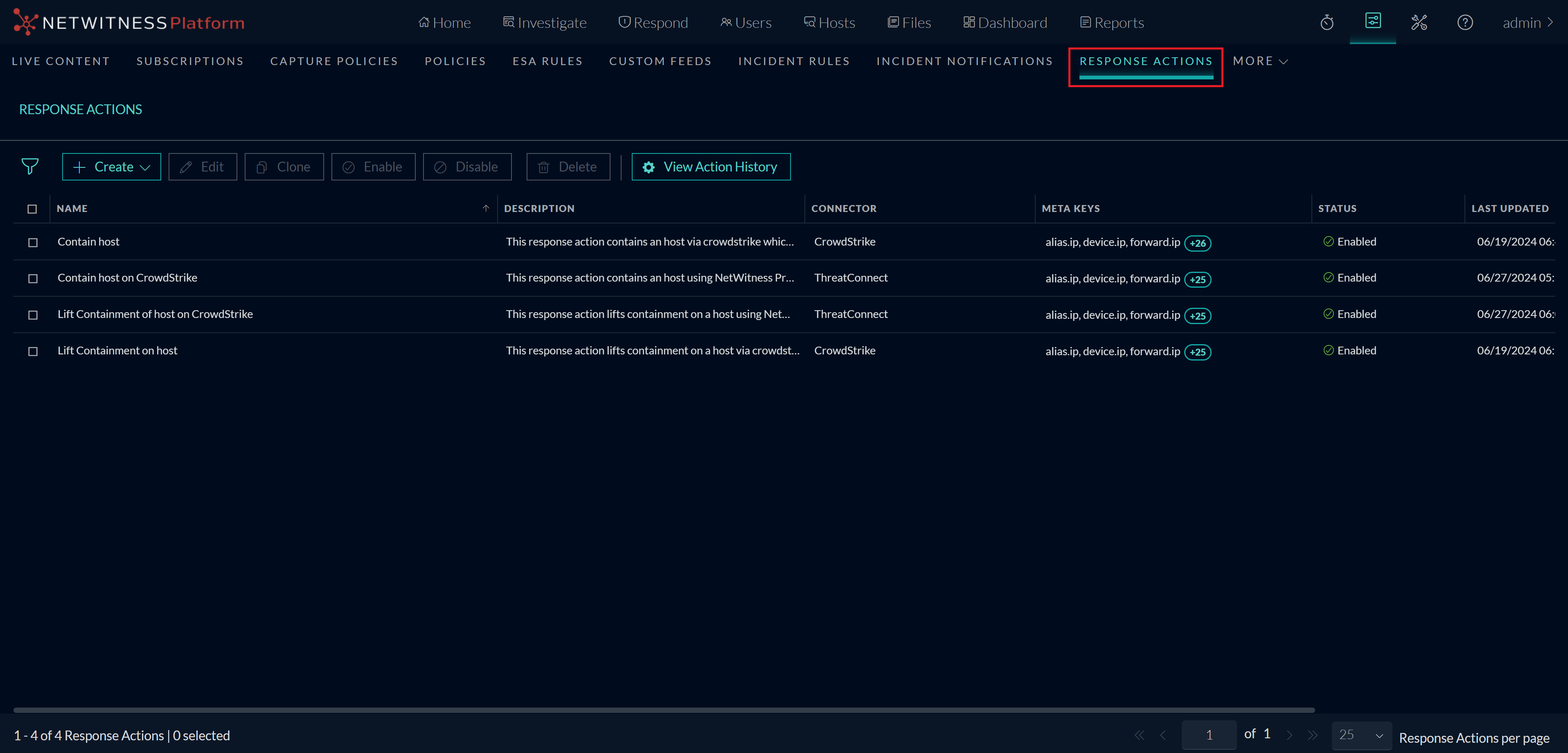
2. Select the Response Action and click **Clone**.
The **Create Response Action** view is displayed.
3. Modify the existing data as per your preference and click **Save Action**.
### Enable Response Actions
You can enable the disabled Response Action in the **Response Actions** view.
To enable the Response Action
1. Go to (**CONFIGURE**) \> **More** \> **Response Actions**.
The **Response Actions** view is displayed.
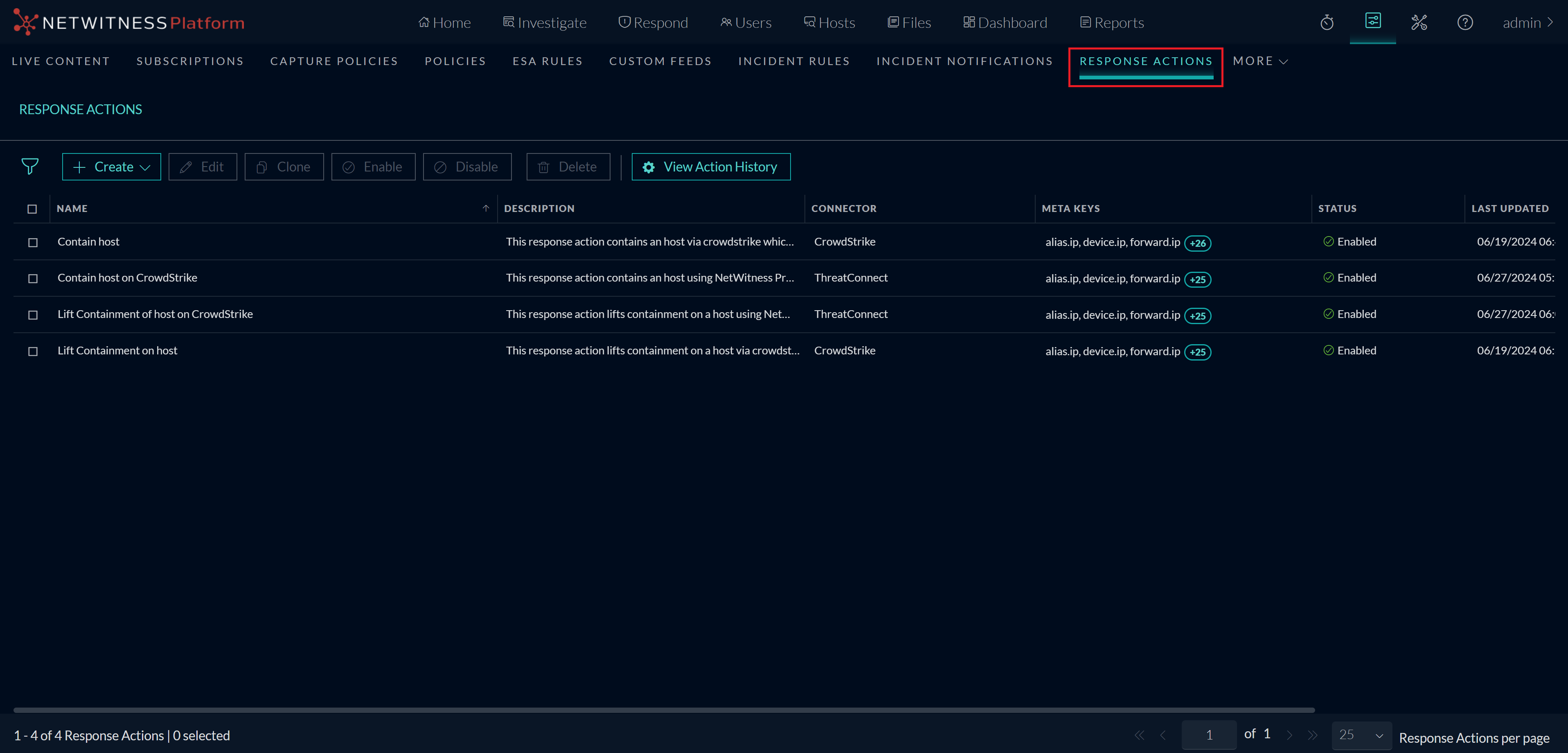
2. Select the disabled Response Action and click **Enable**.
### Disable Response Actions
You can disable any Response Action which is in the enabled state in the **Response Actions** view.
To disable the Response Action
1. Go to (**CONFIGURE**) \> **More** \> **Response Actions**.
The **Response Actions** view is displayed.
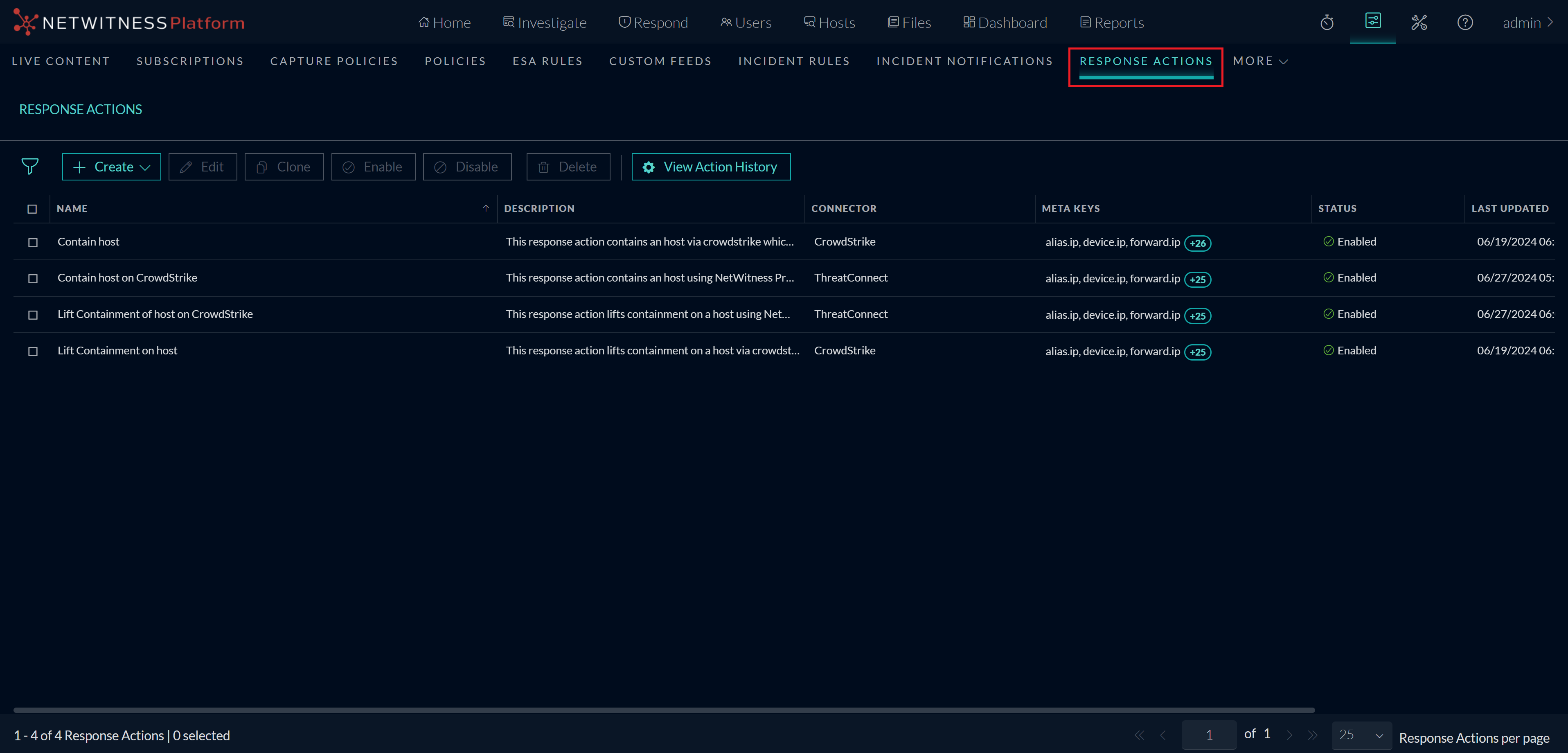
2. Select the enabled Response Action and click **Disable**.
**Note:** The disabled Response Actions will not be populated in the **Quick Actions** window for selection.
### Delete Response Actions
You can delete any unwanted Response Action in the **Response Actions** view.
To delete the Response Action
1. Go to (**CONFIGURE**) \> **More** \> **Response Actions**.
The **Response Actions** view is displayed.
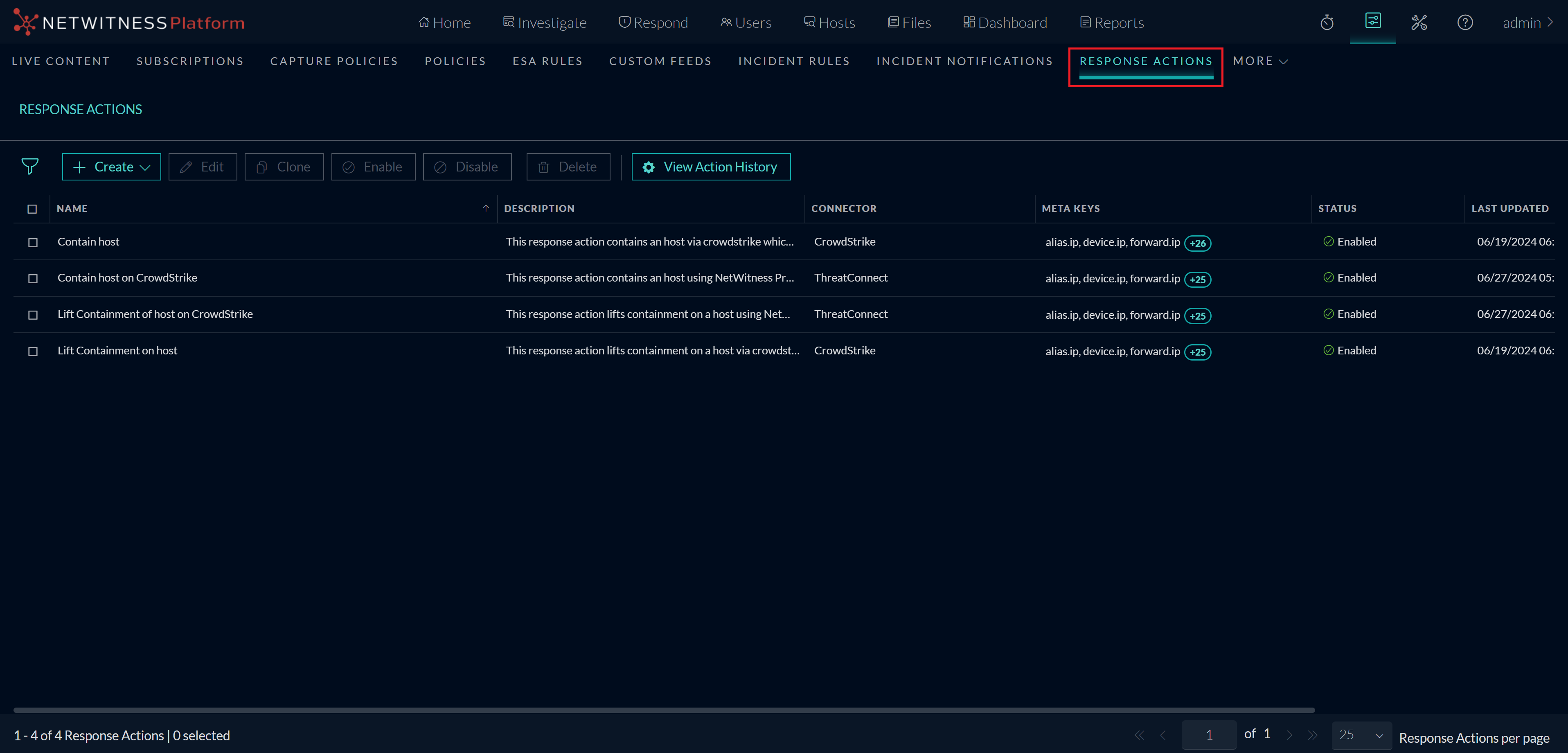
1. Select the Response Action you want to delete and click **Delete**.
### View Action History
When you execute **Response Actions** in the Quick Actions, the actions performed are recorded and the associated data is displayed in the Response Actions History view ((**CONFIGURE**) \> **More** \> **Response Actions** \> **View Action History** \> **Response Actions History**). This is a global view of all actions performed across all Response actions.
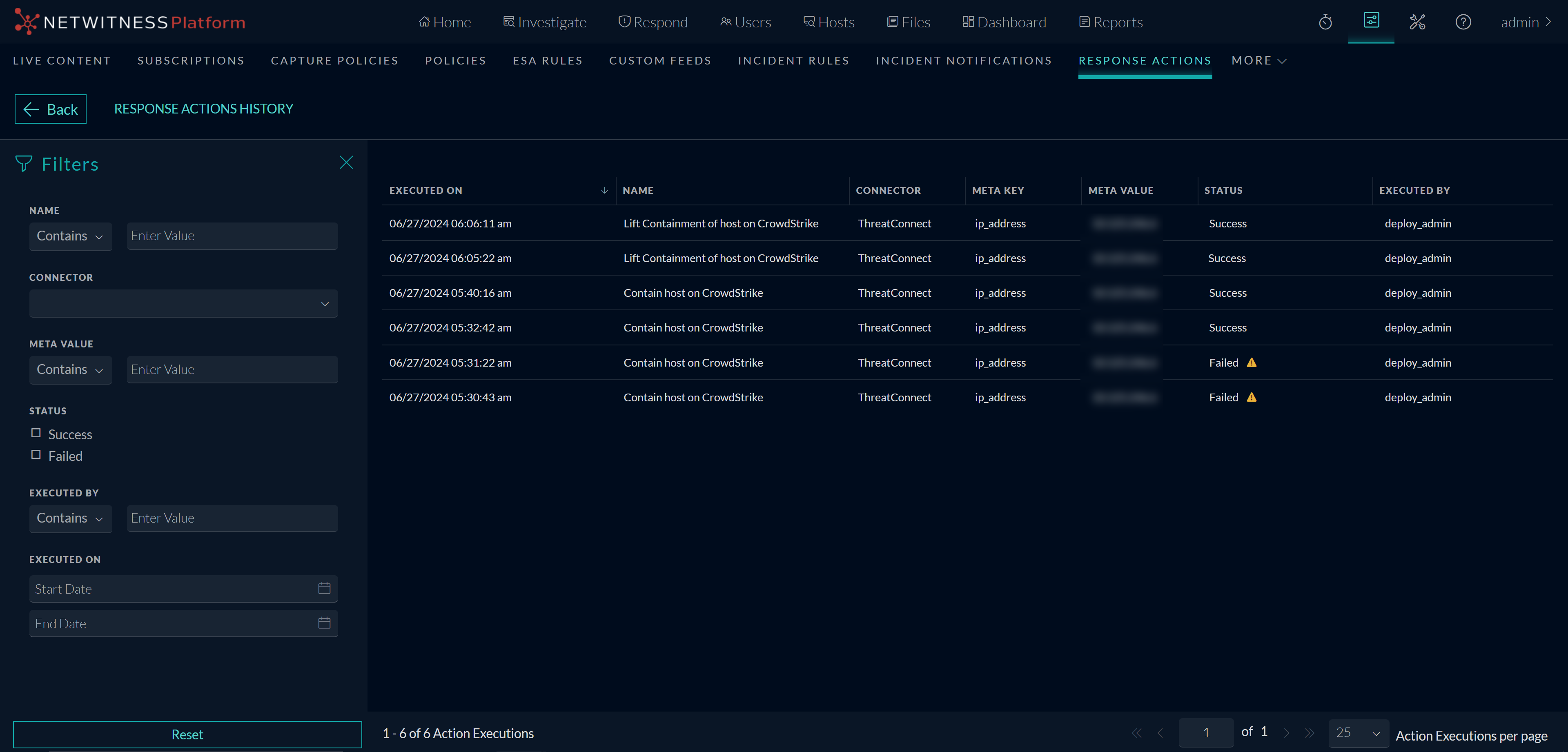
To view Action History
1. Go to (**CONFIGURE**) \> **More** \> **Response Actions**.
The **Response Actions** view is displayed.
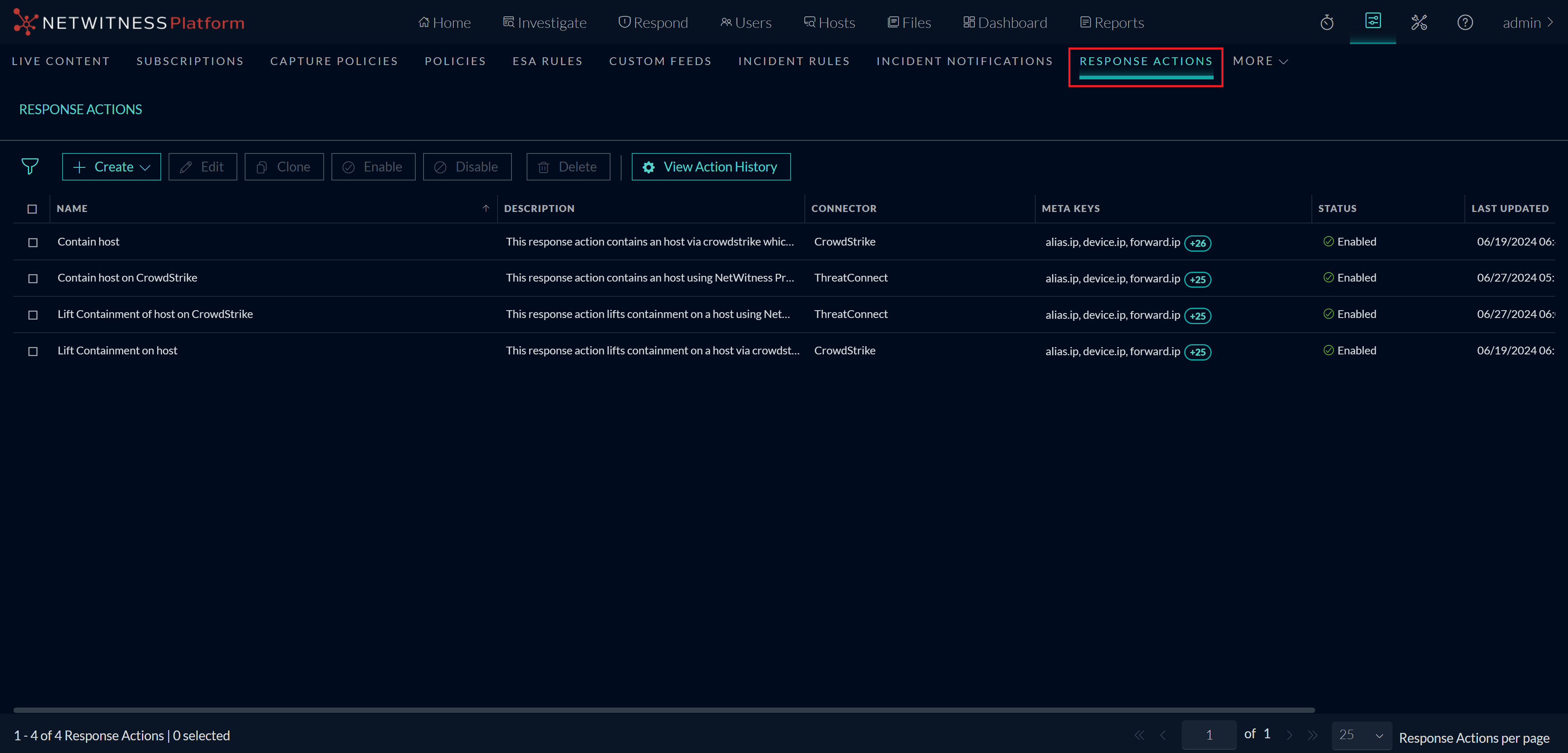
2. Click **View Action History**.
The **Response Actions History** view is displayed.
[](https://mydev.netwitness.com/?hsLang=en)
Copyright © 2026, NetWitness LLC. All rights reserved.
[NetWitness Platform](https://www.netwitness.com/)
[Acceptable Use Policy](https://www.netwitness.com/wp-content/uploads/Acceptable-Use-Policy-092022.pdf) [Privacy Statement](https://www.netwitness.com/wp-content/uploads/NetWitness-Privacy-Statement-07292024.pdf)

[](https://www.linkedin.com/company/netwitness-platform/) [](https://www.youtube.com/@netwitness)
© 2026 NetWitness LLC. All rights reserved.