---
title: Configure Storage Using the REST API
description: "Configure Storage Using the REST API\nyou can use the REST API for all storage configuration operations. For information about how to use the REST"
---
[Skip to content](https://mydev.netwitness.com/knowledge-base/configurestorageusingtherestapi#main-content)

- [Home](https://mydev.netwitness.com/home)
- Integrations
Show submenu for Integrations
- [Netwitness Platform Integrations](https://mydev.netwitness.com/netwitnessplatformintegrations)
- [Third Party Integrations](https://mydev.netwitness.com/thirdpartyintegrations)
- [Knowledge Center](https://mydev.netwitness.com/knowledge-base)
- Community
Show submenu for Community
- [Blogs](https://mydev.netwitness.com/netwitness-security-llc-blog)
- Discussions
- Customers
Show submenu for Customers
- [Manage Products and Licenses](https://mydev.netwitness.com/nwportal)
- Downloads
- Partners
Show submenu for Partners
- [Partner Program](https://mydev.netwitness.com/partner)
- [Partner Resources](https://mydev.netwitness.com/partnerresources)
- [Submit a New Deal Registration](https://mydev.netwitness.com/dealregistration)
- [Become a Partner](https://mydev.netwitness.com/becomeapartner)
- [Update Your Partner Locator Profile](https://www.netwitness.com/partner-locator/?utm_source=pardotnewsletter&utm_medium=email&utm_campaign=partner_march)
- [NetWitness LinkedIn Partner Hub](https://linkedin.com/showcase/netwitnesspartners/)
- Education
Show submenu for Education
- [Instructor Led Training Schedule](https://mydev.netwitness.com/instructorledtrainingschedule)
- [NetWitness Training Catalog](https://mydev.netwitness.com/netwitnesstrainingcatalog)
- [Security Awareness Training](https://mydev.netwitness.com/securityawarenesstraining)
- [New Product Readiness](https://mydev.netwitness.com/newproductreadiness)
- [On-Demand Virtual Labs](https://mydev.netwitness.com/ondemandvirtuallabs)
- [Additional Training Information](https://mydev.netwitness.com/additionaltraininginformation)
- [Frequently Asked Questions](https://mydev.netwitness.com/educationfaq)
- [Contact NetWitness Education Team](https://mydev.netwitness.com/contact-netwitness-education-team)
- Support
Show submenu for Support
- [Contact Support](https://mydev.netwitness.com/contact-support)
- [Create a New Case](https://mydev.netwitness.com/create-support-case)
- [View My Cases](https://mydev.netwitness.com/viewmycase)
- [Product Version Life Cycle](https://mydev.netwitness.com/product-version-life-cycle)
- [Warranty & Replacement Parts](https://mydev.netwitness.com/warranty-and-replacement-parts)
- [Community Support Forum](https://mydev.netwitness.com/community-support-forum)
- [Technical Support Guide](https://mydev.netwitness.com/technical-support-guide)
Open main navigation
Close main navigation
- [Home](https://mydev.netwitness.com/home)
- Integrations
Show submenu for Integrations
- [Netwitness Platform Integrations](https://mydev.netwitness.com/netwitnessplatformintegrations)
- [Third Party Integrations](https://mydev.netwitness.com/thirdpartyintegrations)
- [Knowledge Center](https://mydev.netwitness.com/knowledge-base)
- Community
Show submenu for Community
- [Blogs](https://mydev.netwitness.com/netwitness-security-llc-blog)
- Discussions
- Customers
Show submenu for Customers
- [Manage Products and Licenses](https://mydev.netwitness.com/nwportal)
- Downloads
- Partners
Show submenu for Partners
- [Partner Program](https://mydev.netwitness.com/partner)
- [Partner Resources](https://mydev.netwitness.com/partnerresources)
- [Submit a New Deal Registration](https://mydev.netwitness.com/dealregistration)
- [Become a Partner](https://mydev.netwitness.com/becomeapartner)
- [Update Your Partner Locator Profile](https://www.netwitness.com/partner-locator/?utm_source=pardotnewsletter&utm_medium=email&utm_campaign=partner_march)
- [NetWitness LinkedIn Partner Hub](https://linkedin.com/showcase/netwitnesspartners/)
- Education
Show submenu for Education
- [Instructor Led Training Schedule](https://mydev.netwitness.com/instructorledtrainingschedule)
- [NetWitness Training Catalog](https://mydev.netwitness.com/netwitnesstrainingcatalog)
- [Security Awareness Training](https://mydev.netwitness.com/securityawarenesstraining)
- [New Product Readiness](https://mydev.netwitness.com/newproductreadiness)
- [On-Demand Virtual Labs](https://mydev.netwitness.com/ondemandvirtuallabs)
- [Additional Training Information](https://mydev.netwitness.com/additionaltraininginformation)
- [Frequently Asked Questions](https://mydev.netwitness.com/educationfaq)
- [Contact NetWitness Education Team](https://mydev.netwitness.com/contact-netwitness-education-team)
- Support
Show submenu for Support
- [Contact Support](https://mydev.netwitness.com/contact-support)
- [Create a New Case](https://mydev.netwitness.com/create-support-case)
- [View My Cases](https://mydev.netwitness.com/viewmycase)
- [Product Version Life Cycle](https://mydev.netwitness.com/product-version-life-cycle)
- [Warranty & Replacement Parts](https://mydev.netwitness.com/warranty-and-replacement-parts)
- [Community Support Forum](https://mydev.netwitness.com/community-support-forum)
- [Technical Support Guide](https://mydev.netwitness.com/technical-support-guide)
How can we help you?
- There are no suggestions because the search field is empty.
1. [NetWitness Knowledge Base](https://mydev.netwitness.com/knowledge-base?hsLang=en)
2. [Documentation](https://mydev.netwitness.com/knowledge-base/documentation?hsLang=en)
April 26, 2026
# Configure Storage Using the REST API
## Configure Storage Using the REST API
you can use the REST API for all storage configuration operations. For information about how to use the REST API, see the *RESTful API User Guide*. Go to the [NetWitness All Versions Documents](https://community.netwitness.com/t5/netwitness-platform-online/netwitness-platform-all-documents/ta-p/676246) page and find NetWitness Platform guides to troubleshoot issues.
## REST API Storage Configuration Commands
Each of the commands listed below has built-in help that describes their function and usage. If you are using the REST interface, select the command from the drop-down menu to see the help text. For examples of REST API storage configuration commands, see [Appendix D. Sample Storage Configuration Scenarios for 15-Drive DACs](https://community.netwitness.com/SampleConfs.htm).
Commands for Direct-Attached RAID Volumes
- raidList : List the RAID controllers and direct-attach enclosures that are present on this host.
- raidNew : Allocate direct-attached enclosures to block devices.
Commands for Allocating Block Devices as Storage
- devlist : List available block devices on the host.
- partNew : Allocate partitions on a block device and create volume groups.
- vgs : Summarize how block devices are organized into volume groups.
Commands for Allocating Storage to Services
- srvList : List services on the host and their allocated storage paths.
- srvAlloc : Allocate a volume group to a service.
- srvFree : Remove a volume group from a service.
- multipath-II : To verify if SAN devices are attached.
Command to Reconfigure Services to Detect and Use All of the New Storage
- reconfig - After configuring new storage, detect and use new storage on the associated service and database.
## Storage Configuration Tasks
[Task 1 - Attach storage to the host and access the REST API storage configuration commands.](https://mydev.netwitness.com/knowledge-base/configurestorageusingtherestapi#Task)
[Task 2 - (Conditional) Configure RAID if necessary.](https://mydev.netwitness.com/knowledge-base/configurestorageusingtherestapi#Task2)
[Task 3 - Allocate block devices to partitions, volume groups, and logical volumes.](https://mydev.netwitness.com/knowledge-base/configurestorageusingtherestapi#Task3)
[Task 4 - Allocate volume groups to NetWitness services.](https://mydev.netwitness.com/knowledge-base/configurestorageusingtherestapi#Task4)
[Task 5 - Reconfigure services and databases to detect and appropriately use new storage.](https://mydev.netwitness.com/knowledge-base/configurestorageusingtherestapi#Task5)
### Task 1 - Attach Storage to the Host and Access the REST API Storage Commands
Complete the following steps to attach an external storage device to a host and access the storage configuration commands available through the REST API.
1. Attach the storage and make it available to this host.
- To attach PV storage, refer to the *[PowerVault (Dell MD1400) Setup Guide and PowerVault (Dell MD2412) Setup Guide](https://50269063.hs-sites.com/knowledge-base/PowerVault-DellMD1400-8TB-SetupGuide?hsLang=en)*.
- For third-party storage, create the RAID groups to match the volumes listed in [Storage Requirements](https://community.netwitness.com/StorageRequirements.htm)
2. There are two ways that you can access the REST API storage commands: from a Browser, or from the **Services** \> **Explore** view from the User Interface.
**Note:** Once you have accessed the REST API, the steps that you perform are the same, no matter which method you used to access it.
- From a Browser.
1. Open a Browser and specify the ip-address of the host with port **50106**.
The following example is the Decoder, but you need to use port 50106 for any host hardware for which you are configuring storage using the REST API.
https:// :50106
1. Log in with the admin account credentials.
The following REST API menu is displayed.
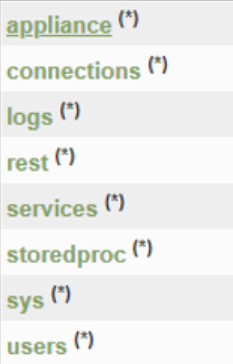
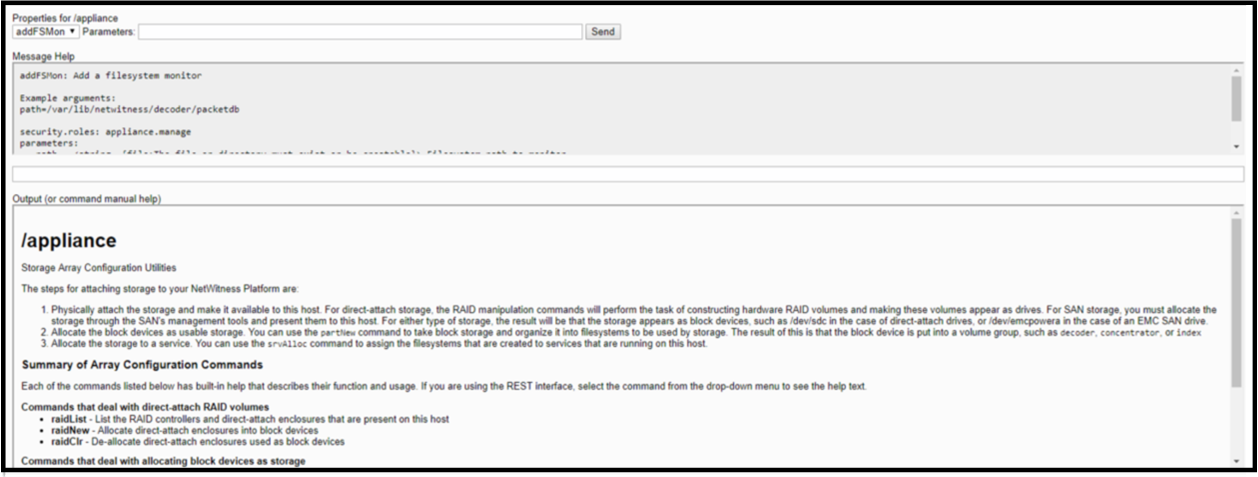
2. Click on the (\*) next to **appliance** to access the REST command set.
The **Properties for /appliance** dialog is displayed under the initial REST menu. The **Output (or command manual help)** section describes the commands that the REST API can send to the device, their usage, and their parameters.
- From the User Interface.
1. In the **NetWitness** menu, go to  (Admin) \> **SERVICES**.
2. Select the service (for example, a Concentrator).
3. Under  (actions), select **View** \> **Explore**.
4. Navigate to **deviceappliance/appliance**, right click, and click **Properties**.
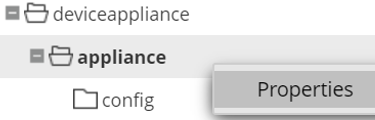
You can now access the storage commands from the **Properties** dialog.
1. Proceed to:
- [Task 2](https://mydev.netwitness.com/knowledge-base/configurestorageusingtherestapi#Task2) if you need to configure RAID for PowerVault or DACs.
- [Task 3](https://mydev.netwitness.com/knowledge-base/configurestorageusingtherestapi#Task3) if you do not need to configure RAID and already have a block device available.
### Task 2 - (Conditional) RAID Configuration for PowerVault and DACs
NetWitness Platform hardware uses direct-attached SAS drives for storage. These drives are housed in a SAS enclosure. SAS enclosures are shelves of drives attached to the NetWitness node by a cable connected to the SAS host bus adapter.
SAS enclosures are also known as other names, such as "DAC" (Direct-Attached Capacity), or "JBOD" (Jumbo Box of Disks), or "Dell PowerVault".
NetWitness Platform utilizes Dell PERC SAS host bus adapters. NetWitness Platform devices typically include two SAS host bus adapters. One is used for controller drives that are internal to the NetWitness Node, and another is used for controlling drives attached to the SAS enclosures. The internal controller and drives are configured when the node is built, but the external SAS enclosures are not. You execute the raidList and raidNew commands to identify and configure the external SAS enclosures.
These commands work with the following SAS enclosure types:
- EMC ESAS 15-drive enclosures
- EMC ESAS 60-drive enclosures
- Dell PowerVault 12-drive enclosures
- Dell PowerVault 8-drive enclosures
**Note:** EMC 60-drive enclosures are logically organized as four separate 15-drive sub-enclosures. They behave as if there are four 15-drive enclosures, each of which can be configured independently.
The raidList and raidNew commands operate on entire enclosures. Execute raidList to identify the enclosues. execute raidNew to configure an enclosure to perform one of the pre-determined roles within a NetWitness Platform node.
After you attach storage to the host and access the REST API storage commands, complete the following steps to create RAID if required.
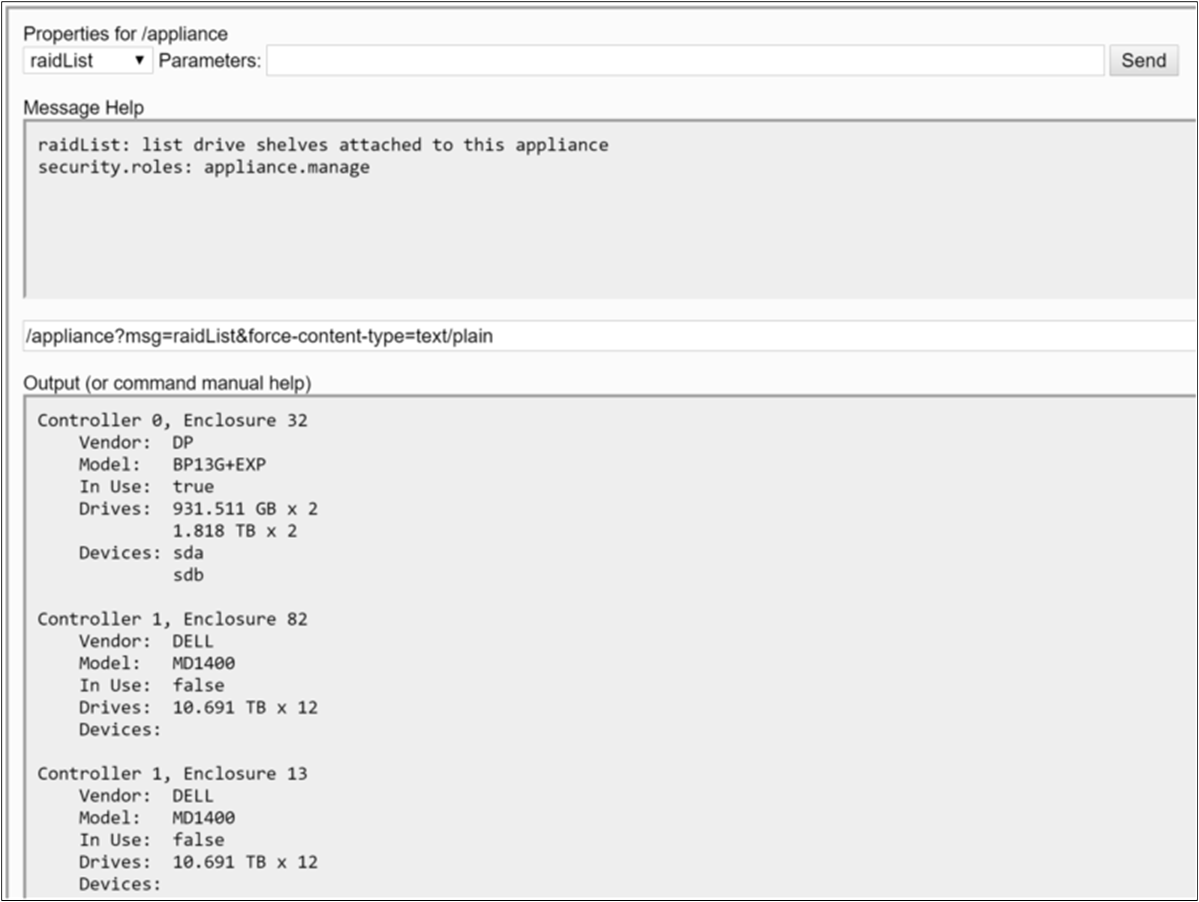
1. Execute the raidList command to identify the controllers and enclosures that are attached to the system.
In the following example, Controller 1 does not display any block devices. This indicates the array is not configured.
1. Select a RAID layout scheme for the Enclosure.
The following tables list the PV to Supported Hosts Mapping.
The following tables show you the supported allocation schemes.
**Note:**
\- On a Series 6 or Series 7 Network Decoder or newer with multiple PowerVault storage trays, use the decoder-hotspare RAID scheme for the first enclosure and the packet-expansion RAID scheme for subsequent enclosures.
1. After the controller, enclosure, and scheme are identified, execute the raidNew command to create RAID Volumes. For example:
send /appliance raidNew controller=1 enclosure=82 scheme=decoder-hotspare preferSecure=false
Add the commit=1 parameter to actually execute this operation. Execute the raidList command to list the created block devices.
2. (Optional) Configure SEDs (Self-Encrypting Drives). If the raidNew command detects self-encrypting drives and a security key has been set on the controller, the raidNew command will attempt to create a secure array. To set a security key on the controller, execute the raidKey command. For example:
send /appliance raidKey controller=1 key=myPasssphrase keyId=1
- To create a secured (that is, encrypted) array on physical devices attached to a controller with a security key set, specify preferSecure=true when using raidNew
- To create an unsecured (that is, unencrypted) array on physical devices attached to a controller with a security key set, specify preferSecure=false when using raidNew.
3. Go to [Task 3 - Allocate Block Devices to Partitions, Volume Groups, and Logical Volumes](https://mydev.netwitness.com/knowledge-base/configurestorageusingtherestapi#Task3), after you create RAID volumes.
### Task 3 - Allocate Block Devices to Partitions, Volume Groups, and Logical Volumes
The partNew command prepares a storage device to use in NetWitness Platform. It performs the following tasks.
- Creates the partition table on the block device.
- Creates the Linux Volume Manager physical device partition.
- Creates a volume group containing the physical device.
- Creates logical volumes in the volume group.
- Creates XFS filesystems on each logical volume.
- Creates /etc/fstab entries for each logical volume.
- Mounts each logical volume.
Complete the following steps to allocate block devices to partitions, volume groups, and logical volumes.
1. Run the devlist command to locate unused block devices. The following example shows the devlist command output.
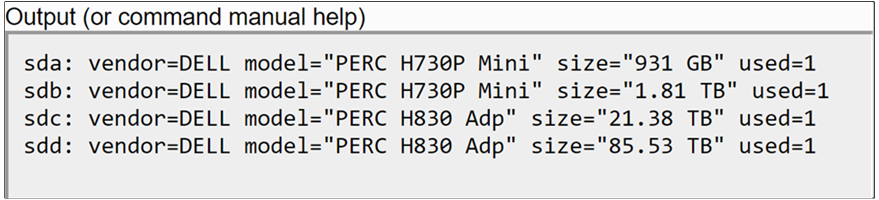
Also,you must provide a name for the service that will be used with the storage, for example, **decoder** for the Network Decoder service, or **concentrator** for the Concentrator service. You have the option of providing the volume type. The default volume type has the same name as the service.
**Note:** Run the devlist command to see if the multipath user-friendly names are listed correctly.
1. Run the multipath\_II command to make sure that SAN devices are attached. The following is an example when SAN devices are attached.
**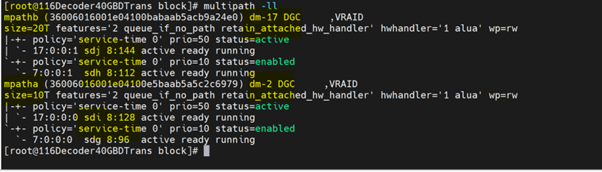**
**Note:** Block devices should be configured with a user-friendly name such as mpatha, mpathb etc.
1. Execute the partNew command to allocate block devices to partitions, volume groups, and logical volumes.
By default, the partNew command does not make changes. It displays the actions that will be taken if you commit the command string. To actually make the changes to the system, add the commit=true parameter to the command.
For example, to assign devices sdd and sde to Decoder:
send /appliance partNew name=sdc service=decoder volume=decodersmall commit=true
send /appliance partNew name=sdd service=decoder volume=decoder commit=true
**Caution:** For the **decoder** and **concentrator** services, you must create storage volumes in a specific order.
\- The **decoder** has the **decodersmall** and **decoder** volumes. Create the **decodersmall** volume before the **decoder** volume because **decodersmall** contains the small filesystem mounted at /var/netwitness/decoder.
\- The **concentrator** has the **concentrator** and **index** volumes. Create the **concentrator** volume before **index** volume or it will fail and you receive the following message.
Failed to process message partNew for /appliance com.rsa.netwitness.carlos.transport.TransportException: Volumes for index require mount point /var/netwitness/concentrator to be created and mounted first.
2. Execute the vgs command to validate that the partNew command created the correct Logical Volumes.
The output of this command:
- Enumerates all the volume groups on this host.
- Displays the physical volumes that the volume group consists of, and the logical volumes within the volume group.
3. Go to [Task 4 - Allocate Volume Groups to NetWitness Services- srvAlloc](https://mydev.netwitness.com/knowledge-base/configurestorageusingtherestapi#Task4).
### Task 4 - Allocate Volume Groups to NetWitness Services - srvAlloc
The srvAlloc command configures services on a host to use storage in a volume group. You must provide the name of the service to configure and the volume group to assign to the service (the service you provide must be installed on the host). For information about NetWitness Platform service volumes, see "NetWitness Platform Service Volume Reference" in [Storage Requirements](https://community.netwitness.com/StorageRequirements.htm).
Allocate services in the following order:
- For the Decoder, allocate decodersmall first then the decoder.
- For a Concentrator, allocate concentrator first then index.
**Note:** By default, the srvAlloc command does not make changes. You must append the commit=1 parameter to the command string to actually make the changes to the system and restart the specified service after making changes.
1. Execute the srvList command to see a list of services installed on this host.
The srvList command communicates with the service through the SSL port. You install a Category on a host. A Category can be a single service, or multiple related services, located on the same host.
1. Execute the srvAlloc command to configure a service on a host to use storage in a volume group. For example:
service=concentrator volume=concentrator commit=1
service=concentrator volume=index commit=1
2. Go to Task 5 - Reconfigure Services and Databases to Detect and Appropriately Use New Storage.
### Task 5 - (Optional) Reconfigure Storage Configuration for 10G Capture
You need to reconfigure the Decoder service and databases for 10G capture. Complete the following steps so that the Network Decoder service and its database detect and use new free space.
1. In the **NetWitness** menu, go to  (Admin) \> **SERVICES**.
The **SERVICES** view is displayed.
2. Select the **decoder**.
3. Under  (actions), select **View** \> **Explore**.
The **Explore** tree for the service is displayed.
4. Reconfigure space on the **decoder** service.
1. Navigate to the **decoder**, right click, and click **Properties**.
[](https://mydev.netwitness.com/?hsLang=en)
Copyright © 2026, NetWitness LLC. All rights reserved.
[NetWitness Platform](https://www.netwitness.com/)
[Acceptable Use Policy](https://www.netwitness.com/wp-content/uploads/Acceptable-Use-Policy-092022.pdf) [Privacy Statement](https://www.netwitness.com/wp-content/uploads/NetWitness-Privacy-Statement-07292024.pdf)

[](https://www.linkedin.com/company/netwitness-platform/) [](https://www.youtube.com/@netwitness)
© 2026 NetWitness LLC. All rights reserved.