---
title: Configure Packet Capture for Azure Cloud Environment
description: "Tags: Documentation, Version 12.1 You can integrate one of the following third-party solutions with the Network Decoder to capture packets in the Azur"
---
[Skip to content](https://mydev.netwitness.com/knowledge-base/configurepacketcaptureforazurecloudenvironment#main-content)

- [Home](https://mydev.netwitness.com/home)
- Integrations
Show submenu for Integrations
- [Netwitness Platform Integrations](https://mydev.netwitness.com/netwitnessplatformintegrations)
- [Third Party Integrations](https://mydev.netwitness.com/thirdpartyintegrations)
- [Knowledge Center](https://mydev.netwitness.com/knowledge-base)
- Community
Show submenu for Community
- [Blogs](https://mydev.netwitness.com/netwitness-security-llc-blog)
- Discussions
- Customers
Show submenu for Customers
- [Manage Products and Licenses](https://mydev.netwitness.com/nwportal)
- Downloads
- Partners
Show submenu for Partners
- [Partner Program](https://mydev.netwitness.com/partner)
- [Partner Resources](https://mydev.netwitness.com/partnerresources)
- [Submit a New Deal Registration](https://mydev.netwitness.com/dealregistration)
- [Become a Partner](https://mydev.netwitness.com/becomeapartner)
- [Update Your Partner Locator Profile](https://www.netwitness.com/partner-locator/?utm_source=pardotnewsletter&utm_medium=email&utm_campaign=partner_march)
- [NetWitness LinkedIn Partner Hub](https://linkedin.com/showcase/netwitnesspartners/)
- Education
Show submenu for Education
- [Instructor Led Training Schedule](https://mydev.netwitness.com/instructorledtrainingschedule)
- [NetWitness Training Catalog](https://mydev.netwitness.com/netwitnesstrainingcatalog)
- [Security Awareness Training](https://mydev.netwitness.com/securityawarenesstraining)
- [New Product Readiness](https://mydev.netwitness.com/newproductreadiness)
- [On-Demand Virtual Labs](https://mydev.netwitness.com/ondemandvirtuallabs)
- [Additional Training Information](https://mydev.netwitness.com/additionaltraininginformation)
- [Frequently Asked Questions](https://mydev.netwitness.com/educationfaq)
- [Contact NetWitness Education Team](https://mydev.netwitness.com/contact-netwitness-education-team)
- Support
Show submenu for Support
- [Contact Support](https://mydev.netwitness.com/contact-support)
- [Create a New Case](https://mydev.netwitness.com/create-support-case)
- [View My Cases](https://mydev.netwitness.com/viewmycase)
- [Product Version Life Cycle](https://mydev.netwitness.com/product-version-life-cycle)
- [Warranty & Replacement Parts](https://mydev.netwitness.com/warranty-and-replacement-parts)
- [Community Support Forum](https://mydev.netwitness.com/community-support-forum)
- [Technical Support Guide](https://mydev.netwitness.com/technical-support-guide)
Open main navigation
Close main navigation
- [Home](https://mydev.netwitness.com/home)
- Integrations
Show submenu for Integrations
- [Netwitness Platform Integrations](https://mydev.netwitness.com/netwitnessplatformintegrations)
- [Third Party Integrations](https://mydev.netwitness.com/thirdpartyintegrations)
- [Knowledge Center](https://mydev.netwitness.com/knowledge-base)
- Community
Show submenu for Community
- [Blogs](https://mydev.netwitness.com/netwitness-security-llc-blog)
- Discussions
- Customers
Show submenu for Customers
- [Manage Products and Licenses](https://mydev.netwitness.com/nwportal)
- Downloads
- Partners
Show submenu for Partners
- [Partner Program](https://mydev.netwitness.com/partner)
- [Partner Resources](https://mydev.netwitness.com/partnerresources)
- [Submit a New Deal Registration](https://mydev.netwitness.com/dealregistration)
- [Become a Partner](https://mydev.netwitness.com/becomeapartner)
- [Update Your Partner Locator Profile](https://www.netwitness.com/partner-locator/?utm_source=pardotnewsletter&utm_medium=email&utm_campaign=partner_march)
- [NetWitness LinkedIn Partner Hub](https://linkedin.com/showcase/netwitnesspartners/)
- Education
Show submenu for Education
- [Instructor Led Training Schedule](https://mydev.netwitness.com/instructorledtrainingschedule)
- [NetWitness Training Catalog](https://mydev.netwitness.com/netwitnesstrainingcatalog)
- [Security Awareness Training](https://mydev.netwitness.com/securityawarenesstraining)
- [New Product Readiness](https://mydev.netwitness.com/newproductreadiness)
- [On-Demand Virtual Labs](https://mydev.netwitness.com/ondemandvirtuallabs)
- [Additional Training Information](https://mydev.netwitness.com/additionaltraininginformation)
- [Frequently Asked Questions](https://mydev.netwitness.com/educationfaq)
- [Contact NetWitness Education Team](https://mydev.netwitness.com/contact-netwitness-education-team)
- Support
Show submenu for Support
- [Contact Support](https://mydev.netwitness.com/contact-support)
- [Create a New Case](https://mydev.netwitness.com/create-support-case)
- [View My Cases](https://mydev.netwitness.com/viewmycase)
- [Product Version Life Cycle](https://mydev.netwitness.com/product-version-life-cycle)
- [Warranty & Replacement Parts](https://mydev.netwitness.com/warranty-and-replacement-parts)
- [Community Support Forum](https://mydev.netwitness.com/community-support-forum)
- [Technical Support Guide](https://mydev.netwitness.com/technical-support-guide)
How can we help you?
- There are no suggestions because the search field is empty.
1. [NetWitness Knowledge Base](https://mydev.netwitness.com/knowledge-base?hsLang=en)
2. [Documentation](https://mydev.netwitness.com/knowledge-base/documentation?hsLang=en)
April 7, 2026
# Configure Packet Capture for Azure Cloud Environment
**Tags:** Documentation, Version 12.1
You can integrate one of the following third-party solutions with the Network Decoder to capture packets in the Azure cloud environment.
- [Gigamon GigaVUE](https://mydev.netwitness.com/knowledge-base/configurepacketcaptureforazurecloudenvironment#Integrat)
- [Ixia CloudLens](https://mydev.netwitness.com/knowledge-base/configurepacketcaptureforazurecloudenvironment#Integrat2)
## Integrate Gigamon GigaVUE with the Network Decoder
You can access Gigamon Visibility Platform through the Azure Marketplace on the Azure portal. It is activated by a BYOL license. A thirty-day free trial is also available. For more information on the Gigamon solution, see [GigaVUE Cloud Suite for Azure](https://www.gigamon.com/solutions/cloud/public-cloud/gigavue-cloud-suite-azure.html#tech-docs).
For more information regarding GigaVUE Deployment, see [https://docs.gigamon.com/doclib515/Content/GV-Cloud-Azure/preface-Azure.html?tocpath=GigaVUE%20Cloud%20Suites%7CAzure%7C\_\_\_\_\_0](https://docs.gigamon.com/doclib515/Content/GV-Cloud-Azure/preface-Azure.html?tocpath=GigaVUE%20Cloud%20Suites%7CAzure%7C_____0).
You will see the traffic incoming on NW Decoder Host once the **Monitoring Session** is deployed within the **Gigamon GigaVUE-FM** with Decoder receiver NIC as tunnel.
## Integrate Ixia with the Network Decoder
Keysight Ixia CloudLens SaaS is a Network Visibility platform. For more information on the CloudLens solution, see [https://www.keysight.com/in/en/products/network-visibility/cloud-visibility/cloudlens/cloudlens-saas.html.](https://www.keysight.com/in/en/products/network-visibility/cloud-visibility/cloudlens/cloudlens-saas.html)
You must complete the following tasks to integrate the Network Decoder with Ixia CloudLens.
[Task 1. Deploy Client Machines](https://mydev.netwitness.com/knowledge-base/configurepacketcaptureforazurecloudenvironment#Task)
[Task 2. Create CloudLens Project](https://mydev.netwitness.com/knowledge-base/configurepacketcaptureforazurecloudenvironment#Task2)
[Task 3. Install Docker Container on Decoder](https://mydev.netwitness.com/knowledge-base/configurepacketcaptureforazurecloudenvironment#Task3)
[Task 4. Install Docker Container on Clients](https://mydev.netwitness.com/knowledge-base/configurepacketcaptureforazurecloudenvironment#Task4)
[Task 5. Map Network Decoder to Ixia Clients](https://mydev.netwitness.com/knowledge-base/configurepacketcaptureforazurecloudenvironment#Task5)
[Task 6. Validate CloudLens Packets Arriving at Decoder](https://mydev.netwitness.com/knowledge-base/configurepacketcaptureforazurecloudenvironment#Task6)
[Task 7. Set the Interface in the Network Decoder](https://mydev.netwitness.com/knowledge-base/configurepacketcaptureforazurecloudenvironment#Task7)
### Task 1. Deploy Client Machines
- Deploy client machines from which you want to route the traffic to the Network Decoder. See the Ixia CloudLens documentation (**https: /cloudlens/docs/Default.htm** ) for specifications needed for supported client machines.
is the respective CloudLens Manager instance.
Modify the VM's network security group to allow incoming traffic on following ports:
\- **TCP: 22 (SSH)**: Connection to the instance / VM.
\- **IP Protocol: 47 (GRE)**: Required by CloudLens Sensor Tap to send the tapped traffic to the Sensor Tool.
\- **UDP Protocol: 19993 (Encrypted Tunnel)** – Required by CloudLens Sensor Tap to send the tapped traffic to the Sensor Tool.
For more information, see [https://docs.microsoft.com/en-us/azure/virtual-network/virtual-networks-nsg](https://docs.microsoft.com/en-us/azure/virtual-network/virtual-networks-nsg).
### Task 2. Create CloudLens Project
1. Login to **Ixia Cloudlens Manager** and go to the **Configure** Page.
2. Click **+** (add) to create a new project.
3. In the **CREATE NEW PROJECT** view,
- Enter the Project Name
For Example: **Netwitness-Ixia**.
- Enter the Project Description
For Example: **Netwitness Ixia Integration**.
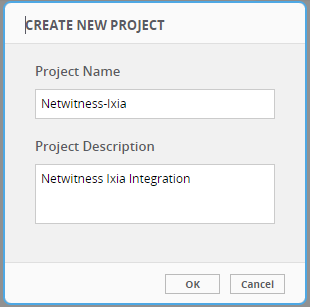
4. Click **OK**.
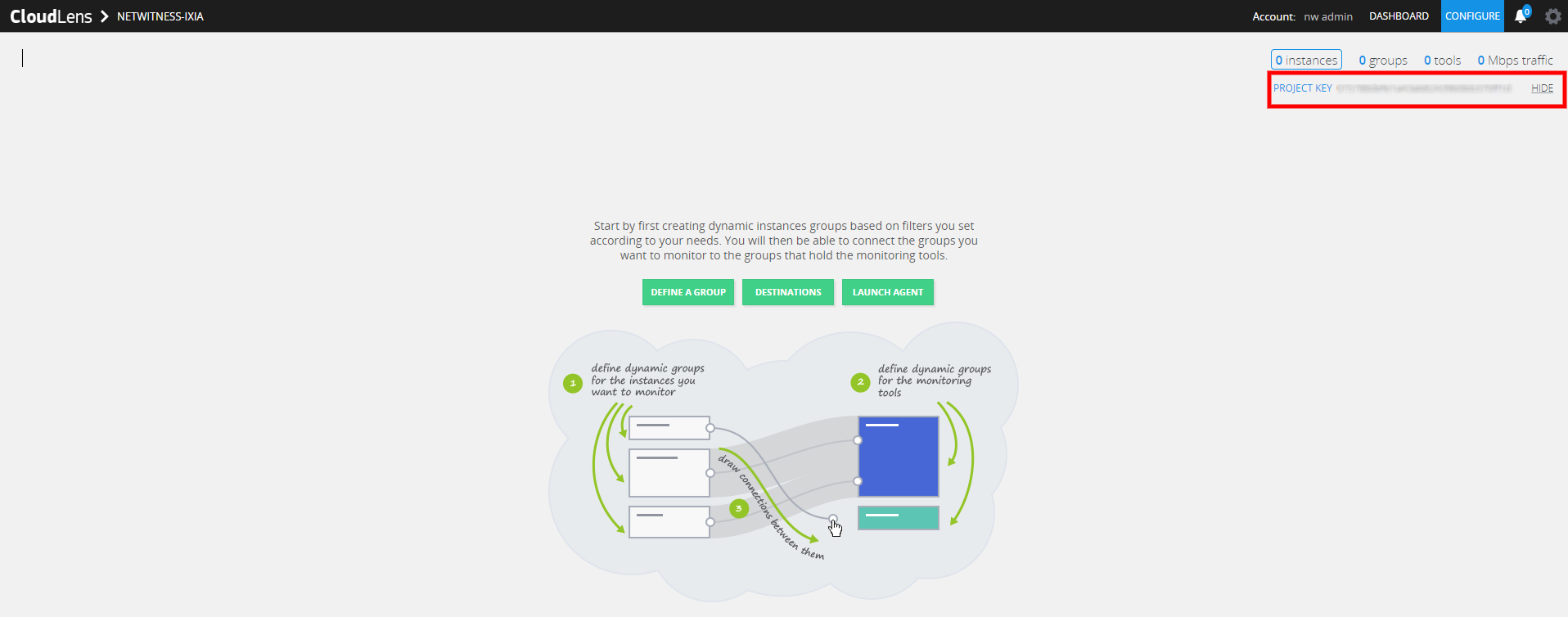
5. Click **SHOW PROJECT KEY** to get the API Key for the project.
The key is required to configure the **Host and Tool agents**.
### Task 3. Install Docker Container on Decoder
1. SSH to Network Decoder.
2. Setup the docker. For more information on how to setup the docker, see [https://docs.docker.com/engine/install/centos/.](https://docs.docker.com/engine/install/centos/)
3. Run the following commands to setup Docker insecure-registry parameter and pull the sensor image from CloudLens:
```
echo "{\"insecure-registries\":[\"
\"]}" | sudo tee /etc/docker/daemon.json sudo systemctl enable docker.service sudo service docker restart
```
4. Pull the CloudLens agent docker image. Run the following command:
```
sudo docker pull
/sensor
```
5. Start the CloudLens agent with **ProjectKeyFromIxiaProjectPortal** retrieved from [Task 2. Create CloudLens Project](https://mydev.netwitness.com/knowledge-base/configurepacketcaptureforazurecloudenvironment#Task8) and CloudLens Manager IP. Run the following command:
```
sudo docker run -v /lib/modules:/lib/modules -v /var/log:/var/log/cloudlens -v /:/host -v /var/run/docker.sock:/var/run/docker.sock --cap-add SYS_MODULE --cap-add SYS_RESOURCE --cap-add NET_RAW --cap-add NET_ADMIN --name cloudlens-agent -d --restart=on-failure --net=host --log-opt max-size=50m --log-opt max-file=3
/sensor --accept_eula yes --project_key ProjectKeyFromIxiaProjectPortal --server
--ssl_verify no
```
### Task 4. Install Docker Container on Clients
1. SSH to Azure VM with root privileges.
2. Setup the docker for the OS / Distributions. For more information, see [https://docs.docker.com/engine/install/](https://docs.docker.com/engine/install/).
3. Run the following commands to setup Docker insecure-registry parameter and pull the sensor image from CloudLens:
```
echo "{\"insecure-registries\":[\"
\"]}" | sudo tee /etc/docker/daemon.json sudo systemctl enable docker.service sudo service docker restart
```
4. Pull the CloudLens agent docker image. Run the following command.
```
sudo docker pull
/sensor
```
5. Start the CloudLens agent with **ProjectKeyFromIxiaProjectPortal** retrieved from [Task 2. Create CloudLens Project](https://mydev.netwitness.com/knowledge-base/configurepacketcaptureforazurecloudenvironment#Task9) and CloudLens Manager IP. Run the following command.
```
sudo docker run -v /lib/modules:/lib/modules -v /var/log:/var/log/cloudlens -v /:/host -v /var/run/docker.sock:/var/run/docker.sock --cap-add SYS_MODULE --cap-add SYS_RESOURCE --cap-add NET_RAW --cap-add NET_ADMIN --name cloudlens-agent -d --restart=on-failure --net=host --log-opt max-size=50m --log-opt max-file=3
/sensor --accept_eula yes --project_key ProjectKeyFromIxiaProjectPortal --server
--ssl_verify no
```
### Task 5. Map Network Decoder to Ixia Clients
Map the Network Decoder to the client machines to route the traffic to the Network Decoder. Do the following:
1. Go to the **CloudLens Manager** UI.
2. Click on your project and open it.
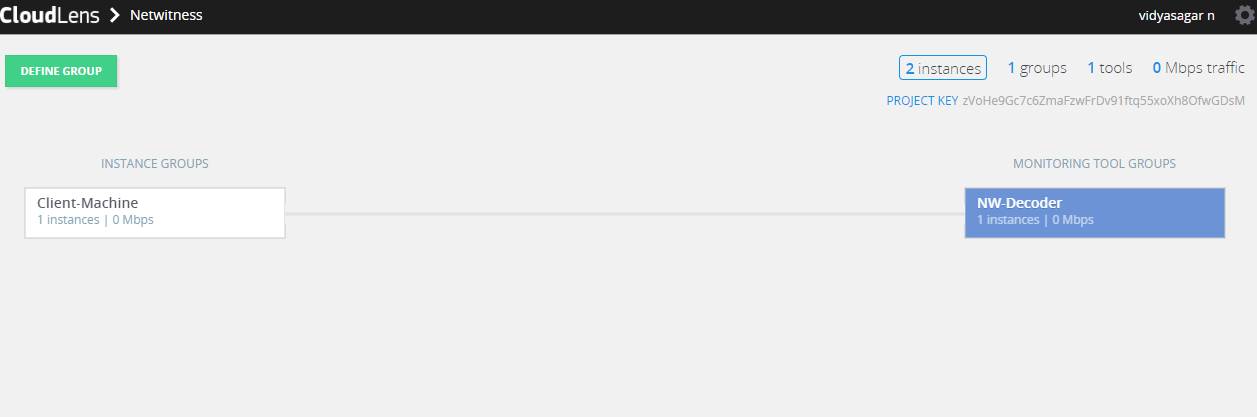
3. Click **Define Group** or the Instances count.
You should see two instances listed, one for your decoder and the other for the client machines.
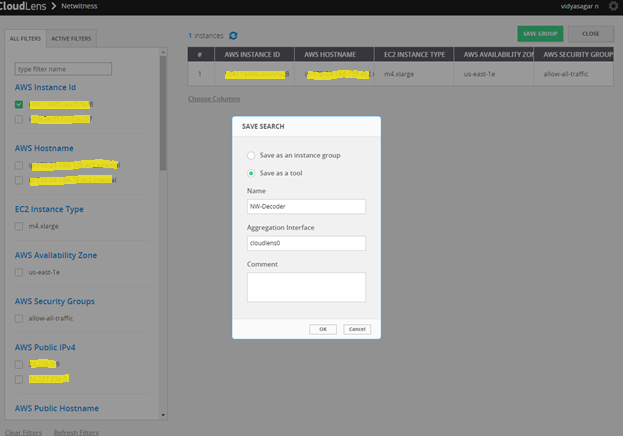
4. Apply filter for the decoder instance and click **Save Search**.
5. Select **Save as a tool**.
6. Specify a name for the tool and the **Aggregation Interface**.
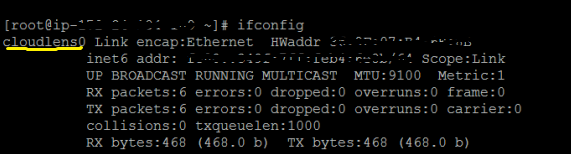
Use a meaningful name for the Aggregation Interface (for example **cloudlens0**. This is a virtual interface that appears in the OS where your Tool is installed. You need to instruct your tool to ‘listen’ to that interface in a subsequent step.
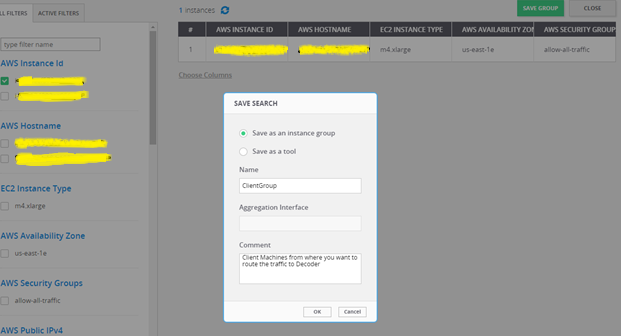
7. Apply filter for the client host instance from the list and click **Save Search**.
8. Navigate back to the top-level view of the project.
Your client machine instance and Decoder instance are now displayed.
9. Drag a connection between the client machine instance and Decoder instance to allow the flow of packets.
### Task 6. Validate CloudLens Packets Arriving at Decoder
Complete the following steps to validate that the packets are actually arriving at the Network Decoder.
1. SSH to the Network Decoder.
2. Run the following command.
ifconfig
The new aggregation interface you created is displayed.
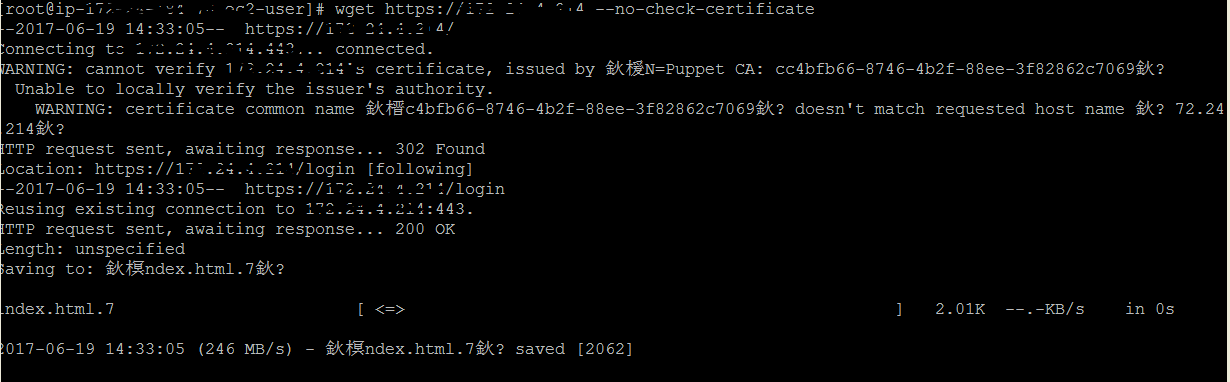
3. Generate traffic from the client OS instance CLI (for example: wget [http://www.google.com/](http://www.google.com/)).
4. SSH to the Network Decoder and go to your Network Decoder instance CLI.
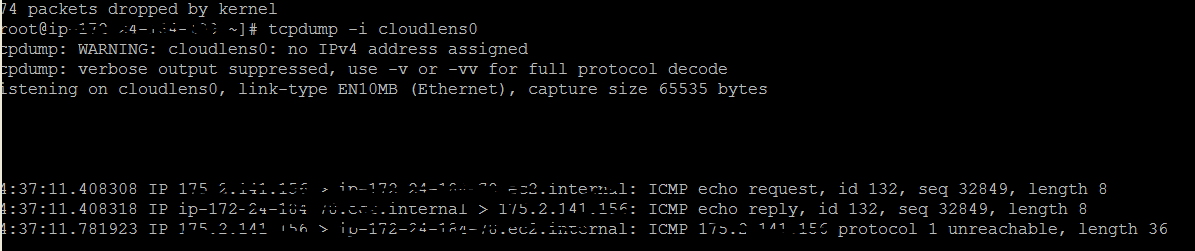
5. Run the following command to look for suitable results in the tcpdump.
tcpdump -I Cloudlens0
### Task 7. Set the Interface in the Network Decoder
Complete the following steps in the Network Decoder to set the interface for the Ixia integration.
1. SSH to the Network Decoder.
2. Run the following command to restart the decoder service:
$ sudo restart nwdecoder
The Network Decoder is now set to capture the network traffic.
3. Log in to NetWitness and click  **(Admin)\> Services**.
4. Select a Decoder service and click \> **View \> Explore**.
5. Expand the **decoder** node and click **config** to view the configuration settings.
6. Set the **capture.selected** parameter to the following value.
packet\_mmap\_,cloudlens0(bpf)
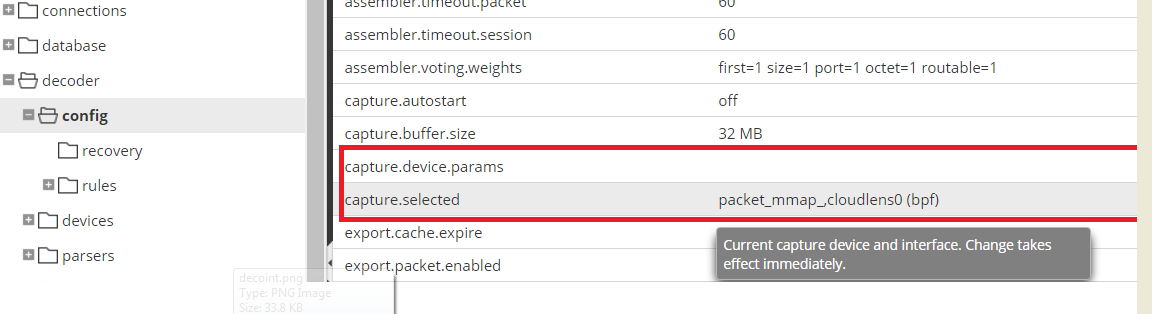
7. Restart the Decoder service after you set the **capture.selected** parameter.
[](https://mydev.netwitness.com/?hsLang=en)
Copyright © 2026, NetWitness LLC. All rights reserved.
[NetWitness Platform](https://www.netwitness.com/)
[Acceptable Use Policy](https://www.netwitness.com/wp-content/uploads/Acceptable-Use-Policy-092022.pdf) [Privacy Statement](https://www.netwitness.com/wp-content/uploads/NetWitness-Privacy-Statement-07292024.pdf)

[](https://www.linkedin.com/company/netwitness-platform/) [](https://www.youtube.com/@netwitness)
© 2026 NetWitness LLC. All rights reserved.