---
title: Configure Lists as a Data Source
description: "Configure Lists as a Data Source\nLists as a Data Source use the Context Hub service to fetch contextual information for meta types that support conte"
---
[Skip to content](https://mydev.netwitness.com/knowledge-base/configurelistsasadatasource#main-content)

- [Home](https://mydev.netwitness.com/home)
- Integrations
Show submenu for Integrations
- [Netwitness Platform Integrations](https://mydev.netwitness.com/netwitnessplatformintegrations)
- [Third Party Integrations](https://mydev.netwitness.com/thirdpartyintegrations)
- [Knowledge Center](https://mydev.netwitness.com/knowledge-base)
- Community
Show submenu for Community
- [Blogs](https://mydev.netwitness.com/netwitness-security-llc-blog)
- Discussions
- Customers
Show submenu for Customers
- [Manage Products and Licenses](https://mydev.netwitness.com/nwportal)
- Downloads
- Partners
Show submenu for Partners
- [Partner Program](https://mydev.netwitness.com/partner)
- [Partner Resources](https://mydev.netwitness.com/partnerresources)
- [Submit a New Deal Registration](https://mydev.netwitness.com/dealregistration)
- [Become a Partner](https://mydev.netwitness.com/becomeapartner)
- [Update Your Partner Locator Profile](https://www.netwitness.com/partner-locator/?utm_source=pardotnewsletter&utm_medium=email&utm_campaign=partner_march)
- [NetWitness LinkedIn Partner Hub](https://linkedin.com/showcase/netwitnesspartners/)
- Education
Show submenu for Education
- [Instructor Led Training Schedule](https://mydev.netwitness.com/instructorledtrainingschedule)
- [NetWitness Training Catalog](https://mydev.netwitness.com/netwitnesstrainingcatalog)
- [Security Awareness Training](https://mydev.netwitness.com/securityawarenesstraining)
- [New Product Readiness](https://mydev.netwitness.com/newproductreadiness)
- [On-Demand Virtual Labs](https://mydev.netwitness.com/ondemandvirtuallabs)
- [Additional Training Information](https://mydev.netwitness.com/additionaltraininginformation)
- [Frequently Asked Questions](https://mydev.netwitness.com/educationfaq)
- [Contact NetWitness Education Team](https://mydev.netwitness.com/contact-netwitness-education-team)
- Support
Show submenu for Support
- [Contact Support](https://mydev.netwitness.com/contact-support)
- [Create a New Case](https://mydev.netwitness.com/create-support-case)
- [View My Cases](https://mydev.netwitness.com/viewmycase)
- [Product Version Life Cycle](https://mydev.netwitness.com/product-version-life-cycle)
- [Warranty & Replacement Parts](https://mydev.netwitness.com/warranty-and-replacement-parts)
- [Community Support Forum](https://mydev.netwitness.com/community-support-forum)
- [Technical Support Guide](https://mydev.netwitness.com/technical-support-guide)
Open main navigation
Close main navigation
- [Home](https://mydev.netwitness.com/home)
- Integrations
Show submenu for Integrations
- [Netwitness Platform Integrations](https://mydev.netwitness.com/netwitnessplatformintegrations)
- [Third Party Integrations](https://mydev.netwitness.com/thirdpartyintegrations)
- [Knowledge Center](https://mydev.netwitness.com/knowledge-base)
- Community
Show submenu for Community
- [Blogs](https://mydev.netwitness.com/netwitness-security-llc-blog)
- Discussions
- Customers
Show submenu for Customers
- [Manage Products and Licenses](https://mydev.netwitness.com/nwportal)
- Downloads
- Partners
Show submenu for Partners
- [Partner Program](https://mydev.netwitness.com/partner)
- [Partner Resources](https://mydev.netwitness.com/partnerresources)
- [Submit a New Deal Registration](https://mydev.netwitness.com/dealregistration)
- [Become a Partner](https://mydev.netwitness.com/becomeapartner)
- [Update Your Partner Locator Profile](https://www.netwitness.com/partner-locator/?utm_source=pardotnewsletter&utm_medium=email&utm_campaign=partner_march)
- [NetWitness LinkedIn Partner Hub](https://linkedin.com/showcase/netwitnesspartners/)
- Education
Show submenu for Education
- [Instructor Led Training Schedule](https://mydev.netwitness.com/instructorledtrainingschedule)
- [NetWitness Training Catalog](https://mydev.netwitness.com/netwitnesstrainingcatalog)
- [Security Awareness Training](https://mydev.netwitness.com/securityawarenesstraining)
- [New Product Readiness](https://mydev.netwitness.com/newproductreadiness)
- [On-Demand Virtual Labs](https://mydev.netwitness.com/ondemandvirtuallabs)
- [Additional Training Information](https://mydev.netwitness.com/additionaltraininginformation)
- [Frequently Asked Questions](https://mydev.netwitness.com/educationfaq)
- [Contact NetWitness Education Team](https://mydev.netwitness.com/contact-netwitness-education-team)
- Support
Show submenu for Support
- [Contact Support](https://mydev.netwitness.com/contact-support)
- [Create a New Case](https://mydev.netwitness.com/create-support-case)
- [View My Cases](https://mydev.netwitness.com/viewmycase)
- [Product Version Life Cycle](https://mydev.netwitness.com/product-version-life-cycle)
- [Warranty & Replacement Parts](https://mydev.netwitness.com/warranty-and-replacement-parts)
- [Community Support Forum](https://mydev.netwitness.com/community-support-forum)
- [Technical Support Guide](https://mydev.netwitness.com/technical-support-guide)
How can we help you?
- There are no suggestions because the search field is empty.
1. [NetWitness Knowledge Base](https://mydev.netwitness.com/knowledge-base?hsLang=en)
2. [Documentation](https://mydev.netwitness.com/knowledge-base/documentation?hsLang=en)
April 28, 2026
# Configure Lists as a Data Source
## Configure Lists as a Data Source
Lists as a Data Source use the Context Hub service to fetch contextual information for meta types that support context lookup. You can create one or more lists and add relevant list values to the list. Make sure that you create meaningful lists such as blacklisted IPs, whitelisted IPs, and so on. The lists can contain supported entities such as IP address, MAC address, User name, Host name, Domain name, File name or File hash. You can import a single-column list or a multi-column list from the Data Source tab. Additionally, all feeds (except STIX feeds ) that are created are converted to lists and displayed on the context lookup. If Context Hub is not configured or the service is down, then the feeds will be made available whenever Context Hub is up and running. For more information on creating feeds, see the *Live Services Management Guide*.
**Note:** When you create a feed, a list is automatically generated with the same name as the feed. If the list name already exists, then the name of the new list is suffixed with the number '2". For example if the existing feed name is test1.csv, then the new list will be named as test2.csv.
List values are in CSV format available in an external location and can be accessed through the following two methods:
- **Local File Store**: You can share a file from a local location.
- **HTTP(S)**: You can share a file using a web server location.
**Note:** You can also set up recurring job to fetch data on regular intervals by using the Prefetch settings while configuring meta mapping.
Prerequisites
Before you configure Lists data source, ensure that:
- User should have admin permissions.
- Context Hub service is available in ** (Admin) \> Services** view of NetWitness.
- If you are using Local File Store or HTTP(S) server, the path mentioned should contain the CSV file
In case of remote Local File Store, the file must be mounted or placed on the local drive location /var/lib/netwitness/contexthub-server/data.
- The NetWitness user must have read permission to access the file.
**Caution:** If you are creating a Context Hub list for use as an enrichment source in ESA, the list name cannot include any spaces or special characters, or start with a number. If you do not follow this naming convention, when you attempt to add the list as an enrichment source in ESA, an error message will be displayed and you will not be allowed to add the list.
## Add List data source using Local File Store
To add a List as a data source:
1. Go to ** (Admin) \> Services**.
The services view is displayed.
2. Select the Context Hub service and click  \> **View** \> **Config**.
The Services Config View of Context Hub is displayed.
3. In the **Data Sources** tab, click  \> **LIST**.
The **Add Data Source** dialog is displayed.
4. By default, the **Enable** checkbox is selected. If this option is unchecked, the Next button is disabled, you cannot add the data source, view the list in the list tab and view the contextual information.
5. By default, the Context Highlighting checkbox is enabled. This highlights the meta values (in the **Investigate** \> **Navigate**, **Events**, **Event details** and **Nodal graph**) for which the contextual information is available for this data source in the Context Hub.
**Note:** You can disable the context highlighting globally in the Context Hub explorer view. After you disable this option, the entity values for all the data sources configured will not be highlighted if there are any contextual information.
1. Select the **Local File Store** Connection Type.
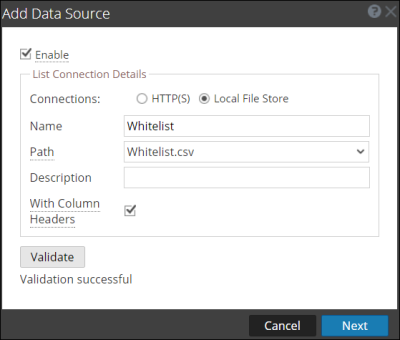
2. Provide the following database connection details. Enter the following fields for Local File Store Connection Type:
- **Name:** Provide a name for the list data source.
- **Path:** This field displays all the data files available in the data folder /var/lib/netwitness/contexthub-server/data, where context hub service is running. Select the file name from the drop-down.
A maximum of 32 columns of CSV file are supported that adhere to the RFC1480 standards.
- (Optional) **Description**: Add a description for the selected file.
- **With Column Headers**: Select this option to consider the first row as column headers from the CSV file. If you don't select this option, you need to enter the column headers in the next screen.
3. Click **Validate**.
If the validation fails, you cannot add the data source.
4. Click **Next**.
The next dialog is displayed.
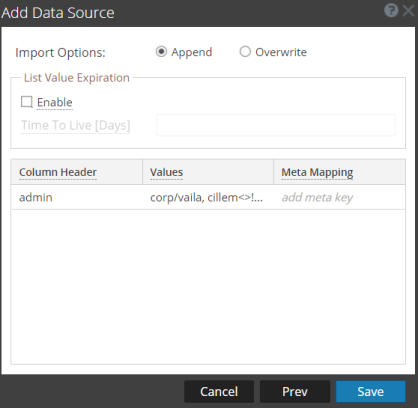
5. Select any one of the following options:
- **Append** - Select this option to add the imported values to an existing list.
- **Overwrite** - Select this option to replace the values in an existing list with the imported values.
6. In the **List Value Expiration** section, the **Enable** option is unchecked, by default. If you want to store the looked up list values in the cache for a specified number of days then select the **Enable** checkbox and enter the number of days in the **Time to Live (days)** field for the list values to be retained.
7. In the next screen, map at least one meta key with one or more meta types by mapping a column header with a meta. The description for each field is as follows:
- **Column Header**: Display headers of the CSV file which must be mapped to a meta type.
- **Meta Mapping**: Maps a column header field to a meta type.
- **Values**: Displays the first three values from the imported list.
8. Click **Save**.
## Add List data source using HTTP(S)
To add List as a data source:
1. Select ** (Admin) \> Services**.
The services view is displayed.
2. Select the Context Hub service and click \> **View** \> **Config**.
The Services Config View of Context Hub is displayed.
3. In the **Data Sources** tab, click  \> **LIST**.
The **Add Data Source** dialog is displayed.
4. By default, the **Enable** checkbox is selected. If this option is unchecked, the Next button is disabled, you cannot add the data source, view the list in the list tab and view the contextual information.
5. By default, the Context Highlighting checkbox is enabled. This highlights the meta values (in the **Investigate** \> **Navigate**, **Events**, **Event details** and **Nodal graph**) for which the contextual information is available for this data source in the Context Hub. By default, this option is enabled.
**Note:** You can disable the context highlighting globally in the Context Hub explorer view. After you disable this option, the entity values for all the data sources configured will not be highlighted if there are any contextual information.
1. Select the HTTP(S) Connection Type.
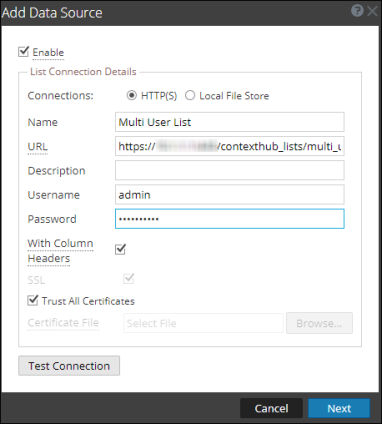
- Enter the following fields for HTTP(S) Connection Type:
- **Name:** Provide a name for the list data source.
- **URL**: Enter the path of the CSV file available on the HTTP(S) location along with the host name or IP address of the remote machine where the list is stored. The URL must be of the format: https:// : / . For example, [https://10.1.1.1:443/contexthub\_lists/multi\_user\_list.csv](https://10.1.1.1:443/contexthub_lists/multi_user_list.csv)
- (Optional) **Description**: Add a description for the selected file.
- (Optional) **Username:** Enter the username to connect to the HTTP(S) server requires basic authentication.
- (Optional) **Password:** Enter the password to connect to the HTTP(S) server requires basic authentication.
- **With Column Headers**: Select this option if you want to import a CSV file with headers. If this option is selected and you import the CSV without headers, the first row will be considered as a header which can be edited.
- **SSL:** If you enter a URL with HTTPS in this field, then this is selected automatically. If you enter a URL with HTTP, then this checkbox is unselected.
- **Trust All Certificates**: Select this checkbox to add the data source without validating the certificate. If you uncheck this option, you need to upload a valid .cer or .crt format HTTP(S)server certificate for the connection to be successful.
2. Click **Test Connection** to test the connection between Context Hub and the data source.
3. Click **Save** to save the settings.
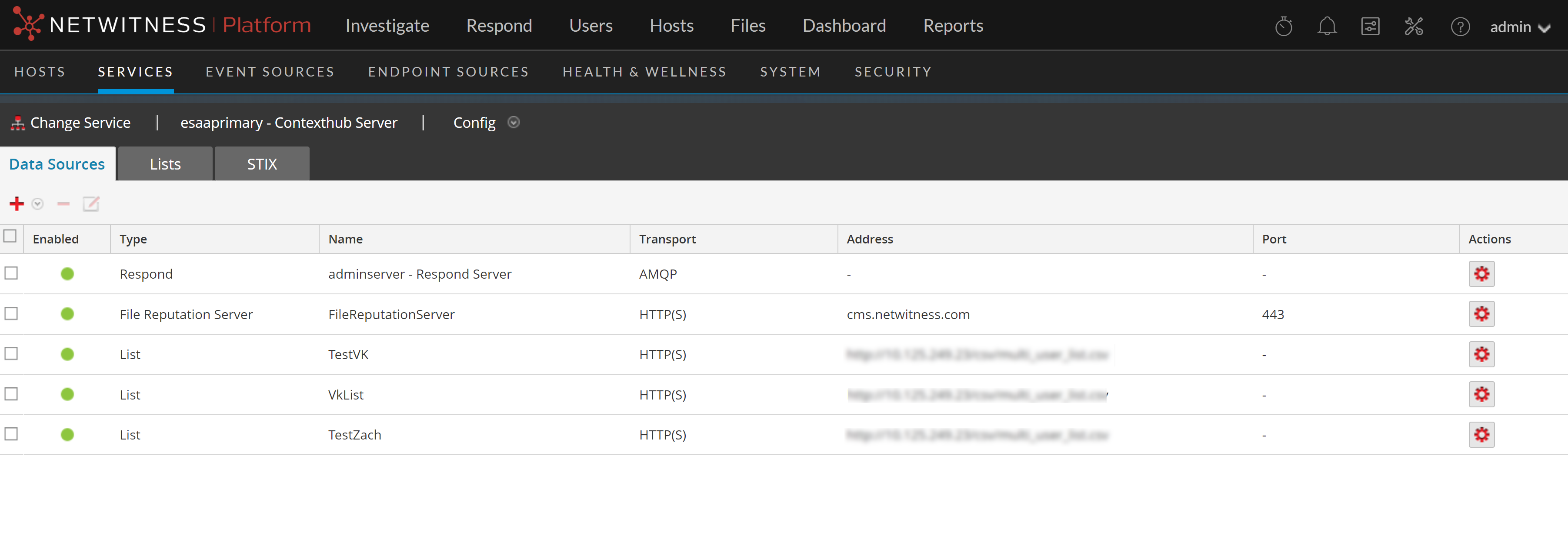
List is added as a data source for the configured Context Hub and is displayed in the **Data Sources** tab.
## Next Steps
- Add, edit, or remove values from a specific list.
- Configure the data source settings to determine the data source fields to be displayed in the Context panel. For instructions, see [Configure Context Hub Data Source Settings](https://50269063.hs-sites.com/knowledge-base/ConfigureDataSourcesSettings?hsLang=en).
- Import and export a list. For more information, see [Import or Export Lists for Context Hub](https://50269063.hs-sites.com/knowledge-base/ImportorExportListsforContextHub?hsLang=en).
- View the contextual data in the Context Summary Panel of the Respond view or Investigate view. For more information, see the *NetWitness Respond User Guide* and *NetWitness Investigate User Guide*.
[](https://mydev.netwitness.com/?hsLang=en)
Copyright © 2026, NetWitness LLC. All rights reserved.
[NetWitness Platform](https://www.netwitness.com/)
[Acceptable Use Policy](https://www.netwitness.com/wp-content/uploads/Acceptable-Use-Policy-092022.pdf) [Privacy Statement](https://www.netwitness.com/wp-content/uploads/NetWitness-Privacy-Statement-07292024.pdf)

[](https://www.linkedin.com/company/netwitness-platform/) [](https://www.youtube.com/@netwitness)
© 2026 NetWitness LLC. All rights reserved.