---
title: Configure Drive Pack(s)
description: "Configure Drive Pack(s) Note: The terms 'Meta Disk Kit' and 'Meta Drive Pack' mean the same and are interchangeable. Benefits of Series 6/6E and Serie"
---
[Skip to content](https://mydev.netwitness.com/knowledge-base/configuredrivepack-s#main-content)

- [Home](https://mydev.netwitness.com/home)
- Integrations
Show submenu for Integrations
- [Netwitness Platform Integrations](https://mydev.netwitness.com/netwitnessplatformintegrations)
- [Third Party Integrations](https://mydev.netwitness.com/thirdpartyintegrations)
- [Knowledge Center](https://mydev.netwitness.com/knowledge-base)
- Community
Show submenu for Community
- [Blogs](https://mydev.netwitness.com/netwitness-security-llc-blog)
- Discussions
- Customers
Show submenu for Customers
- [Manage Products and Licenses](https://mydev.netwitness.com/nwportal)
- Downloads
- Partners
Show submenu for Partners
- [Partner Program](https://mydev.netwitness.com/partner)
- [Partner Resources](https://mydev.netwitness.com/partnerresources)
- [Submit a New Deal Registration](https://mydev.netwitness.com/dealregistration)
- [Become a Partner](https://mydev.netwitness.com/becomeapartner)
- [Update Your Partner Locator Profile](https://www.netwitness.com/partner-locator/?utm_source=pardotnewsletter&utm_medium=email&utm_campaign=partner_march)
- [NetWitness LinkedIn Partner Hub](https://linkedin.com/showcase/netwitnesspartners/)
- Education
Show submenu for Education
- [Instructor Led Training Schedule](https://mydev.netwitness.com/instructorledtrainingschedule)
- [NetWitness Training Catalog](https://mydev.netwitness.com/netwitnesstrainingcatalog)
- [Security Awareness Training](https://mydev.netwitness.com/securityawarenesstraining)
- [New Product Readiness](https://mydev.netwitness.com/newproductreadiness)
- [On-Demand Virtual Labs](https://mydev.netwitness.com/ondemandvirtuallabs)
- [Additional Training Information](https://mydev.netwitness.com/additionaltraininginformation)
- [Frequently Asked Questions](https://mydev.netwitness.com/educationfaq)
- [Contact NetWitness Education Team](https://mydev.netwitness.com/contact-netwitness-education-team)
- Support
Show submenu for Support
- [Contact Support](https://mydev.netwitness.com/contact-support)
- [Create a New Case](https://mydev.netwitness.com/create-support-case)
- [View My Cases](https://mydev.netwitness.com/viewmycase)
- [Product Version Life Cycle](https://mydev.netwitness.com/product-version-life-cycle)
- [Warranty & Replacement Parts](https://mydev.netwitness.com/warranty-and-replacement-parts)
- [Community Support Forum](https://mydev.netwitness.com/community-support-forum)
- [Technical Support Guide](https://mydev.netwitness.com/technical-support-guide)
Open main navigation
Close main navigation
- [Home](https://mydev.netwitness.com/home)
- Integrations
Show submenu for Integrations
- [Netwitness Platform Integrations](https://mydev.netwitness.com/netwitnessplatformintegrations)
- [Third Party Integrations](https://mydev.netwitness.com/thirdpartyintegrations)
- [Knowledge Center](https://mydev.netwitness.com/knowledge-base)
- Community
Show submenu for Community
- [Blogs](https://mydev.netwitness.com/netwitness-security-llc-blog)
- Discussions
- Customers
Show submenu for Customers
- [Manage Products and Licenses](https://mydev.netwitness.com/nwportal)
- Downloads
- Partners
Show submenu for Partners
- [Partner Program](https://mydev.netwitness.com/partner)
- [Partner Resources](https://mydev.netwitness.com/partnerresources)
- [Submit a New Deal Registration](https://mydev.netwitness.com/dealregistration)
- [Become a Partner](https://mydev.netwitness.com/becomeapartner)
- [Update Your Partner Locator Profile](https://www.netwitness.com/partner-locator/?utm_source=pardotnewsletter&utm_medium=email&utm_campaign=partner_march)
- [NetWitness LinkedIn Partner Hub](https://linkedin.com/showcase/netwitnesspartners/)
- Education
Show submenu for Education
- [Instructor Led Training Schedule](https://mydev.netwitness.com/instructorledtrainingschedule)
- [NetWitness Training Catalog](https://mydev.netwitness.com/netwitnesstrainingcatalog)
- [Security Awareness Training](https://mydev.netwitness.com/securityawarenesstraining)
- [New Product Readiness](https://mydev.netwitness.com/newproductreadiness)
- [On-Demand Virtual Labs](https://mydev.netwitness.com/ondemandvirtuallabs)
- [Additional Training Information](https://mydev.netwitness.com/additionaltraininginformation)
- [Frequently Asked Questions](https://mydev.netwitness.com/educationfaq)
- [Contact NetWitness Education Team](https://mydev.netwitness.com/contact-netwitness-education-team)
- Support
Show submenu for Support
- [Contact Support](https://mydev.netwitness.com/contact-support)
- [Create a New Case](https://mydev.netwitness.com/create-support-case)
- [View My Cases](https://mydev.netwitness.com/viewmycase)
- [Product Version Life Cycle](https://mydev.netwitness.com/product-version-life-cycle)
- [Warranty & Replacement Parts](https://mydev.netwitness.com/warranty-and-replacement-parts)
- [Community Support Forum](https://mydev.netwitness.com/community-support-forum)
- [Technical Support Guide](https://mydev.netwitness.com/technical-support-guide)
How can we help you?
- There are no suggestions because the search field is empty.
1. [NetWitness Knowledge Base](https://mydev.netwitness.com/knowledge-base?hsLang=en)
2. [Documentation](https://mydev.netwitness.com/knowledge-base/documentation?hsLang=en)
April 7, 2026
# Configure Drive Pack(s)
## Configure Drive Pack(s)
**Note:** The terms 'Meta Disk Kit' and 'Meta Drive Pack' mean the same and are interchangeable.
## Benefits of Series 6/6E and Series 7 Drive Pack
**Series 6/6E Hosts**
You can add additional drives to the Series 6 or 6E appliances to accommodate various use cases. These drives provide the capability for the decoder meta or concentrator index volumes to reside on the appliance. Each Meta Disk Kit has 3 drives. A maximum of 2 Meta Disk Kits can be installed on series 6/6E appliances. The Meta cache or index size determines the number of Meta Disk Kits. A standard Series 6/6E appliance has 4 drives in slots 0,1,2 and 3. The remaining slots, 4 through 9 are empty (highlighted in red in the Series 6/6E Disk Layout image below). These slots are used to install the Meta Disk Kit(s).
**Series 7 Hosts**
You can add additional drives to the Series 7 to accommodate various use cases. These drives provide the capability for the decoder meta to reside on the appliance. Each Meta Disk Kit has 3 drives. A maximum of 2 Meta Disk Kits can be installed on series 7 appliances. The Meta cache determines the number of Meta Disk Kits. A standard Series 7 appliance has 4 drives in slots 0,1,2 and 3. The remaining slots, 4 through 9 are empty (highlighted in red in the Series 7 Disk Layout image below). These slots are used to install the Meta Disk Kit(s).
**NW Host - Meta Disk Kit support Matrix**
- **NW Host:** Series 6/6E
- **NW Service:** Decoder
- **External Storage:** MD1400
- **Meta Disk Kit Applicable (Yes/No):**
Yes
- **NW Host:**
Concentrator
- **NW Service:**
MD1400
- **External Storage:**
Yes
- **NW Host:**
Series 7
- **NW Service:**
Decoder
- **External Storage:**
MD2412
- **Meta Disk Kit Applicable (Yes/No):**
Yes
- **NW Host:**
Concentrator
- **NW Service:**
MD2412
- **External Storage:**
No
**Series 6/6E and Series 7 Disk Layout**

- **Maximize PowerVault Storage Capacity** - Traditionally, PowerVault storage allocates a volume for the Decoder metadata. This reduces the usable storage on the PowerVault. Drive Packs reduce this issue by providing 20TB of extra usable PV storage.
- **Reduces Cost for Meta Only Use Case** - In Meta Data Only deployments, the use of drive packs can help remove the requirement for the use of a single PowerVault on these Decoders..
- **Enable existing deployments to utilize compression options** - For existing deployments, an SSD index drive pack is required if you need to enable compression. When compressing the packetdb (Decoders) and metadb (Concentrators), additional indexing is needed to support compression of those databases.
- **Provides capability for expanding meta keys and associated indexing** - The index storage needs are scaled based on the NetWitness Platform deployment retention requirements. If additional meta keys are enabled and indexed, it may impact index retention.
### Decoder Meta Use Cases
**Note:** Applicable to Series 6/6E and Series 7 Decoder.
- Meta-Only
- Maximize Power Vault Storage
Three or more 2.4TB 10K SAS SED drives can be added to a Decoder for the decodersmall or logdecodersmall volumes. These volumes are used to store the meta cache on the Decoders.
Both the Log Decoders and Network Decoders parse out meta data from the raw captured traffic. The meta data is then aggregated to a Concentrator for indexing.
The host requires storage to store a cache for the meta extracted during the data capture for Concentrator aggregation. The meta cache on a Decoder is generally fixed in size, but you can expand it to support additional cache to avoid possible connectivity loss between the Decoder and the corresponding Concentrator.
Typically, the decodersmall or logdecodersmall volumes are stored on the first three drives of the first PowerVault enclosure and, in 10G configurations, second PowerVault enclosure. By utilizing the drive pack option, these three drives can instead be used for the packetdb (maximizing Power Vault storage).

For meta-only scenarios, the decodersmall volume would be stored on the drive pack, therefore eliminating the need for a Power Vault.
**Note:** The steps noted in the below (Sample Storage Configuration Scenarios for Meta Disk Kit(s) on Series 6/6E Decoder) also applies to Series 7 Meta Disk Kit configuration for both Meta-Only and Maximize PowerVault Storage (MD2412).
Sample Storage Configuration Scenarios for Meta Disk Kit(s) on Series 6/6E Decoder
This section describes how to configure a Meta Disk kit on a Series 6/6E decoder as meta-only and maximized MD1400 PowerVault storage capacity.
**Meta-Only (No Externally Attached Storage)**
Install and configure one Meta Disk Kit (3 SED Drives configured as RAID 5) on a S6 Core Appliance that has been orchestrated as a Decoder with one attached and unconfigured MD1400 PowerVault.
**Note:**
1\. The configuration for Log Decoder is similar to Network Decoder. Substitute the service and volume names for Log Decoder that would normally be associated with Network Decoder.
2\. One Meta Disk pack is configured as RAID5 (3 drives) and two Meta Disk packs (6 drives) are configured as RAID6.
3.When configuring two Meta Disk Packs, the disks are installed in slots 4 through 9 and when adding second Meta Disk Pack, the disks are installed in slots 7 though 9. Refer [Series 6/6E and Series 7 Disk Layout](https://mydev.netwitness.com/knowledge-base/configuredrivepack-s#Series_6/6E_Disk_Layout) for slot details.
On the Series 6 (Dell R640) appliance, the Meta Drive Pack disks are installed in slots 4, 5 and 6. The virtual drive configuration requires identifying the controller ID and Enclosure ID (EID). On Series 6 appliance, the controller ID and Enclosure IDs are 0 and 64, respectively. The nwraidtool.py script, that is installed on every orchestrated server, can help to confirm these ID numbers.
1. Install the three drives in the Drive Pack in slots 4, 5 and 6. Refer [Series 6/6E and Series 7 Disk Layout](https://mydev.netwitness.com/knowledge-base/configuredrivepack-s#Series_6/6E_Disk_Layout) for slot details.
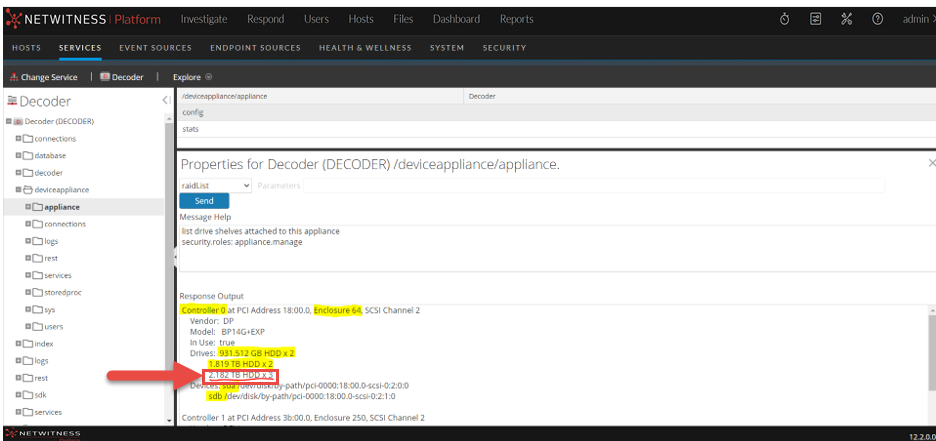
2. Identify the existing block devices using \`raidList' property. Login to **NW UI \> Hosts \> Select the Decoder Host \> Actions \> View \> Explore \> deviceAppliance \> appliance (Right Click to access properties) \> raidList** and click **Send**.
The existing devices on Controller 0, Enclosure 64 are highlighted in Yellow. The installed Drive Pack in slots 4,5 and 6 is highlighted in Red.
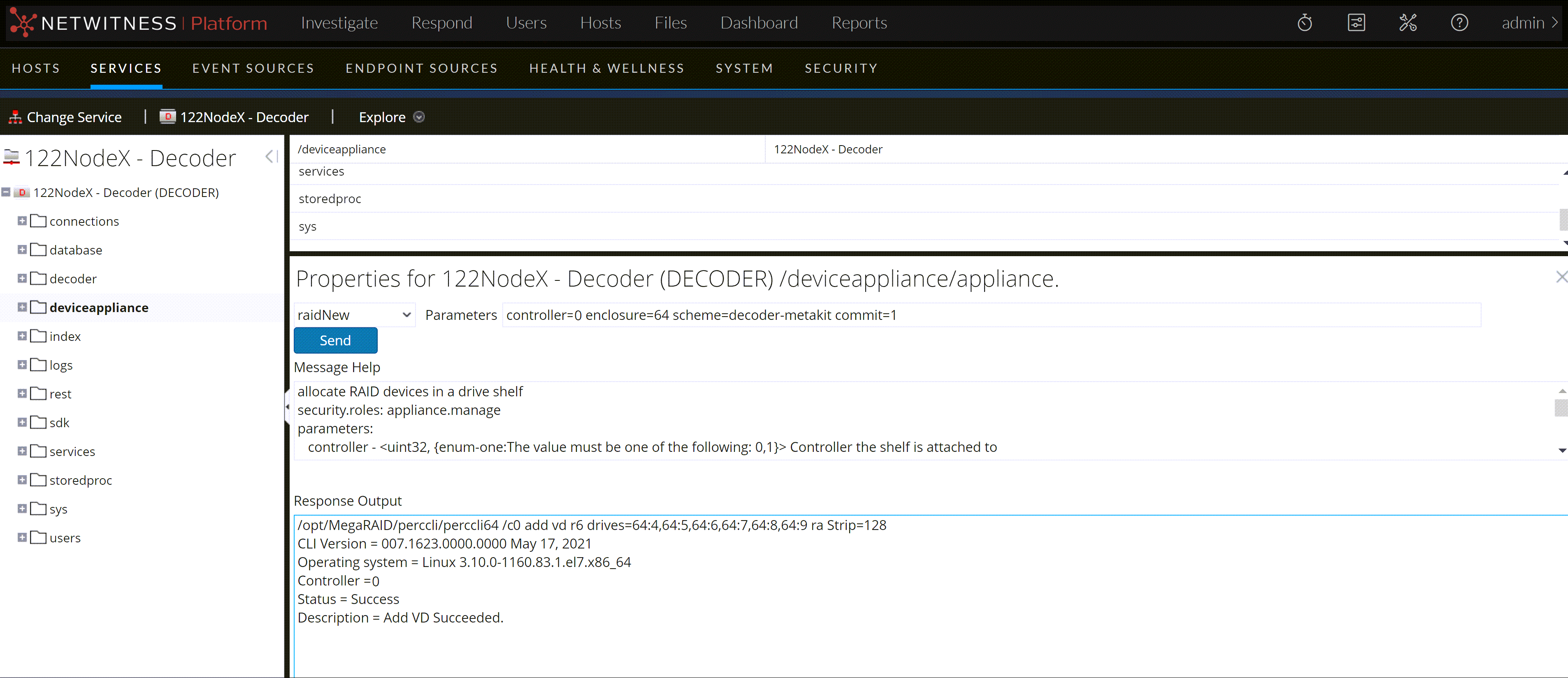
3. Access **NW UI-\>Hosts-\>Select the Decoder Host-\>Actions-\>View-\>Explore-\>deviceAppliance-\>appliance (Right Click to access properties)-\>raidNew**, specify the controller, enclosure, and scheme, click **Send**.
**Note:** For decoder the scheme is decoder-metakit, for logdecoder the scheme is logdecoder-metakit
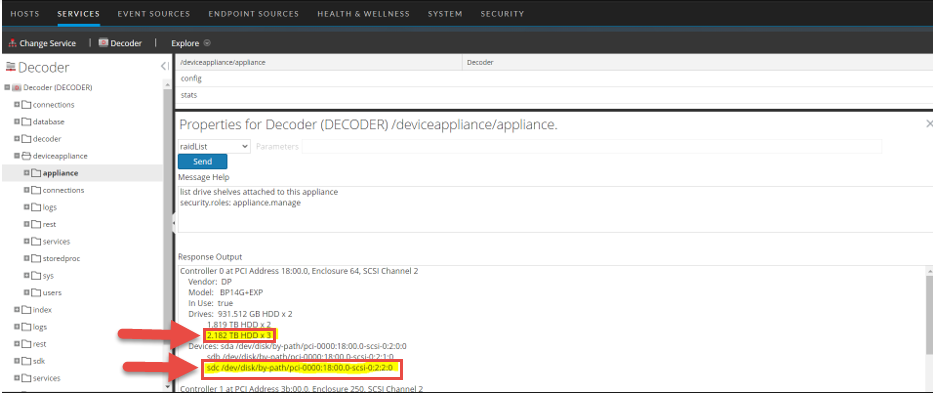
4. Identify the new device (highlighted in Yellow) using raidList command. In this case it is ‘sdc’. Access **NW UI-\>Hosts-\>Select the Decoder Host-\>Actions-\>View-\>Explore-\>deviceAppliance-\>Appliance (Right Click to access properties)-\>raidList-\>Click on Send**.
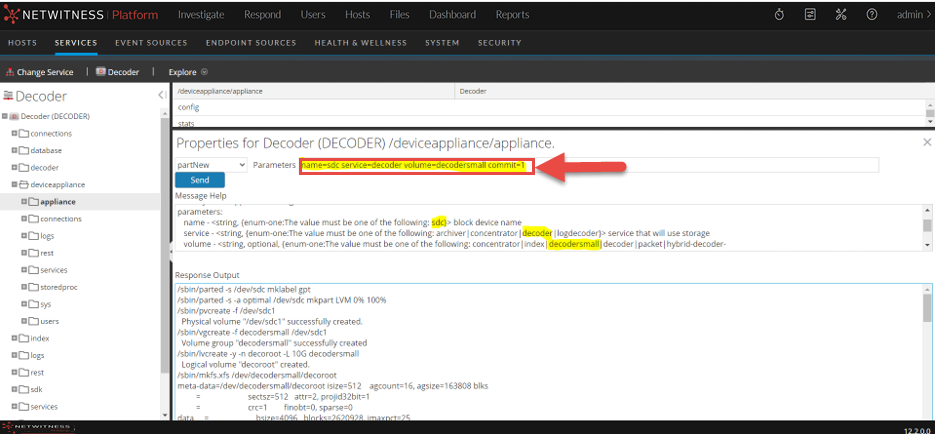
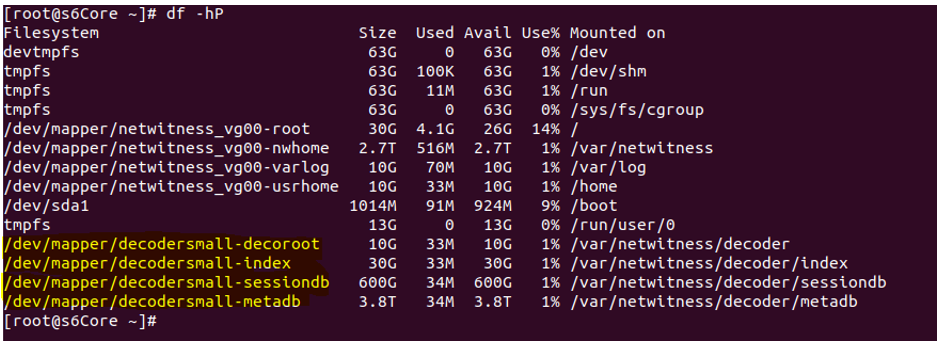
5. Execute the **partNew** command by selecting it from the Properties drop-down to create the decodersmall partition (decoder dir, index, metadb, sessiondb) with the following parameters.
name=sdc service=decoder volume=decodersmall commit=1
**Note:** For logdecoder, use the command name=sdc service=logdecoder volume=logdecodersmall commit=1
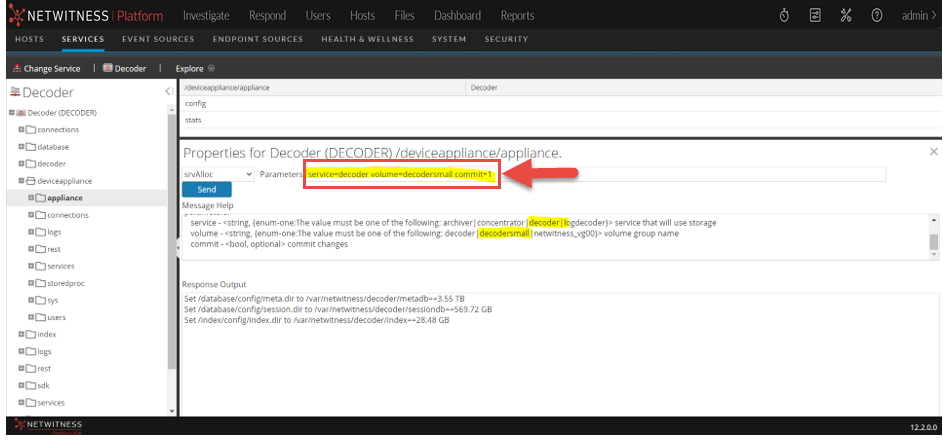
6. Allocate the decodersmall to Decoder service using ‘srvAlloc’.
service=decoder volume=decodersmall commit=1
**Note:**
\- For logdecoder, use the command service=logdecoder volume=logdecodersmall commit=1
\- If a second Drive Pack is being configured, the volume for decoder would be ‘decodersmall0’. For logdecoder, it is ‘logdecodersmall0’.
**Maximize PowerVault Storage Capacity**
Installing and configuring a Drive pack on the Decoder appliance as decodersmall frees the first three drives on the attached Power Vault for storing additional packet data.
**Best Practice Recommendation:** When 1 to 4 PowerVaults are configured, one (1) Meta Disk kit is recommended. When 5 to 8 PowerVaults are configured, two (2) Meta Disk kits are recommended.
**Note:** This sample scenario assumes a S6/S6E appliance orchestrated as a Decoder and connected to a PowerVault (but not configured as storage).
1. Follow all the steps in [Meta Only: No Externally Attached Storage](https://mydev.netwitness.com/knowledge-base/configuredrivepack-s#Meta-Only) section to configure one meta disk pack on decoder as the decodersmall partition.
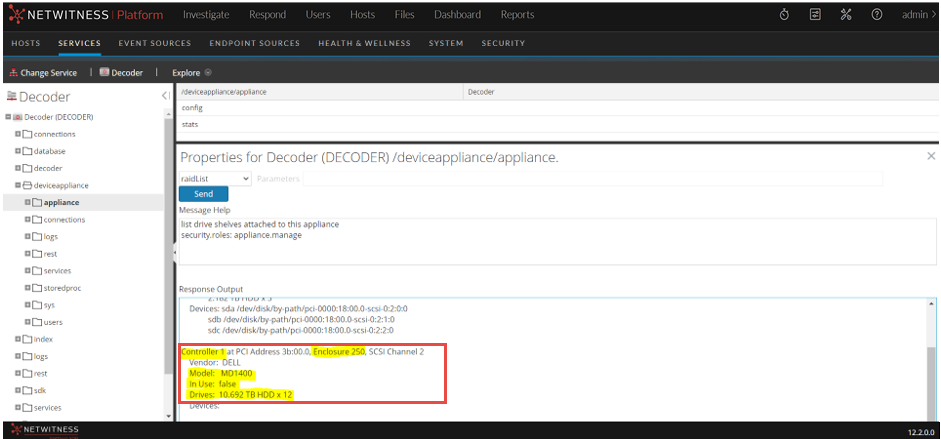
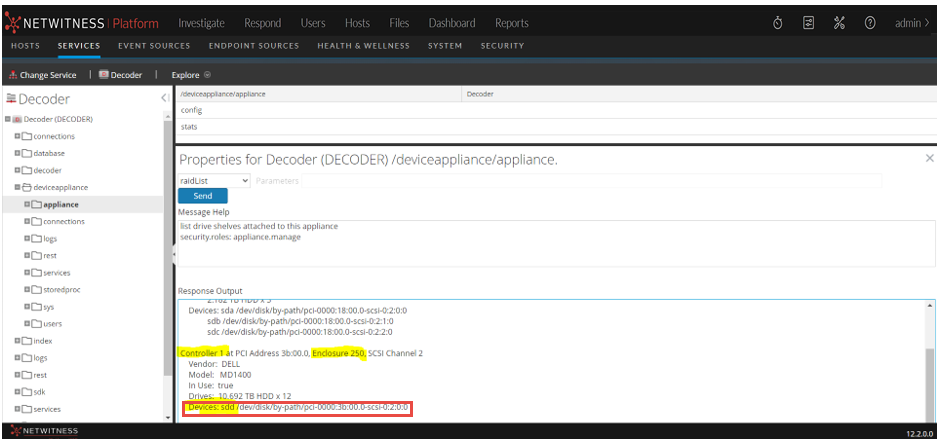
2. Use the **Explorer** view (Login into UI, select **Hosts-\>Services-\>Decoder -\>Actions-\>View- \>Explorer-\>deviceAppliance-\>appliance(right click)-\>properties) -\> raidList -\>Click on Send**, to identify and confirm the Controller Number, Enclosure Number, In Use, Drives, Devices, Drive Count, Size, and Vendor (highlighted in yellow).
You should see the following information.
In Use: FALSE
Devices:
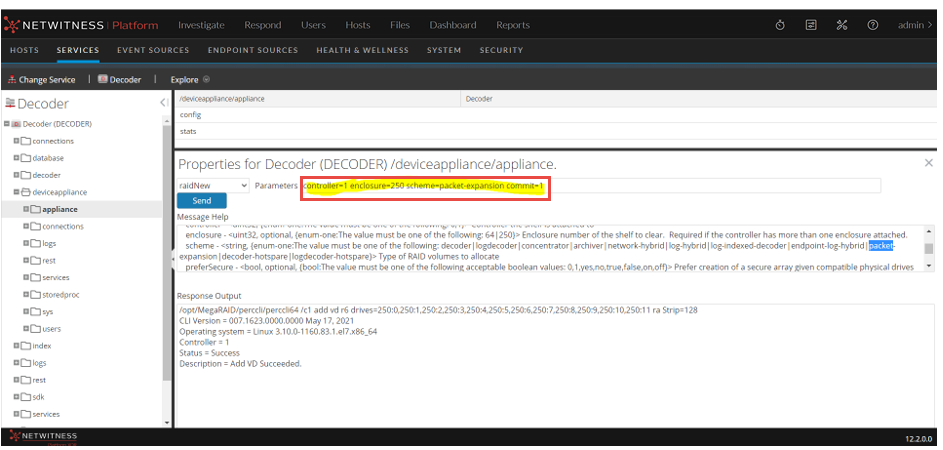
3. Create the raid using ‘raidNew’ from the properties drop-down (passing the below parameters) on the attached PowerVault. Identify the controller and enclosure from ‘raidList’. Encryption can be turned on after configuring storage using the steps listed in [Appendix B. Encrypt a Series 6E Core or Hybrid Host](https://community.netwitness.com/DetectEncryption.htm).
controller=1 enclosure=250 scheme=packet-expansion commit=1
4. Identify the block device created in the earlier step. Use ‘raidList’ to retrieve all the block devices. In this case, it is ‘sdd’ (highlighted in Yellow).
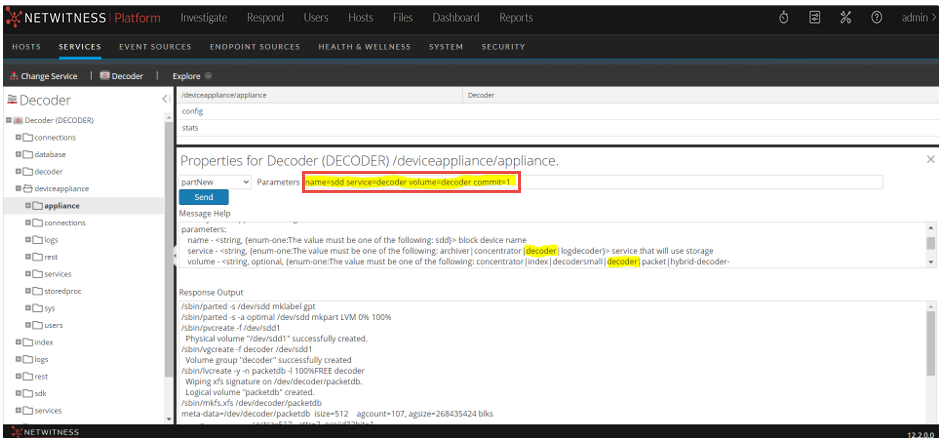
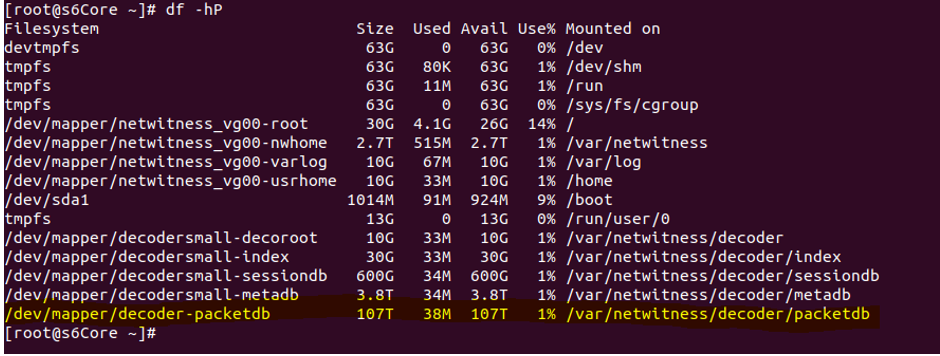
5. Make partitions on the block device (‘sdd’) using ‘partNew’.
name=sdd service=decoder volume=decoder commit=1
For logdecoder, use the following command.
name=sdd service=logdecoder volume=logdecoder commit=1
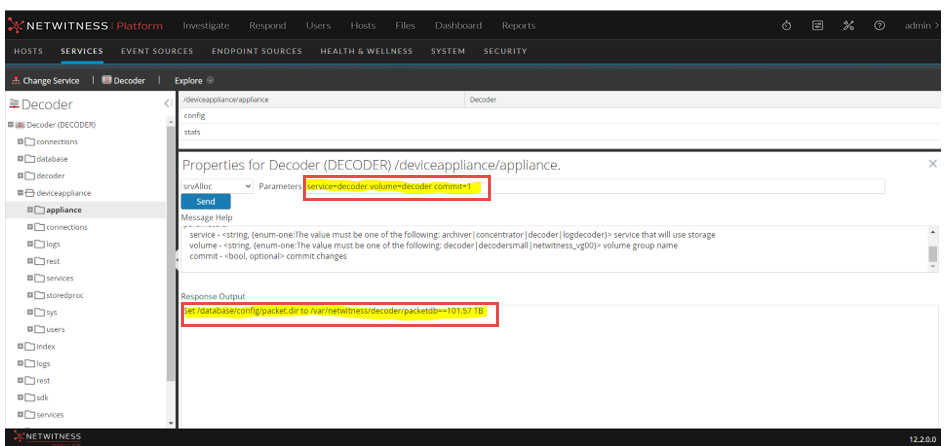
6. Allocate the decoder volume to Decoder service using ‘srvAlloc’.
service=decoder volume=decoder commit=1
For logdecoder, use the following command.
service=logdecoder volume=logdecoder commit=1
### Concentrator Index Use Cases
**Caution:** The Drive Pack(s) for Concentrator Index are supported only on Series 6/6E hosts. These use cases are NOT supported on Series 7 Concentrator hosts. On Series 7 Concentrator hosts, the slots 4 through 10 on the host are reserved for Index database along with MD2412.
The following use cases are supported on Series 6/6E Concentrator Hosts configured with MD1400 Power Vaults.
- Support Additional Meta-Key Indexing
- Capability to Enable compression for Existing Deployments
Three or more 3.84 TB or 3.2 TB or 7.68 TB SSD SED drives can be added to a Concentrator to increase the index volume. The index storage needs are scaled based on the NetWitness Platform deployment retention requirements. If additional meta keys are enabled and indexed, it may impact index retention.
For existing deployments, an SSD index drive pack is required if you need to enable compression. When compressing the packetdb (Decoders) and metadb (Concentrators), additional indexing is needed to support compression of those databases.
**Sample Storage Configuration for Concentrator Index with One Meta Disk Kit ( Three SSD’s)**
This section describes the steps to configure a Meta Disk Kit (Three SSD’s) installed on a Series 6/6E appliance orchestrated as Concentrator and **configured with One Power Vault**.
**Note:**
\- Concentrator index usecase supports a maximum of Two Meta Disk Kits. A single Meta Disk pack is configured as RAID5 (3 drives) or two Meta Disk packs (6 drives) are configured as RAID6.
\- Even though each Meta Disk Kit consist of 3 SSD’s, In rare circumstances when there is no need for very large index expansion and to control costs, users may choose to install only two SSD’s (in slots 4 and 5 and configured as RAID1) instead of 3 SSD’s (One Meta Disk Kit).
\- When configuring two Meta Disk Packs, the disks are installed in slots 4 through 9 and when adding second Meta Disk Pack, the disks are installed in slots 7 though 9. Refer to [Series 6/6E and Series 7 Disk Layout](https://mydev.netwitness.com/knowledge-base/configuredrivepack-s#Series_6/6E_Disk_Layout) for slot details.
On the Series 6 (Dell R640) appliance, the Meta Drive Pack disks are installed in slots 4, 5 and 6. The virtual drive configuration requires identifying the controller ID and Enclosure ID (EID). On Series 6 appliance, the controller ID and Enclosure IDs are 0 and 64. However, the nwraidtool.py script that is installed on every server can help to confirm these ID numbers.
1. Install the three SSDs in the Meta Disk kit in slots 4, 5 and 6 on the Concentrator Appliance. Refer to [Series 6/6E and Series 7 Disk Layout](https://mydev.netwitness.com/knowledge-base/configuredrivepack-s#Series_6/6E_Disk_Layout) for slot details.
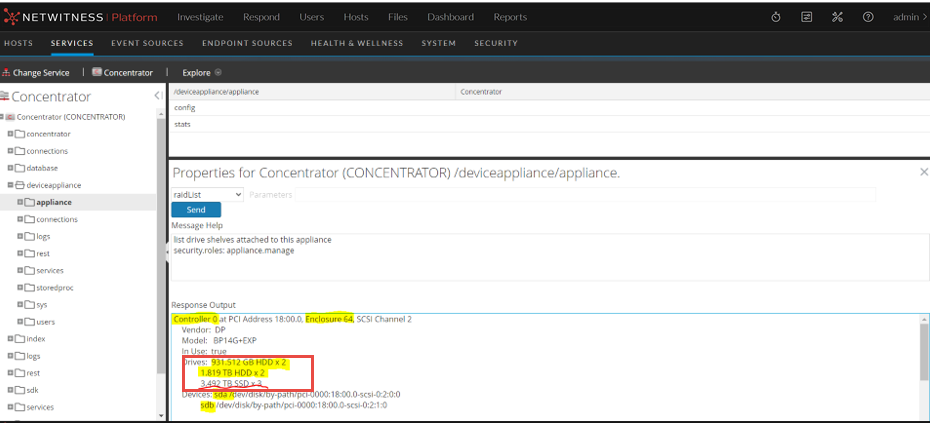
2. Identify the existing block devices using **raidList** property. Login to **NW UI \> Hosts \> Select the Concentrator Host \> Actions \> View \> Explore \> deviceAppliance \> appliance (Right Click to access properties) \> raidList** and click **Send**.
3. SSH to the Concentrator appliance or use iDRAC to connect to the console. Use **perccli** to create the virtual drive with installed Meta Pack kit. Create the Virtual Drive or Drive Group (DG) on the internal controller using the disks in slot 4 through 6 using the below command.
/opt/MegaRAID/perccli/perccli64 /c0 add vd type=raid5 drives=64:4-6 strip=128
**Note:**
\- To configure two Meta Disk Packs, use the following command.
/opt/MegaRAID/perccli/perccli64 /c0 add vd type=raid6 drives=64:4-9 strip=128
\- To add a second Meta Disk Pack (First Meta Disk Pack already configured in slots 4,5 and 6), use the following command.
/opt/MegaRAID/perccli/perccli64 /c0 add vd type=raid5 drives=64:7-9 strip=128
\- To configure only 2 SSD’s (instead of 3 SSD’s) from a Meta Disk Pack, use the following command. /opt/MegaRAID/perccli/perccli64 /c0 add vd type=raid1 drives=64:4-5 strip=128

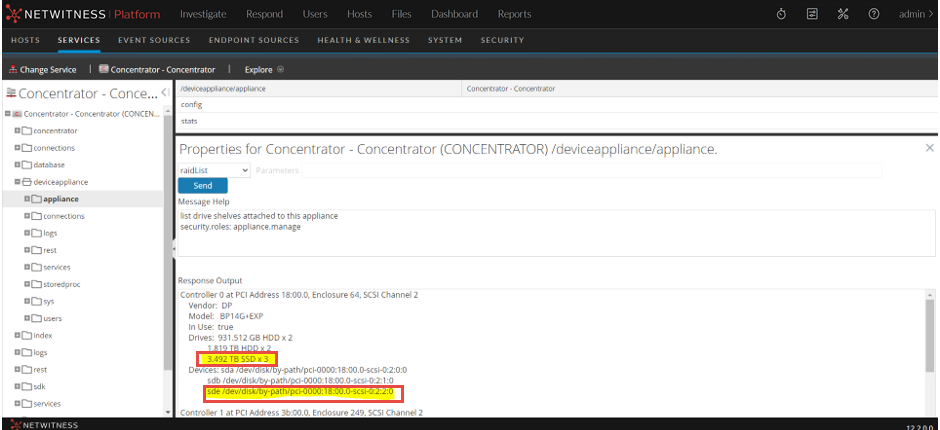
4. Identify the new device (highlighted in Yellow) using **raidList** command. In this case it is ‘sde’. Login to **NW UI-\>Hosts-\>Select the Concentrator Host-\>Actions-\>View-\>Explore-\>deviceAppliance-\>Appliance (Right Click to access properties)-\>raidList-\>Click on Send.**
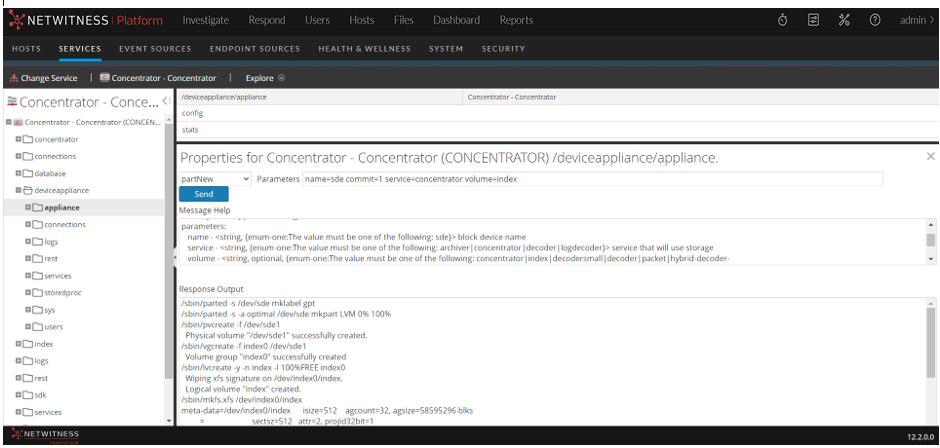
5. Execute the **partNew** command with the below parameters to create the new index partition on the block device (sde) created in earlier step:
name=sde service=concentrator volume=index commit=1
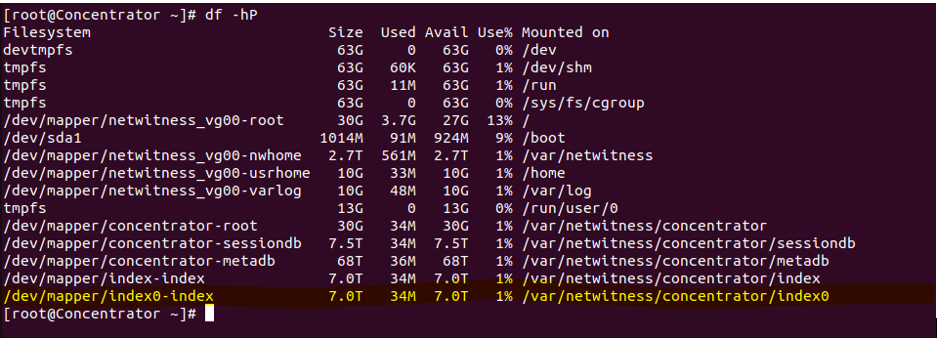
6. The concentrator appliance is already configured with a Power Vault (an \`index\` volume is created and configured along with other volumes on the Power Vault) before adding the Meta Disk Kit. The new ‘index’ volume created in the earlier step is named as ‘index0’.
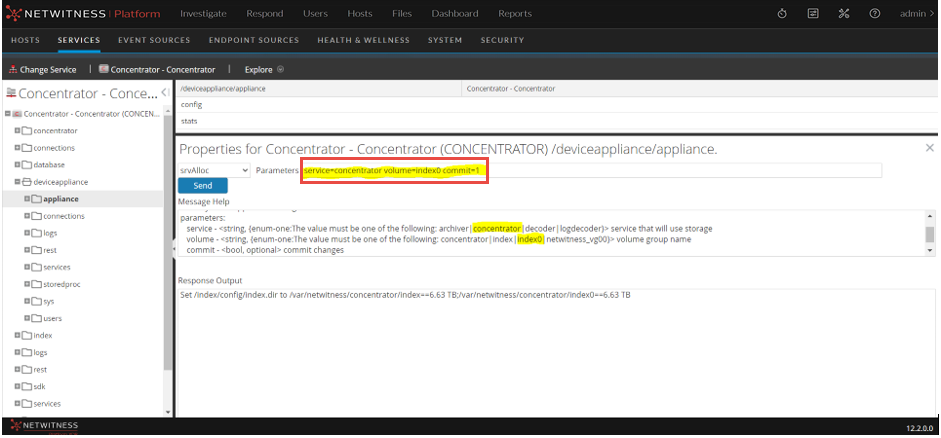
Allocate the new index volume (index0) using srvAlloc property to concentrator service using the below parameters:
service=concentrator volume=index0 commit=1
## Enable Security on SED Capable Drives
To enable Security on the SED Capable Drive Group on Series 6E (PERC H740 Mini, PERC H750, PERC H840 Adaptors) or Series 7 Hosts (PERC H965i, PERC H965e Adaptors), see[Enable Encryption on Series 6E or Series 7 Hosts](https://community.netwitness.com/EnableEncryptnonSeries6EorSeries7Hosts.htm).
[](https://mydev.netwitness.com/?hsLang=en)
Copyright © 2026, NetWitness LLC. All rights reserved.
[NetWitness Platform](https://www.netwitness.com/)
[Acceptable Use Policy](https://www.netwitness.com/wp-content/uploads/Acceptable-Use-Policy-092022.pdf) [Privacy Statement](https://www.netwitness.com/wp-content/uploads/NetWitness-Privacy-Statement-07292024.pdf)

[](https://www.linkedin.com/company/netwitness-platform/) [](https://www.youtube.com/@netwitness)
© 2026 NetWitness LLC. All rights reserved.