---
title: Configure Contextual Data from Endpoint via Recurring Feed
description: "Configure Contextual Data from NetWitness Endpoint Through Recurring FeedConfigure Contextual Data from NetWitness Endpoint Through Recurring Feed\nYo"
---
[Skip to content](https://mydev.netwitness.com/knowledge-base/configurecontextualdatafromendpointviarecurringfeed#main-content)

- [Home](https://mydev.netwitness.com/home)
- Integrations
Show submenu for Integrations
- [Netwitness Platform Integrations](https://mydev.netwitness.com/netwitnessplatformintegrations)
- [Third Party Integrations](https://mydev.netwitness.com/thirdpartyintegrations)
- [Knowledge Center](https://mydev.netwitness.com/knowledge-base)
- Community
Show submenu for Community
- [Blogs](https://mydev.netwitness.com/netwitness-security-llc-blog)
- Discussions
- Customers
Show submenu for Customers
- [Manage Products and Licenses](https://mydev.netwitness.com/nwportal)
- Downloads
- Partners
Show submenu for Partners
- [Partner Program](https://mydev.netwitness.com/partner)
- [Partner Resources](https://mydev.netwitness.com/partnerresources)
- [Submit a New Deal Registration](https://mydev.netwitness.com/dealregistration)
- [Become a Partner](https://mydev.netwitness.com/becomeapartner)
- [Update Your Partner Locator Profile](https://www.netwitness.com/partner-locator/?utm_source=pardotnewsletter&utm_medium=email&utm_campaign=partner_march)
- [NetWitness LinkedIn Partner Hub](https://linkedin.com/showcase/netwitnesspartners/)
- Education
Show submenu for Education
- [Instructor Led Training Schedule](https://mydev.netwitness.com/instructorledtrainingschedule)
- [NetWitness Training Catalog](https://mydev.netwitness.com/netwitnesstrainingcatalog)
- [Security Awareness Training](https://mydev.netwitness.com/securityawarenesstraining)
- [New Product Readiness](https://mydev.netwitness.com/newproductreadiness)
- [On-Demand Virtual Labs](https://mydev.netwitness.com/ondemandvirtuallabs)
- [Additional Training Information](https://mydev.netwitness.com/additionaltraininginformation)
- [Frequently Asked Questions](https://mydev.netwitness.com/educationfaq)
- [Contact NetWitness Education Team](https://mydev.netwitness.com/contact-netwitness-education-team)
- Support
Show submenu for Support
- [Contact Support](https://mydev.netwitness.com/contact-support)
- [Create a New Case](https://mydev.netwitness.com/create-support-case)
- [View My Cases](https://mydev.netwitness.com/viewmycase)
- [Product Version Life Cycle](https://mydev.netwitness.com/product-version-life-cycle)
- [Warranty & Replacement Parts](https://mydev.netwitness.com/warranty-and-replacement-parts)
- [Community Support Forum](https://mydev.netwitness.com/community-support-forum)
- [Technical Support Guide](https://mydev.netwitness.com/technical-support-guide)
Open main navigation
Close main navigation
- [Home](https://mydev.netwitness.com/home)
- Integrations
Show submenu for Integrations
- [Netwitness Platform Integrations](https://mydev.netwitness.com/netwitnessplatformintegrations)
- [Third Party Integrations](https://mydev.netwitness.com/thirdpartyintegrations)
- [Knowledge Center](https://mydev.netwitness.com/knowledge-base)
- Community
Show submenu for Community
- [Blogs](https://mydev.netwitness.com/netwitness-security-llc-blog)
- Discussions
- Customers
Show submenu for Customers
- [Manage Products and Licenses](https://mydev.netwitness.com/nwportal)
- Downloads
- Partners
Show submenu for Partners
- [Partner Program](https://mydev.netwitness.com/partner)
- [Partner Resources](https://mydev.netwitness.com/partnerresources)
- [Submit a New Deal Registration](https://mydev.netwitness.com/dealregistration)
- [Become a Partner](https://mydev.netwitness.com/becomeapartner)
- [Update Your Partner Locator Profile](https://www.netwitness.com/partner-locator/?utm_source=pardotnewsletter&utm_medium=email&utm_campaign=partner_march)
- [NetWitness LinkedIn Partner Hub](https://linkedin.com/showcase/netwitnesspartners/)
- Education
Show submenu for Education
- [Instructor Led Training Schedule](https://mydev.netwitness.com/instructorledtrainingschedule)
- [NetWitness Training Catalog](https://mydev.netwitness.com/netwitnesstrainingcatalog)
- [Security Awareness Training](https://mydev.netwitness.com/securityawarenesstraining)
- [New Product Readiness](https://mydev.netwitness.com/newproductreadiness)
- [On-Demand Virtual Labs](https://mydev.netwitness.com/ondemandvirtuallabs)
- [Additional Training Information](https://mydev.netwitness.com/additionaltraininginformation)
- [Frequently Asked Questions](https://mydev.netwitness.com/educationfaq)
- [Contact NetWitness Education Team](https://mydev.netwitness.com/contact-netwitness-education-team)
- Support
Show submenu for Support
- [Contact Support](https://mydev.netwitness.com/contact-support)
- [Create a New Case](https://mydev.netwitness.com/create-support-case)
- [View My Cases](https://mydev.netwitness.com/viewmycase)
- [Product Version Life Cycle](https://mydev.netwitness.com/product-version-life-cycle)
- [Warranty & Replacement Parts](https://mydev.netwitness.com/warranty-and-replacement-parts)
- [Community Support Forum](https://mydev.netwitness.com/community-support-forum)
- [Technical Support Guide](https://mydev.netwitness.com/technical-support-guide)
How can we help you?
- There are no suggestions because the search field is empty.
1. [NetWitness Knowledge Base](https://mydev.netwitness.com/knowledge-base?hsLang=en)
2. [Documentation](https://mydev.netwitness.com/knowledge-base/documentation?hsLang=en)
April 26, 2026
# Configure Contextual Data from Endpoint via Recurring Feed
## Configure Contextual Data from NetWitness Endpoint Through Recurring FeedConfigure Contextual Data from NetWitness Endpoint Through Recurring Feed
You can configure NetWitness Endpoint data in NetWitness to provide contextual data from NetWitness Endpoint to Decoder and Log Decoder sessions. This configuration adds contextual meta values in addition to the instant IOC alerts that can be used to build correlations to other metadata in the NetWitness ecosystem.
Administrators can configure NetWitness to consume system scan contextual data from NetWitness Endpoint through a NetWitness Live recurring feed. This integration can enrich the session from a Decoder or Log Decoder with contextual information displayed in NetWitness Investigation; some examples include the host operating system, MAC address, IIOC score, and other data that may not be present in the log or packet data into sessions from a Decoder or Log Decoder.
**Note:** Although this feature is targeted for customers with a Network Decoder, a recurring feed can also be implemented in Log Decoders.
**Caution:** In an environment with many NetWitness Endpoint hosts, using recurring feed may result in decreased performance on the NetWitness ingest devices (Decoder and Log Decoder).
Prerequisites
- Version 4.3.0.4, 4.3.0.5, 4.4, 4.4.0.2, or later NetWitness Endpoint Console server and NetWitness Server Version 10.4 and above installed.
- Version 11.0 or 11.1 NetWitness Decoder and Concentrator connected to the NetWitness Server in the network.
To Configure Contextual Data from NetWitness Endpoint Through Recurring Feed, perform the following:
1. Enable the NetWitness Endpoint Feed for NetWitness in the NetWitness Endpoint User Interface.
2. Export the NetWitness Endpoint CA Certificate from the NetWitness Endpoint Console server and Import it into NetWitness trust store.
3. Configure the NetWitness Concentrator service to define which meta keys are indexed.
4. Create a recurring feed in NetWitness Live.
## Enable the NetWitness Endpoint Feed for NetWitnessEnable the NetWitness Endpoint Feed for NetWitness
1. In the NetWitness Endpoint user interface, create SQL user in NetWitness Endpoint:
1. Open the NetWitness Endpoint user interface and log on using the proper credentials.
2. From the menu bar, select ** (Configure) \> Manage Users and Roles**, right-click in the pane, and select **create sql user**.
The Create a new SQL User dialog is displayed.
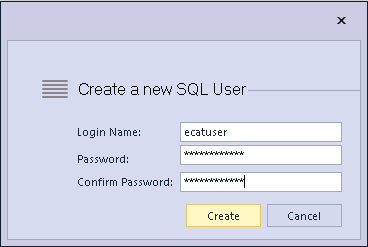
3. Enter the **Login Name** and **Password** and click **Create**.
2. From the menu bar, select ** (Configure) \> Monitoring and External Components**.
The External Components Configuration dialog is displayed.
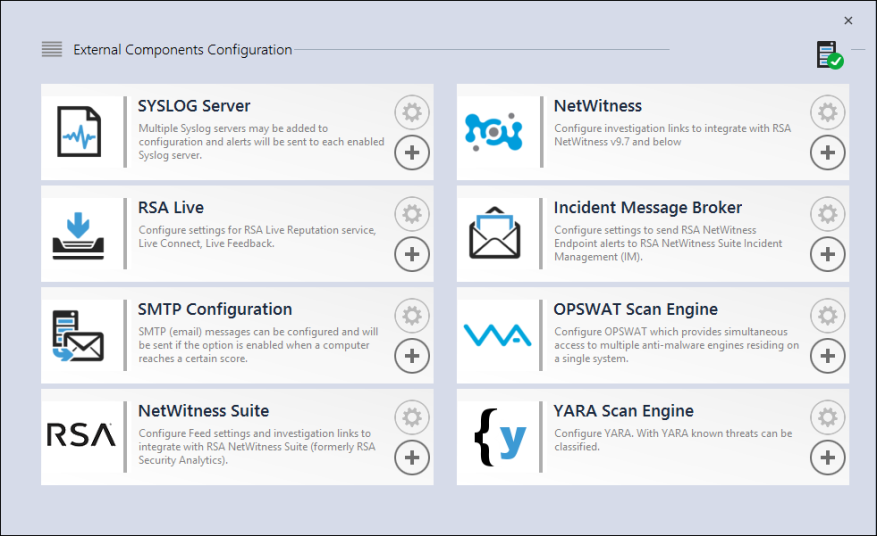
3. In NetWitness, click **+**.
The NetWitness dialog is displayed.
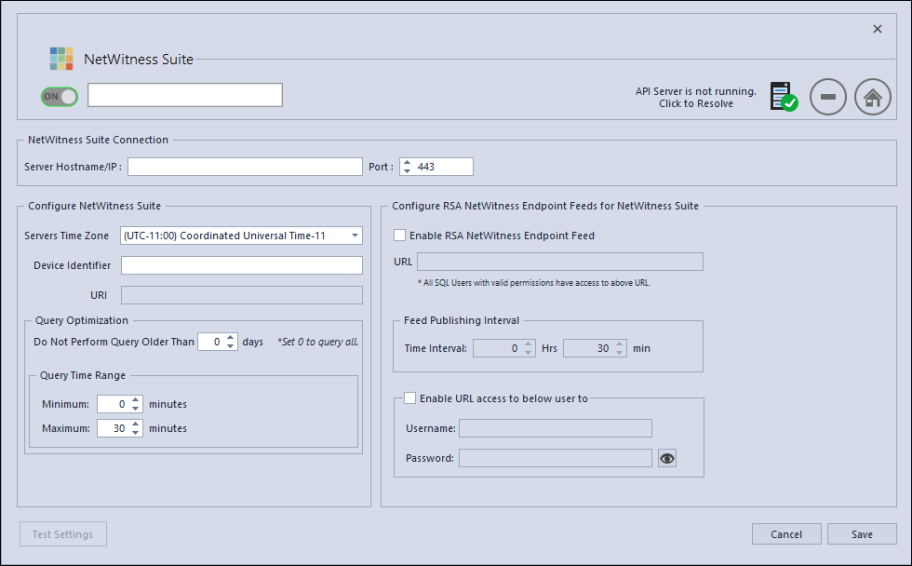
4. In the **NetWitness** panel, in **On**, enter the name to identify the NetWitness component.
5. In the **NetWitness Connection** panel, perform the following.
1. In the **Server Hostname/IP** field, enter the host name or IP address of the NetWitness Server.
2. In the **Port** field, enter the port number. By default port number is 443.
6. In the **Configure NetWitness** panel, perform the following:
1. In the **Servers Time Zone** field, select the time zone for the component from the drop-down list.
2. In the **Device Identifier** field, enter the NetWitness concentrator device ID.
**Note:** You can find the Device Identifier in NetWitness when you look up a Concentrator or Broker in **Investigation \> Navigate \>** **\<*Concentrator or Broker Name*\>**. The Device Identifier is the number in the URL after "investigation." For example, in the URL https:// investigation/319/navigate/values, the Device Identifier is **319**.
> The **URI** field is populated when you click **Save**.
1. In the **Query Optimization** panel, in the **Do Not Perform Query Older Than** field, enter the number of days to limit the query period. Enter **0** if you want to discard this feature.
2. In the **Query Time Range** panel, perform the following:
1. In the **Minimum** field, enter the number of minutes for the minimum query time range. This value is used to automatically increase the time range submitted to NetWitness. This ensures that a query returns a positive response if the NetWitness Endpoint Agent's reported time is slightly different than NetWitness Endpoint's time.
2. In the **Maximum** field, enter the number of minutes to limit the time range. This value is used to automatically limit the time range submitted to NetWitness, so that a query does not overload the NetWitness Server.
3. In the **Configure NetWitness Endpoint Feeds for NetWitness** panel, perform the following:
1. Select **Enable NetWitness Endpoint Feed**.
2. In the **URL** field, enter the SQL **Username** and **Password** (configured in step 1)to access the location of the feed.
The **URL** field is populated when you click **Save**.
3. Enter the time interval for the frequency at which feeds are published.
4. In the **Feed Publishing Interval** panel, in the **Time Interval** field, select the time interval in **hrs** and **mins** for the frequency at which feeds are published.
5. In the **Enable URL access to below user to** panel, enter the **Username** and **Password** of the NetWitness Endpoint user.
6. Click **Save**.
A feed is created.
## Export the NetWitness Endpoint SSL CertificateExport the NetWitness Endpoint SSL Certificate
**Note:** This procedure works only for NetWitness 10.5 and above because Java 8 support was added for 10.5. If you are using an earlier version of NetWitness, refer to the applicable version of this guide.
To export the NetWitness Endpoint CA certificate from the NetWitness Endpoint Console server and copy it to the NetWitness host:
1. Log on to the NetWitness Endpoint Console.
2. Open **MMC**.
3. Add a certificate snap-in for **Computer account**.
4. Export the certificate named **NweCA** (in NetWitness Endpoint 4.3.0.4, 4.3.0.5, 4.4, 4.4.0.2, or later fresh install) or **EcatCA** (in NetWitness Endpoint upgraded from previous version to 4.3.0.4 or 4.3.0.5).
1. Export without a private key.
2. Export in DER encoded binary X.509 (.CER) format.
3. Name it **NweCA.cer** (in NetWitness Endpoint 4.3.0.4, 4.3.0.5, 4.4, 4.4.0.2, or later fresh install) or **EcatCA.cer** (in NetWitness Endpoint upgraded from previous version to 4.3.0.4 or 4.3.0.5).
5. Copy the NetWitness Endpoint CA certificate to the NetWitness host:
- For NetWitness Endpoint 4.3.0.4, 4.3.0.5 or 4.4 fresh installation:
**scp NweCA.cer root@ :** .
- For NetWitness Endpoint upgraded from previous version to 4.3.0.4 or 4.3.0.5:
**scp EcatCA.cer root@ :** .
6. To import the NetWitness Endpoint Endpoint CA certificate into the NetWitness Trusted store, navigate to java directory. Enter the following commands:
- For NetWitness Endpoint fresh installation:
keytool -import -v -trustcacerts -alias nweca -file ~/NweCA.cer -keystore /etc/pki/java/cacerts -storepass changeit
- For NetWitness Endpoint upgraded from previous version:
keytool -import -v -trustcacerts -alias ecatca -file ~/EcatCA.cer -keystore /etc/pki/java/cacerts -storepass changeit
When prompted for certificate update confirmation, enter **Yes**.
7. Create a file jetty.user in the /etc/default directory and add the following text.
JAVA\_OPTIONS="${JAVA\_OPTIONS} -Djdk.security.allowNonCaAnchor=true"
8. On the NetWitness host, do one of the following:
- For NetWitness Endpoint 4.3.0.4, 4.3.0.5, 4.4, 4.4.0.2, or later fresh installation, edit**/etc/hosts.user** to map the IP address of the NetWitness Endpoint Console server to the name **NweServerCertificate** by adding the following line to the file:
NweServerCertificate
- For NetWitness Endpoint upgraded from previous version to 4.3.0.4 or 4.3.0.5, edit **/etc/hosts.user** to map the IP address of the upgraded NetWitness Endpoint Console server to the name **ecatserverexported** by adding the following line to the file:
ecatserverexported
9. SSH to ADMIN Server and run the following command.
nw-manage --refresh-host --host-all
10. To restart NetWitness, enter the following command:
service jetty restart
## Configure the NetWitness Concentrator ServiceConfigure the NetWitness Concentrator Service
1. Log on to NetWitness and go to ** (Admin) \> Services**.
2. Select a **Concentrator** from the list and select **View \> Config.**
3. Select the **Files** tab, and from the **Files to Edit** drop-down menu, select **index-concentrator-custom.xml**.
4. Add the following NetWitness Endpoint meta keys to the file and click **Apply**. Make sure that this file contains the XML sections already; if the lines are not included, add them. The following lines are examples; make sure the values match your configuration and the column names you included in the feed definition, where:
**description** is the name of the meta key you want to display in NetWitness Investigation.
**level** is "IndexValues"
**name** matches the column name of the CSV file that NetWitness uses while defining the recurring feed (see the table in *Configure the Recuring Custom Feed Task in NetWitness* below).
5. Restart the Concentrator to activate the custom key updates.
## Configure the Recurring Custom Feed Task in NetWitnessConfigure the Recurring Custom Feed Task in NetWitness
1. Log on to NetWitness and go to ** (Configure) \> Custom Feeds**.
The Feeds view is displayed.
2. In the toolbar, click .
The Setup Feed dialog is displayed.
3. In the Setup Feed dialog, select **Custom Feed** and click **Next**.
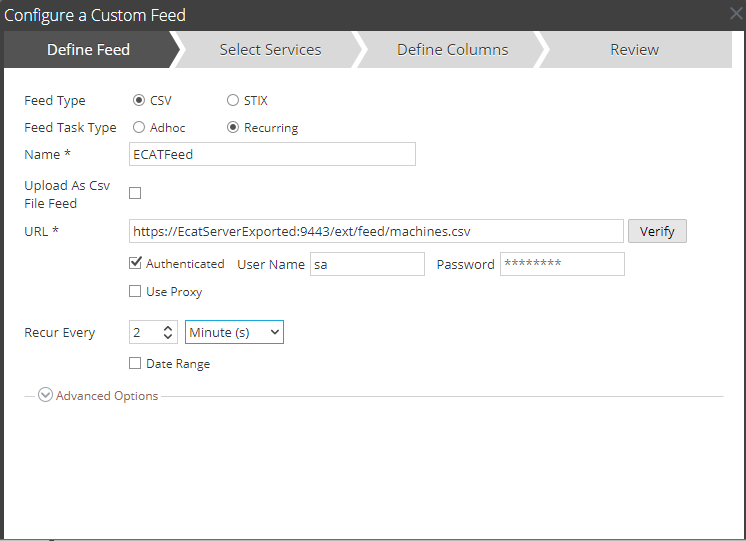
The Configure a Custom Feed wizard is displayed, with the Define Feed form open.
4. In the **Define Feed**, perform the following:
- In the **Feed Type** field, select **CSV**.
- In the **Feed Task Type** field, select **Recurring**.
- In the **Name** field, enter the name of the feed. For example, EndpointFeed.
- Enable the **Upload As Csv File Feed** checkbox to upload the feed as a CSV file.
- In the **URL** field, enter the URL with the hostname of the Windows server on which NetWitness Endpoint is installed:
- For NetWitness Endpoint 4.3.0.4, 4.3.0.5, 4.4, 4.4.0.2, or later fresh installation, use the URL **[https://NweServerCertificate:9443/api/v2/feed/machines.csv](https://NweServerCertificate:9443/api/v2/feed/machines.csv).**
- For NetWitness Endpoint upgraded from previous version to 4.3.0.4 or 4.3.0.5, use the URL **[https://ecatserverexported:9443/api/v2/feed/machines.csv](https://ecatserverexported:9443/api/v2/feed/machines.csv).**
- Enable the **Authenticated**checkbox and enter the username and password as noted in *Enable the ECAT Feed* above.
- Click **Verify** to check if NetWitness can reach the web resource.
.
- Define the schedule and click **Next**
5. In the **Select Services** tab, select the Decoder or groups to consume the feed. Click **Next**.
6. In the **Define Columns** tab, enter the column names as shown in the table below and save the feed.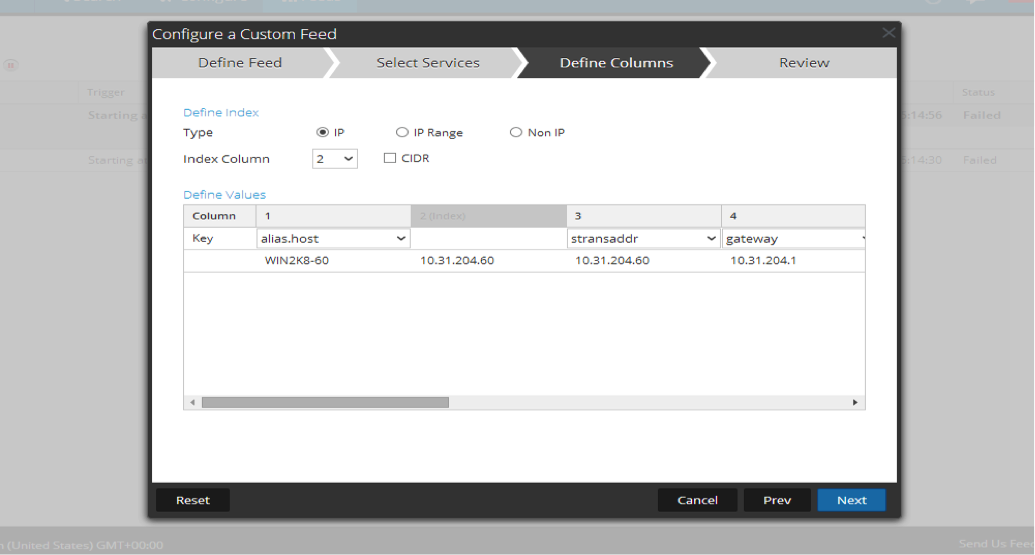
The following table shows the columns in the CSV file for the NetWitness Endpoint feed.
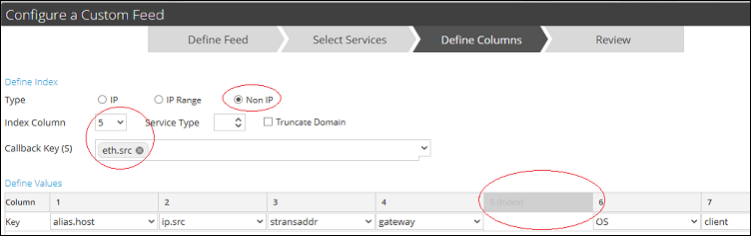
**Note:** In the table, the recommended index setting is LocalIp. However, if the LocalIp for NetWitness Endpoint Agent PC is allocated by a DHCP Server and the DHCP lease has expired, and if the IP is then re-allocated to another PC, the metadata created by the feed will be incorrect. To avoid this risk, use the machine name or the Mac address instead of the localIP address as the Feed's index. For example, to use a Mac address, you could enter the values as shown in the following figure.
Result
When viewing feed data in NetWitness, upon a match of the indexed value (ip.src), meta data is populated in Investigation, Reporting, and Alerting Interfaces.
[](https://mydev.netwitness.com/?hsLang=en)
Copyright © 2026, NetWitness LLC. All rights reserved.
[NetWitness Platform](https://www.netwitness.com/)
[Acceptable Use Policy](https://www.netwitness.com/wp-content/uploads/Acceptable-Use-Policy-092022.pdf) [Privacy Statement](https://www.netwitness.com/wp-content/uploads/NetWitness-Privacy-Statement-07292024.pdf)

[](https://www.linkedin.com/company/netwitness-platform/) [](https://www.youtube.com/@netwitness)
© 2026 NetWitness LLC. All rights reserved.