---
title: Analyze Events in the Events View
description: "Analyze Events in the Events View Note: In Version 11.4, the Event Analysis view was renamed as the Events view, replacing the Legacy Events view as"
---
[Skip to content](https://mydev.netwitness.com/knowledge-base/analyzeeventsintheeventsview#main-content)

- [Home](https://mydev.netwitness.com/home)
- Integrations
Show submenu for Integrations
- [Netwitness Platform Integrations](https://mydev.netwitness.com/netwitnessplatformintegrations)
- [Third Party Integrations](https://mydev.netwitness.com/thirdpartyintegrations)
- [Knowledge Center](https://mydev.netwitness.com/knowledge-base)
- Community
Show submenu for Community
- [Blogs](https://mydev.netwitness.com/netwitness-security-llc-blog)
- Discussions
- Customers
Show submenu for Customers
- [Manage Products and Licenses](https://mydev.netwitness.com/nwportal)
- Downloads
- Partners
Show submenu for Partners
- [Partner Program](https://mydev.netwitness.com/partner)
- [Partner Resources](https://mydev.netwitness.com/partnerresources)
- [Submit a New Deal Registration](https://mydev.netwitness.com/dealregistration)
- [Become a Partner](https://mydev.netwitness.com/becomeapartner)
- [Update Your Partner Locator Profile](https://www.netwitness.com/partner-locator/?utm_source=pardotnewsletter&utm_medium=email&utm_campaign=partner_march)
- [NetWitness LinkedIn Partner Hub](https://linkedin.com/showcase/netwitnesspartners/)
- Education
Show submenu for Education
- [Instructor Led Training Schedule](https://mydev.netwitness.com/instructorledtrainingschedule)
- [NetWitness Training Catalog](https://mydev.netwitness.com/netwitnesstrainingcatalog)
- [Security Awareness Training](https://mydev.netwitness.com/securityawarenesstraining)
- [New Product Readiness](https://mydev.netwitness.com/newproductreadiness)
- [On-Demand Virtual Labs](https://mydev.netwitness.com/ondemandvirtuallabs)
- [Additional Training Information](https://mydev.netwitness.com/additionaltraininginformation)
- [Frequently Asked Questions](https://mydev.netwitness.com/educationfaq)
- [Contact NetWitness Education Team](https://mydev.netwitness.com/contact-netwitness-education-team)
- Support
Show submenu for Support
- [Contact Support](https://mydev.netwitness.com/contact-support)
- [Create a New Case](https://mydev.netwitness.com/create-support-case)
- [View My Cases](https://mydev.netwitness.com/viewmycase)
- [Product Version Life Cycle](https://mydev.netwitness.com/product-version-life-cycle)
- [Warranty & Replacement Parts](https://mydev.netwitness.com/warranty-and-replacement-parts)
- [Community Support Forum](https://mydev.netwitness.com/community-support-forum)
- [Technical Support Guide](https://mydev.netwitness.com/technical-support-guide)
Open main navigation
Close main navigation
- [Home](https://mydev.netwitness.com/home)
- Integrations
Show submenu for Integrations
- [Netwitness Platform Integrations](https://mydev.netwitness.com/netwitnessplatformintegrations)
- [Third Party Integrations](https://mydev.netwitness.com/thirdpartyintegrations)
- [Knowledge Center](https://mydev.netwitness.com/knowledge-base)
- Community
Show submenu for Community
- [Blogs](https://mydev.netwitness.com/netwitness-security-llc-blog)
- Discussions
- Customers
Show submenu for Customers
- [Manage Products and Licenses](https://mydev.netwitness.com/nwportal)
- Downloads
- Partners
Show submenu for Partners
- [Partner Program](https://mydev.netwitness.com/partner)
- [Partner Resources](https://mydev.netwitness.com/partnerresources)
- [Submit a New Deal Registration](https://mydev.netwitness.com/dealregistration)
- [Become a Partner](https://mydev.netwitness.com/becomeapartner)
- [Update Your Partner Locator Profile](https://www.netwitness.com/partner-locator/?utm_source=pardotnewsletter&utm_medium=email&utm_campaign=partner_march)
- [NetWitness LinkedIn Partner Hub](https://linkedin.com/showcase/netwitnesspartners/)
- Education
Show submenu for Education
- [Instructor Led Training Schedule](https://mydev.netwitness.com/instructorledtrainingschedule)
- [NetWitness Training Catalog](https://mydev.netwitness.com/netwitnesstrainingcatalog)
- [Security Awareness Training](https://mydev.netwitness.com/securityawarenesstraining)
- [New Product Readiness](https://mydev.netwitness.com/newproductreadiness)
- [On-Demand Virtual Labs](https://mydev.netwitness.com/ondemandvirtuallabs)
- [Additional Training Information](https://mydev.netwitness.com/additionaltraininginformation)
- [Frequently Asked Questions](https://mydev.netwitness.com/educationfaq)
- [Contact NetWitness Education Team](https://mydev.netwitness.com/contact-netwitness-education-team)
- Support
Show submenu for Support
- [Contact Support](https://mydev.netwitness.com/contact-support)
- [Create a New Case](https://mydev.netwitness.com/create-support-case)
- [View My Cases](https://mydev.netwitness.com/viewmycase)
- [Product Version Life Cycle](https://mydev.netwitness.com/product-version-life-cycle)
- [Warranty & Replacement Parts](https://mydev.netwitness.com/warranty-and-replacement-parts)
- [Community Support Forum](https://mydev.netwitness.com/community-support-forum)
- [Technical Support Guide](https://mydev.netwitness.com/technical-support-guide)
How can we help you?
- There are no suggestions because the search field is empty.
1. [NetWitness Knowledge Base](https://mydev.netwitness.com/knowledge-base?hsLang=en)
2. [Documentation](https://mydev.netwitness.com/knowledge-base/documentation?hsLang=en)
April 7, 2026
# Analyze Events in the Events View
## **Analyze Events in the Events View**
**Note: In Version 11.4, the Event Analysis view was renamed as the Events view, replacing the Legacy Events view as the default view analyzing events. Information regarding Events view features prior to version 11.4 also applies to the 11.3 and earlier Event Analysis view.**
**The Legacy Events view is disabled by default, but the administrator can enable it as described in "Configure Investigation Settings" in the *System Configuration Guide*.**
**After a query is submitted in the Events view, the Events panel opens with a list of sequential events. The events listed here meet two conditions:**
- **They match the submitted query.**
- **They include a value for one or more meta keys required by the selected column group. If you change the column group while viewing the Events list, the original query with the new column group is resubmitted. Unsubmitted query changes made to service, time range, or filter, are ignored.**
## **How Results Are Loaded and Sorted**
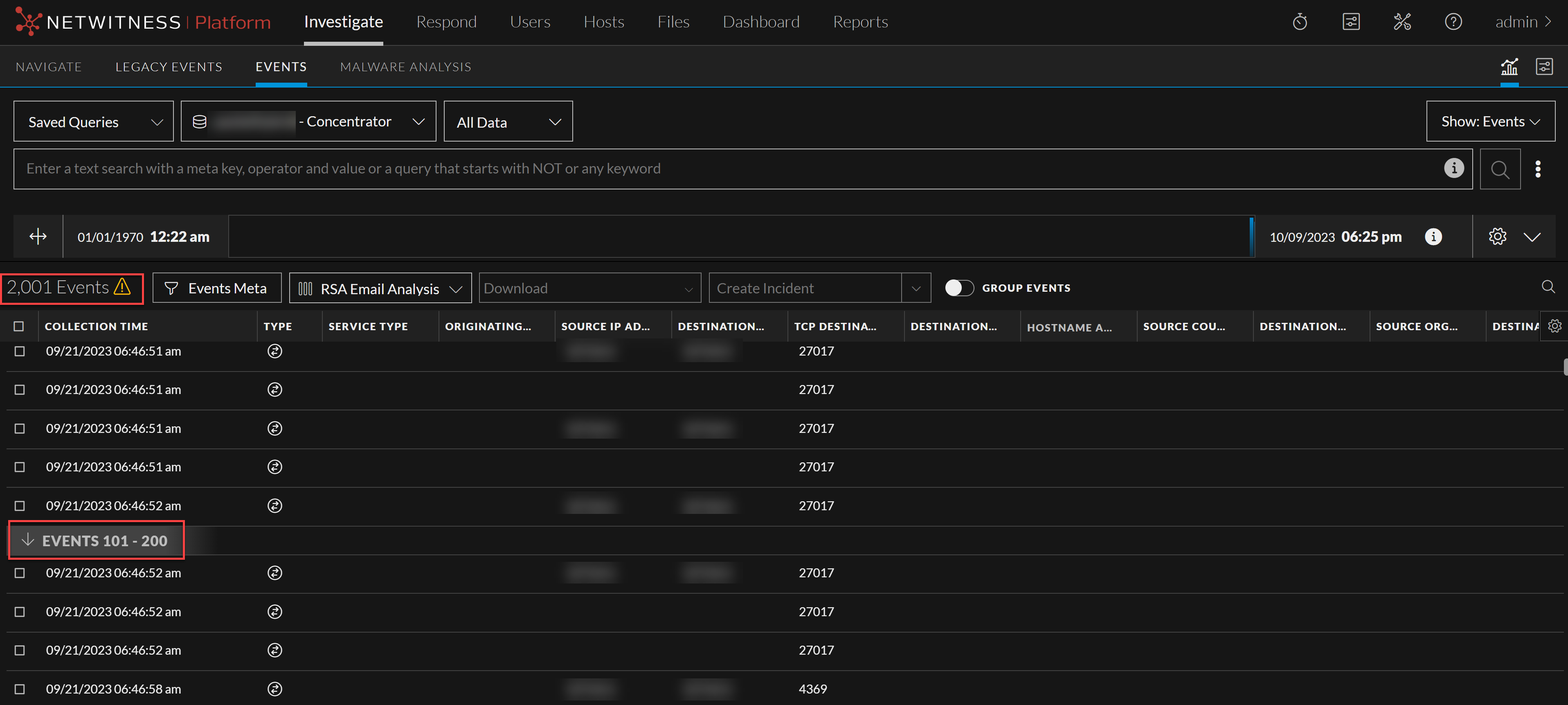
**There is a configurable limit on the number of events that can be loaded; the default value is 5,000. Administrators can configure the limit as described in the *System Configuration Guide*. The events begin loading into the Events panel; a progress bar at the top of the list tracks progress while events are loaded. Events with the earliest collection time are loaded first and a row number indicator of the form " EVENTS xxx - xxx" is inserted in the list after every group of 100 events as shown in the following figure.**
****
**A spinner is displayed while the events are loaded. If that count is greater than or equal to the threshold, a message under the spinner advises that fact and directs you to the Query Console for more details. As data begins loading, the message is removed and the spinner remains until all events are loaded. When all events have loaded, one of these messages is added to the bottom of the list:**
- **"All events loaded."**
- **"Reached the 5,000 event limit. Consider refining your query."**
- **"Retrieved 4,000 of 5,000 events prior to query cancellation."**
**A message at the top of the list indicates the total number of events loaded, if the 5,000 event limit has been reached, and the sorting method in effect:**
- **The message when fewer than 5,000 events are listed is: "xx,xxx Events"**
- **The message when more than 5,000 events are listed is: "Oldest 10,000 Events (Asc)"**
**If the number of events that match the query exceeds the limit of 5,000 events, the newest or oldest 5,000 events in the time window are loaded in ascending order. The portion of events loaded is based on the sort order. For example, if 300,000 events match your query and the sort sequence is set to Ascending, the oldest 5,000 events are loaded by default. You can change this by changing the sort order to Descending and the newest 5,000 events are loaded. Ascending sort, which loads the oldest events first is usually the best setting for investigating network events. If you want to view the newest 5,000 events in the time window, you can change the Default Event Sort Order to Descending in the Event Preferences dialog.**
**The sorting method for the list is configured in the Event Preferences dialog (see [Configure the Events View](https://community.netwitness.com/s/article/ConfiguretheEventsView)). Any change in the setting goes into effect the next time you submit a query. The Default Event Sort Order from the Events Preferences dialog is saved in the database and persists after logging out and logging back in.**
- **Unsorted (default for Version 11.4.1): To list events as processed by the Core services. Unsorted is faster because it streams back the events as soon as a match is found versus waiting for all Core services to respond and then displaying them in the chosen order.**
- **Ascending (default for Version 11.4 and earlier): To list the events with the earliest collection time first. The earliest collection time first is well suited to most investigations. When investigating logs, you may want to change the sort sequence to latest collection time first.**
- **Descending: To list the events with the latest collection time first. The latest collection time first is often useful for investigating logs.**
## **Actions to Refine the Events List**
**When the results are loaded in the Events panel, you can take the actions to refine the list:**
- **Select a column for sorting events ([Use Columns and Column Groups in the Events List](https://community.netwitness.com/s/article/UseColumnsandColumnGroupsintheEventsList)).**
- **Select a set of meta keys (column group) that help with a specific type of investigation ([Use Columns and Column Groups in the Events List](https://community.netwitness.com/s/article/UseColumnsandColumnGroupsintheEventsList)).**
- **Apply a query profile ([Use Query Profiles to Encapsulate Common Areas for Investigation](https://community.netwitness.com/s/article/UseQueryProfilestoEncapsulateCommonAreasforInvestigation)).**
- **(Version 11.5) Filter events by pivoting through the metadata [Drill into Metadata in the Events View](https://community.netwitness.com/s/article/DrillintoMetadataintheEventsView).**
## **Actions to Analyze Events**
**The rest of this section has procedures for working in the Events view and adjust reconstructions to bring interesting data into focus.**
- **You can download events and create an incident in Respond.**
- **Clicking an event in the Events panel opens the Event Details panel to a tab that shows an event reconstruction (text, packet, file, email, and web) or the tab that shows host information for network events that are enriched with endpoint data (Version 11.5).**
- **The Events panel and the Event Details panel can be open at the same time.**
- **Within the Packet tab and the Text tab, you can use additional features to adjust the way the reconstruction is displayed and bring interesting data into focus.**
## **Select the Analysis Type for an Event**
**To select the analysis type for an event, with an event open in the Event Details panel, click one of the tabs: Text, File, Host , Packet, Email, or Web.**
- **If you chose Hosts, the host information from extended endpoint data is displayed.**
- **If you chose File, Text, Packet, or Email, the reconstruction is displayed.**
- **If you chose Web, the reconstruction of the single event opens in a new tab. This is the same reconstruction of a session used in the Legacy Events view (see [Reconstruct an Event in the Legacy Events View](https://community.netwitness.com/s/article/ReconstructanEventintheLegacyEventsView)).**
**Note: The packet reconstruction is only available for network events.**
## **Adjust the Display of Requests and Responses**
**For analysis types that have requests and responses, you can select which side of the conversation to show, Request , Response , or both, click one or both of the direction icons. The reconstruction is refreshed with the selected information.**
**Note: If you do not see any data, you may have deselected both Request and Response. You must select one of the two to see data displayed.**
## **View Associated Metadata for an Event**
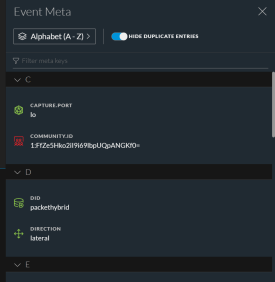
**When examining events in the Text tab, Packet tab, or Filetab, you can click  to show the associated metadata in an adjacent panel, the Event Meta panel.You can change the order of the metadata listed in the Event Meta panel to better find what you are looking for. Metadata can be organized by the sequence in which they were generated or alphabetically by meta key. This figure illustrates metadata organized as meta keys sorted alphabetically."**
**You can change the order of the metadata listed in the Event Meta panel to better find what you are looking for. Metadata can be organized by the sequence in which they were generated or alphabetically by meta key. This figure illustrates metadata organized as meta keys sorted alphabetically.**
****
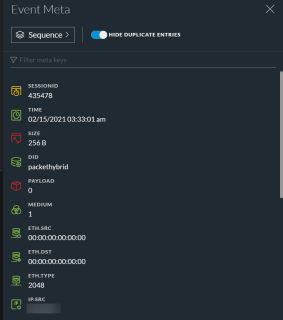
**This figure illustrates the same metadata presented in the sequence in which it was generated.**
****
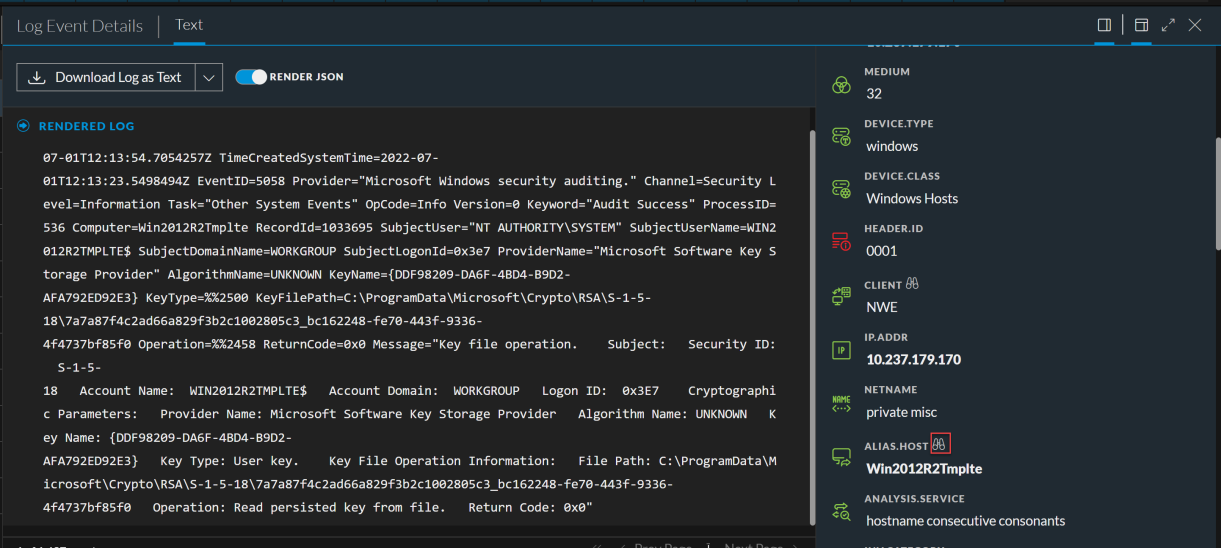
**From 12.0 and later, the meta key and meta value pairings now display a binocular icon while viewing a text reconstruction in the Event Meta panel, indicating the search option. This enhancement helps the analysts to visually see directly the indication (binocular icon) rather than going through the list of all metadata to figure out which ones may be searched. This figure is an example of binocular icon marking a searchable meta key.**
****
**Clicking the icon triggers a search for the meta key or meta value pair (case-insensitive) in the Text tab and each instance is highlighted. This is an example of binoculars with a blue background after clicking a searchable meta key/ meta value combination.**
**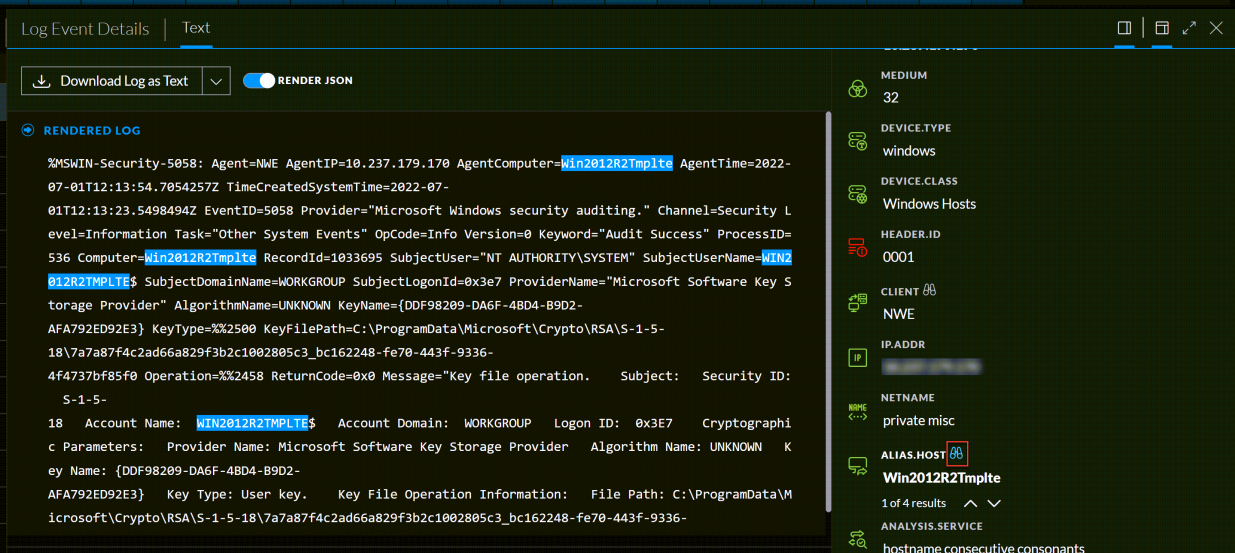**
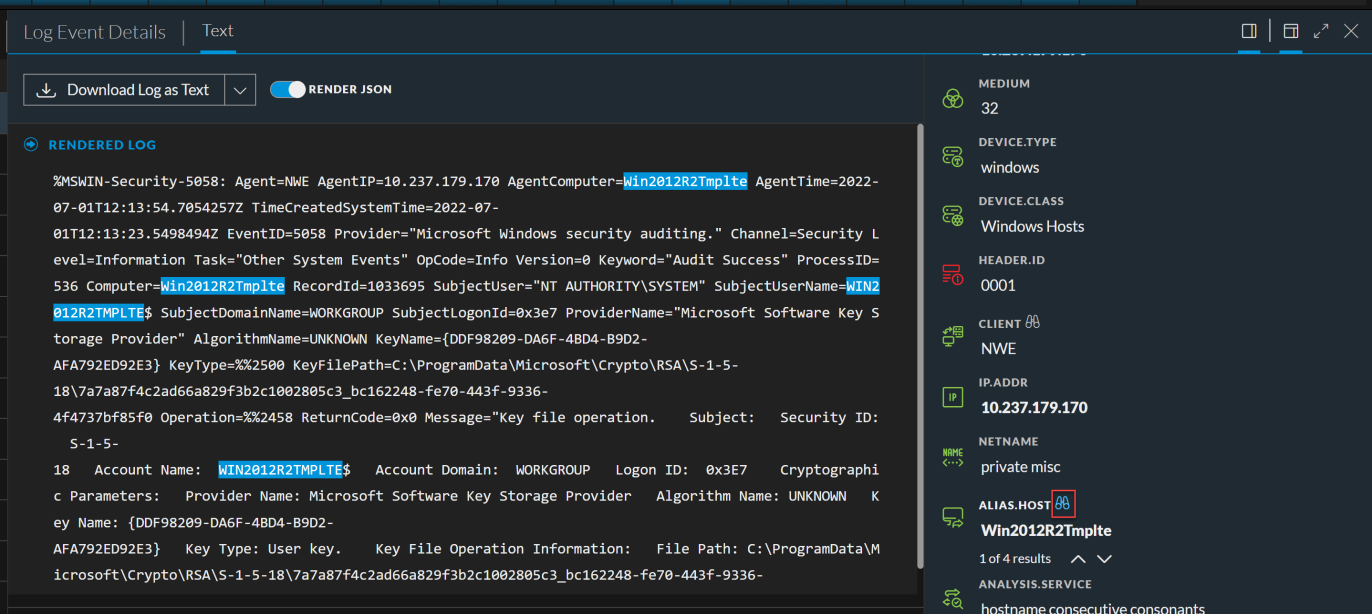
**In the Event Meta panel, the highlighted row has a count of the results and up and down arrows that you can use to quickly find each result in the Text tab. You can view each highlighted location of the data that triggered generation of the meta key, going forward to view the next, and back to view the previous.**
**Only meta keys that have relevant values inside the RAW text are searchable. You can search only one meta key at a time. If the value is currently hidden due to truncation of a text entry with more than 3000 characters, the text entry is expanded to reveal the found meta value.**
**To search the raw text for meta values that triggered a meta key**
1. **Open a network event in the Text tab and click  to open the Event Meta panel.**
**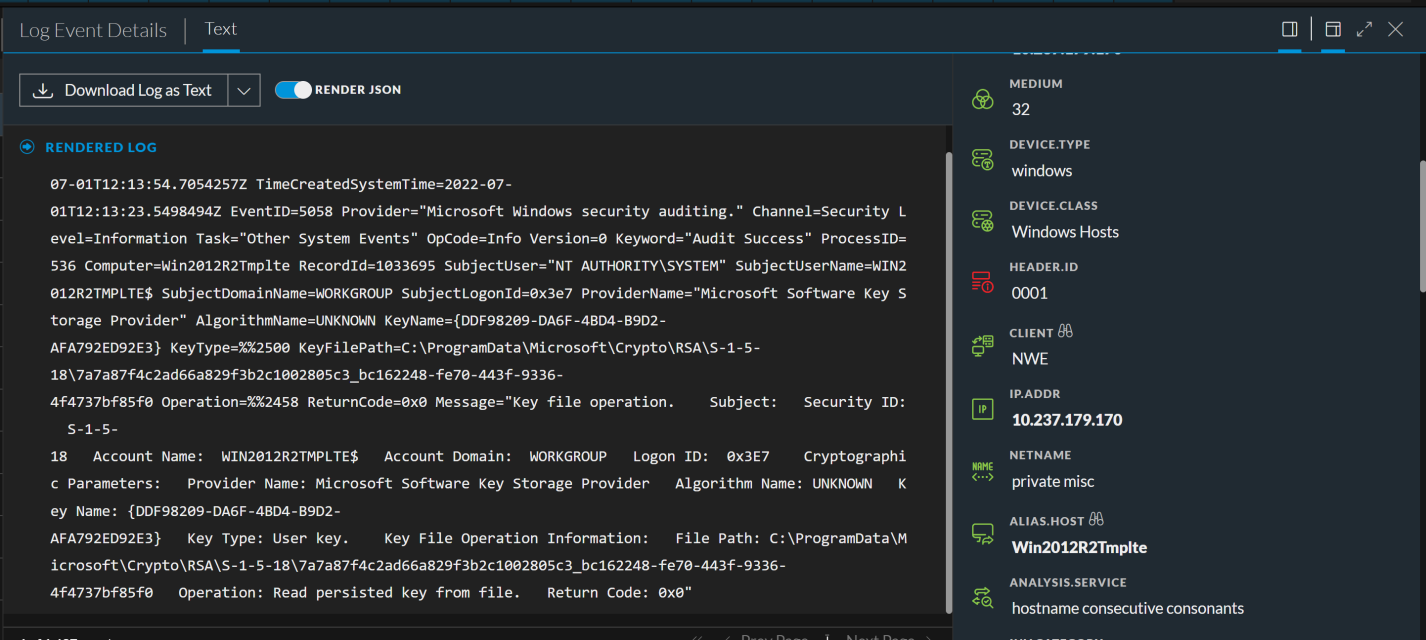**
2. **Search for the meta key/meta value pairs in the list until you see a binoculars icon next to a meta key.**
3. **To search for the value in the raw text, click a row that has the binoculars icon, indicating it is searchable.**
**If no relevant occurrence of the value is in the text, the value that you are searching for is highlighted in the Event Meta panel and nothing is highlighted in the Text tab.**
**If one or more relevant instances of the value is found in the Text tab, each occurrence is highlighted. The value that you are searching for is highlighted in the Event Meta panel and the up/down arrows for scrolling are visible.**
****
4. **To remove the highlighting, click the same meta key/meta value pair in the Event Meta panel, click a different meta key/meta value pair in the Event Meta panel, or close the Event Meta panel.**
**The highlighting is removed from the raw text.**
**Note: When a meta value is more than 255 characters, you can hover over that meta key to view the complete value.**
## **Show or Hide the Event Header**
**To hide the Event Header in the Packet tab, Text tab, or File tab, providing more vertical space for the data, click . Clicking the icon again shows the Event Header.**
## **Page Through Events in the Packet and Text Tabs**
**Pagination controls allow more flexibility in paging through a list of packets or text. In the Packet tab, you can select the number of packets to display per page, and your selection is saved across logins to the NetWitness Platform application. When a control is unavailable, the control is dimmed; for example, when you are viewing page 1, the  and  controls are dimmed.**
**Note: Pagination controls are available in Version 11.2 and later of the Text tab. When in the Text tab, you must navigate manually to the last page before the last page control icon is available.**
**To use pagination controls**
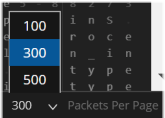
1. **With an event open in the Events view, click the current number of packets per page (50, 100, 300, or 500), and select the new number of packets per page from the drop-down menu.**
****
2. **To page forward or back, use the page control icons:**
**Click  to go to the next page.**
**Click  to go to the last page.**
**Click  to go the previous page.**
**Click  to go to the first page.**
3. **To go to a specific page, type a page number in the page number field .**
## **Expand Truncated Text Entries in the Text Tab**
**A reconstruction of a network event in the Text tab may include requests and responses of many hundred thousands of characters, and scrolling through a long entry that is not of interest can waste time. To save time, text entries that have more than 6000 characters are truncated to show only the first 2000 characters. This example shows an entry that has more than 2000 characters, and a message in the header indicates the percentage of total characters that is being displayed.**
**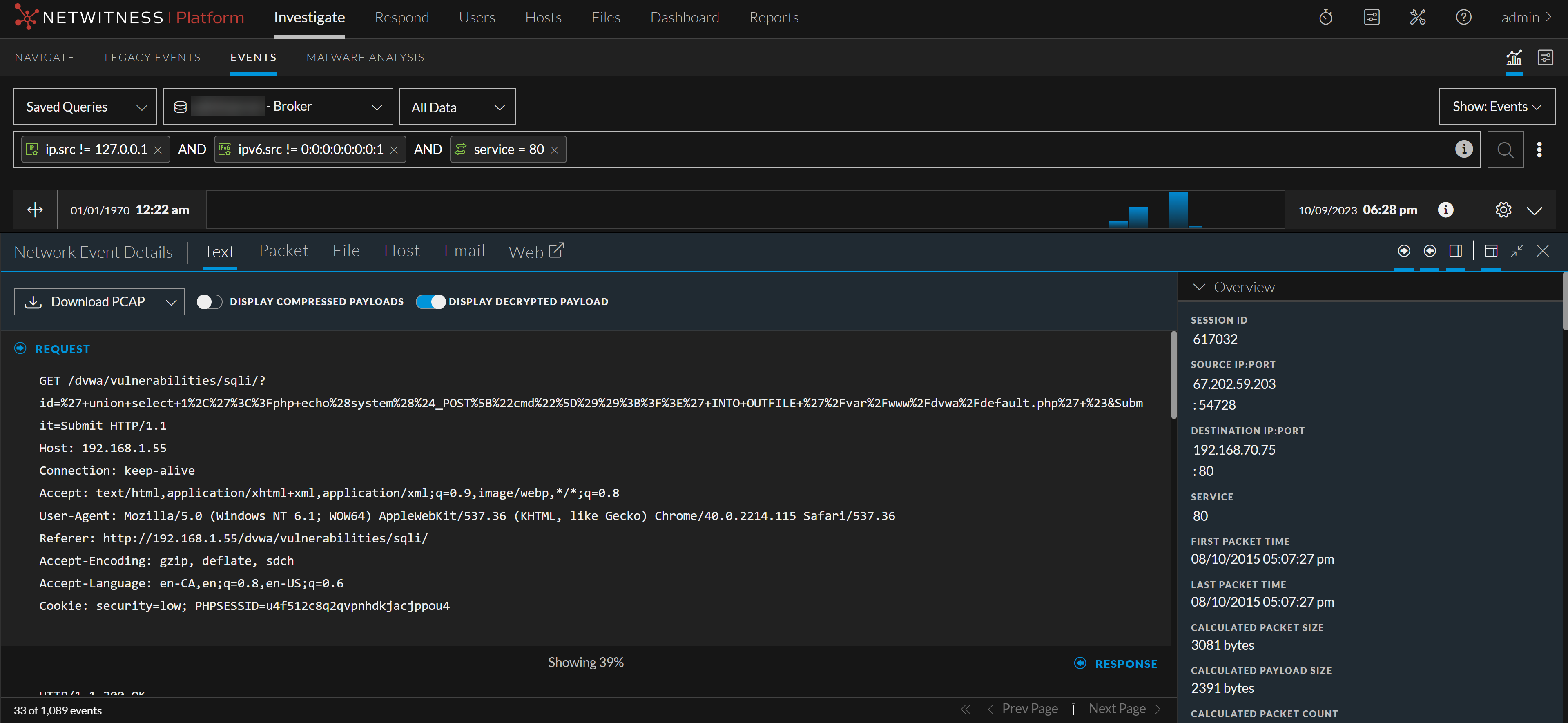**
**You can see that 46% of the characters (the first 2000) are displayed, and click Show Remaining 54% to reveal the rest of the entry.**
**If you search for metadata seen in the Event Meta panel while text is truncated in the Text tab, the truncated text is searched. If the metadata exists inside hidden text, the text entry expands to reveal the text with the found metadata.**
## **Perform URL and Base64 Encoding and Decoding in the Text Tab**
**If a network session being reconstructed in the Text tab contains Base64 or URL encoded strings, you can decode a string to better understand the session. If the session contains decoded strings for Base64 or URL, you can view a string in its encoded form in order to search for additional instances of the encoded text in other sessions.**
**When viewing any network session that contains encoded text in the Text tab, you can select a subset of the text within a single Request or Response to view in either encoded or decoded form. Depending on the content loaded on the Decoder, there may be additional metadata outlining that Base64 or URL encoded data is contained within the session.**
**To perform encoding and decoding in the Text tab**
1. **In the Events view, go to the Text reconstruction of a session that contains encoded or decoded content.**
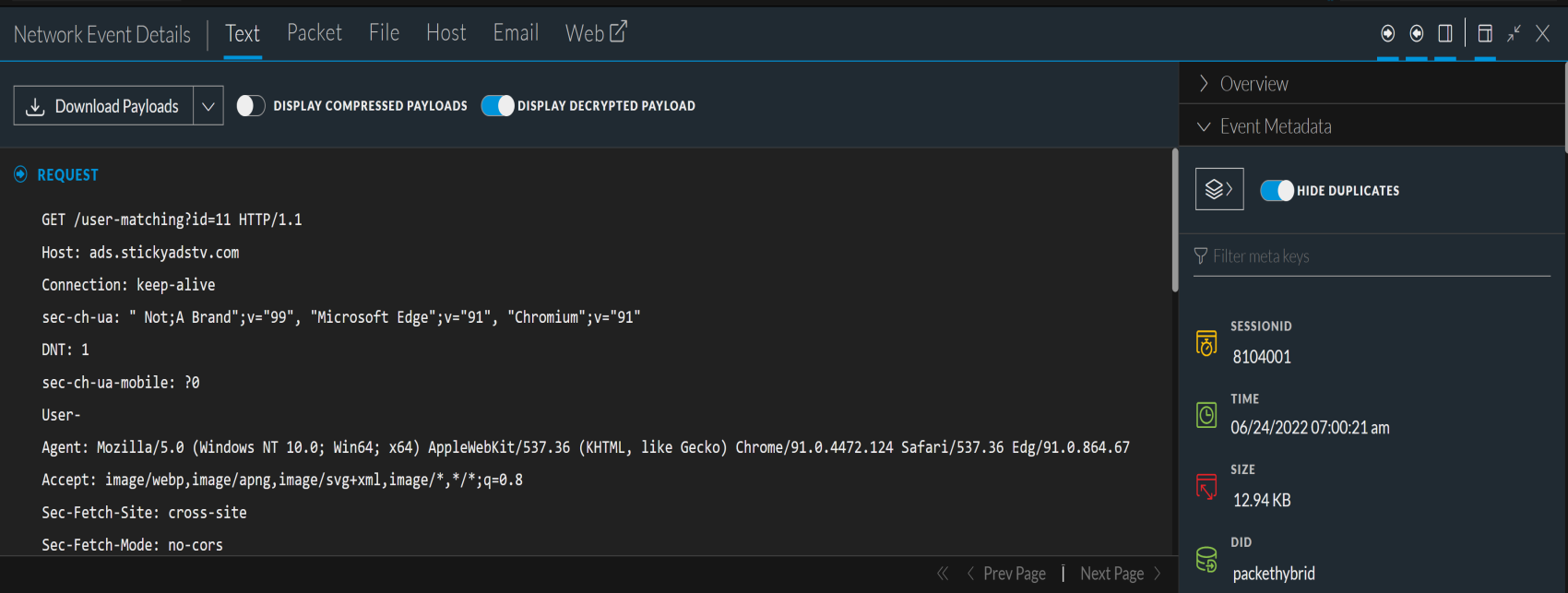
2. **To view some decoded text in encoded form, drag to select the text within a Request or Response.**
**A menu offers options to encode and decode.**
****
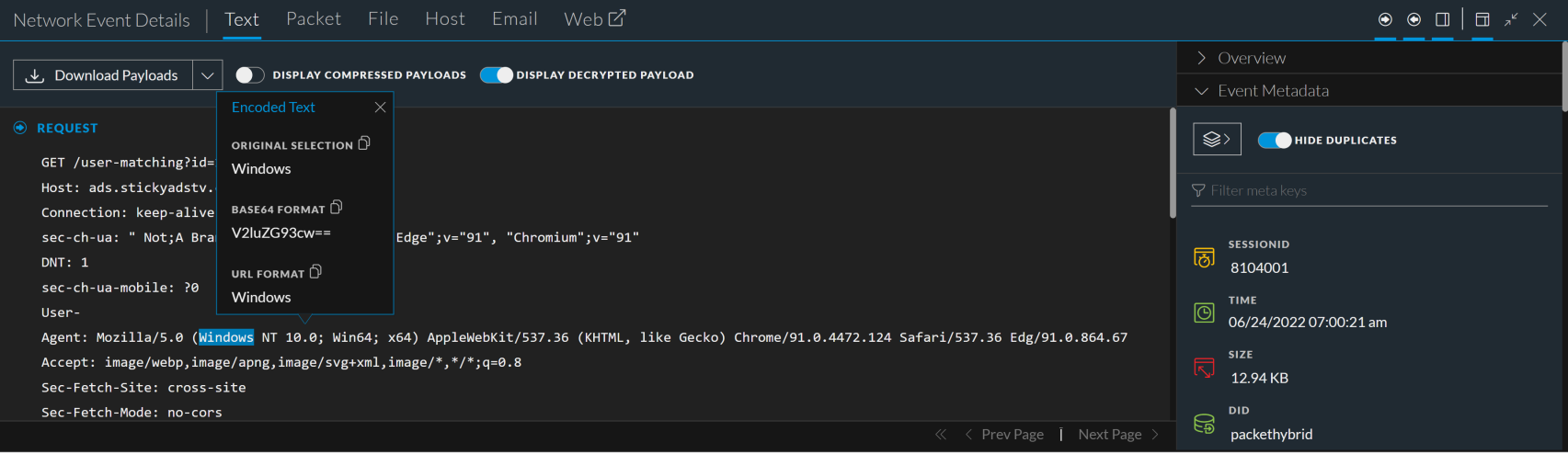
3. **Click Encode Selected Text.**
**The encoded text is displayed in a hover box, which remains in place until you click , select different text in the Text tab, close the Events panel, select another event for reconstruction, or switch to a different reconstruction view.**
****
**When a longer text is selected, the hover box is scrollable and large enough to fit the entire selected text and the decoded text.**
4. **If the session contains encoded text that you want to see in decoded form, drag to select the text within a Request or Response.**
**A menu offers options to encode and decode.**
5. **Click Decode Selected Text.**
**The decoded text is displayed in a hover box, which remains in place until you click , select different text in the Text tab, close the Events panel, select another event for reconstruction, or switch to a different tab in the Event Details panel.**
6. **If you want to copy some text from the text reconstruction, do one of the following:**
1. **Drag to select some text, right-click, and select Copy Selected Text from the pop-up menu.**
**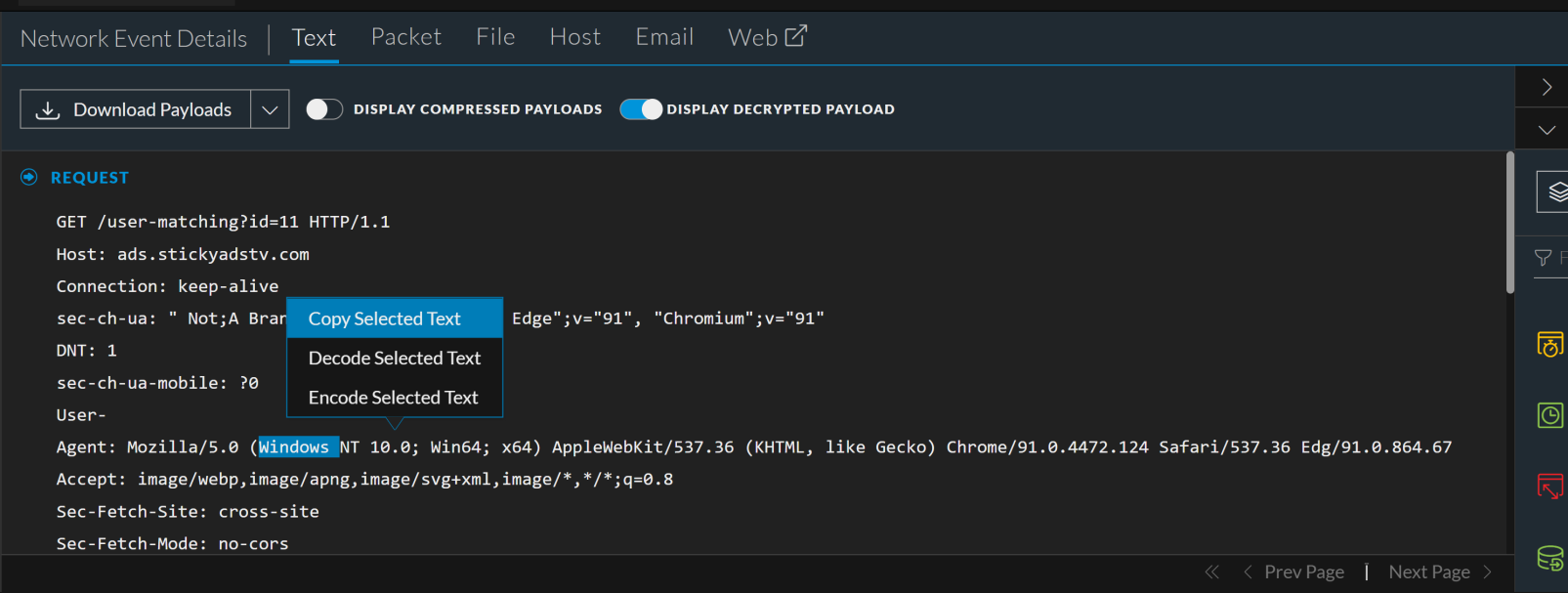**
2. **Drag to select some text, then select either Decode Selected Text or Encode Selected Text. Select the desired text and type Control-C.**
**The selected text is copied to the clipboard and available to paste in a query.**
7. **When finished, click  to close the hover box.**
## **Create a Search Pattern in the Text Tab**
From NetWitness Platform version 12.4 or later, administrators and analysts can create search pattern rules to find sensitive data on their networks. These rules use keywords to identify patterns and they are matched based on an exact keyword string. Once a pattern is applied to a matched policy with services (Decoders), it will search for that pattern in network traffic. Upon successful detection of a match, two important metadata will be generated (**found** and **match**).
- **found**: If a match (a keyword) is identified in a stream, the name of the search pattern rule will be added as the found metadata.
- **match**: If a keyword is detected as a match, the specific keyword that is identified will be added as a match meta.
Analysts can use this metadata to investigate further and determine if the sensitive data is being used maliciously. Additionally, analysts can gain real-time visibility into their network traffic, proactively monitoring it for potential threats.
Here is an example of search pattern that can be used to find sensitive data in networks:
**Keywords**: Keywords are words or phrases that are often associated with sensitive data. For example, the keyword **credit card** could be used to find network traffic that contains credit card numbers.
**IMPORTANT:** The custom search patterns you created using the **search.ini** file in version 12.3.1 or earlier will not be migrated to the new **search.xml** file format used in version 12.4 and later. As a result, those custom search patterns will not be available from the **Content Library** \> **More** \> **Search Pattern Rule** tab after you upgrade to version 12.4 or later. For more information, see **Manage Search Pattern Rules** topic in the [Centralized Content Management Guide for NetWitness](https://community.netwitness.com/s/article/CentralizedContentManagementGuidefor12-4).
For example, in an environment, if you have four Decoders with CCM enabled and published to the policy. However, only three of these decoders have the search parser enabled, while one decoder doesn't have it enabled. As a result, only the three decoders with enabled search parser will generate found and match meta ,,,,,,, ,,,,,,, ,,,,,,, ,,,,,,, ,,,,,,, only administrators are allowed to create search patterns. To enable access for analysts, they must contact their administrators.
,,,,,, ,,,,,,, ,,,,,,, you need to enable the **Search Parser** (found and match), which is disabled by default. To do this, navigate to  **(Admin)**\> **Services** \> select **Decoder** service \> \> **Config** \> **General** \> under **Parser Configuration** section, enable the **Search** **Parser**.,,,, ,,,,,,, ,,,,,,, see the "Role Permissions" topic in the *System Security and User Management Guide*.,,,,,,, ,,,,,,, ,,,,,,, ,,,,,,, ,,,,,,, ,,,,,,, ,,,,,,, ,,,,,,, ,,,,,,, ,,,,,,, ,,,,,,, ,,,,,,, é, €, ★, etc.) are not supported. Only ASCII characters can be selected or entered when creating a search pattern.,,,, ,,,,,,, ,,,,,,, ,,,,,,, and numbers.,,,,,,, ,,,,,,, ,,,,,,, ,,,,,,, **CreditCard**; **VISA**; **US**.,,,,,,, ,,,,,,, ,,,,,,, **20**; **21**; **23**.,,,,,,, ,,,,,,, ,,,,,,, ,,,,,,, or services not managed by CCM, then no policy will be available. In such cases, you have the option to **Create** only the pattern and then navigate to **Content Library** \> **Policies** page and create a policy and apply to them.,,,,, ,,,,,,, ,,,,,,, ,,,,,,, ,,,,,,, ,,,,,,, you can click the hyperlink **Content Library** and then navigate to the **More** \> **Search Pattern Rule** tab, where the pattern is created.,,,,,, ,,,,,,, ,,,,,,, ,,,,,,, NetWitness displays decompressed content by default. This helps you to determine if there are any patterns and view the readable characters. You can switch between a compressed and decompressed view of compressed text.,,,,,,, and is enabled only if there is compressed text content.,,,,,,, and above the reconstruction, is the **Display Compressed Payloads** toggle switch.
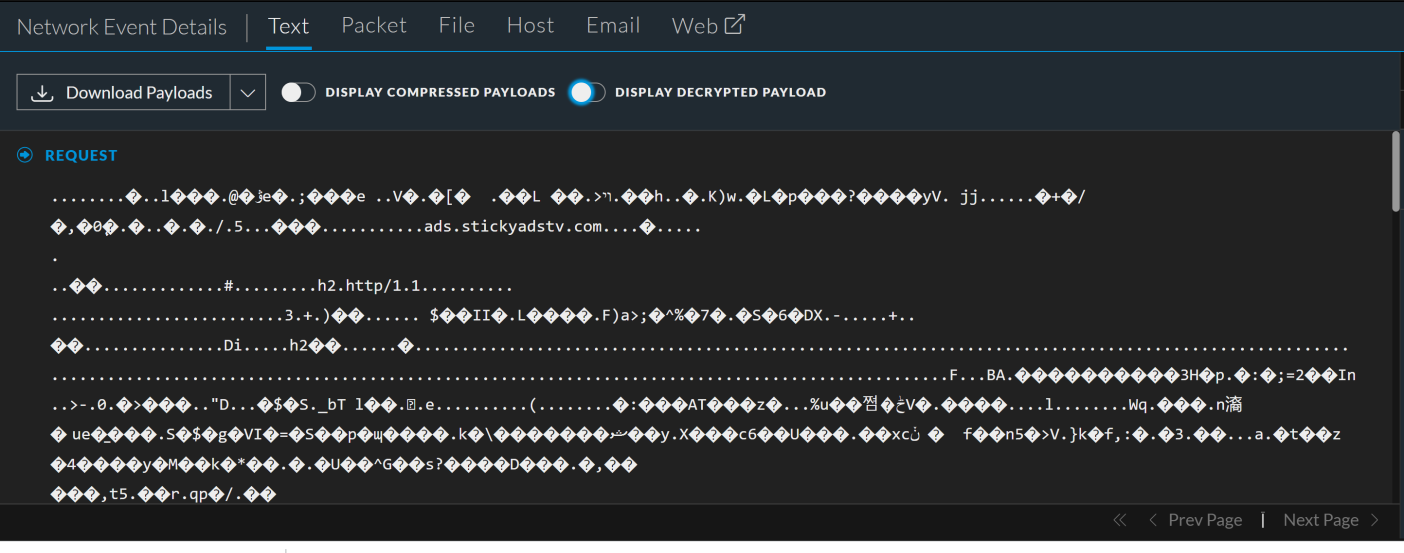 To view the same text in its compressed form, click the toggle switch.
The view changes so that the compressed text is no longer readable, and the switch indicates the Display Compressed Packets is on.
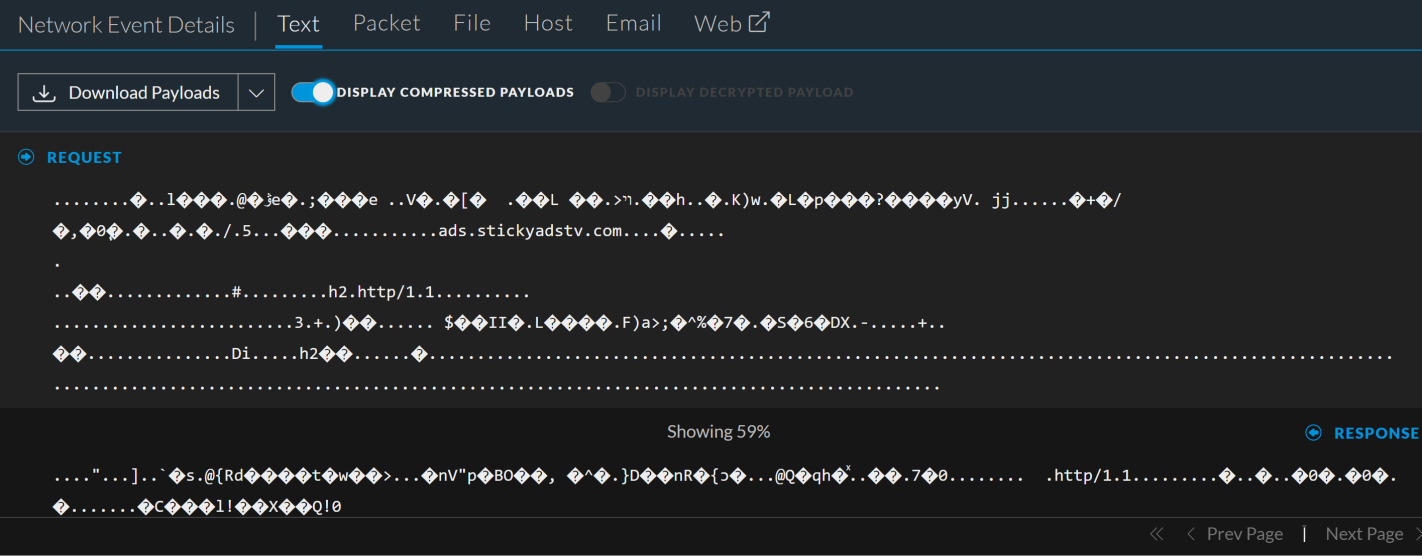 To return to the view of decompressed text, click the switch again.,,, ,,,,,,, the switch is enabled, and JSON snippets in a log event are detected and displayed in fully expanded tree format. Invalid JSON snippets are presented as raw text. If you change the setting of the switch, your setting persists in local storage.,,,,, open a log event in Text tab.
If the raw log contains JSON strings and the Render JSON switch is enabled, all JSON strings found are rendered in tree format.
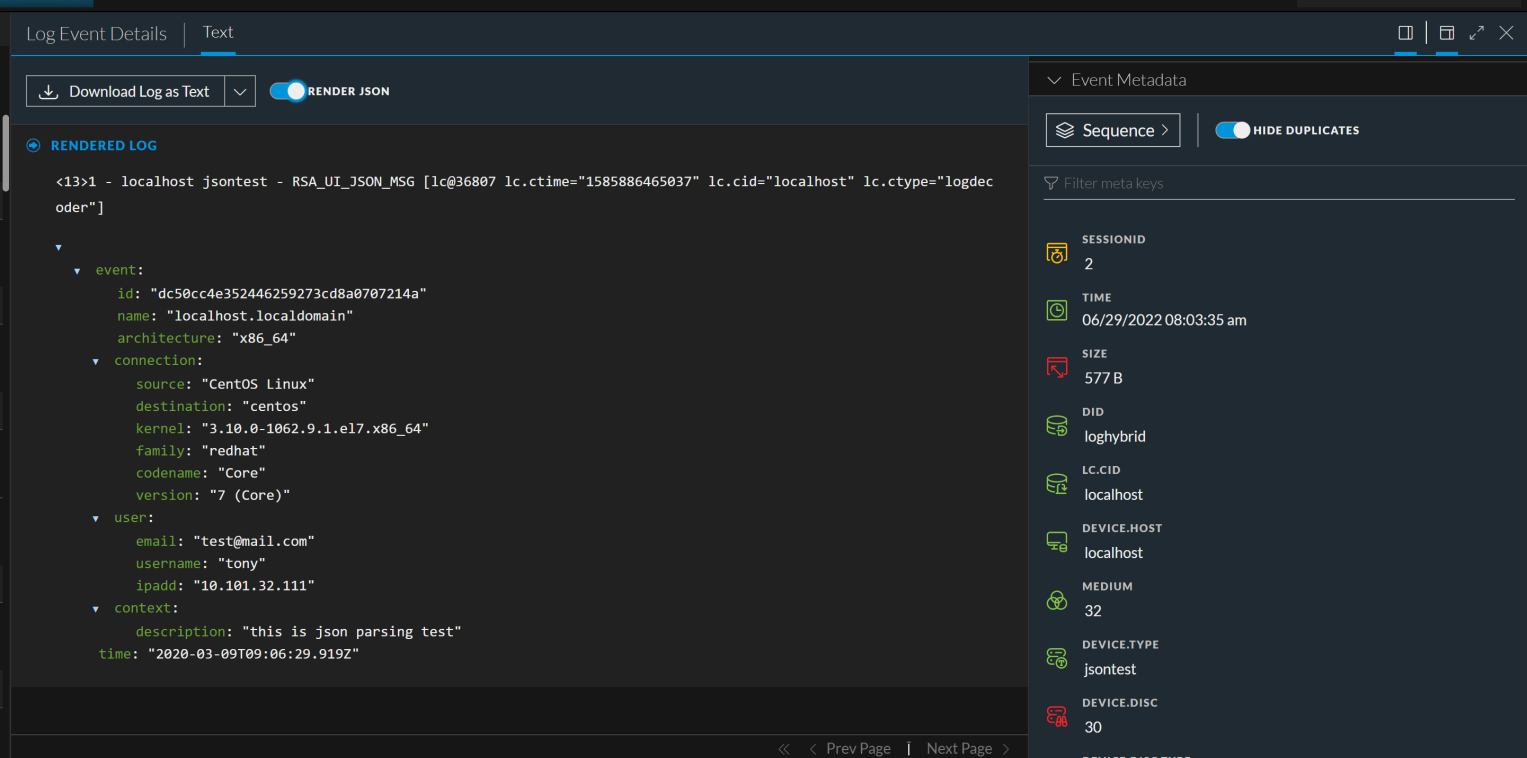 If you prefer to see the log as raw text, click the Render JSON switch.
The log is rendered as a single block of text without the nested indentation. The setting persists until you change it and will be in the same state when you log in again.,,,,, ,,,,,,, ,,,,,,, you can hide the header and footer bytes. The view changes so that only the payload is visible and contiguous same-side packets are concatenated together to make the payload more readable and understandable. This setting persists until you change it or refresh the browser.,,,,,,, the number of packets, packet header, packet footer, and payload are displayed. With the Display Payloads Only option on, no packet header and footer bytes are displayed. Only the packet content of 16 hexadecimal bytes per line and the corresponding ASCII per line is displayed.,,, go to the Packet tab of a network session.
By default the session is reconstructed with the packet header, footer, and payload displayed.
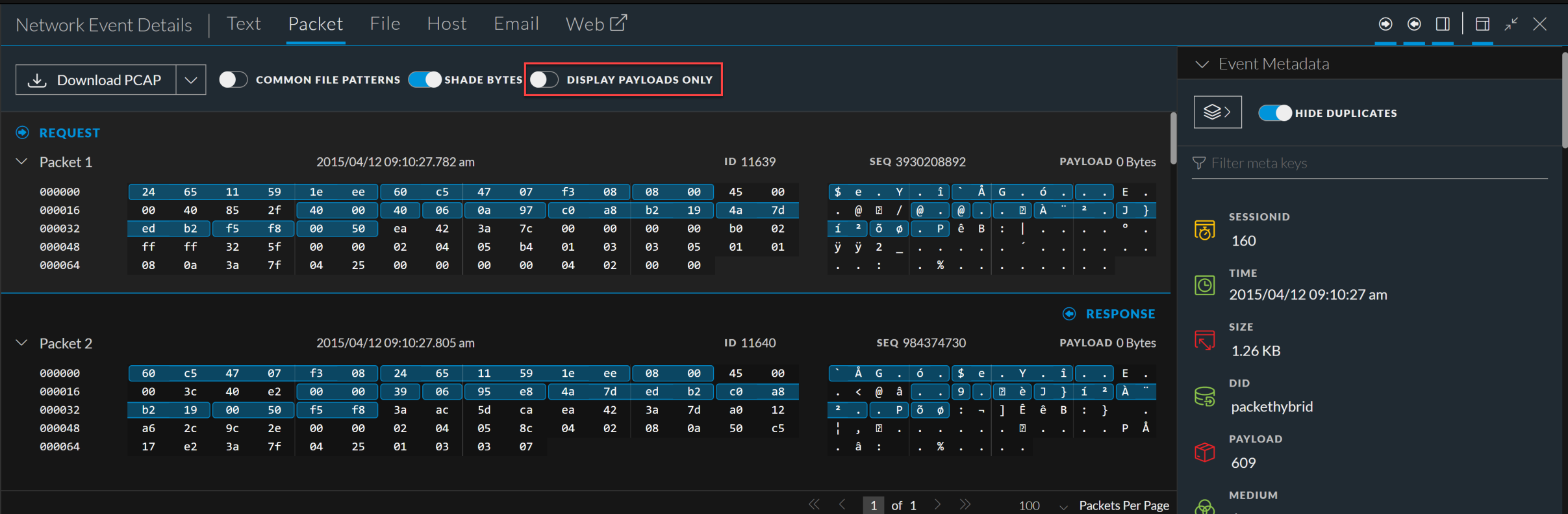 To change the view to show only the payload for each packet, click the **Display Payloads Only** toggle switch.
The view changes so that only the payload is visible.
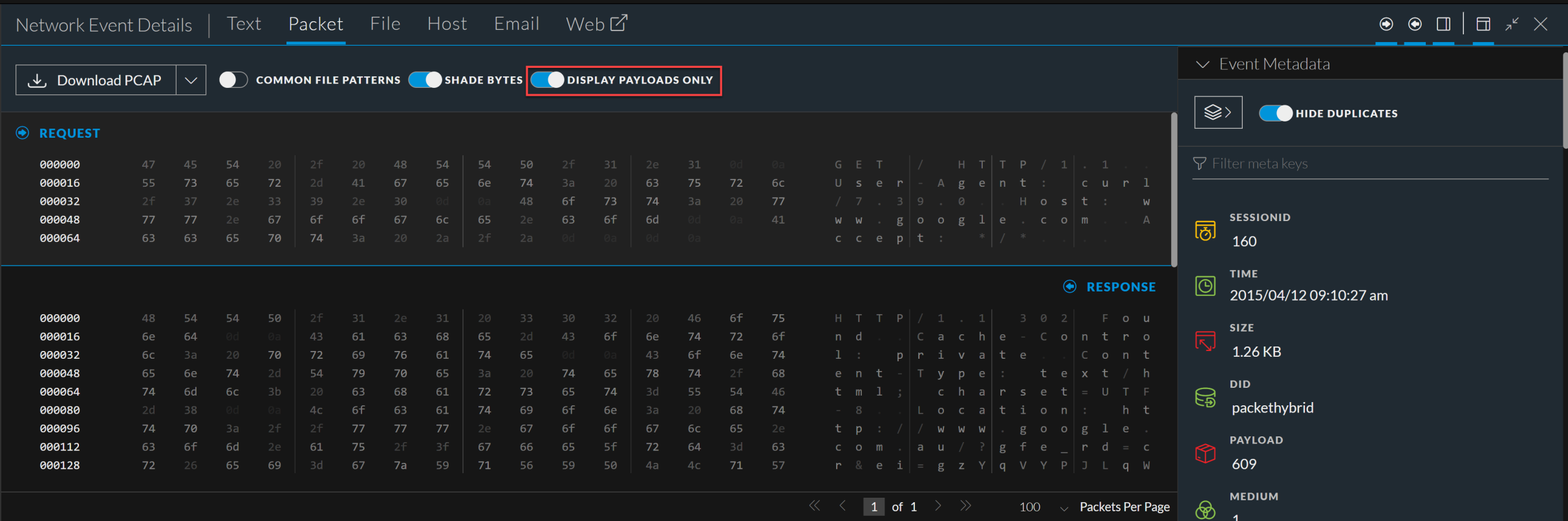,,,, ,,,,,,, the significant header bytes in each packet are highlighted in blue, and the payload bytes are distinguished using shading to help you understand the contents of the packet. This figure shows the default appearance of the packet reconstruction with highlighting and byte shading.,,,,,, ,,,,,,, and bytes near 255 are more opaque. Both hexadecimal and ASCII bytes are
[](https://mydev.netwitness.com/?hsLang=en)
Copyright © 2026, NetWitness LLC. All rights reserved.
[NetWitness Platform](https://www.netwitness.com/)
[Acceptable Use Policy](https://www.netwitness.com/wp-content/uploads/Acceptable-Use-Policy-092022.pdf) [Privacy Statement](https://www.netwitness.com/wp-content/uploads/NetWitness-Privacy-Statement-07292024.pdf)

[](https://www.linkedin.com/company/netwitness-platform/) [](https://www.youtube.com/@netwitness)
© 2026 NetWitness LLC. All rights reserved.